
Launchpad
The Launchpad provides centralized access to BLACK HOLE's core features. Click the + button on the right side of the top tab bar to open a new Launchpad tab. Closing the last tab automatically returns you to the Launchpad.
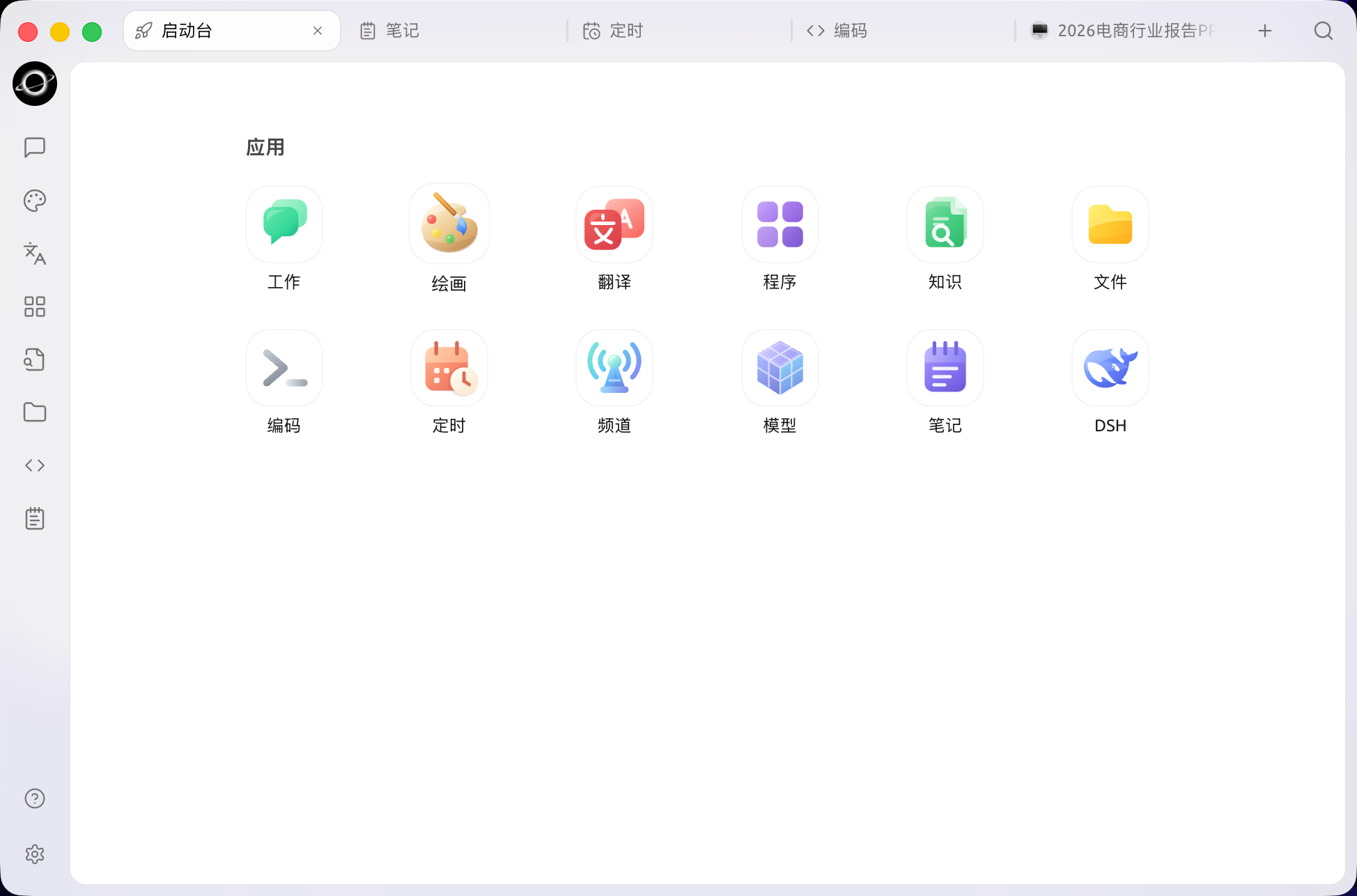
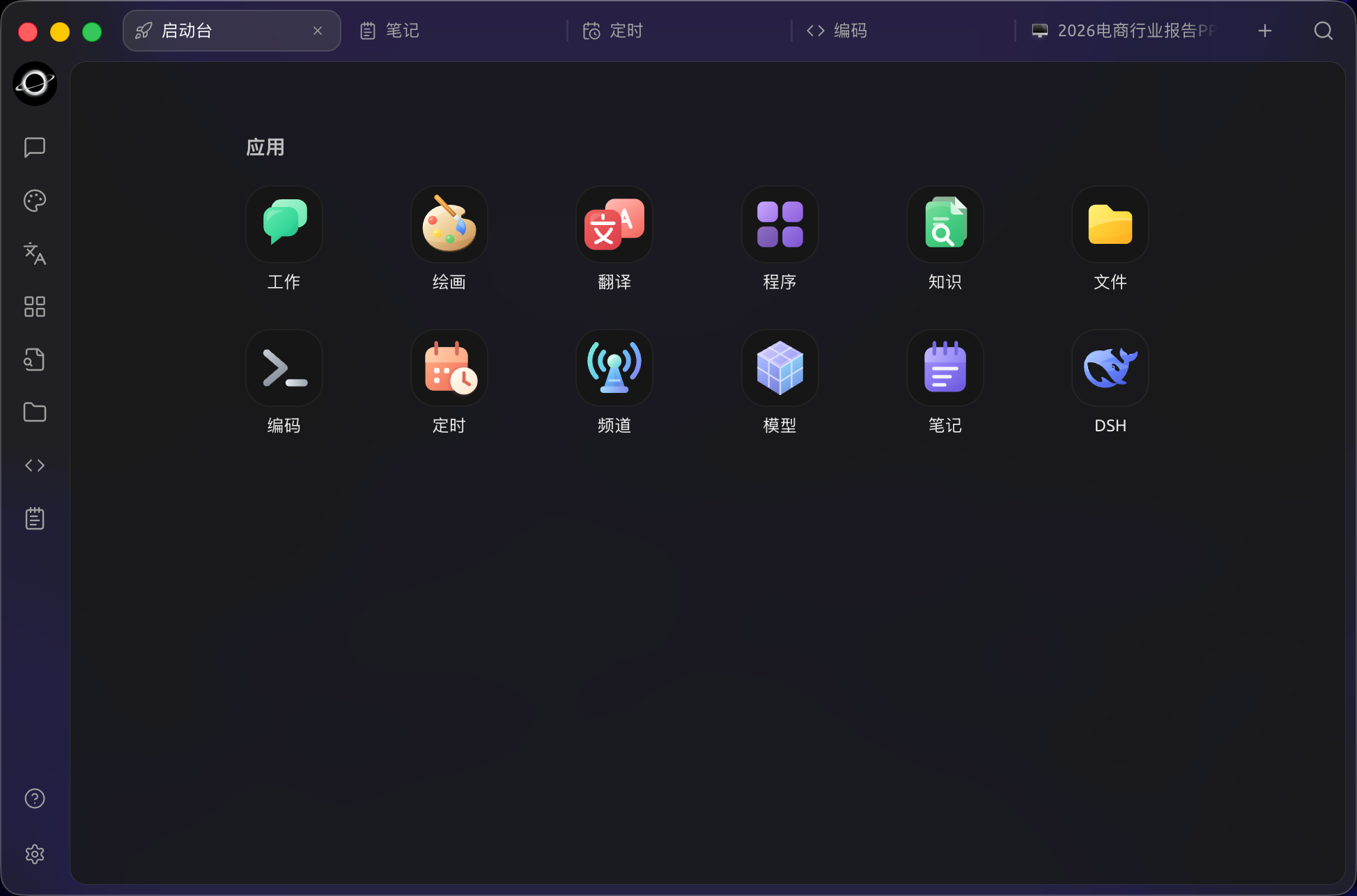
BLACK HOLE launchpad with Work, Drawing, Knowledge, Files and other app shortcuts (Chinese interface).
Default Apps
The Launchpad provides shortcuts for common tasks. Available entries and their order follow your current app version and preferences:
| App | Purpose |
|---|---|
| Work / Assistants | Open Work, then switch between workspaces, agents and assistants |
| Work | Enable agents to call tools and complete multi-step tasks |
| Paintings | Generate and manage images using image models |
| Translation | Translate text and view source and target side-by-side |
| MiniApp | Use web applications within BLACK HOLE |
| Knowledge Base | Import documents for retrieval and Q&A |
| Files | View and manage files used within the app |
| Code Mate | Install, configure, and launch AI coding CLI tools |
| Notes | Create and organize Markdown notes |
Additional entries include Scheduled Tasks, Channels, Models and DSH when available in your installed version. Work retains workspace and task management.
Reorder Apps
Drag and drop an app icon to a new position to change the order of built-in apps. BLACK HOLE automatically saves the new order.
The Launchpad and the sidebar maintain separate app orders. Reordering apps in the Launchpad does not affect the sidebar layout.
Pin to Sidebar
Frequently used apps can be pinned to the sidebar:
- Right-click an app in the Launchpad.
- Select Add to Sidebar.
- To unpin, right-click again and select Remove from Sidebar.
Tip: Work is a required sidebar entry and cannot be removed. Other apps remain accessible from the Launchpad even if not pinned to the sidebar.
Manage Mini Apps
After adding a web app to the Launchpad via the Mini Apps page, it appears in the "Mini Apps" section below the built-in apps.
- Drag Mini App icons to adjust their display order.
- Right-click a Mini App to add it to the sidebar or remove it from the Launchpad.
- Removing from the Launchpad only removes the shortcut; it does not delete the Mini App itself.
Get Help and Submit Feedback
If you encounter issues or have feature suggestions, contact us through the official channels provided on the Feedback and Suggestions page.