
Efficient Workbench
The main window of BLACK HOLE consists of a sidebar, tabs, and a content area. Chat topics and Agent tasks can be opened in multiple tabs simultaneously or split into independent windows; the input area toolbar can also be adjusted according to your usage habits.
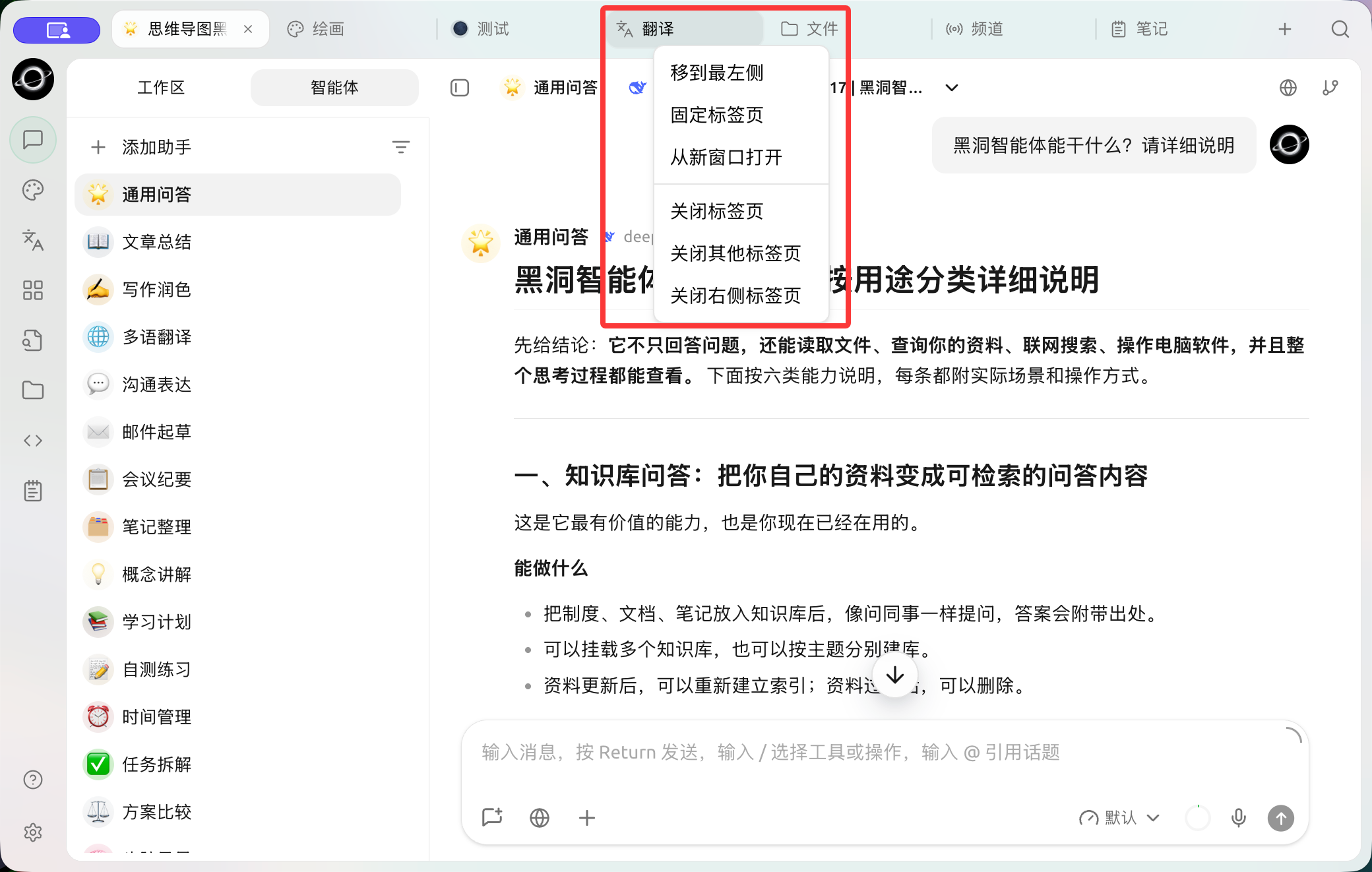
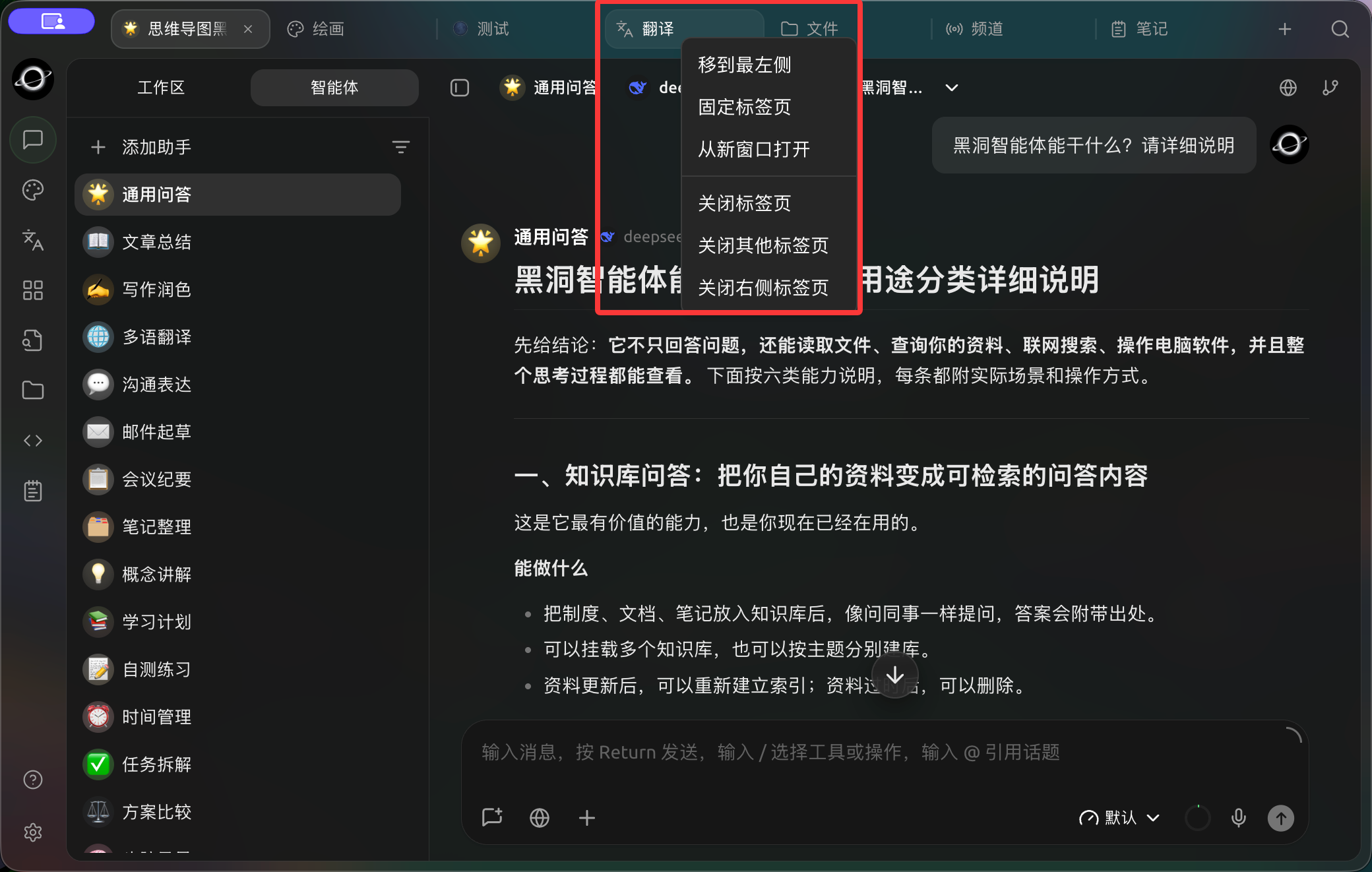
Right-click a tab to pin it, open it in a new window or close other tabs. (Chinese interface.)
Scenarios for Using Independent Windows
- Keep a resource chat open while running an Agent task;
- Pin long-term monitoring tasks to the top to avoid being obscured by other windows;
- Place chats, files, or tasks on different monitors;
- Display or share a specific task without exposing other tabs in the main window.
Workbench Capabilities
| Capability | Entry Point | Function |
|---|---|---|
| New Tab | Right-click a topic or task → [Open in New Tab] | Keep multiple contexts side-by-side in the main window |
| Independent Window | Right-click a topic, task, or tab → [Open in New Window] | Split current content into a new window |
| Pin Tab | Right-click a tab → [Pin Tab] | Pin frequently used pages |
| Window on Top | [Window on Top] at the top of an independent window | Keep tasks visible |
| Return to Main Window | [Return to Main Window] at the top of an independent window | Reattach the tab to the main window |
| Custom Toolbar | Input area [+] → [Custom Toolbar] | Adjust the position of common input tools |
Select [Open in New Window] from the tab menu in the figure above to split the current content into an independent window.
Recommended Layouts
For office writing, keep resource chats in the main window and split the "Writing" Agent to the right screen; for code work, pin Agent tasks to the top and keep files and documents in the main window; use independent windows for long-term monitoring tasks, but do not place tasks requiring frequent permission confirmations in hidden locations.