
Code Mate
Code Mate is used to install, configure, and launch common programming command-line tools. BLACK HOLE AGENT recognizes its own managed installations and also detects CLIs already available in the system login environment. System tools remain managed by their original package managers.
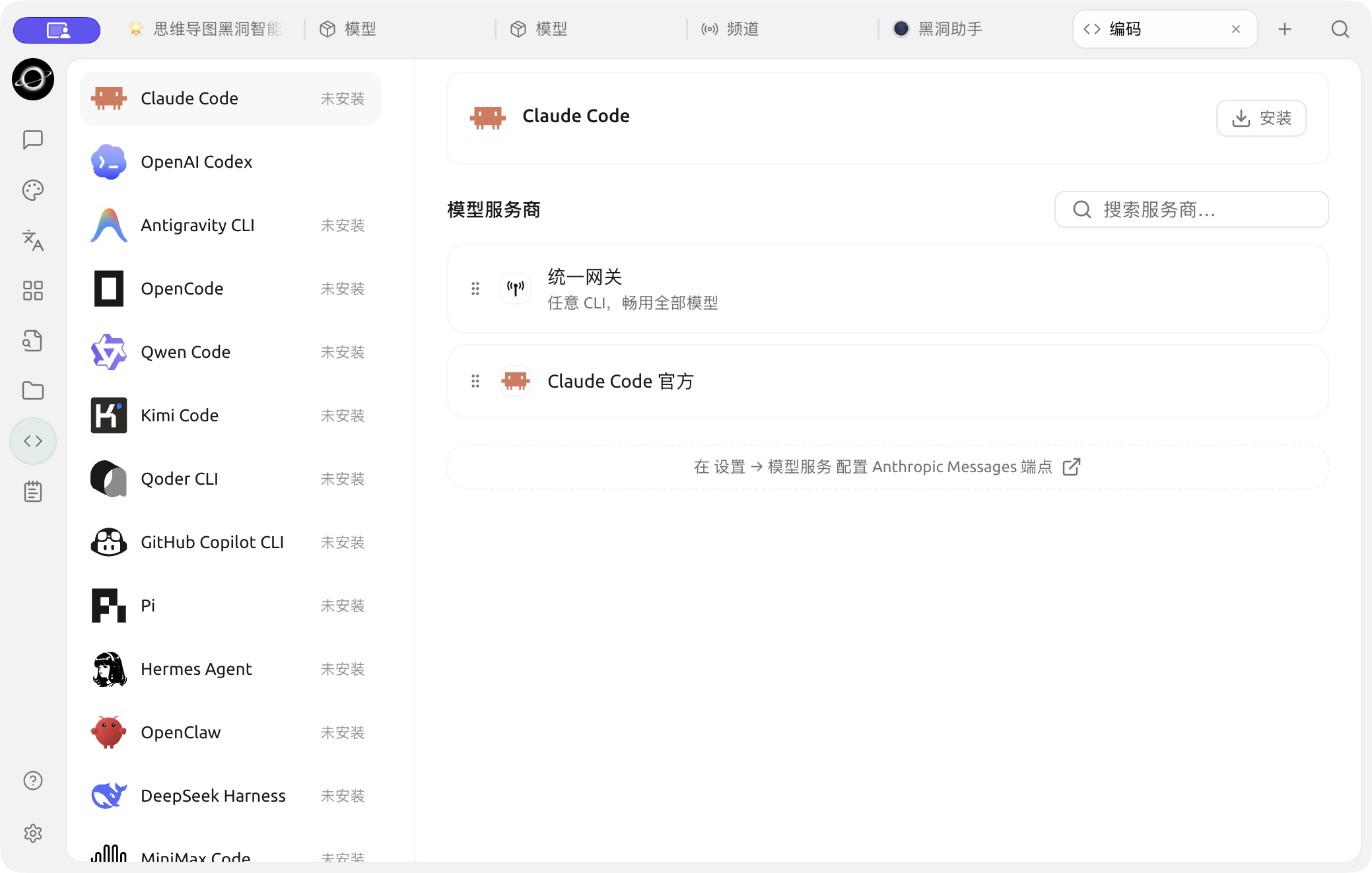
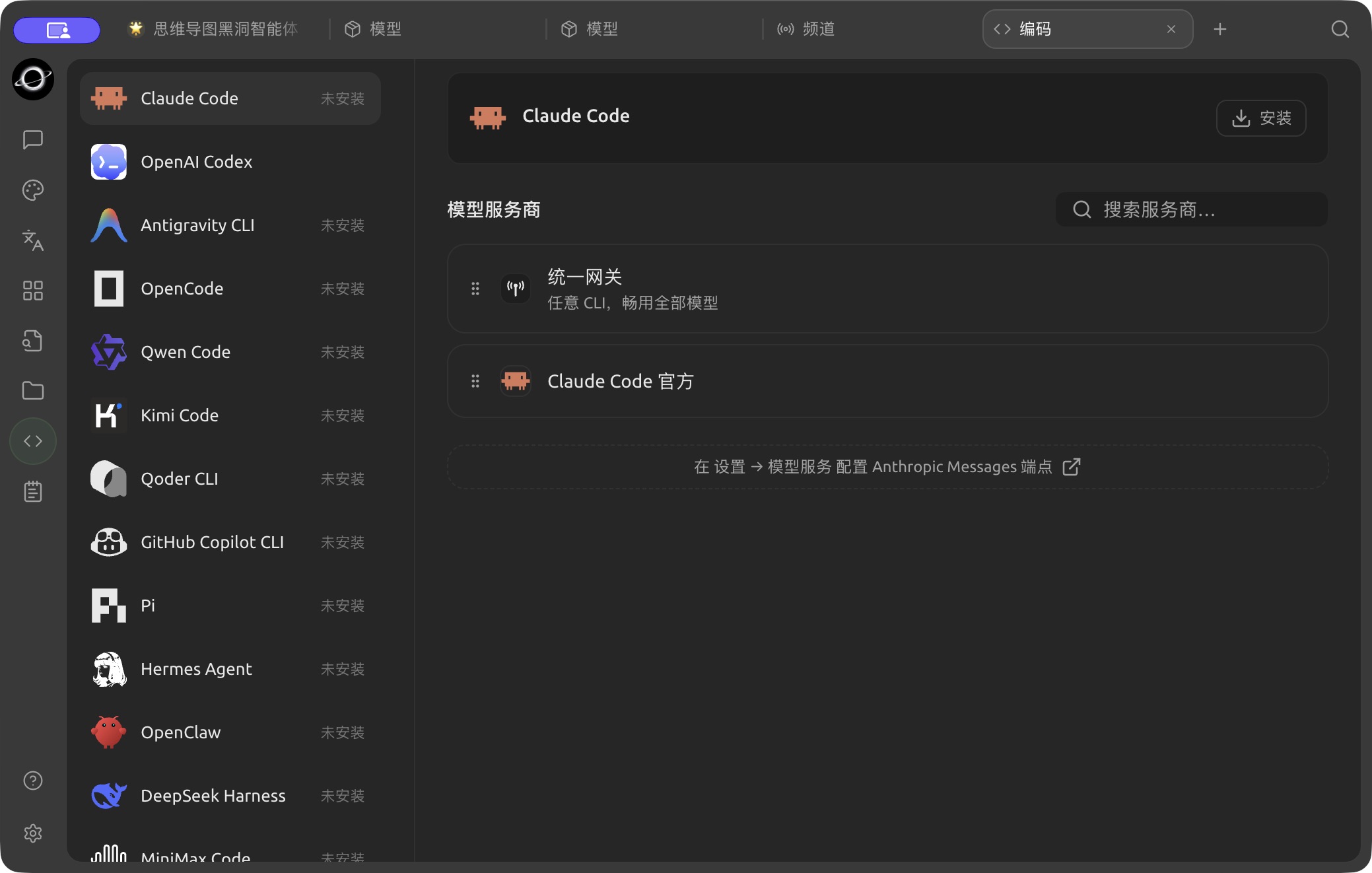
The Claude Code setup page in Code; the tool is not installed in this example. (Chinese interface.)
What the Page Does
- Checks if the tool is installed and if updates are available;
- Installs or updates BLACK HOLE AGENT-managed tool copies;
- Detects tools already present in the system PATH;
- Selects a provider and model for CLIs that require model services;
- Preserves native login methods for CLIs that use their own account login;
- Launches the tool after selecting a working directory and a system-detected terminal.
The page currently includes tools such as Claude Code, OpenAI Codex, Antigravity CLI, OpenCode, Qwen Code, Kimi Code, Qoder CLI, GitHub Copilot CLI, Pi, Hermes Agent, OpenClaw, DeepSeek Harness and MiniMax Code. The visible items may change with product updates; refer to the page list for the current availability.
For CLIs that use BLACK HOLE AGENT model services, the Model Providers list on the right shows the compatible providers. It also includes Unified Gateway ("Any CLI, every model"), which routes the CLI through BLACK HOLE AGENT's gateway so it can use any model you have configured. You can drag providers to reorder them, and search the list with Search providers….
Usage Flow
1. Open Code Mate from the Launchpad
Select the required tool and check its status: not installed, managed by BLACK HOLE AGENT, or from the system.
2. Complete Installation or Login
If not installed, click Install. For CLIs that provide their own account login, follow the page prompts to complete native login. You do not need to select a provider from BLACK HOLE AGENT.
3. Configure Model Connection
For tools requiring BLACK HOLE AGENT model services, select a compatible provider and model. The page filters providers based on the interface type required by the CLI; incompatible providers are not listed.
4. Select Directory and Terminal
The working directory determines where the CLI launches. The terminal can only be selected from the list of system-detected terminals; custom terminal executable file paths are no longer provided.
5. Launch and Verify
Click Launch and run a read-only check in the terminal. Confirm that the account, model, and directory are correct before executing file modifications or commands.
Claude Code Model Modes
When configuring Claude Code, Model offers two modes:
- General: All requests use the same model, offering simple configuration;
- Detailed: Set Fable, Opus, Sonnet, Haiku, and Subagent separately in Model Role Mapping. The Actual Request Model in the table is the model ultimately used for each role; you can also enable 1M context for specific roles if needed.
Use Detailed only when you specifically need to assign different models to roles such as background subtasks, compression, or titles. Roles left blank will follow the main model. After making changes, use a small task to confirm that each role can request normally.
Use Case: Launching Coding Tools in a Project Directory
| Selection | Recommended Starting Point | Applicable Scenario | Notes |
|---|---|---|---|
| Installation Source | Use the existing system version if available | Teams that already manage CLIs centrally | Updates and uninstallation remain the responsibility of the original package manager |
| Model Connection | First select a connection already verified as available in BLACK HOLE AGENT | CLIs that require model services | Tools with native account login should follow the native login flow |
| Working Directory | Select only the current project directory | Modifying code, running checks | Confirm the terminal's current path after launching |
| First Command | Read-only view of project status | Verifying account, model, and directory | Allow file writing only after confirmation |
Completion Criteria
The page identifies the installation source; the terminal opens in the correct directory; the minimal read-only command succeeds; and the account or model displayed by the tool matches expectations.
Distinguish Installation Sources
| Source | What BLACK HOLE AGENT Does | How You Should Maintain It |
|---|---|---|
| BLACK HOLE AGENT Managed | Installs, updates, and uninstalls the corresponding managed copy | Manage in Code Mate or Dependencies |
| System PATH | Detects and uses directly without overriding | Update or uninstall using the original package manager |
| App Built-in | Uses directly, does not provide system-level uninstallation | Updates with BLACK HOLE AGENT |
Why can't I find an already installed terminal or CLI?
BLACK HOLE AGENT detects tools from the login environment and standard locations. Ensure the command can run in a login terminal, then restart the application to refresh the environment. Portable or non-standard paths currently need to be launched manually from that terminal.