
AI Drawing
BLACK HOLE provides Template Drawing and Free Drawing. Choose a template for a specific task, or write your own prompt. To edit an image, upload a reference and describe what to keep and what to change.
Enter Drawing
Open Drawing from the sidebar or from the Launchpad. The default view is the Drawing Studio.
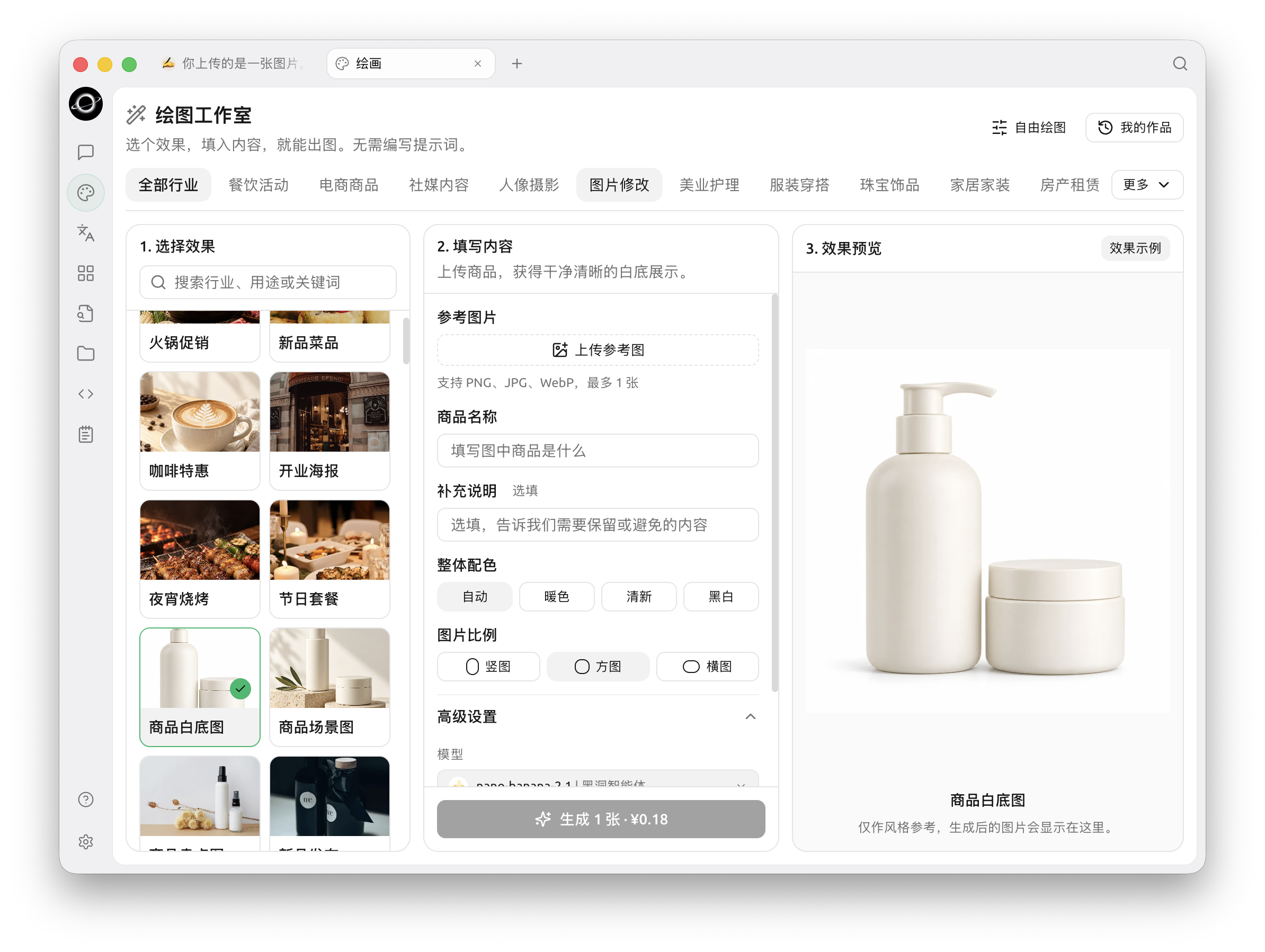
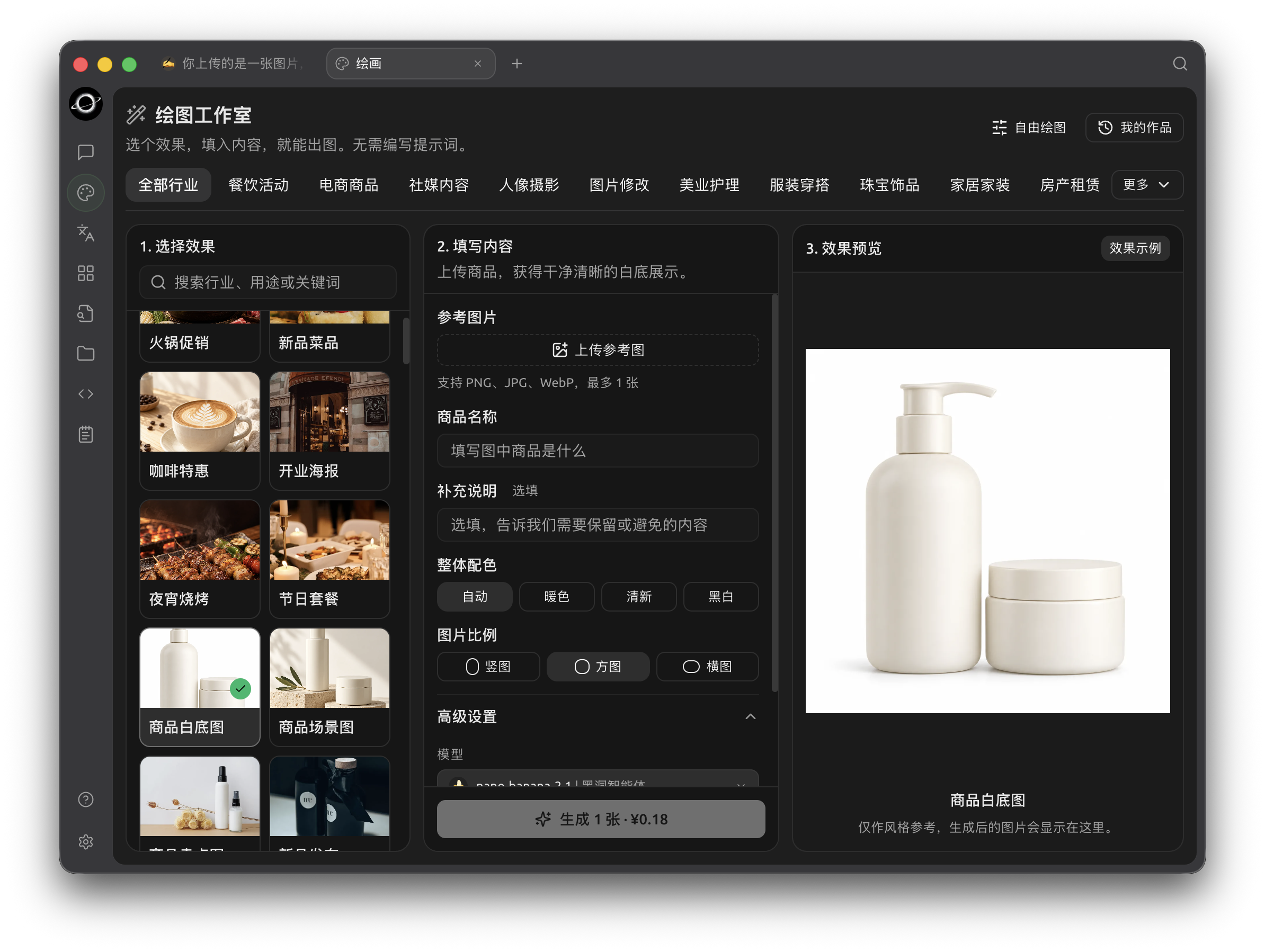
Drawing Studio with effect selection, input fields and preview (Chinese interface).
The studio has three steps: choose an effect, fill in the details, and review the result. Browse industry categories or search templates, then fill in the required fields and upload a reference when requested. The example shown before generation is a style reference, not your generated output.
Use Free Drawing at the top right for the prompt-and-canvas interface, My Works for history, and Template Drawing to return to the studio.
Image Editing
This guide uses Nano Banana 2.1 (nano-banana-2.1). The same model supports text-to-image generation and reference-image editing.
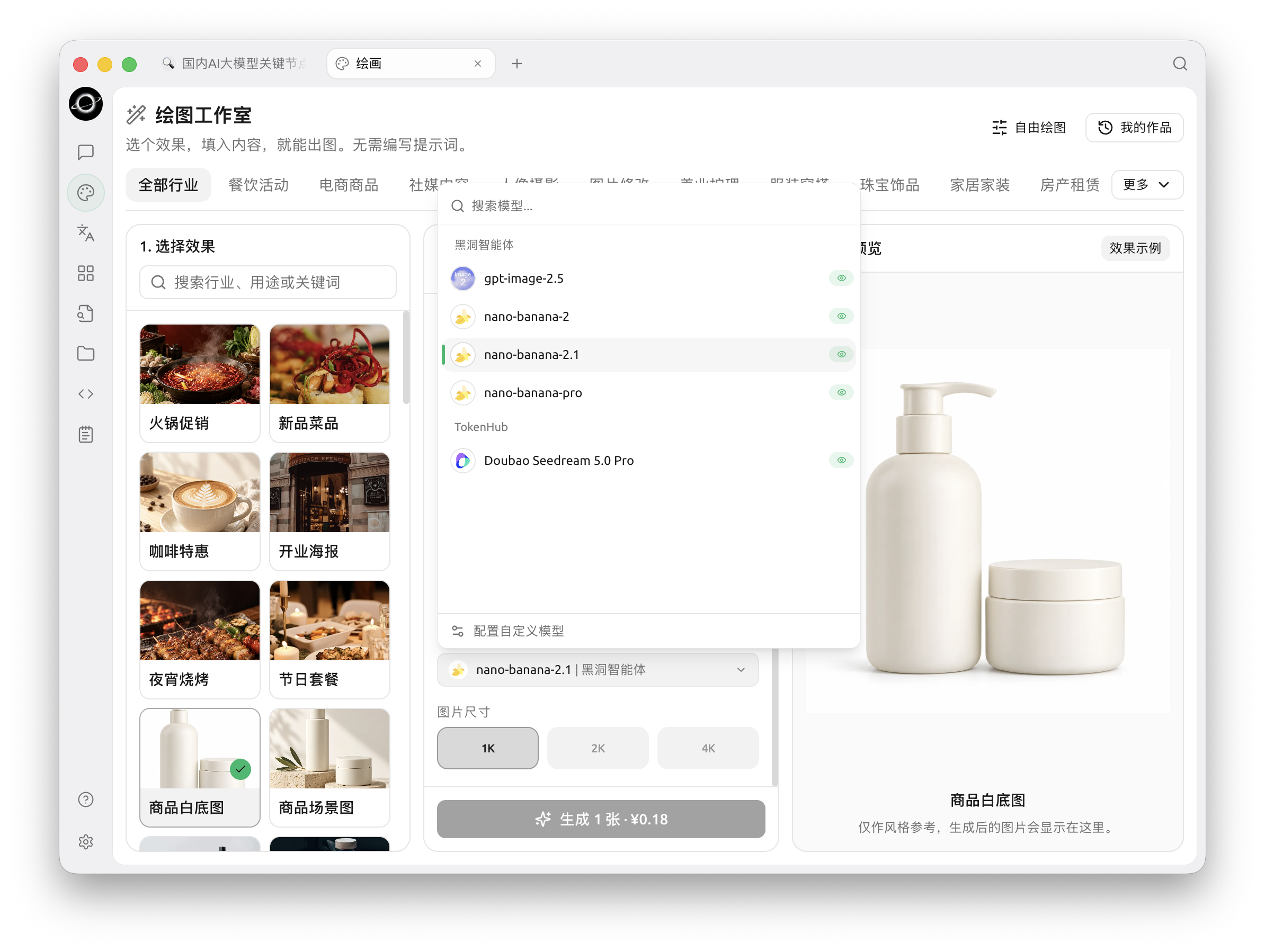
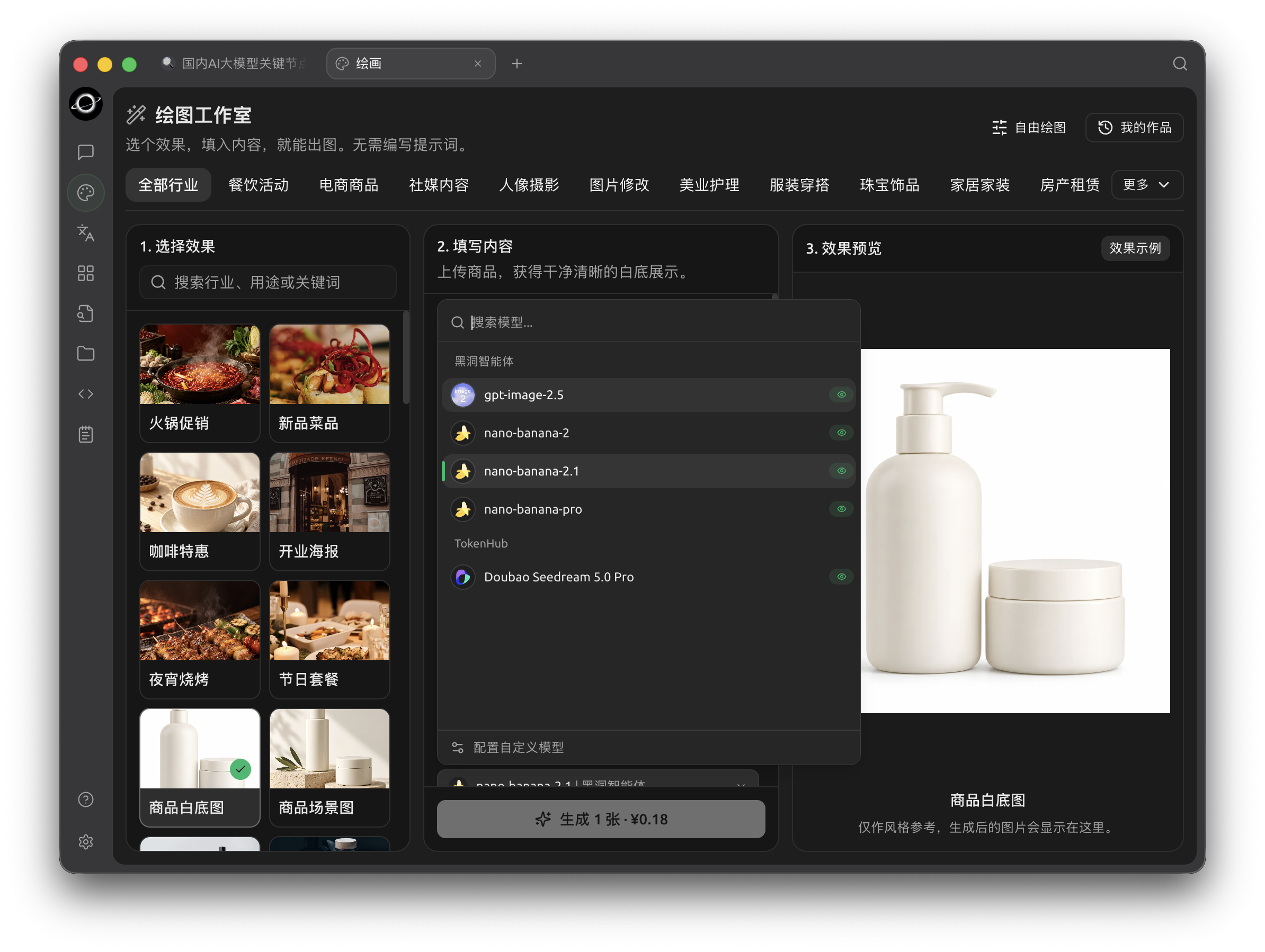
Select Nano Banana 2.1 in Advanced Settings (Chinese interface).
-
Choose an image-modification template or open Free Drawing.
-
Select Nano Banana 2.1 under the BLACK HOLE provider and upload one PNG, JPG or WebP reference.
-
Describe the changes and specify what must remain unchanged. For example:
Keep the product bottle, pump, label and proportions. Replace the background with a light gray tabletop and add soft side lighting. Do not add text, accessories or extra products.
-
Check the aspect ratio, available size and estimated price, then generate.
-
Inspect the result at full size. Use the selected result as the next reference and change one direction at a time.
The BLACK HOLE Nano Banana integration currently generates one image per request and accepts one reference for editing. Follow the upload limits and available parameters shown for the selected model.
Supported Providers
The model dropdown groups configured image models by provider.
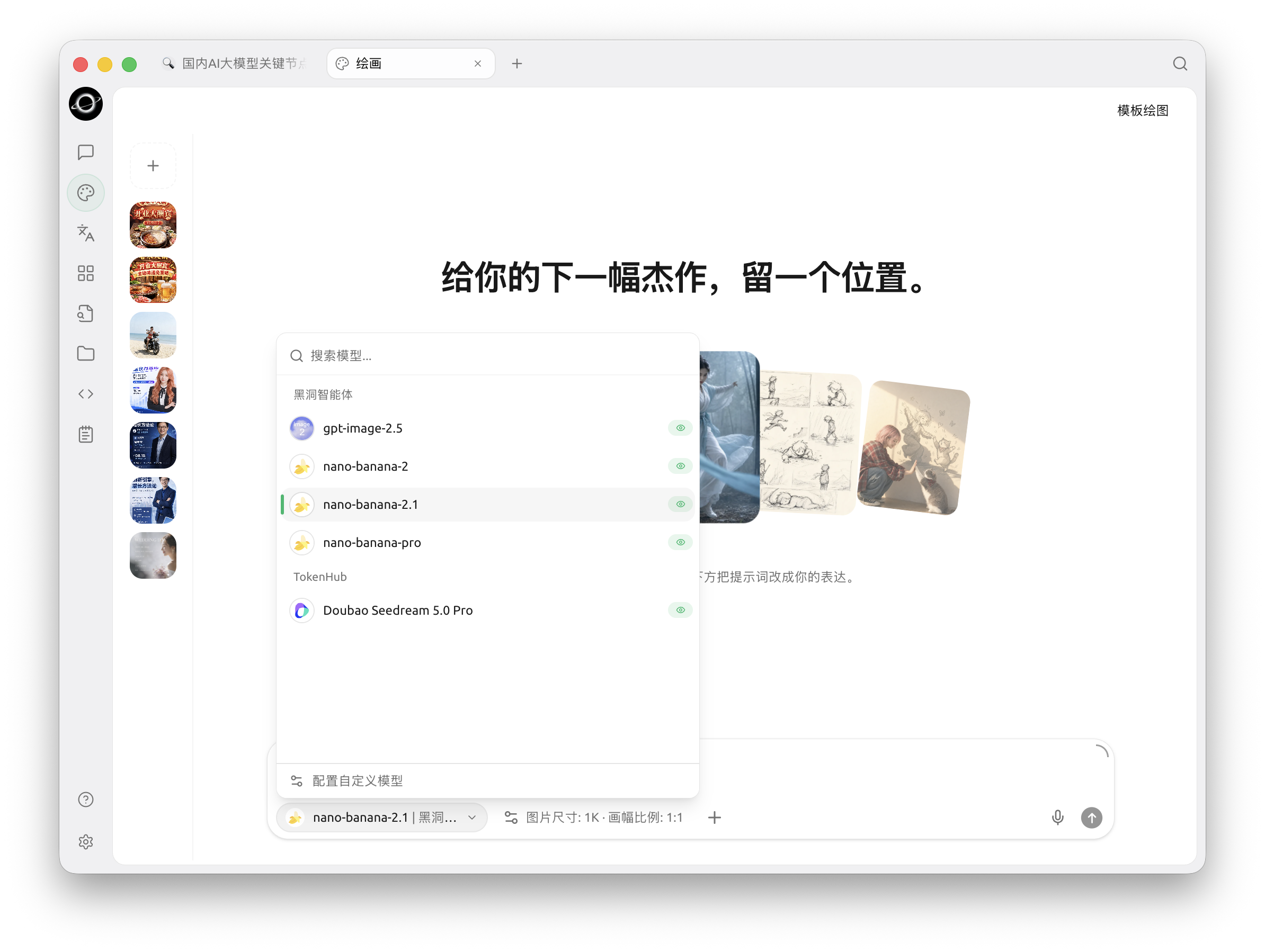
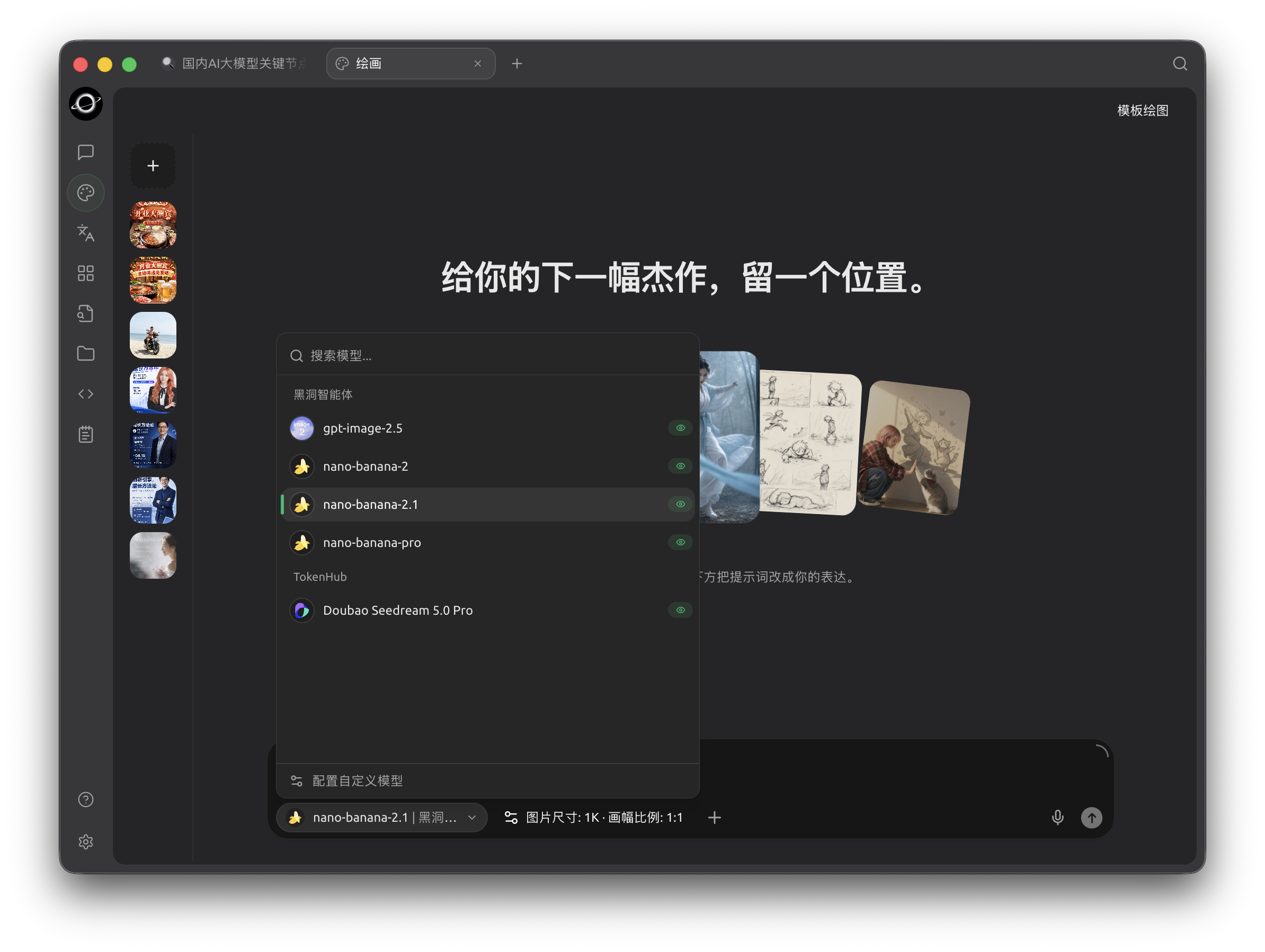
Nano Banana models in the BLACK HOLE provider group (Chinese interface).
The BLACK HOLE provider includes these Nano Banana models when available to your account:
| Model | Model ID |
|---|---|
| Nano Banana 2 | nano-banana-2 |
| Nano Banana 2.1 | nano-banana-2.1 |
| Nano Banana Pro | nano-banana-pro |
Configure additional providers in Settings → Models → Model Services, or use Configure Custom Models in the dropdown. Availability depends on the provider's image endpoints and model capabilities.
Start Drawing
Use a template
Choose an effect, supply the required reference and details, select the palette and aspect ratio, and confirm Nano Banana 2.1 in Advanced Settings. Click Generate 1 Image. The displayed price is an estimate; check your usage records for actual charges. Review and save the result, or reopen it from My Works.
Use Free Drawing
Select Nano Banana 2.1 and describe the subject, purpose, composition, lighting and restrictions. For example:
An orange cat with round glasses sitting on a stack of books, vintage oil painting, warm evening light, square composition, no text.
Choose an available size and aspect ratio, then send the prompt. Upload a reference first when editing an existing image.
Set a default Painting Model in Settings → Models → Default Models for related drawing entry points and agent image tools. You can still switch models in the drawing page.
Parameters
Use the controls shown for the selected model: model, aspect ratio, size and reference image. Larger outputs may take longer and cost more. Nano Banana does not require the diffusion-specific Steps or CFG settings described in older tutorials.
Tips
Chinese and English prompts both work. State requirements clearly, validate one result before producing variants, and change one direction at a time. If a request fails, retain the exact error and check account quota, model availability and reference-image limits.
Get Help
See Feedback and Suggestions and include the app version, model, error and reproduction steps.