
Mini Apps
Mini Apps enable web services and locally installed utilities to run within BLACK HOLE. In addition to opening web interfaces from various AI providers, you can install custom generative mini apps that call AI models configured in BLACK HOLE through authorized APIs.
Distinguish Between Two Types of Mini Apps
| Type | How to Add | Can Call BLACK HOLE | Use Cases |
|---|---|---|---|
| Website | Enter name, URL, and Logo | No | Pin frequently used websites to BLACK HOLE, preserving each site's own login state |
| Local Mini App | Install .miniapp package, or install from a developer-provided URL | Yes, with authorization during installation | Custom AI writing, summarization, translation, information extraction, and vertical workflows |
Access Mini Apps
Open the Launchpad
Click + in the top tab bar to open the Launchpad.
Enter Mini Apps
Click the MiniApp icon. The page opens in a tab named Apps.
Select a Service
Select the service you want to open from the mini app grid.
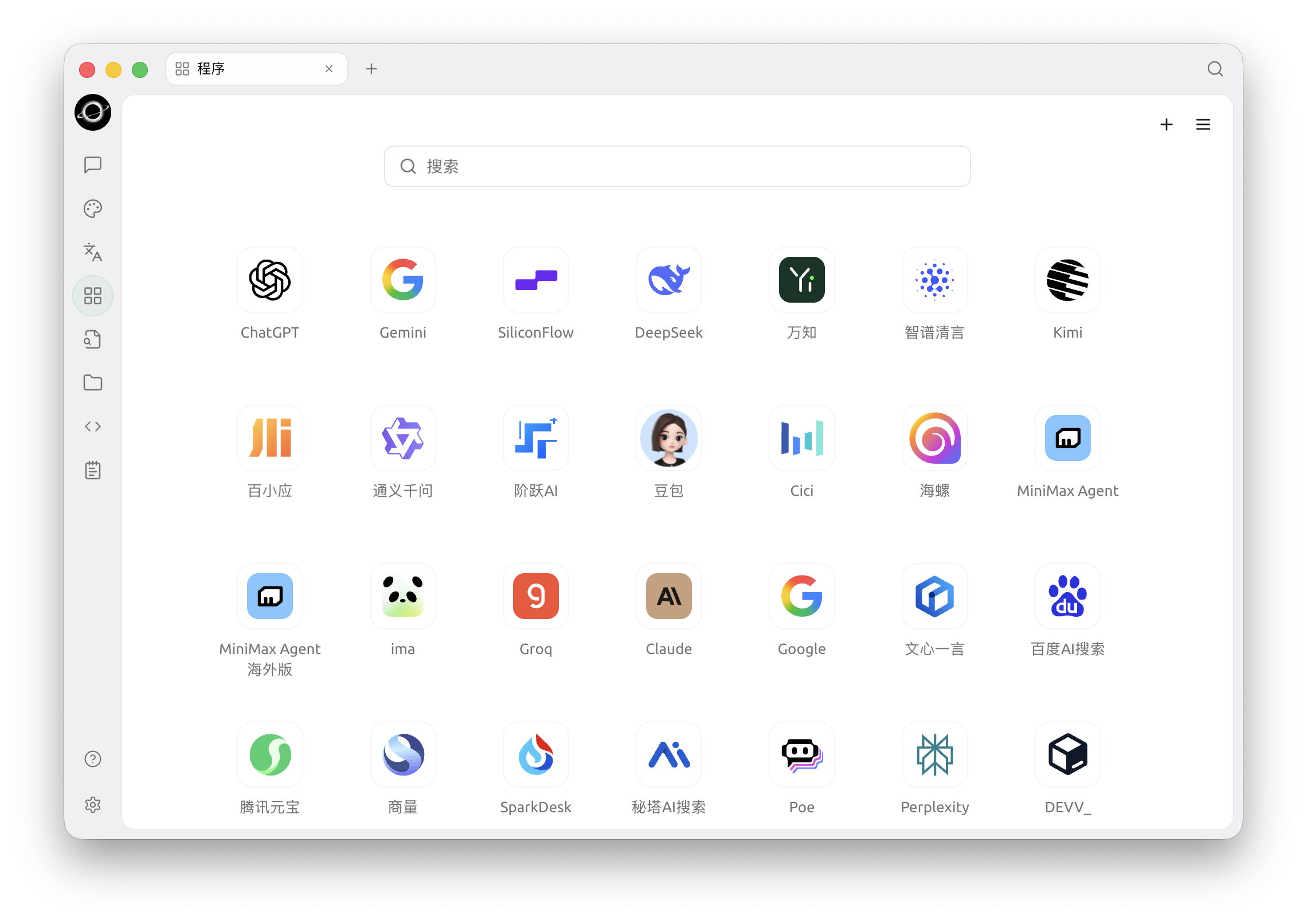
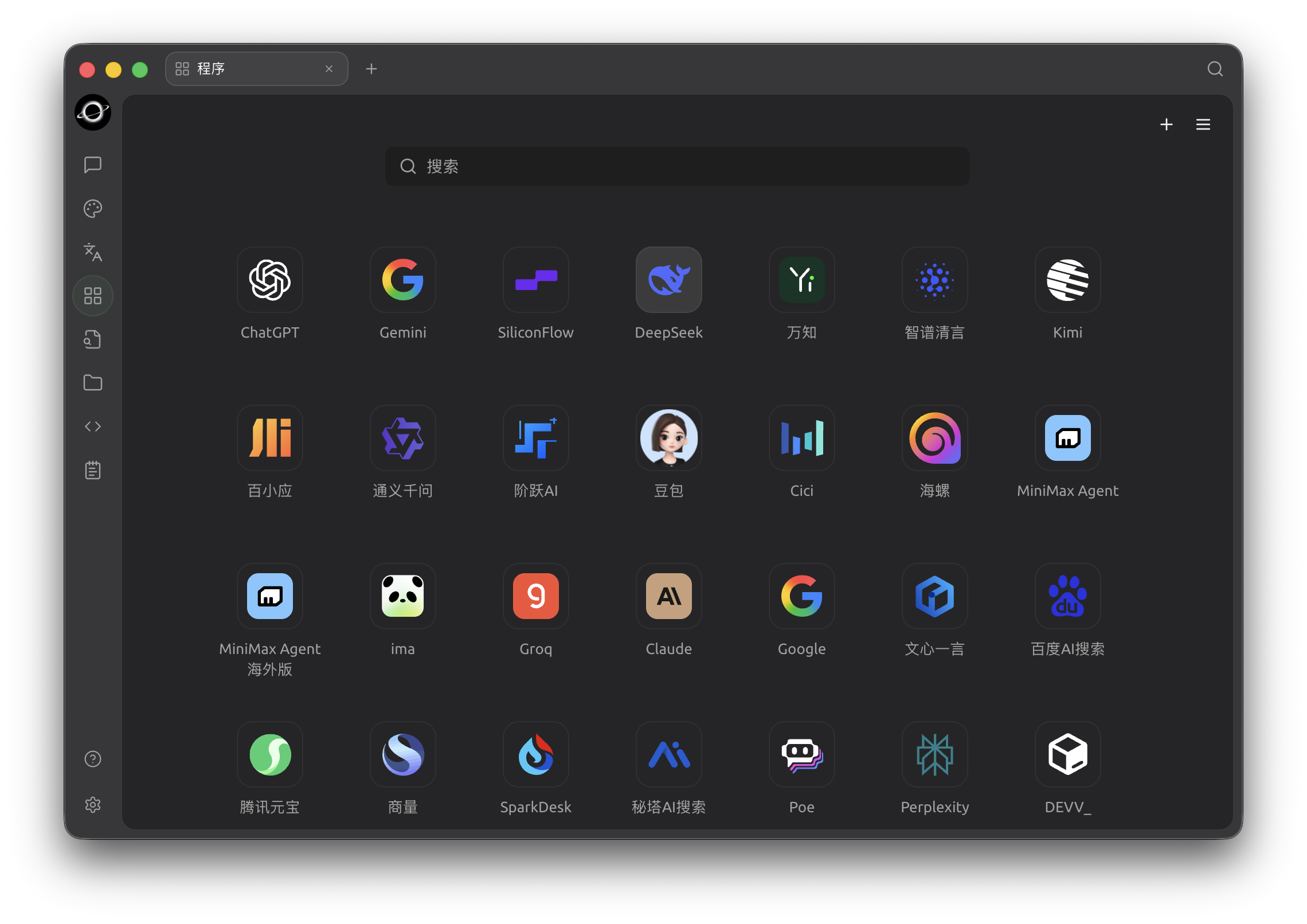
Programs: open a web service or add a mini app using the top-right button or the final grid tile (Chinese interface).
There is a search box at the top of the page. + in the top right (or the Add mini app tile at the end of the grid) adds a custom webpage, and ☰ opens Mini App Display Settings.
Settings
Click ☰ in the top right of the Apps page to open Mini App Display Settings:
Display management
- Visible / Hidden Mini Apps: the two columns list the visible and hidden mini apps with their counts. Click the hide icon next to an app in the left column to move it to the hidden column
- Swap and Reset buttons sit above the lists; Reset restores the default display
Preferences
- Mini Program filter: hides mini apps that aren't supported in your region (default: Auto detect)
- Open new-window links in browser: opens links that would open a new window in your default browser instead (off by default)
- Check for updates when opening: checks an installed mini app for updates each time you open it; nothing is applied without your confirmation (on by default)
Add and Manage
BLACK HOLE mini apps support the following operations:
- Add to Launchpad: Right-click a mini app icon and select Add to Launchpad to open it quickly from the
+entry - Add to Sidebar: Pin frequently used mini apps to the left sidebar for one-click access; right-click a mini app icon to select Add to Sidebar or Remove from Sidebar
- Keep Alive: Prevent the mini app window from being destroyed immediately when switching away, so you don't need to log in or reload again when returning
- Add Website: Click
+in the top right of the page, enter the name, URL, and Logo in Website, and it will be added to the grid - Install Local Mini App: Click
+in the top right of the page, switch to Local Mini App, select the.miniapppackage, or enter the installation URL provided by the developer. Complete the installation after confirming permissions - View Local Mini App Details: Right-click a local mini app and select View Details to manage permissions, AI models, storage space, activity logs, and updates
- Delete / Edit: Website-type mini apps can be edited or deleted via right-click; local mini apps can be uninstalled in View Details
After opening a mini app, its window includes a toolbar: Back, Forward, Refresh, Open in Browser. You can also switch whether in-page links open in the default window or in the system browser.
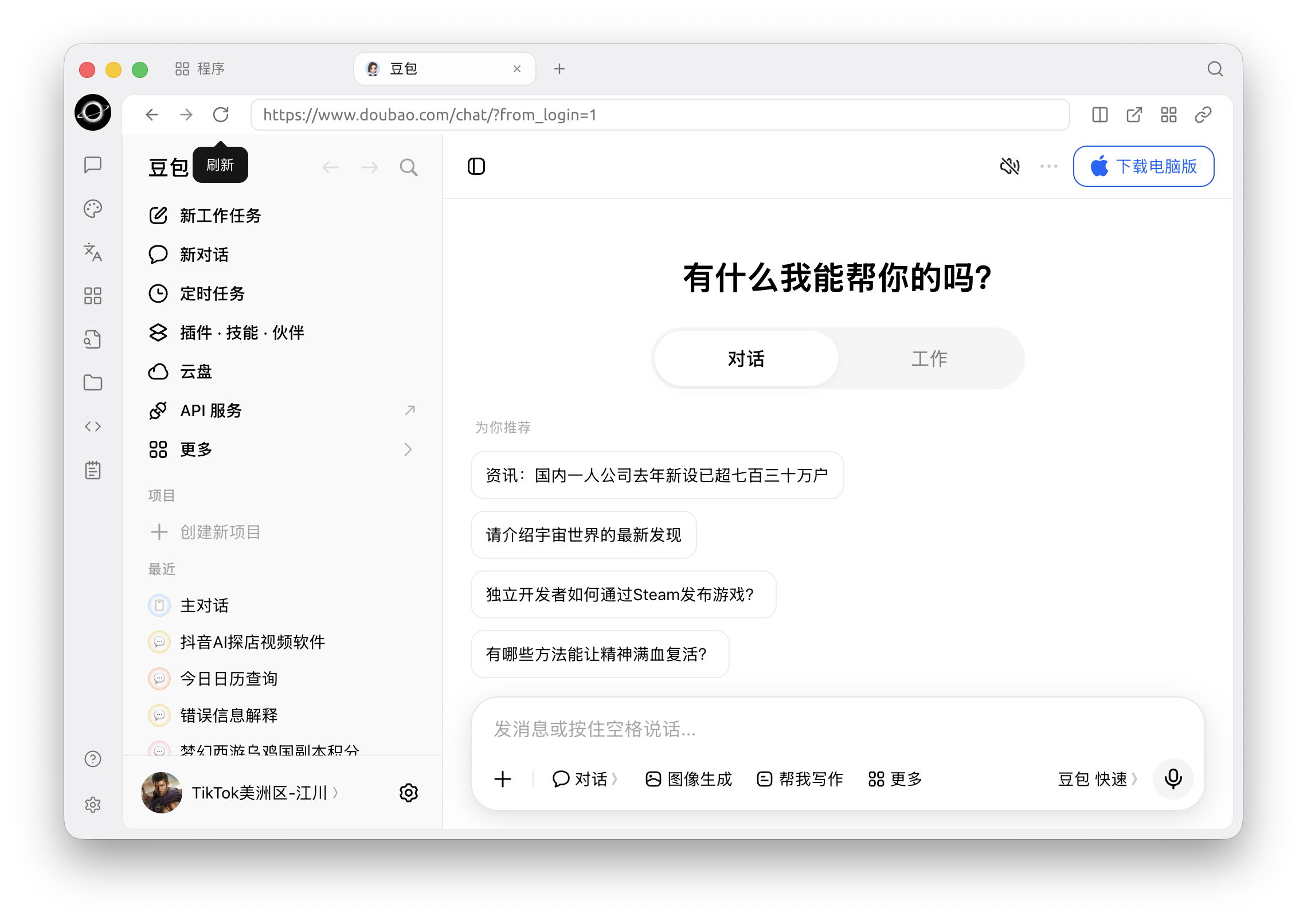
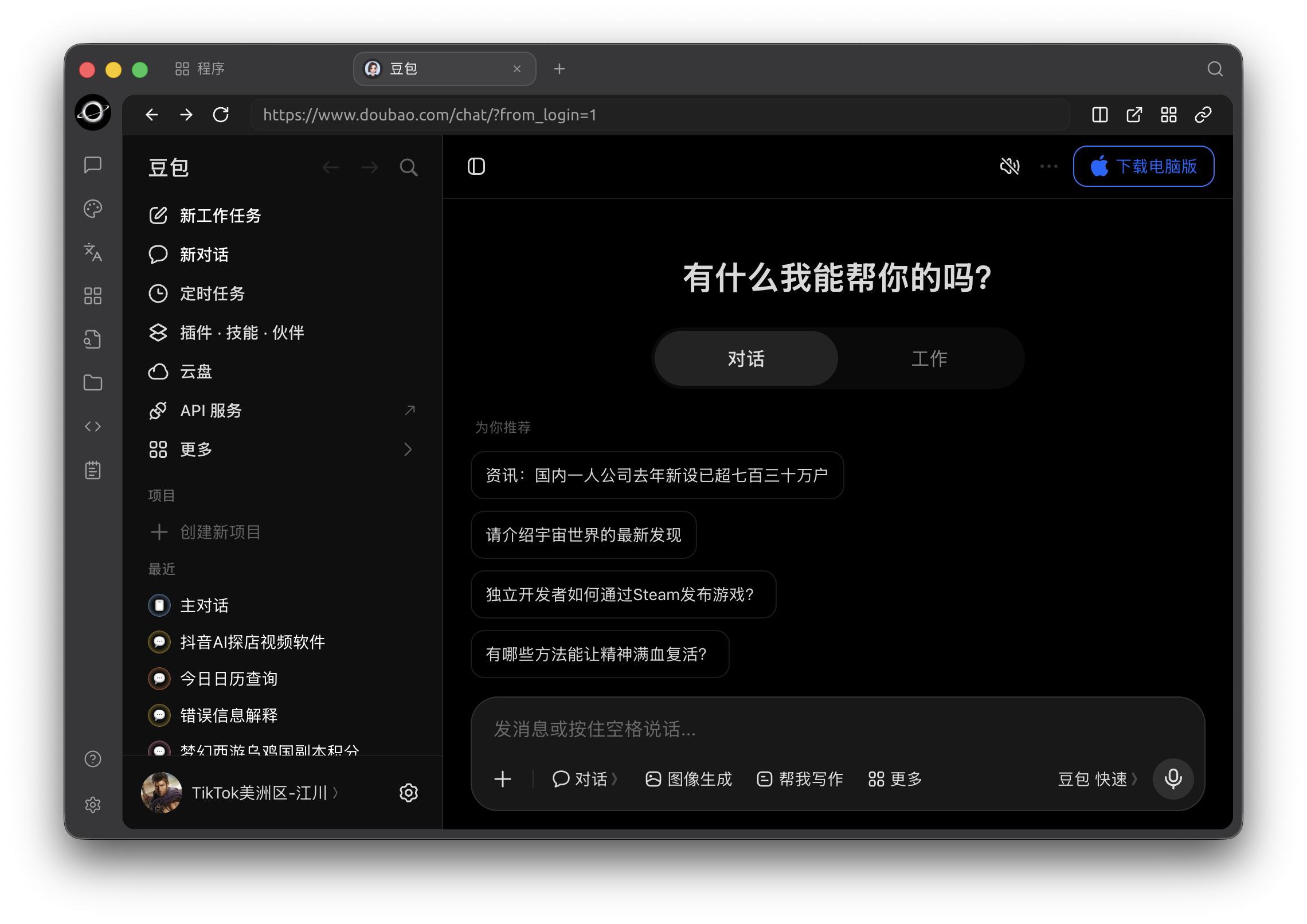
A web mini app opened inside BLACK HOLE; the toolbar controls navigation and opening behavior (Chinese interface).
Tips and Tricks
- Website-type mini apps use the service's web version; login state, Cookies, and settings are saved locally and isolated from the system browser
- Local mini apps run in an independent sandbox and cannot read files from other mini apps or anywhere on your computer; only authorized capabilities can be invoked
- If a mini app fails to load, right-click → Refresh, or check proxy settings (see General Settings)
If you encounter any issues, please submit feedback via Feedback and Suggestions.
Get Help and Submit Feedback
If you have any questions, bugs, or feature improvement suggestions during configuration or usage, please refer to the official channels provided in Feedback and Suggestions.