
Common Issues
Common Error Codes
- 4xx (Client Error Status Codes): Generally, these indicate issues like incorrect request syntax, authentication failure, or authorization failure, preventing the request from being completed.
- 5xx (Server Error Status Codes): Generally, these indicate server-side errors, such as server downtime or request processing timeouts.
| Error Code | Possible Scenario | Solution |
|---|---|---|
| 400 | Request body format error, etc. | Check the error content returned in the conversation or view the error message in the console and follow the prompts. |
| 401 | Authentication failed: model not supported or server account banned, etc. | Contact or check the status of the corresponding service provider's account. |
| 403 | Request operation unauthorized | Perform corresponding operations based on the error message returned in the conversation or the error message prompt in the console. |
| 404 | Requested resource not found | Check the request path, etc. |
| 422 | Request format is correct, but semantically incorrect | The server can parse such errors but cannot process them. Common in JSON semantic errors (e.g., null values; expecting a string but receiving a number or boolean, etc.). |
| 429 | Request rate limit reached | Request rate (TPM or RPM) limit reached, wait a moment before trying again. |
| 500 | Internal server error, unable to complete request | If it persists, contact the upstream service provider. |
| 501 | Server does not support the requested functionality, unable to complete request | |
| 502 | As a gateway or proxy, the server received an invalid response from an upstream server while attempting to fulfill the request. | |
| 503 | The server is currently unable to handle the client's request due to overload or system maintenance. The length of the delay may be included in the server's Retry-After header. | |
| 504 | The server, acting as a gateway or proxy, did not receive a timely response from the upstream server. |
How to View Console Errors
- After clicking the BLACK HOLE client window, press the shortcut key Ctrl + Shift + I (Mac: Command + Option + I).
- In the popped-up console window, click
Network→ click to view the lastcompletionsmarked with a red×at ② (when encountering errors in conversation, translation, model connectivity checks, etc.) orgenerations(when encountering errors in drawing) → clickResponseto view the complete returned content (area ④ in the figure).
If you cannot determine the cause of the error, please send a screenshot of this interface to the support team for assistance.
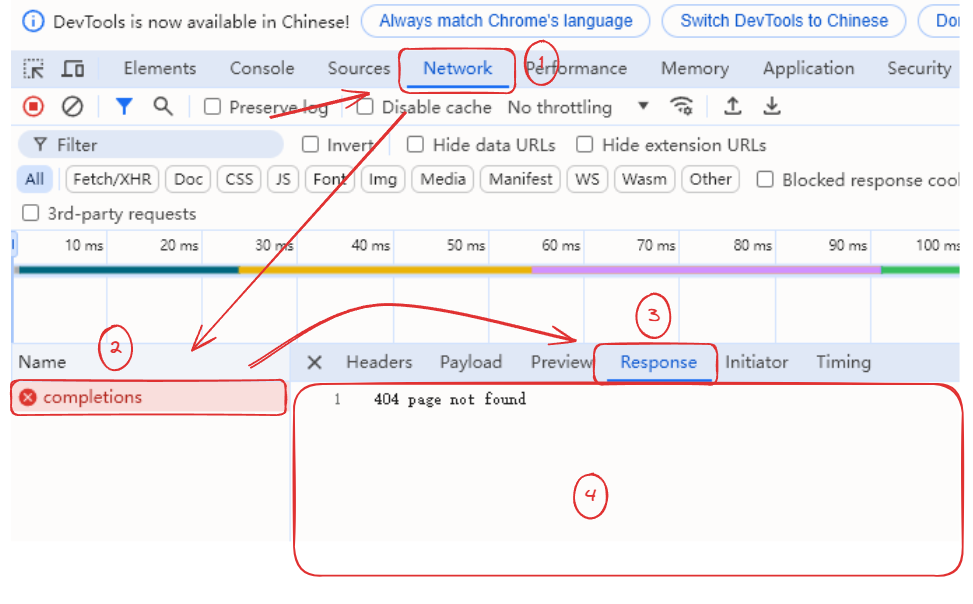
This inspection method can be used not only to obtain error messages during conversations but also during model testing, knowledge base addition, drawing, etc. In any case, you need to open the debug window first and then perform the request operation to get the request information.
Formulas not rendered / Formula rendering errors
- If formulas are not rendered and instead display as formula code, check if the formulas have delimiters.
Delimiter usage
Inline formulas
- Use a single dollar sign:
$formula$- Or use
\(and\), e.g.:\(formula\)Block formulas
- Use double dollar signs:
$$formula$$- Or use
\[formula\]- Example:
$$\sum_{i=1}^n x_i$$
- Formula rendering errors/garbled text often occur when formulas contain Chinese content; try switching the formula engine to KateX.
Failed to create knowledge base / Failed to get embedding dimensions
- Model status unavailable
Confirm whether the service provider supports the model or whether the model service status is normal for the service provider.
- Used a non-embedding model
Model cannot recognize images / Unable to upload or select images
First, you need to confirm whether the model supports image recognition. BLACK HOLE categorizes popular models; those with an eye icon after the model name support image recognition.
Image recognition models support image file uploads. If the model's functionality is not correctly matched, you can find the model in the corresponding service provider's model list, click the settings button after its name, and check the image option.
Specific model information can be found and reviewed with the corresponding service provider. Similar to embedding models, models that do not support vision do not need to have image functionality forcibly enabled, and checking the image option will have no effect.