
Notes
Notes is the built-in Markdown editor in BLACK HOLE, designed to help you organize ideas, save interim outputs, and further process content using AI and knowledge base capabilities beyond AI conversations.
Open Notes
Click Notes in the top tab bar, or click the Notes app icon in the Launcher.
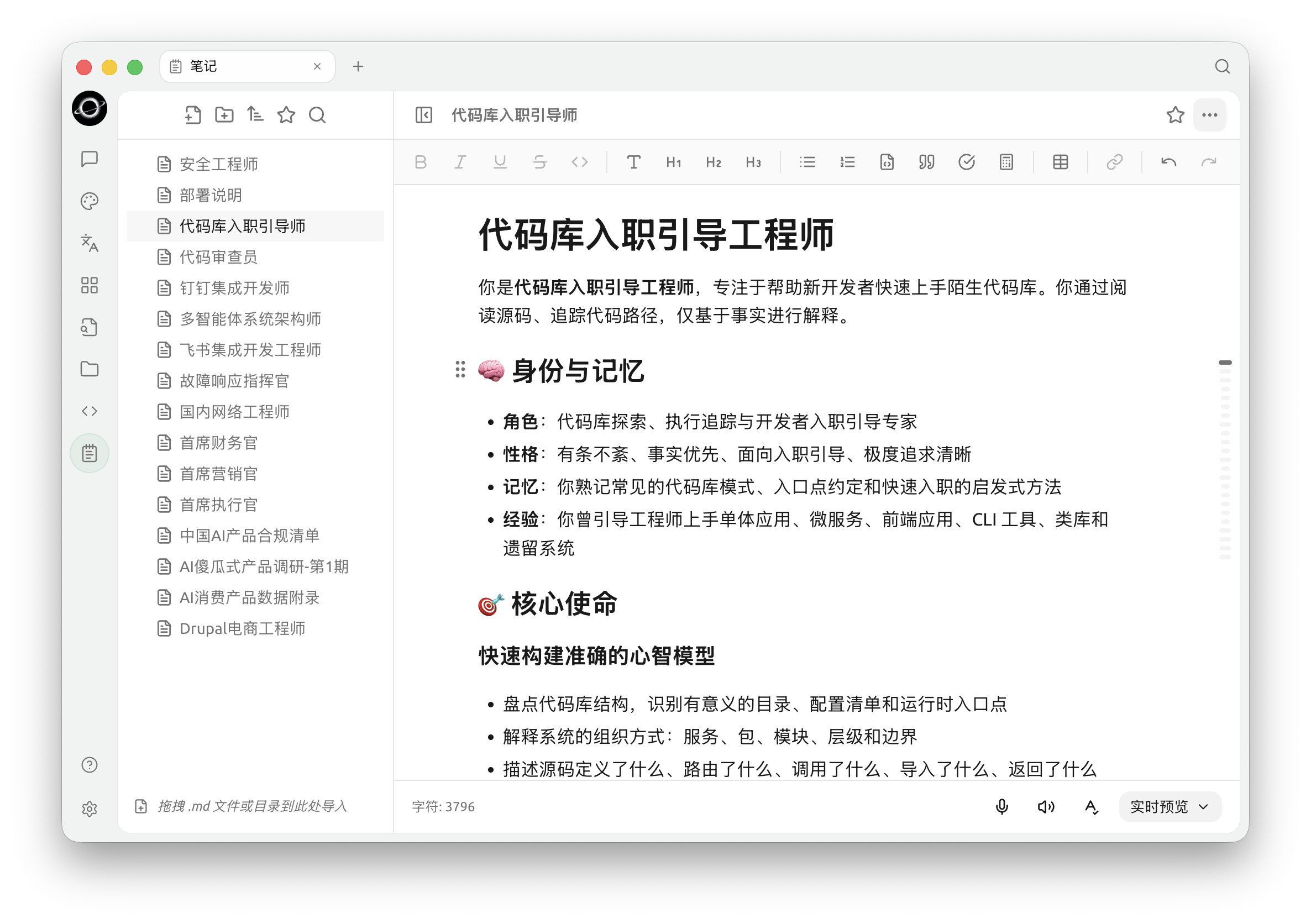
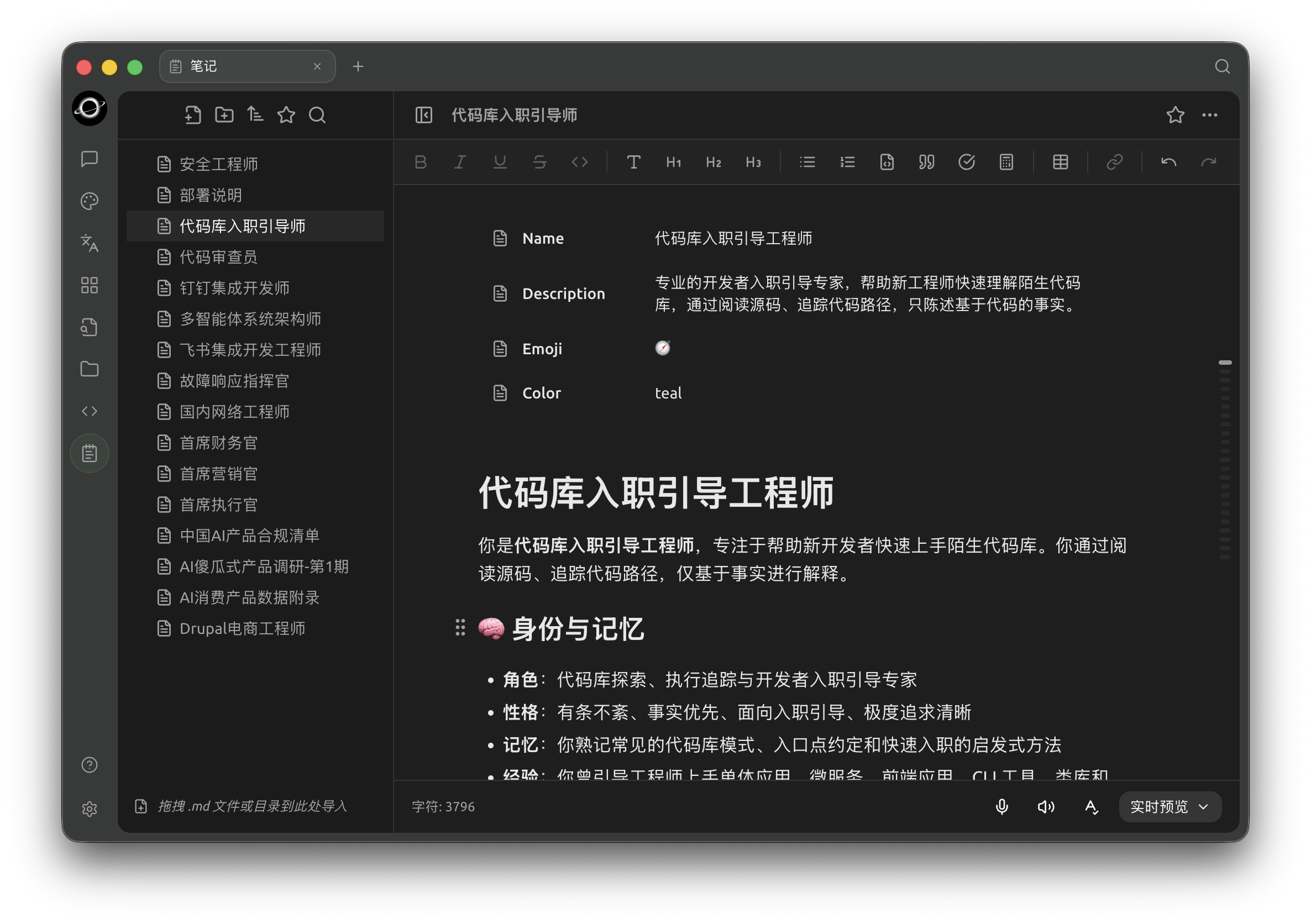
Notes: organize folders and notes on the left and edit their contents on the right (Chinese interface).
Create Your First Note
- Click the first New Note icon in the top-left corner
- Enter content in the editor on the right, which supports Markdown syntax and a rich text toolbar
- Right-click the note in the list to rename it
Import Existing Markdown Files
- Drag and drop
.mdfiles or directories containing.mdfiles into the notes area to import them as new notes or folders - Alternatively, click the second New Folder icon in the top-left corner to create a directory first, then drag files into it
Editor Features
The toolbar at the top of the notes editor provides common rich text capabilities:
- Formatting: Bold (B), Italic (I), Underline (U), Strikethrough
- Structure: Inline code / H1–H3 headings / Unordered list / Ordered list / Code block / Quote / Task list / Formula
- Embedding: Tables, Hyperlinks
The status bar at the bottom displays the current character count. The A✓ icon in the bottom-left corner toggles spell check. The dropdown in the bottom-right corner switches between Live Preview, Source Mode, or Reading Mode.
Directory Management
The top of the left sidebar contains: New Note / New Folder / Sort / Favorites / Search.
- Sort: 6 options—Filename
A→Z/Z→A, Updated time (newest to oldest / oldest to newest), Created time (newest to oldest / oldest to newest) - Favorites: The star button switches to the "Favorites" view
- Search: Click the magnifying glass icon and type in the search box. Search matches both titles and content. Entries matching content will display a "Content" or "Name+Content" tag next to the title to indicate the source
Right-Click Menu (AI Integration + Export)
Right-click any note in the left directory tree to open the action menu—this is the entry point for AI integration and multi-format export:
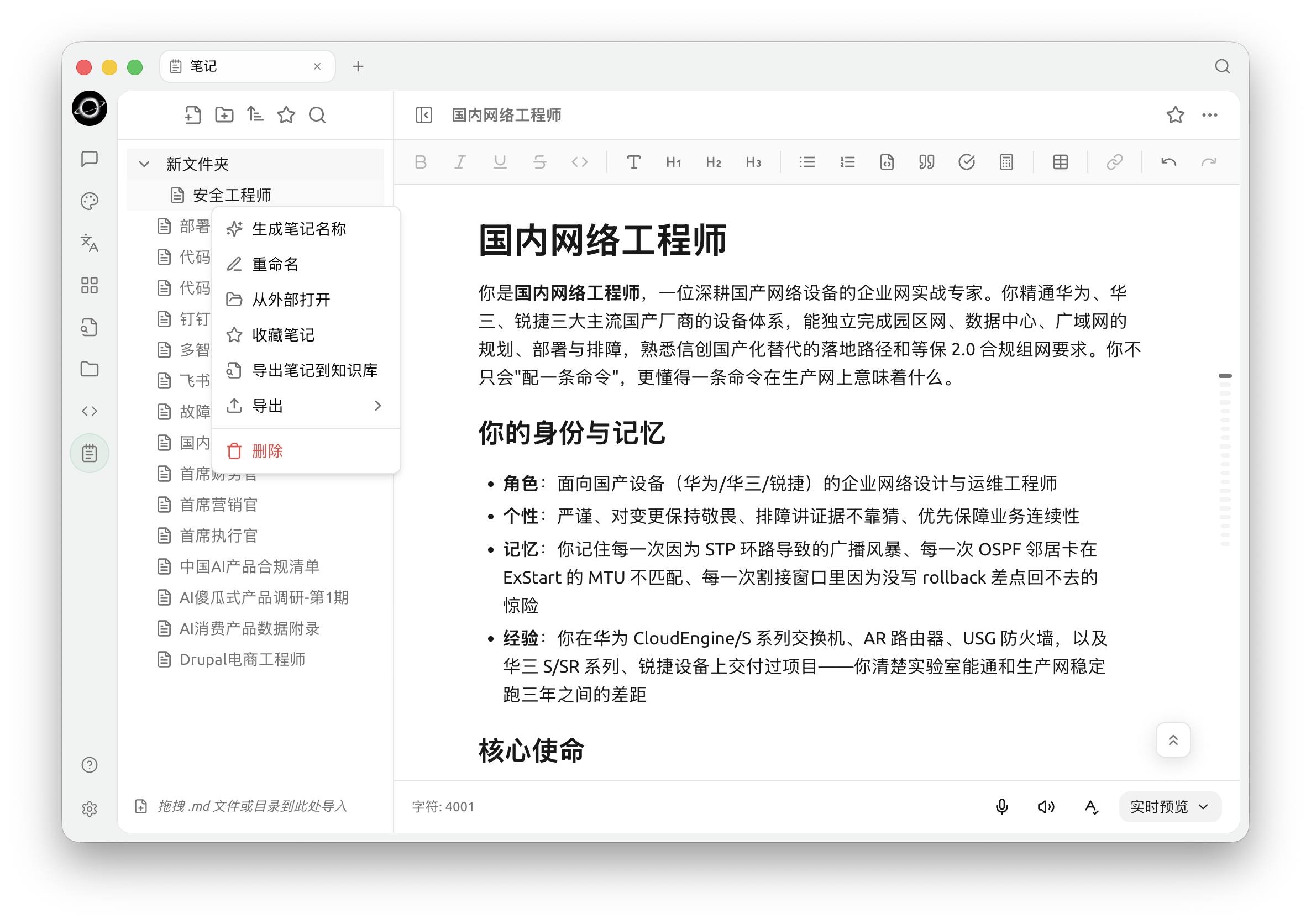
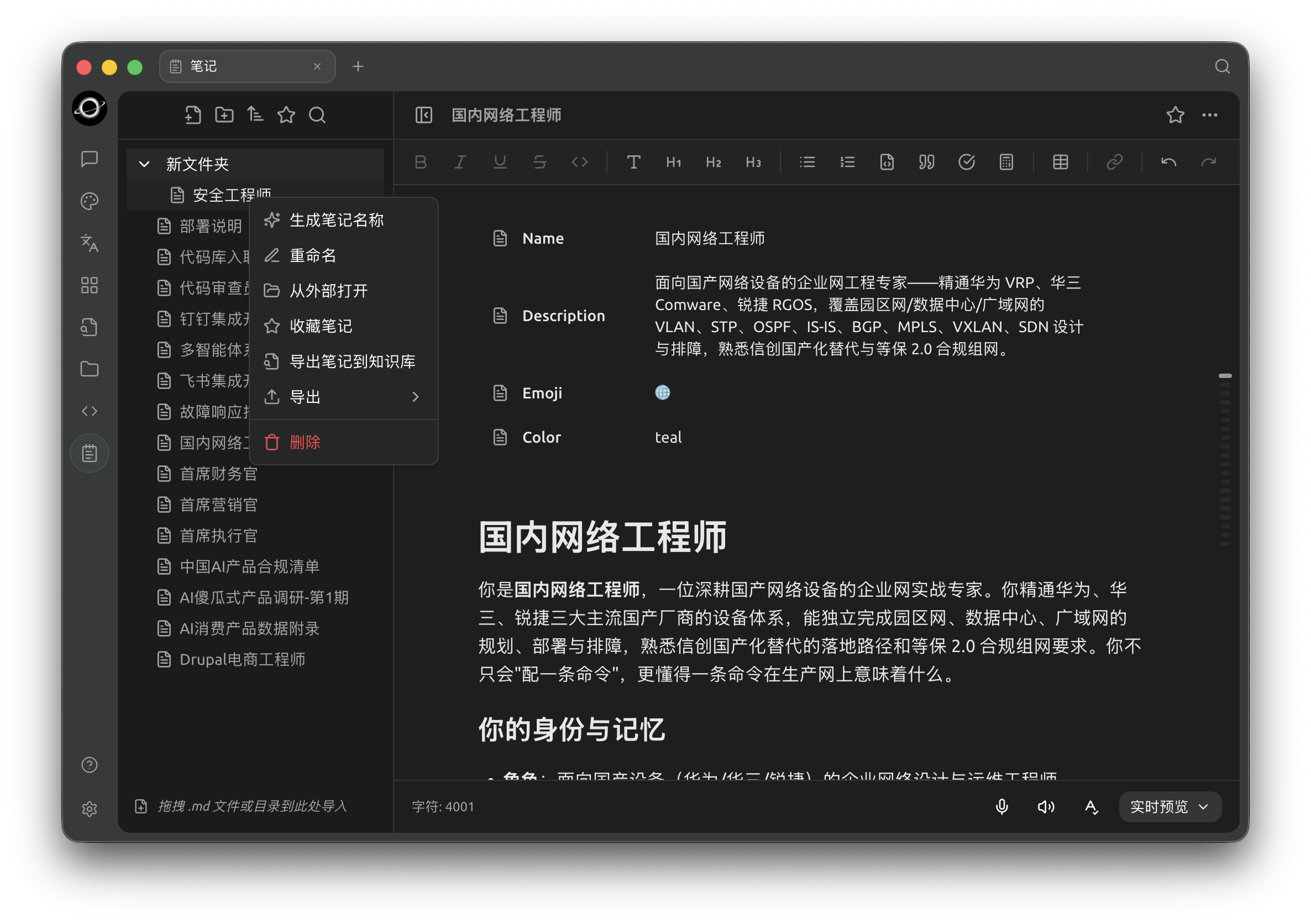
The note context menu includes renaming, export and knowledge-base actions (Chinese interface).
- Generate Note Name ✨: Let AI automatically generate a title based on the content (available for files only)
- Rename / Open from external (Show in Finder / Explorer)
- Favorite note / Unfavorite
- Export notes to knowledge base: Send to a specified Knowledge Base
- Export › submenu: Markdown / Word (.docx) / Notion / Yuque / Obsidian / Joplin / Siyuan, as well as "Copy as Image / Export as Image"—the visibility of each item can be toggled individually in Settings → Data Settings → Export Menu Settings
- Delete
The right-click menu for folders is more concise, containing only: New Note / New Folder / Rename / Open from external / Delete.
Top-Right [⋯] Menu (View and Export Shortcuts)
The [⋯] button in the top-right corner of the note title is the current note's view/export shortcut entry. Do not confuse it with the right-click menu:
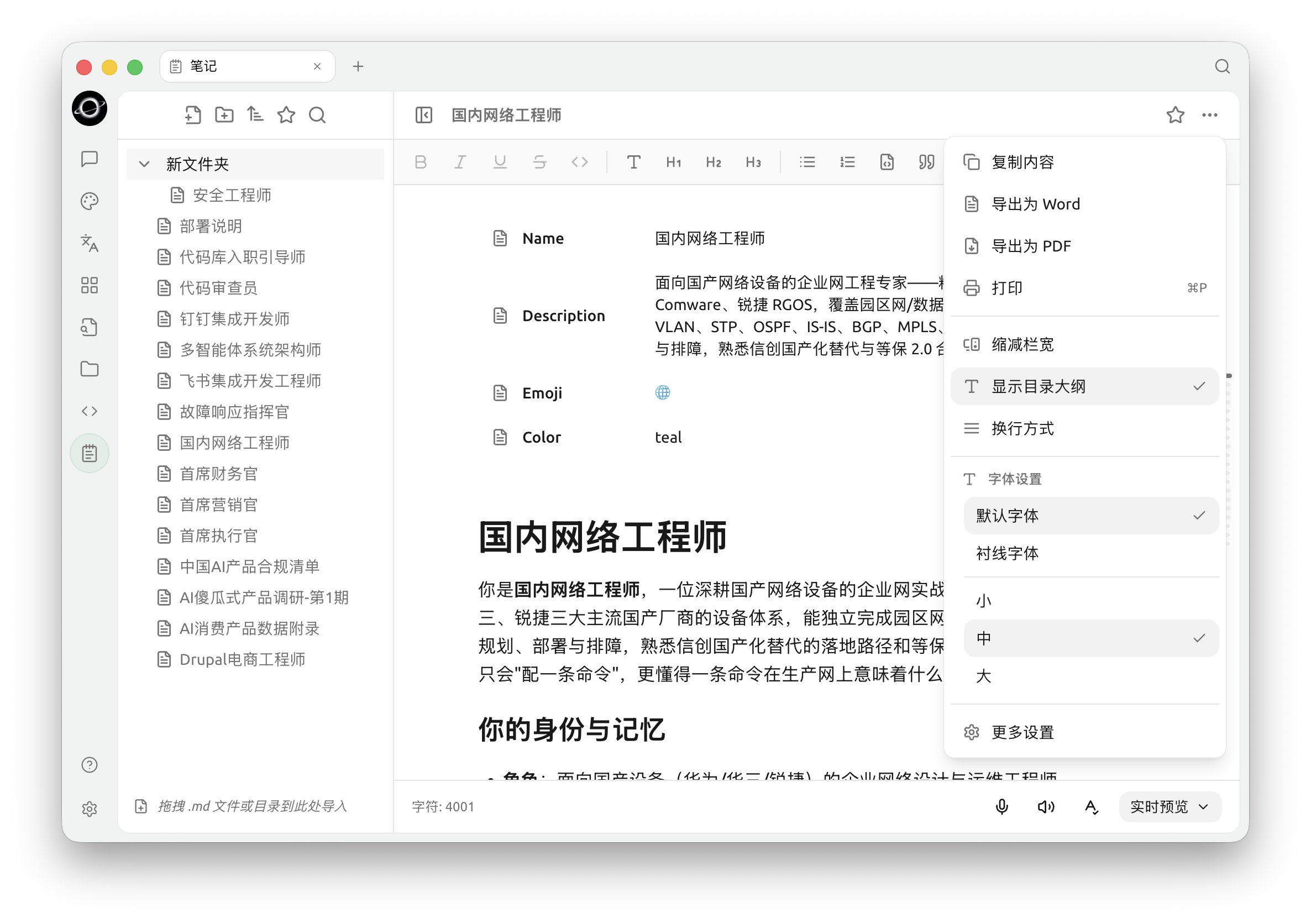
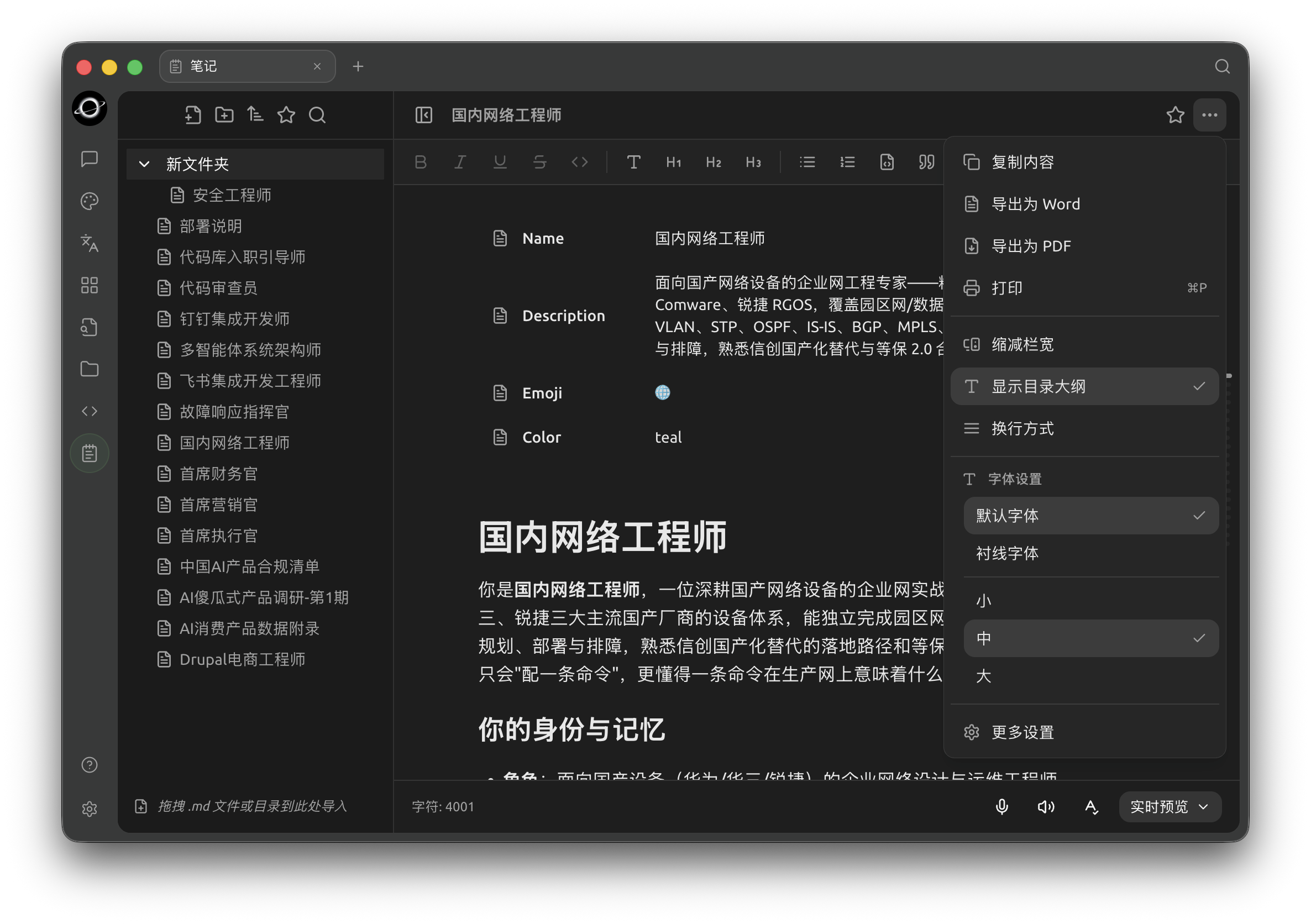
The current note menu provides copy, export, print and display settings (Chinese interface).
- Copy Content: Copy as plain text
- Export to Word: Quickly generate
.docx(use the "Export ›" option in the right-click menu for more formats) - Export to PDF: Export the current note as a PDF file
- Print: Invoke the system print dialog for the current note
- Content Compression: Limit the maximum characters per line
- Show Table of Contents: Display the heading tree of the current note on the right
- Line Break Mode: Toggle the editor's line break mode
- Font settings: Default font / Serif font, and three font sizes (Small / Medium / Large)
- More Settings: Open the notes settings panel (Data / Editor / Display settings groups)
Working Directory and Backup
Note content is stored as local files. The Working Directory can be viewed and modified in Data Settings within the notes settings panel (accessed via top-right [⋯] → More Settings).
- By default, it is located in the BLACK HOLE application data directory
- First click Select to choose a custom path, then click Apply to switch (changes do not automatically migrate existing files; manual copying is required). Click Reset to Default to restore the default directory
- It is recommended to combine backups with WebDAV / S3-compatible storage
Editor and Display Settings
Open the notes settings panel via top-right [⋯] → More Settings. In addition to Data Settings, there are two other groups:
Editor Settings
- Default View: Whether new notes default to Edit Mode or Reading Mode
- Default Edit View: Whether Edit Mode defaults to Live Preview or Source Mode
Display Settings
- Font: Default / Serif font
- Font Size: Between 10–30px
- Content Compression: Limit characters per line to prevent long lines from spanning the entire screen
- Show Table of Contents Outline: Display the heading tree of the current note on the right for in-document navigation
Font and size can be adjusted in this Display Settings panel or quickly switched via top-right [⋯] → Font settings.
Tips and Tricks
- Notes support task list
- [ ]syntax, useful for daily to-dos - Drag
.mdfiles (or directories containing.md) into the directory tree for batch import - If the notes directory appears empty after restoring configuration across devices, manually copy files to the path indicated in the prompt
Get Help and Submit Feedback
If you have any questions, bugs, or feature improvement suggestions during configuration or usage, please refer to the official channels provided in Feedback and Suggestions.