
Chat Interface
Open Work and switch to Assistants to manage role-based conversations. Workspaces and agent tasks remain available in the same Work area.
Overview
The Chat interface is your main workspace for conversing with AI assistants. It combines powerful organization with an intuitive layout, allowing you to manage multiple conversations under different assistants.
Interface Layout
Layout
The Chat page has three areas:
- Assistant and topic list (left column) - Click + Add Assistant at the top to create an assistant. Each assistant's topics are listed under it (a new one is called "New Chat"); click a topic to open it
- Top bar of the conversation - From left to right: the sidebar toggle, the current assistant, and the model selector (for example "DeepSeek V4 Flash | DeepSeek"). Click the model name to switch models
- Window tabs (very top) - Each open page (an assistant, the Launchpad, Translation, etc.) gets its own tab. Click + to open a new tab with the Launchpad; the magnifier icon on the right opens search
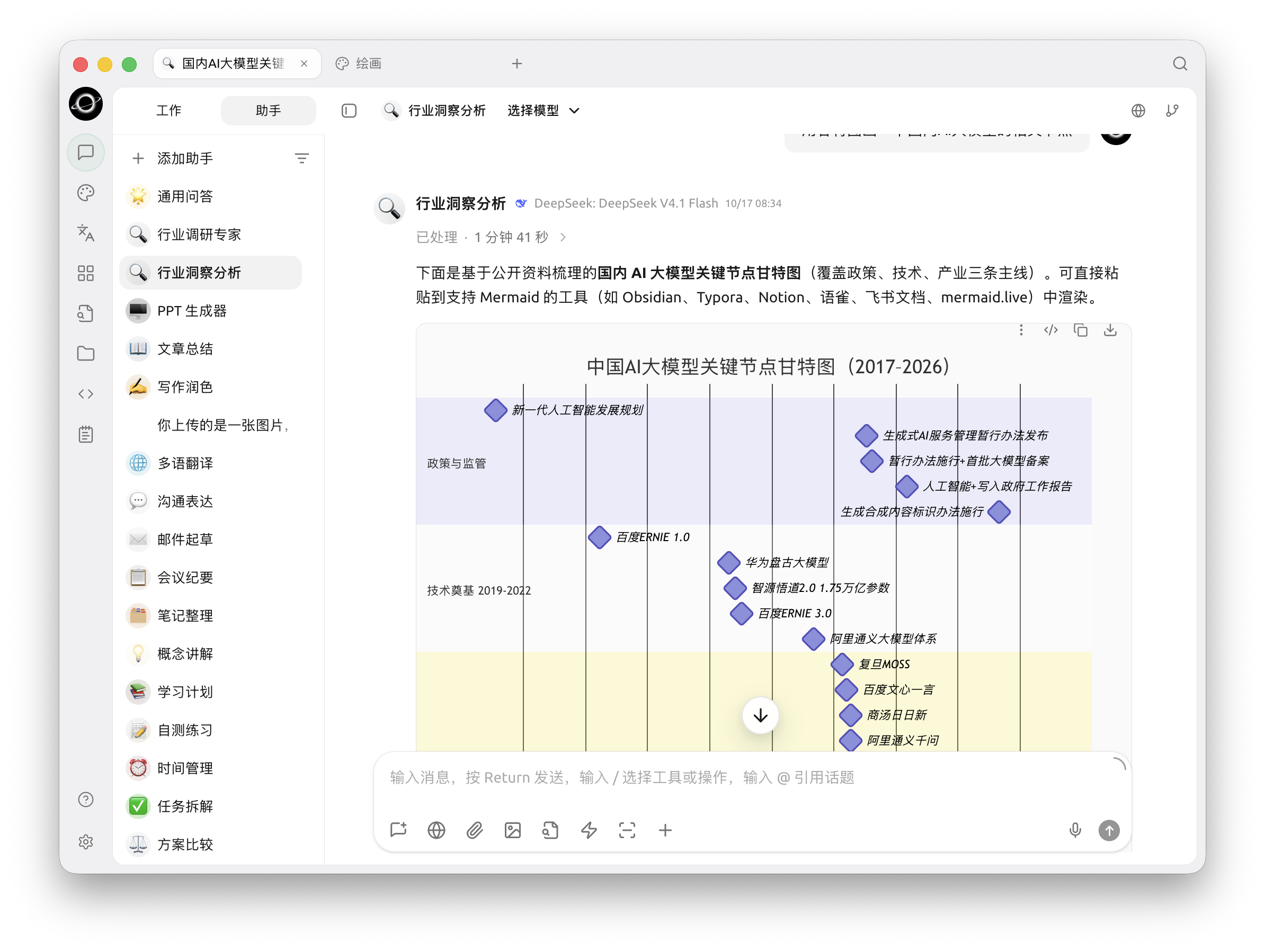
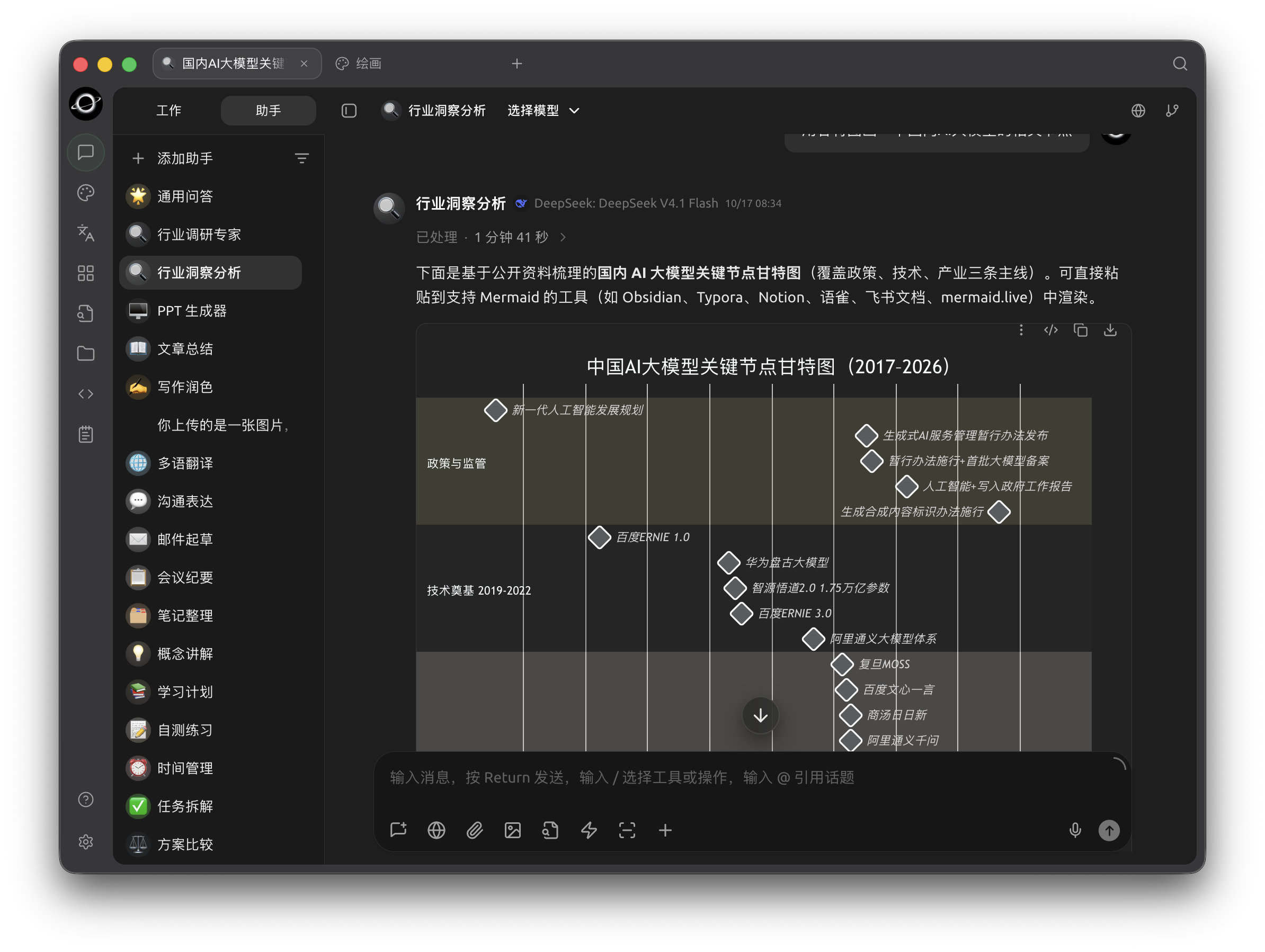
Chat and assistants: select an assistant or topic on the left, a model at the top, and enter messages below (Chinese interface).
Welcome Screen
When starting a new topic, you'll see:
- A friendly emoji 😊
- Prompt text: "What should we talk about today?"
- An empty message area ready for your first input
This guides users to begin their conversation naturally.
Input Area
The bottom section contains:
- Message input box - The placeholder reads "Type a message. Press Return to send. Type / for tools and actions, @ to reference topics." Type
/to pick tools and actions, or@to reference another topic - Toolbar (left side) - Quick buttons, including the 🌐 globe for web search and + to open the Input Quick Panel (attachments, knowledge bases, prompts, MCP and more)
- Right side - The Effort dropdown (shows "Default") and the send button
Assistant Library
Browse categories or search by purpose in the assistant picker. Use New Assistant for your own role, or Assistant Library to preview and add a preset.
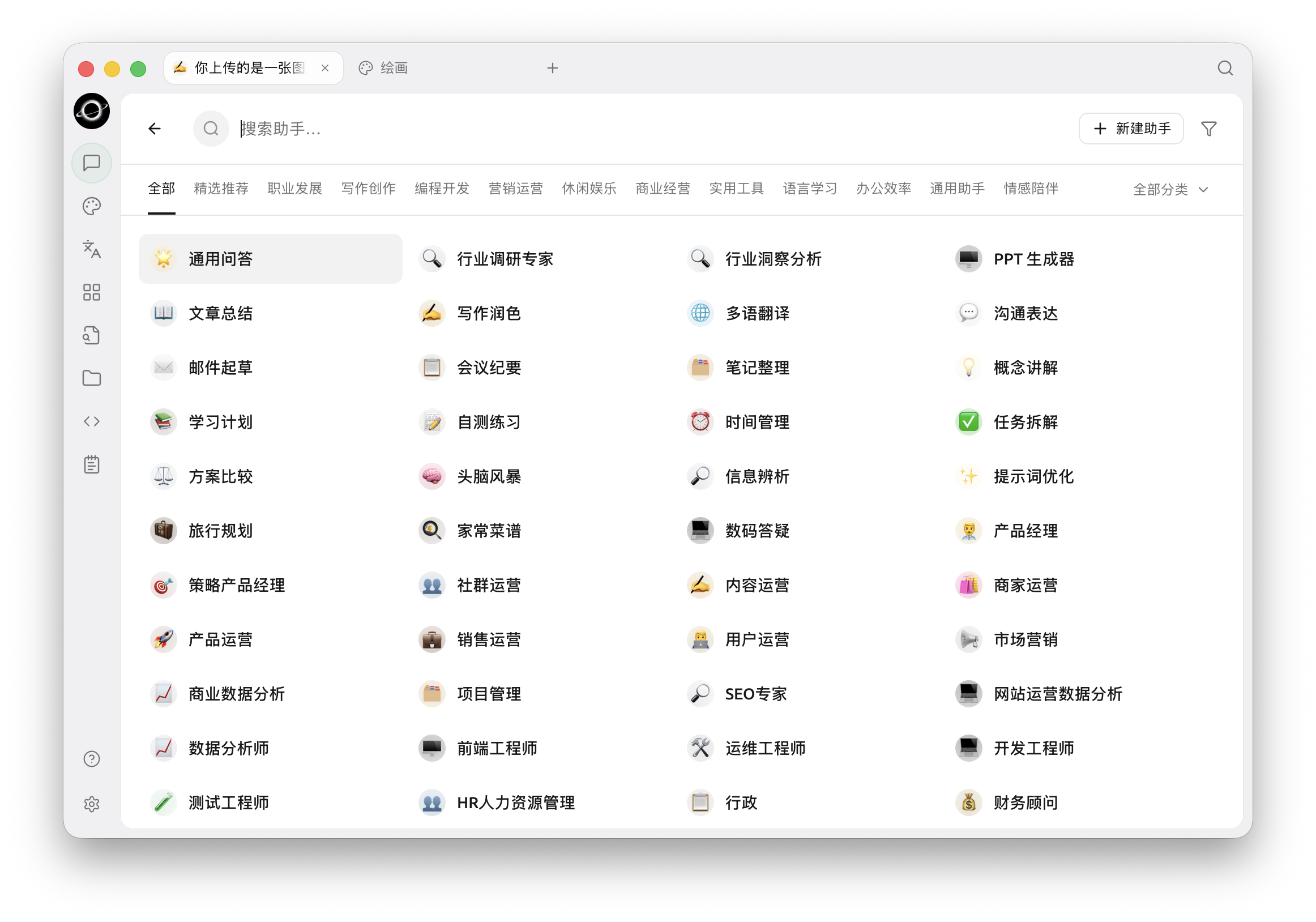
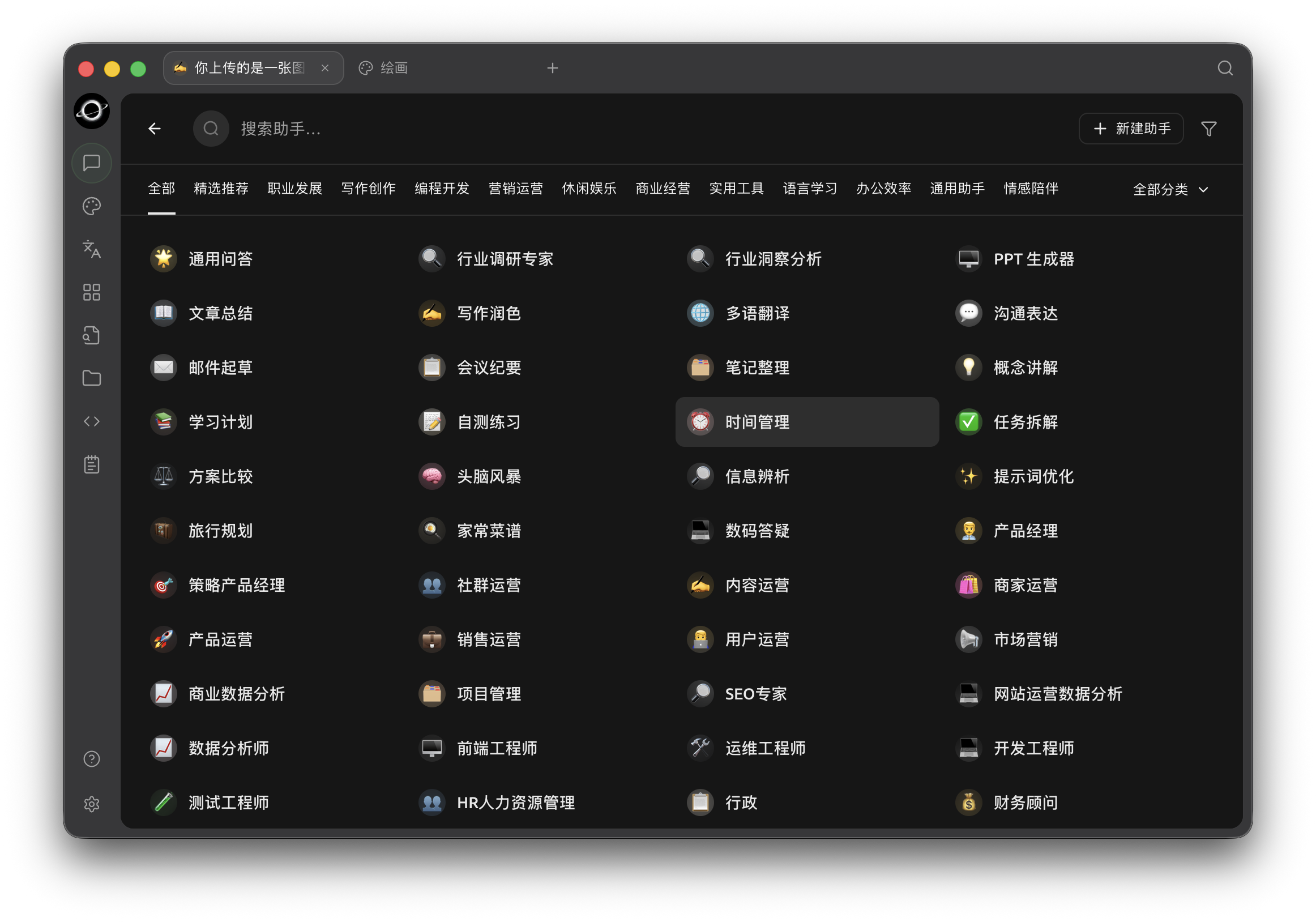
BLACK HOLE assistant presets organized by category (Chinese interface).
Concepts
Assistant
An assistant is a personalized conversation template that includes:
- System Prompt - Custom instructions that guide the model's behavior
- Model Settings - Temperature, top-p, context window, and other parameters
- Default Model - Which AI model to use by default
- Capabilities - Enabled features like web search, knowledge base, image generation, etc.
The System Default Assistant comes with general parameters and no custom prompt. For specialized assistants, check the Agents page.
Topic
A topic is an individual conversation within an assistant. Key points:
- Multiple topics under one assistant - Each topic is a separate conversation thread
- Shared settings - All topics under an assistant inherit the same prompt and model settings
- Independent history - Each topic has its own message history
- Quick switching - Click topics in the left column to jump between conversations
For example, you might have an "Email Writer" assistant with separate topics for "Marketing Email", "Customer Reply", and "Newsletter Draft".
Working with Topics
Creating a New Topic
- Press
⌘ + N(macOS) orCtrl + N(Windows / Linux), or - Right-click the assistant name and select "New Topic"
The new topic inherits all settings from its parent assistant.
Switching Topics
- Click a topic under its assistant in the left column
- Context is preserved when switching
Topic Menu
Right-click a topic in the left column to:
- Rename the topic
- Delete the topic
- Duplicate the topic
- Export conversation history
Input Box Tools
The toolbar at the bottom of the input box provides quick access to common features:
| Button | Function | Details |
|---|---|---|
| 🌐 | Web search | Turns on web search for the current conversation. See Web Search Mode |
| ➕ | Input Quick Panel | Opens a panel of tools and actions (see below) |
Input Quick Panel
Click + (or type / in the input box) to open the Input Quick Panel:
| Item | What it does |
|---|---|
| Upload attachment | Attach files or images to your message |
| Generate image | Generate an image in the chat. Available once a painting model is set in Settings › Default Model |
| Knowledge Base | Choose a knowledge base for this conversation |
| Prompts | Insert a saved prompt |
| MCP | View the current MCP server status |
| MCP Prompts | Insert a prompt published by an MCP server |
| MCP Resources | Reference a resource published by an MCP server |
| Reference Note | Attach a note from Notes |
| Clear Context | Clears the context, like ⌘ + K / Ctrl + K |
Use ▲ ▼ to select an item, ⌘ + ▲▼ to page, Tab or Enter to confirm and Esc to close. Click Customize toolbar at the bottom of the panel to choose which buttons appear on the toolbar.
Type @ in the input box to reference another topic.
Effort
The Effort dropdown to the left of the send button (it shows Default until you change it) opens a slider from Faster to Smarter. Slide toward Smarter to let the model think more before answering, or toward Faster for quicker replies.
Model Selection
The model selector sits in the top bar of the conversation, next to the assistant name. Click it to switch models mid-conversation without losing context. You can also press ⌘ + ⇧ + M (macOS) or Ctrl + Shift + M (Windows / Linux) to open it.
Keyboard Shortcuts
- Enter - Send message
- Shift+Enter - New line in the input box
- See Shortcut Settings for the full list
Message Input Tips
- Long texts - Use the expand button (🔧) to open a larger editor for composing longer messages
- Code blocks - Paste code with syntax highlighting support
- Markdown - Format your messages using Markdown (when enabled in settings)
- Paste as file - Long text pastes can auto-convert to file attachments to reduce clutter
Chat Settings
Settings apply either to this topic only or globally to all topics. Changes take effect immediately.
Message Display Settings
Message Separator
Use a visual separator between message content and action buttons.
- Enabled: Clean separation between message and actions.
- Disabled: Compact view without separator line.
Message Style
Choose how messages appear:
- Bubble - Chat bubble style (like messaging apps)
- List - Compact list style
Use Serif Font
Toggle between serif and sans-serif fonts for message text. Can also be customized via Custom CSS.
Message Font Size
Adjust the font size of displayed messages.
Code Display Settings
Display Line Numbers for Code
Show/hide line numbers in code blocks when the model outputs code.
Collapsible Code Blocks
Long code blocks automatically collapse if they exceed a certain length, with an expand button to view full content.
Code Block Word Wrap
Long lines of code automatically wrap instead of creating horizontal scrollbars.
Code Style
Choose the syntax highlighting theme for code blocks (Dracula, GitHub, etc.).
Advanced Settings
Auto-collapse Thinking Content
For models that support reasoning (like o1, Claude with extended thinking), automatically collapse the thinking process after completion to focus on the final answer.
Math Formula Engine
Choose how mathematical formulas are rendered:
- KaTeX - Faster, optimized for performance
- MathJax - More comprehensive, supports more math symbols and commands
Input Box Settings
Show Estimated Token Count
Display the approximate number of tokens consumed by your input text (for reference only; actual consumption may vary).
Paste Long Text as File
When pasting large amounts of text, automatically convert to file attachment to keep the input box clean.
Markdown Render Input Messages
Render Markdown formatting in your sent messages, not just in model replies.
- Enabled: Markdown formatting is visible in sent messages.
- Disabled: Sent messages are displayed as plain text.
Translate by Tapping Space 3 Times
Press space three times rapidly to translate input text to English. ⚠️ Note: This overwrites your original text.
Target Language
Set the target language for translation features.
Assistant Settings
To customize an assistant, right-click its name in the left sidebar and select "Edit Assistant".
Basic Information
Name
The display name for this assistant. Choose something descriptive for easy identification (e.g., "Email Writer", "Code Helper", "Research Assistant").
Prompt
The system prompt that guides the model's behavior. This is the core instruction that makes the assistant specialized.
Examples:
- Email writer: "You are an expert business email writer..."
- Code helper: "You are an expert programmer..."
- Research assistant: "You are a thorough research assistant..."
Model Configuration
Default Model
Which AI model this assistant uses by default. When you:
- Create a new topic under this assistant, it uses this model
- Copy this assistant, the copied version has this model
- Don't set this, the global default model is used instead
Note: Each assistant can have its own preferred model, independent from the global setting.
Auto-reset Model
When enabled: New topics under this assistant always use the default model, even if you switched models in the previous topic.
When disabled: New topics inherit the model used in the last topic of that assistant.
Example:
- Default model: GPT-3.5
- You create Topic 1 and switch to GPT-4 mid-conversation
- If enabled: Topic 2 starts with GPT-3.5
- If disabled: Topic 2 starts with GPT-4
Model Parameters
These parameters control how the model generates responses:
Temperature (0.0 - 2.0)
Controls randomness and creativity:
| Value | Behavior | Best For |
|---|---|---|
| 0.0 - 0.3 | Deterministic, focused output | Code, data analysis, technical writing |
| 0.4 - 0.7 | Balanced creativity & coherence | General conversation, writing |
| 0.8 - 1.0+ | Creative, diverse output | Brainstorming, creative writing |
Default: 0.7
Top P (Nucleus Sampling) (0.0 - 1.0)
Controls vocabulary diversity:
| Value | Behavior | Best For |
|---|---|---|
| 0.1 - 0.3 | Conservative, limited vocabulary | Documentation, technical comments |
| 0.4 - 0.6 | Balanced diversity | General conversation, normal writing |
| 0.7 - 1.0 | Diverse, rich vocabulary | Creative writing, varied expression |
Default: 1.0
Context Window
How many previous messages the model can "remember":
| Setting | Memory | Use Case |
|---|---|---|
| 5-10 | Recent messages only | Casual conversation |
| 11-20 | Extended memory | Complex multi-step tasks |
| 20+ | Long conversation history | Tasks requiring detailed context |
Trade-off: More context = better coherence but higher token usage (costs more).
Max Tokens (MaxToken)
Maximum length of each model response:
| Value | Output Length | Use Case |
|---|---|---|
| 500-800 | Short | Quick answers, chat |
| 800-2000 | Medium | Article writing |
| 2000-4000 | Long | Code generation, essays |
| 4000+ | Very long | Research papers, long-form content |
Note: Some models have caps (e.g., 32k max). Check the model's documentation for limits.
Stream Output
When enabled: Model output appears character-by-character ("typewriter effect") for real-time feedback.
When disabled: Model generates the complete response, then shows it all at once.
Note: Some models (like o1-mini initially) don't support streaming; disable for those.
Advanced Options
Custom Parameters
Add provider-specific parameters not covered by the built-in settings. Format:
Parameter Name — Type (text/number) — ValueExamples:
presence_penalty — number — 0.5frequency_penalty — number — 0.2
Priority: Custom parameters override built-in settings if they conflict.
Reference: Consult your model provider's API documentation for available parameters.
Backup & Export
- Duplicate - Clone this assistant with all settings
- Export - Save assistant configuration as a file for backup or sharing