
Appearance
Appearance settings gather all your preferences for how the interface looks, how messages are displayed, and how code and formulas are rendered. Open Settings → Appearance; from top to bottom you'll find the Theme, Display and Language, Font, Input, Message, Math Formula and Code Block sections.
Need more than these options? You can go further with Custom CSS.
Theme and Theme Color
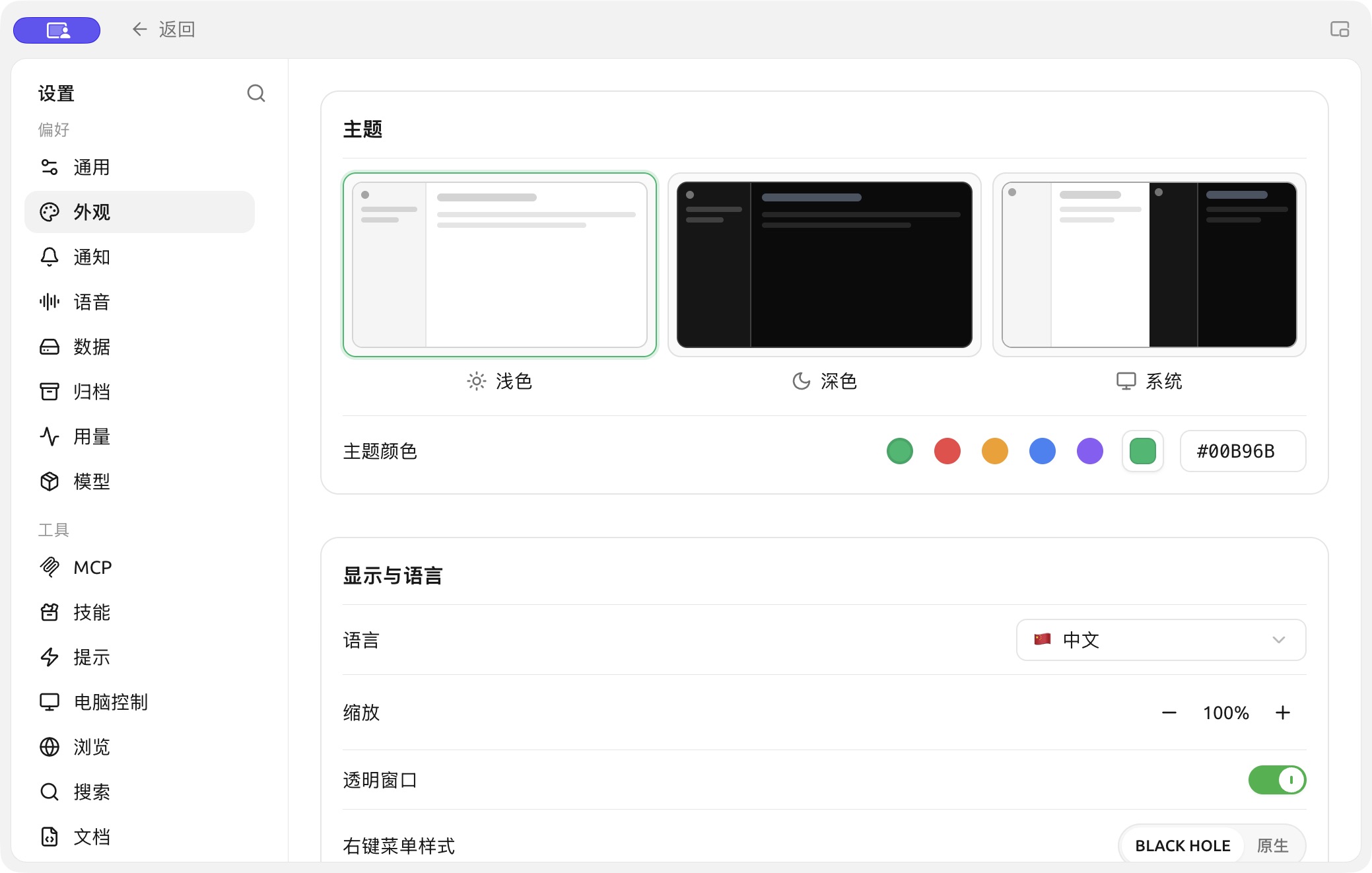
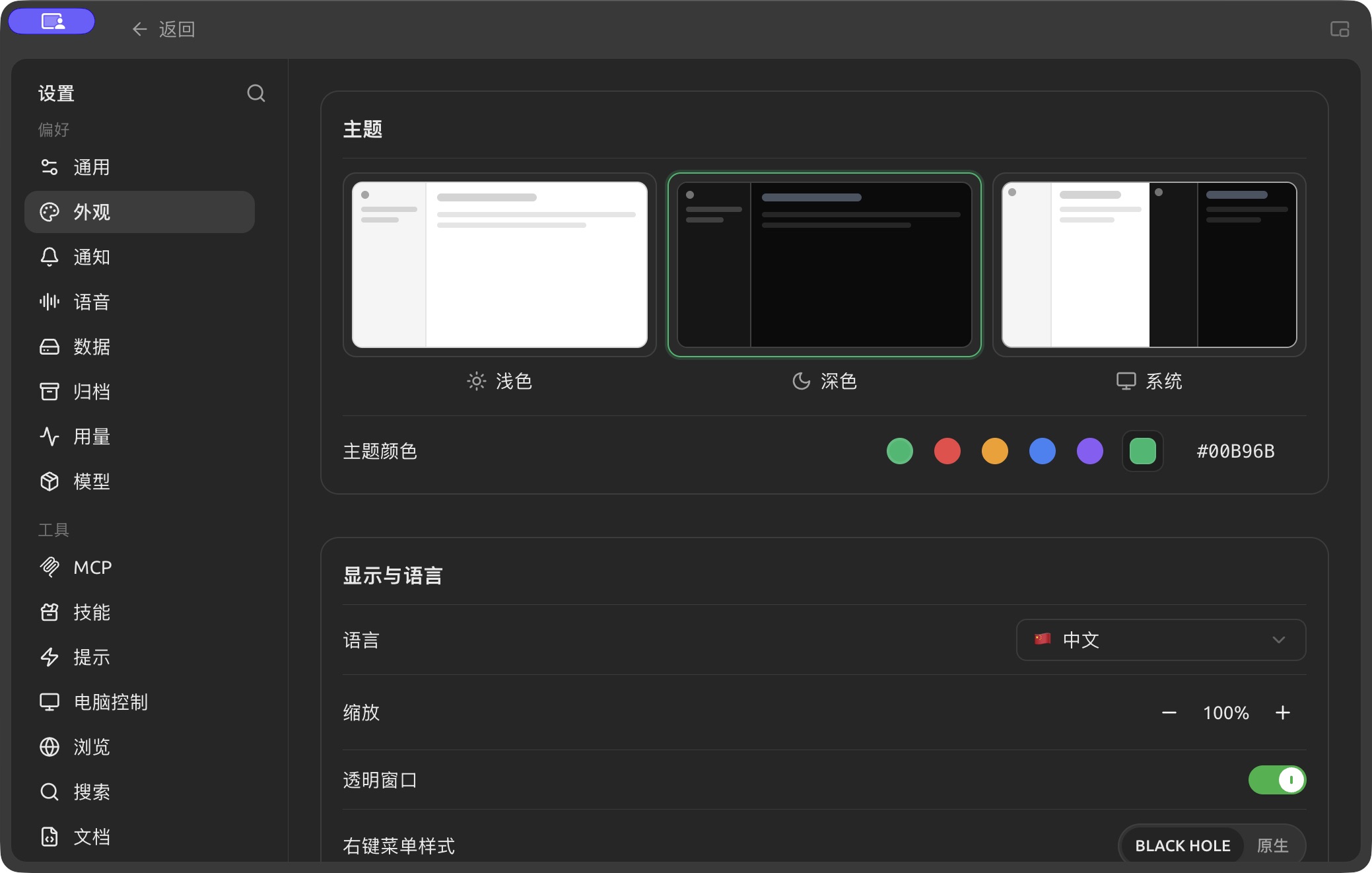
Settings → Appearance lets you select light, dark or system theme, theme color and display language. (Chinese interface.)
- Theme: switch between Light / Dark / System ("System" follows your operating system's light or dark mode).
- Theme color: choose the interface's primary color from several presets, or enter a hex value on the right (such as
#00B96B) for a custom color.
Display and Language
| Setting | Description |
|---|---|
| Language | Interface language; supports Simplified Chinese, Traditional Chinese, English, Japanese, German, French and more |
| Page Zoom | Overall interface scale; adjust it for large or small screens, or if the text feels too small |
| Context menu style | Switch between BLACK HOLE's own menu and the system's native right-click menu |
| Transparent window | Enables a translucent frosted-glass window effect (macOS only; may affect performance on some graphics cards) |
| Conversation list position | Show the conversation list on the Left or Right |
Font Settings
- Global font: the font used across the interface. It defaults to the system font; you can switch to any font you like.
- Code font: the monospaced font used in code blocks.
Input Settings
| Setting | Description |
|---|---|
| Send shortcut | The key used to send a message (default Return) |
| Line break shortcut | The key that inserts a new line (default ⇧Return) |
| Steer shortcut | The key for steering a reply while it is being generated (default ⌘Return) |
| Spell check | Shows a red wavy line under misspelled English words; turn it off if you mainly type Chinese to avoid false alarms |
| Show estimated token count | Shows the estimated tokens your input will use in the input box (for reference only, not actual billing) |
| Markdown render input messages | When off, the messages you send aren't rendered as Markdown; only model replies are |
| Paste long text as file | Long pasted text is turned into a file attachment (on by default) |
| Paste long text length | How many characters count as "long text" (default 1500) |
| Confirm before deleting messages | Asks for confirmation before a message is deleted, to prevent accidents |
Message Settings
Controls how AI replies appear in the chat area:
| Setting | Description |
|---|---|
| Wide layout | Lets message content fill a wider area |
| Use serif font | Switches body text to a serif font, which is more comfortable for long reads |
| Auto-collapse thinking content | For reasoning models, collapses the thinking process automatically once it's done |
| Show message outline | Generates a clickable outline for longer replies |
| Message style | Switch between Bubble and Plain styles |
| Multi-model answer style | Layout when comparing multiple models, such as Horizontal |
| Conversation navigation button | How to jump around long conversations, such as Conversation anchors |
| Message font size | Drag the slider to adjust the font size in the chat area |
Math Formulas
- Enable
$...$: when on, inline math wrapped in$is recognized and rendered as a formula.
Code Block Settings
| Setting | Description |
|---|---|
| Code style | Syntax highlighting color scheme (default auto follows the theme) |
| Fancy code blocks | A more polished code block look |
| Code editor | Displays code in an editable code editor style |
| Show line numbers | Shows line numbers on the left of code blocks |
| Collapsible code blocks | Collapses long code automatically |
| Wrap code blocks | Wraps overly long lines to avoid horizontal scrolling |
With Code editor turned on, four more switches appear — Highlight active line / Fold controls / Autocomplete / Keyboard shortcuts — for finer control over the editor.
Code Execution
- Code execution: lets you run model-generated code snippets directly in the conversation.
- Enable preview tools: provides instant previews of rendered output, such as charts from mermaid code blocks.
Custom CSS
The editor at the bottom of the panel lets you write custom CSS directly for finer personalization of the interface. For syntax and examples, see Custom CSS; to restore the defaults, see Clear CSS Settings.
Get Help and Submit Feedback
If you have any questions, bugs, or feature suggestions during configuration or use, please use the official channels listed in Feedback and Suggestions.