
Shortcut Settings
1. Open Shortcut Settings
- Path:
Settings>Keyboard Shortcutsin the left navigation bar. - Purpose: here you can filter shortcuts by category, search them, view the default keys, change key combinations, and enable or disable specific shortcuts.
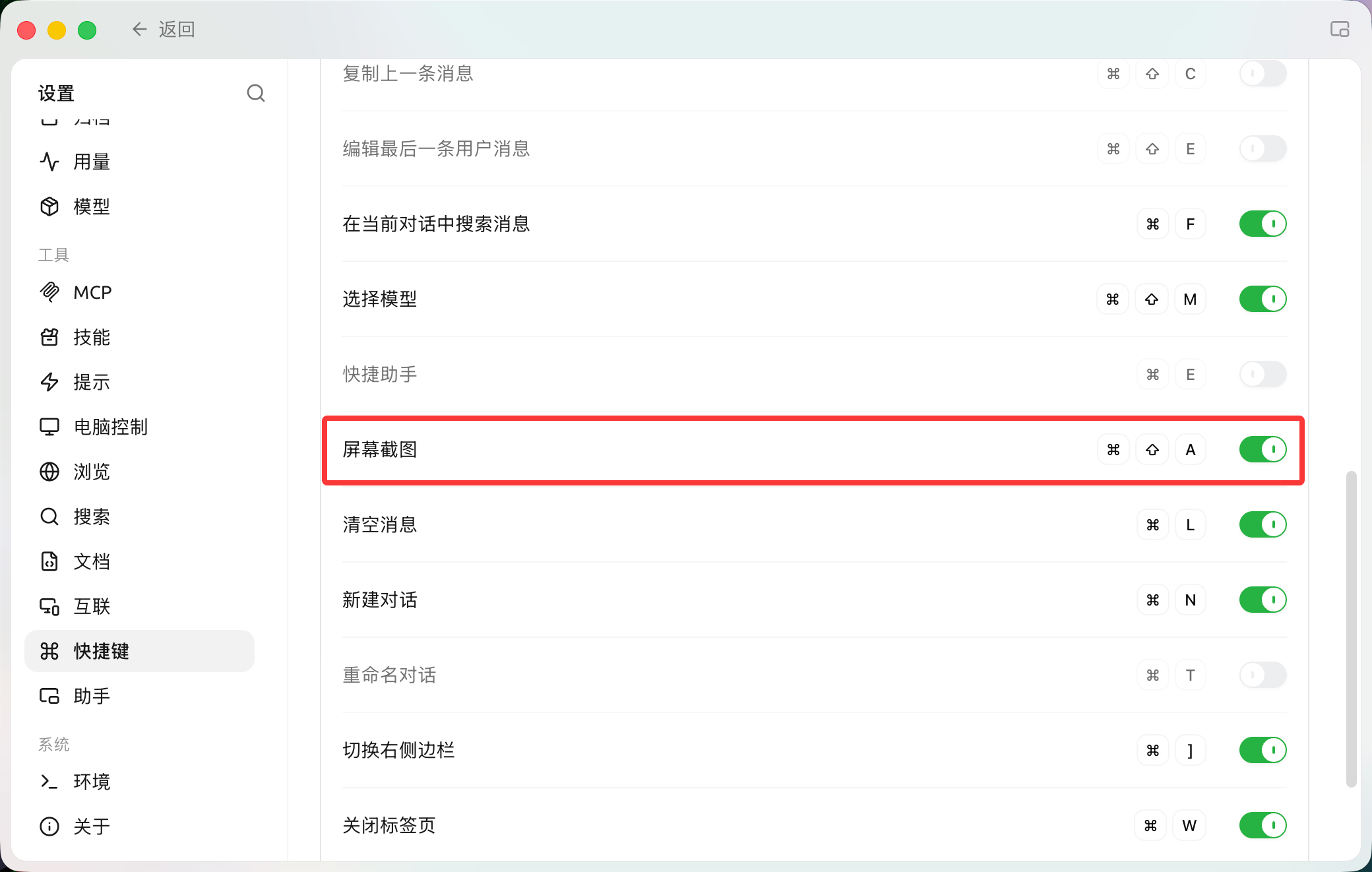
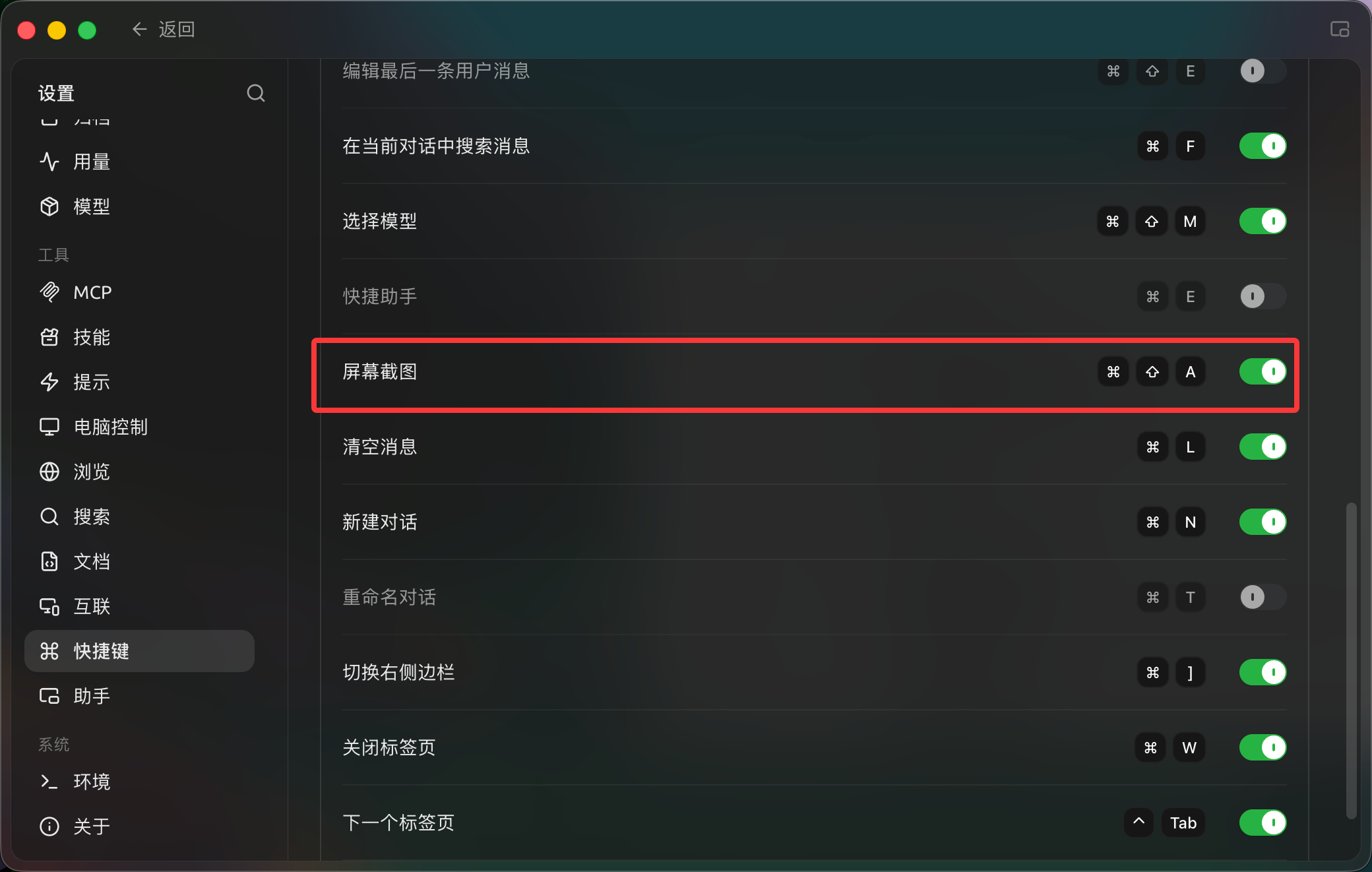
View and configure shortcuts in Settings → Shortcuts. (Chinese interface.)
2. How the Page Works
From top to bottom, the page has four parts:
2.1 Top Toolbar
To the right of the title are a search icon, a category filter (All) and a ⋯ menu. Enable All, Disable All and Reset are in the ⋯ menu:
- Enable All: enables every shortcut in the current list (as filtered / searched) that has a key bound.
- Disable All: disables every shortcut in the current list.
- Reset: restores all shortcuts to their defaults. A "Reset all shortcuts?" confirmation appears first; it takes effect once you confirm.
Note: "Enable All / Disable All" only affect the shortcuts currently visible. If you've narrowed the list with a filter or search, these two buttons only affect the filtered results.
2.2 Search Box and Filter
- Search: click the search icon to filter by action name or key combination.
- Filter (All): opens a category menu so you can view shortcuts by group. The groups are All, Global & Window, Message Interaction, Topics & Conversations and AI Assistant Tools; each shows the number of shortcuts it contains.
2.3 Shortcut List
Each row in the list has three parts, from left to right:
- Action name: the operation the shortcut performs.
- Key combination (middle): shows the currently bound keys. Click it to start recording — you'll see "Press shortcut" — then press the new combination you want to customize it.
- If you've changed a shortcut, a reset icon (↺) appears to its left; click it to restore just that item to its default.
- Some system-level shortcuts (such as Exit Full Screen, Open Settings and the zoom shortcuts) can't be changed; they appear grayed out and can't be clicked.
- Switch (right): enables or disables the shortcut.
- If an item has no key bound yet, the switch can't be toggled; hovering shows "Bind a shortcut first before changing its enabled state".
Conflict warnings: if the combination you set is already used by another action, the page shows "Already used by 'xxx'"; if it's taken by the system or another app, it shows "This shortcut is already used by the system or another app".
3. Core Shortcuts
The default keys for each action are listed below by the groups shown on the page.
💡 Platform differences: the tables use macOS keys (
⌘= Command,⇧= Shift). Windows / Linux users can replace⌘withCtrland⇧withShift.
3.1 Global & Window
| Action | macOS | Windows / Linux | Default state | Notes |
|---|---|---|---|---|
| Exit full screen | Escape | Escape | Enabled | Can't be changed |
| Search messages | ⌘ + ⇧ + F | Ctrl + Shift + F | Enabled | Global search across all conversations |
⌘ + P | Ctrl + P | Enabled | Prints the current conversation | |
| Open settings | ⌘ + , | Ctrl + , | Enabled | Can't be changed |
| Show / hide app | Not set | Not set | Off by default | Global shortcut; bind it yourself |
| Zoom in | ⌘ + = | Ctrl + = | Enabled | Numpad + also works; can't be changed |
| Zoom out | ⌘ + - | Ctrl + - | Enabled | Numpad - also works; can't be changed |
| Reset zoom | ⌘ + 0 | Ctrl + 0 | Enabled | Can't be changed |
| Focus input | ⌘ + I | Ctrl + I | Enabled | Moves the cursor to the message input box |
Boss key: "Show / hide app" is a global shortcut (unbound by default) that works even when BLACK HOLE is in the background. Bind a convenient combination to it and you can bring up or hide the window with one keystroke.
3.2 Message Interaction
| Action | macOS | Windows / Linux | Default state |
|---|---|---|---|
| Clear context | ⌘ + K | Ctrl + K | Enabled |
| Copy last message | ⌘ + ⇧ + C | Ctrl + Shift + C | Off by default |
| Edit last user message | ⌘ + ⇧ + E | Ctrl + Shift + E | Off by default |
| Search messages in current conversation | ⌘ + F | Ctrl + F | Enabled |
| Select model | ⌘ + ⇧ + M | Ctrl + Shift + M | Enabled |
🔥 Clear context (
⌘ + K): it doesn't delete your chat history, but it makes the AI "forget" the earlier conversation. It's very useful when the AI gets stuck in a logic loop, or when you want to start an unrelated topic in the same window without the earlier content getting in the way.
3.3 Topics & Conversations
| Action | macOS | Windows / Linux | Default state |
|---|---|---|---|
| Toggle left sidebar | ⌘ + [ | Ctrl + [ | Enabled |
| New conversation | ⌘ + N | Ctrl + N | Enabled |
| Rename conversation | ⌘ + T | Ctrl + T | Off by default |
| Toggle right sidebar | ⌘ + ] | Ctrl + ] | Enabled |
3.4 AI Assistant Tools
| Action | macOS | Windows / Linux | Default state | Notes |
|---|---|---|---|---|
| Quick Assistant | ⌘ + E | Ctrl + E | Off by default | Global; enable the Quick Assistant feature first |
| Selection Assistant: get selection | Not set | Not set | Off by default | Global; enable the Selection Assistant feature first |
| Toggle Selection Assistant | Not set | Not set | Off by default | Global; enable the Selection Assistant feature first |
Note: shortcuts in this group only appear in the list once the corresponding feature (Quick Assistant / Selection Assistant) is enabled; otherwise they aren't shown.
Pro Tips
- Set up a "boss key": bind a convenient global shortcut to "Show / hide app" so you can summon or hide the AI anytime without hunting for the icon in the taskbar.
- Know the difference between
⌘ + Kand⌘ + N:- Want a completely fresh start? Use
⌘ + Nfor a new conversation. - Want to keep the chat history as notes but have the AI start thinking afresh? Use
⌘ + Kto clear the context.
- Want a completely fresh start? Use
- Don't panic if you mess things up: if one item goes wrong, click the reset icon (↺) on that row to restore it; if things are thoroughly scrambled or full of conflicts, use the Reset button at the top to restore all default keys at once.
Get Help and Submit Feedback
If you have any questions, bugs, or feature suggestions during configuration or use, please use the official channels listed in Feedback and Suggestions.