
Adding and Organizing Sources
The knowledge base supports files, BLACK HOLE notes, local directories, and individual web page URLs. After importing, verify the processing status, content, and Chunks, and re-index when sources are updated.
Selecting the Correct Entry Point
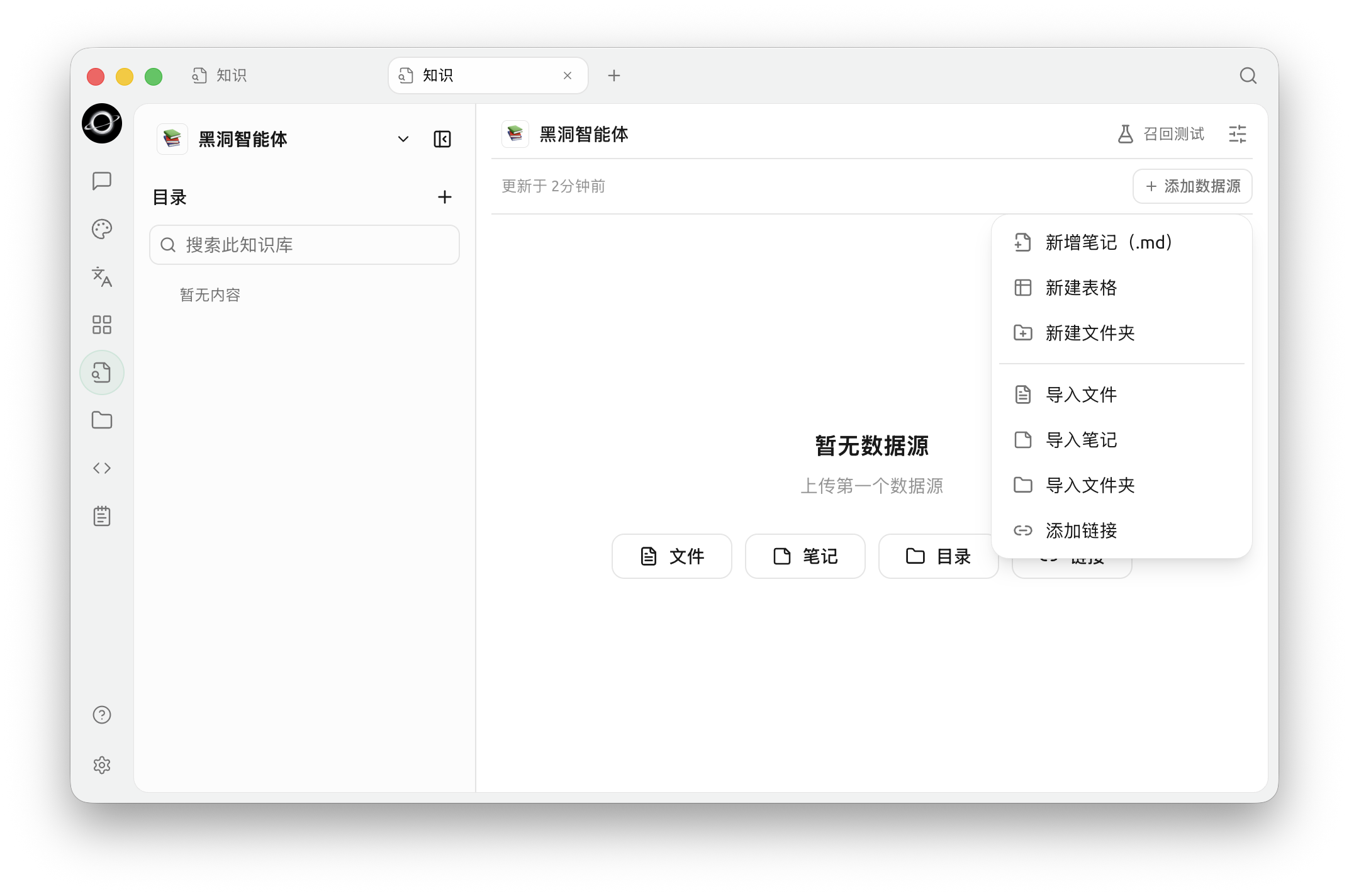
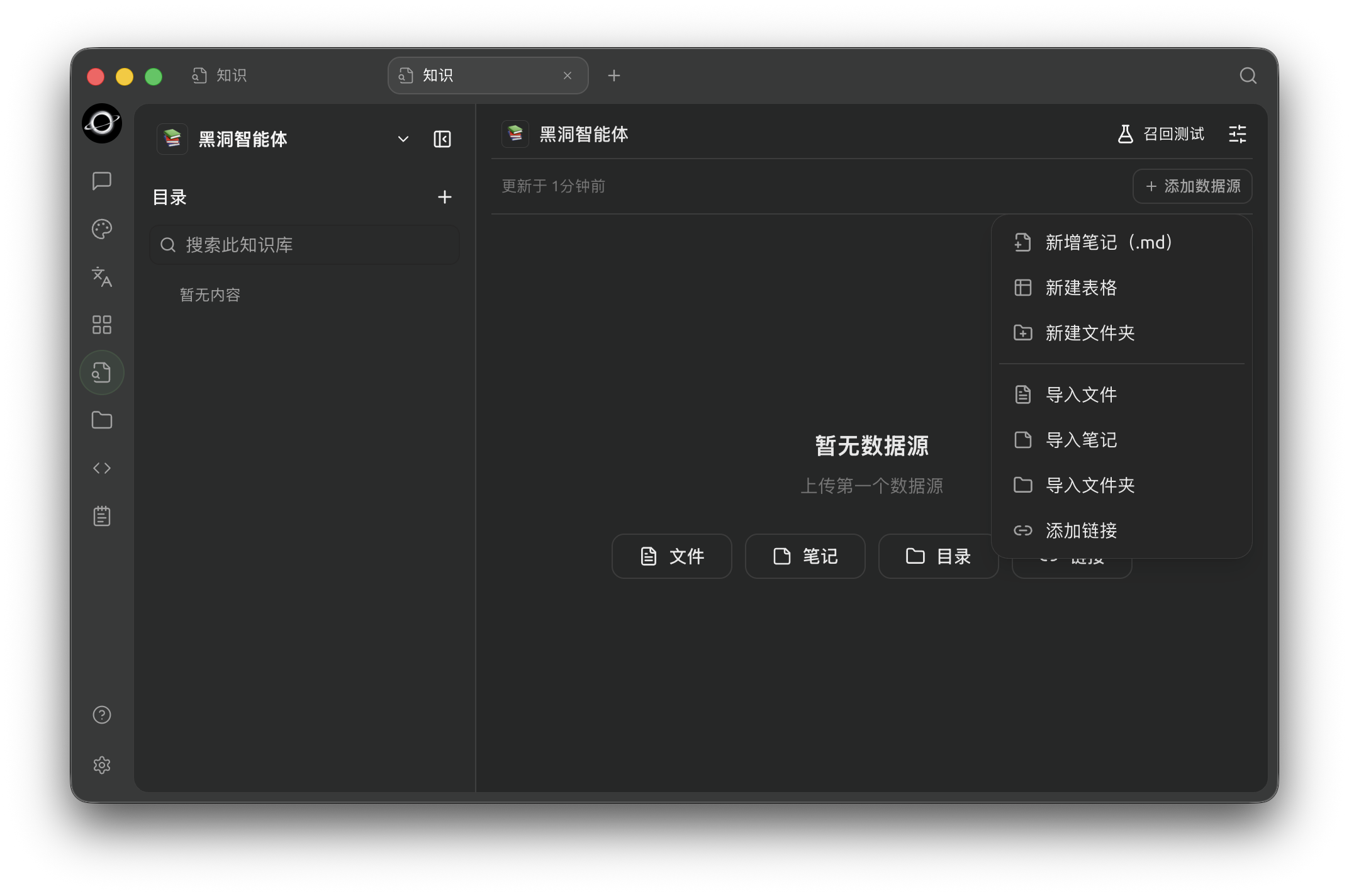
Use Add Data Source in Knowledge to create or import documents, notes, folders and links (Chinese interface).
| Entry Point | Suitable For | Relationship After Import | Key Considerations |
|---|---|---|---|
| File | PDF, Office, Markdown, text, etc. | Saves a managed copy | Select up to 20 items per batch |
| Note | Content already organized in BLACK HOLE | Imports a snapshot of the content at that time | Subsequent edits to the original note do not sync automatically |
| Folder | A batch of local files under the same topic | Creates source entries based on directory contents | Do not import unrelated directories in bulk |
| URL | A single publicly accessible web page | Saves a snapshot of the web page at the time of fetching | Login pages, script-rendered content, or restricted pages may be incomplete |
Adding and Validating Sources
1. Select the Source Type
Open the knowledge base, click Add Data Source, and choose File, Note, Folder, or URL.
2. Confirm Selected Content
Files and notes can be selected in batches; interactive addition allows up to 20 items per session. For larger volumes, add in batches or use the Directory entry point.
3. Handle Name Conflicts
If a new source has the same name as an existing entry, choose Keep All or Replace. When updating policies, manuals, or note snapshots, typically choose Replace.
4. Wait for Processing to Complete
Sources go through stages including copying, reading, chunking, and indexing. If no embedding model is configured, vectors will not be created, but a keyword index will still be built.
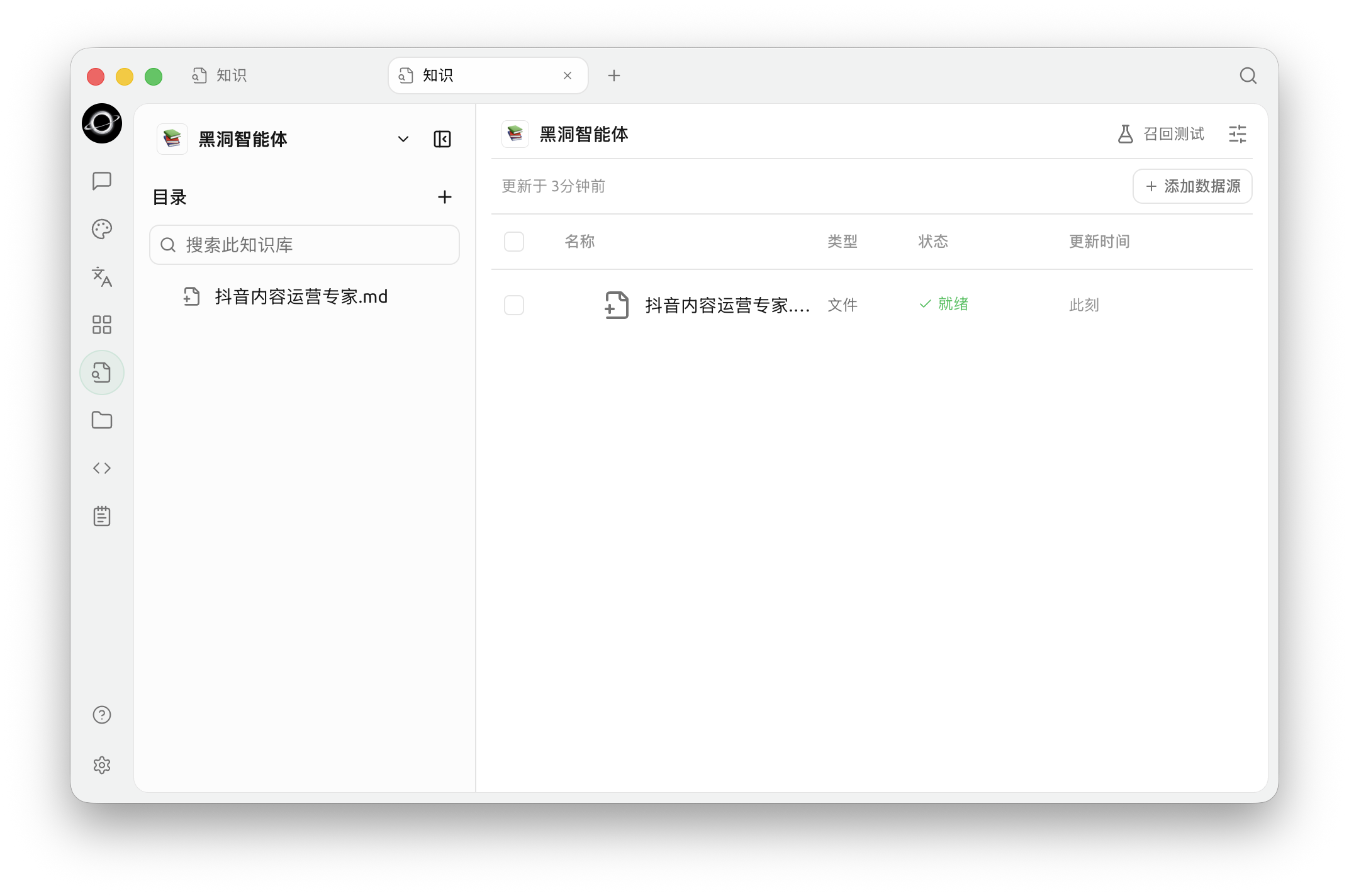
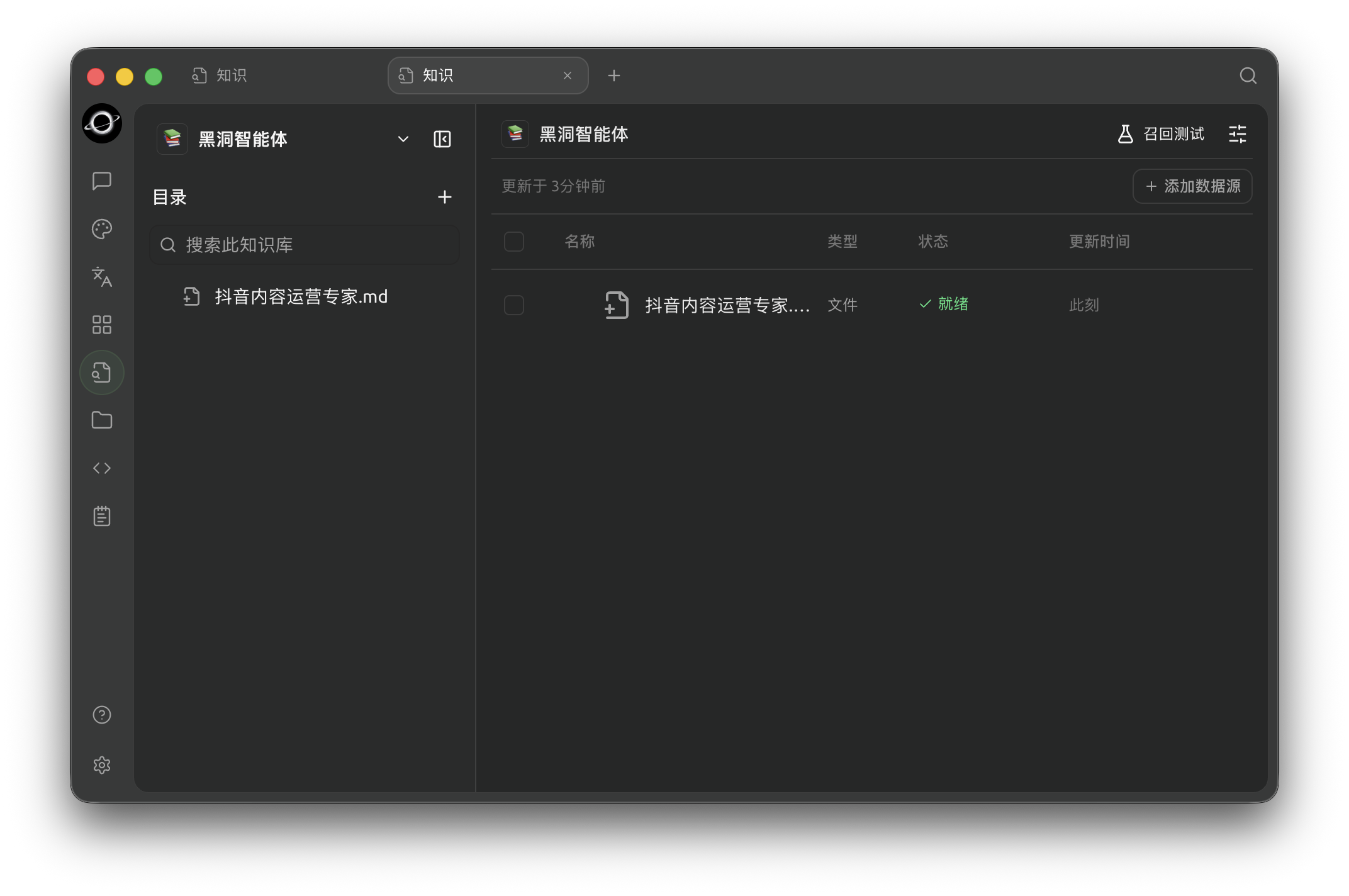
Check processing status, then inspect the content and test recall once processing completes (Chinese interface).
5. Spot-Check Content and Chunks
Open the source to view the content, or view Chunks from the source row menu. Focus on checking whether heading order, tables, OCR text, and key sentences are incorrectly split.
6. Complete Retrieval Testing
Use a question with a clear answer to verify the correct source and snippet. After updating sources, re-test using the same set of questions.
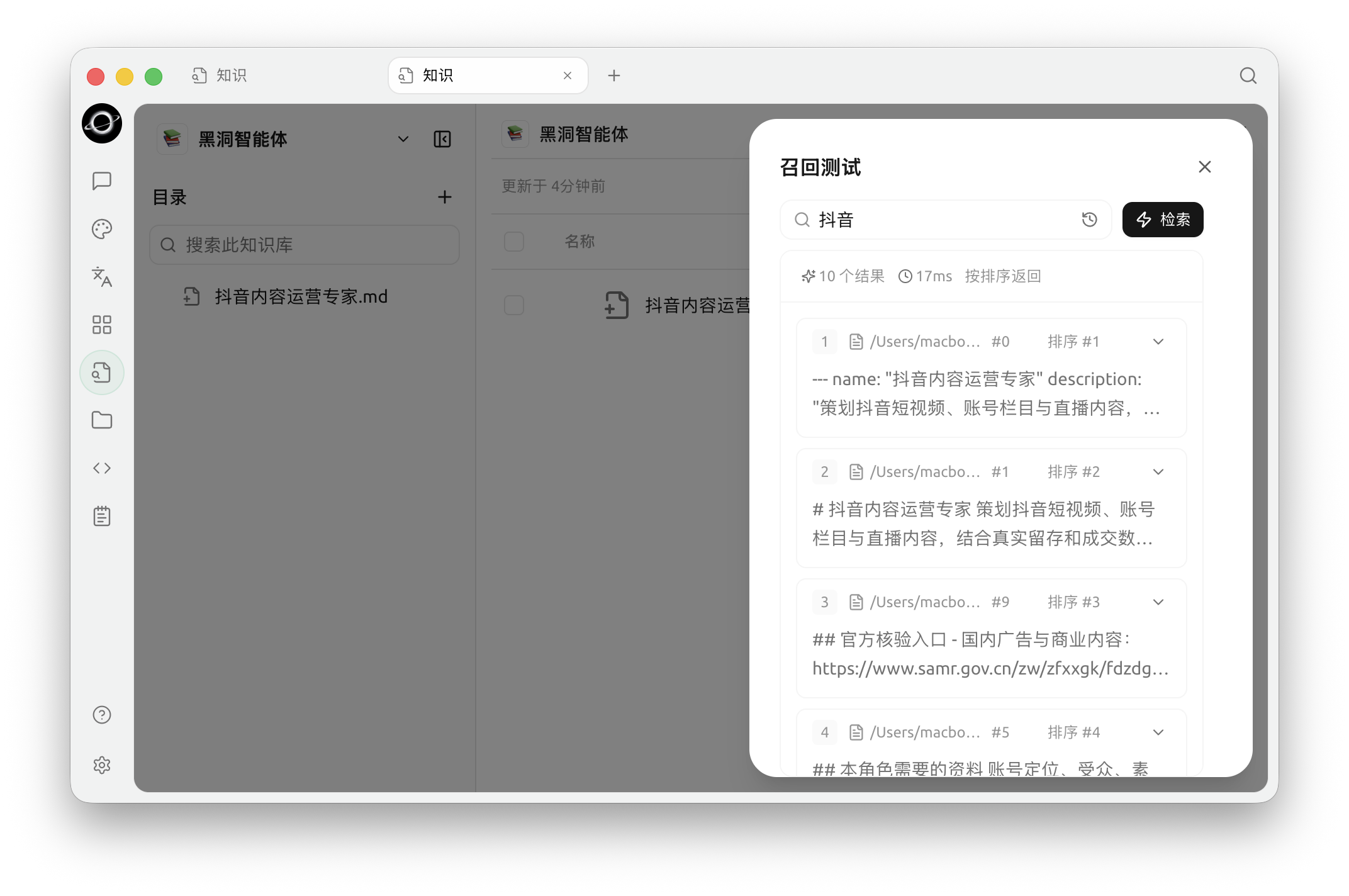
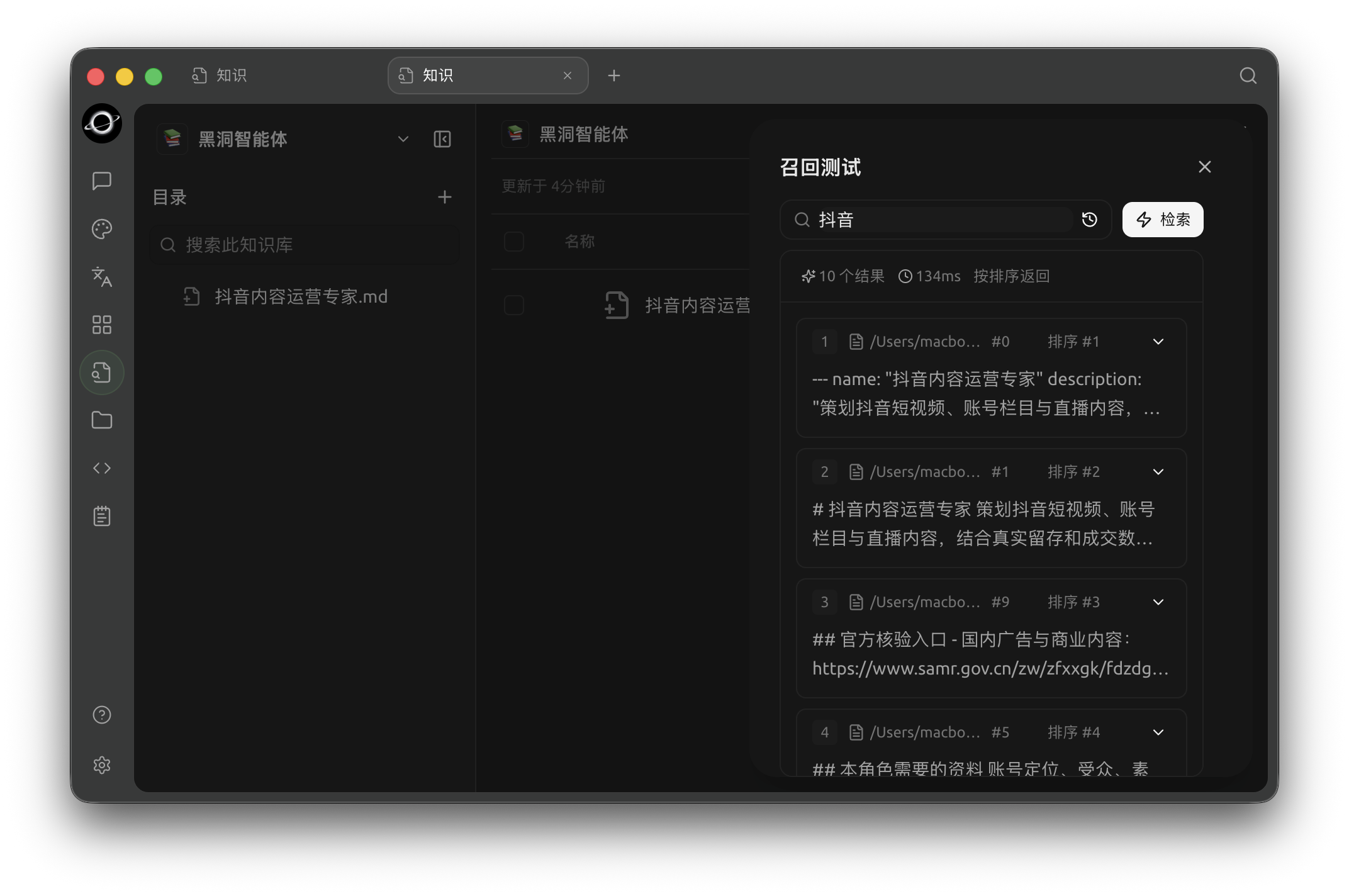
Recall Test: enter a real question and inspect matched chunks, sources and relevance (Chinese interface).
Source Status and Handling Methods
| Symptom | Possible Cause | Handling Method |
|---|---|---|
| Processing for a long time | Large file size, parser or model unavailable | Check the original file, document processing, and embedding model |
| Error displayed | Copying, reading, chunking, or indexing failed | Open the error message and address the failed stage |
| Missing or garbled content | File processor incompatible, scanned content not OCR'd | Change the document processing method or configure OCR |
| Chunks missing key sentences | Chunk boundaries inappropriate | Adjust chunking and execute Re-index |
| Both old and new versions retrieved | Keep All selected for same-named sources | Delete the old entry, or re-import and select Replace |
Re-indexing and Deletion
After changing chunking, parser, or embedding settings, old entries do not automatically apply the new settings. Use Re-index for a single source, or select multiple sources and re-index them in bulk.
Configuration Notes
| Configuration Item | Product Default | Recommended Starting Point | Function | Applicable Scenarios | Considerations |
|---|---|---|---|---|---|
| Items per addition | Max 20 items | Start with a small number of representative sources | Controls import batch size | Initial setup or troubleshooting | Verify parsing and retrieval before bulk imports |
| Name conflict handling | Choose when conflict occurs | Prefer Replace for updates | Determines if old and new entries coexist | Policy, manual, or note updates | Keep All may allow old content to participate in retrieval |
| Re-indexing | Manual execution | Execute after setting changes | Applies new parsing, chunking, or models to old sources | Tuning or fixing sources | Must re-run retrieval tests after completion |
User Case
Xiao Lin updates the travel policy monthly. He imports the new file with the same name and selects Replace. After processing completes, he spot-checks the content and Chunks, then tests lodging, transportation, and approval rules using fixed questions.
The completion standard is: old rules no longer appear in retrieval results, and the conditions and amounts of new rules are consistently retrieved.
Frequently Asked Questions
Does the knowledge base update automatically after modifying the original note?
No. Notes import a snapshot of the content at that time. After modifications, you must re-add and select Replace, or execute Re-index for the corresponding source.
Why does a web page only fetch partial content?
Web pages requiring login, relying on script rendering, or having access restrictions may not be fully fetched. You can save the content as a file or note and then import it.
Does deleting a knowledge base entry delete the original file?
It does not delete the original file or note, but it removes the managed copy and index from the knowledge base.