
Create a Knowledge Base
The two most important choices when creating a knowledge base are the name and the embedding model. You can add materials later, but the name defines the scope, and the retrieval method affects future maintenance.
Make Two Decisions Before Creating
Name the Scope Clearly
Use a format of "Object + Purpose," such as Employee Travel Policy, Product After-Sales Manual, or Market Research Materials. Avoid vague names like Materials or Test, which make it difficult to determine the content scope later.
Choose the Embedding Method
| Option | Suitable Scenario | Retrieval Method | Prerequisites |
|---|---|---|---|
| Disabled | First-time use, clear keywords | BM25 keyword retrieval | None |
| Cloud Embedding Model | User queries differ significantly from source text | BM25 + Vector hybrid retrieval | The corresponding model service must be callable |
| Local Embedding Model | Vectorization must happen locally | BM25 + Local vector retrieval | Download the model in Local Models first |
Creation Steps
1. Open the Creation Window
Open Knowledge Base in the left navigation and click New Knowledge Base at the top of the knowledge base list.
2. Enter a Name
Enter a name that clearly defines the scope, such as Employee Travel Policy.
3. Select an Embedding Model
Select an available cloud or local embedding model. If you do not need semantic retrieval yet, leave it as Disabled.
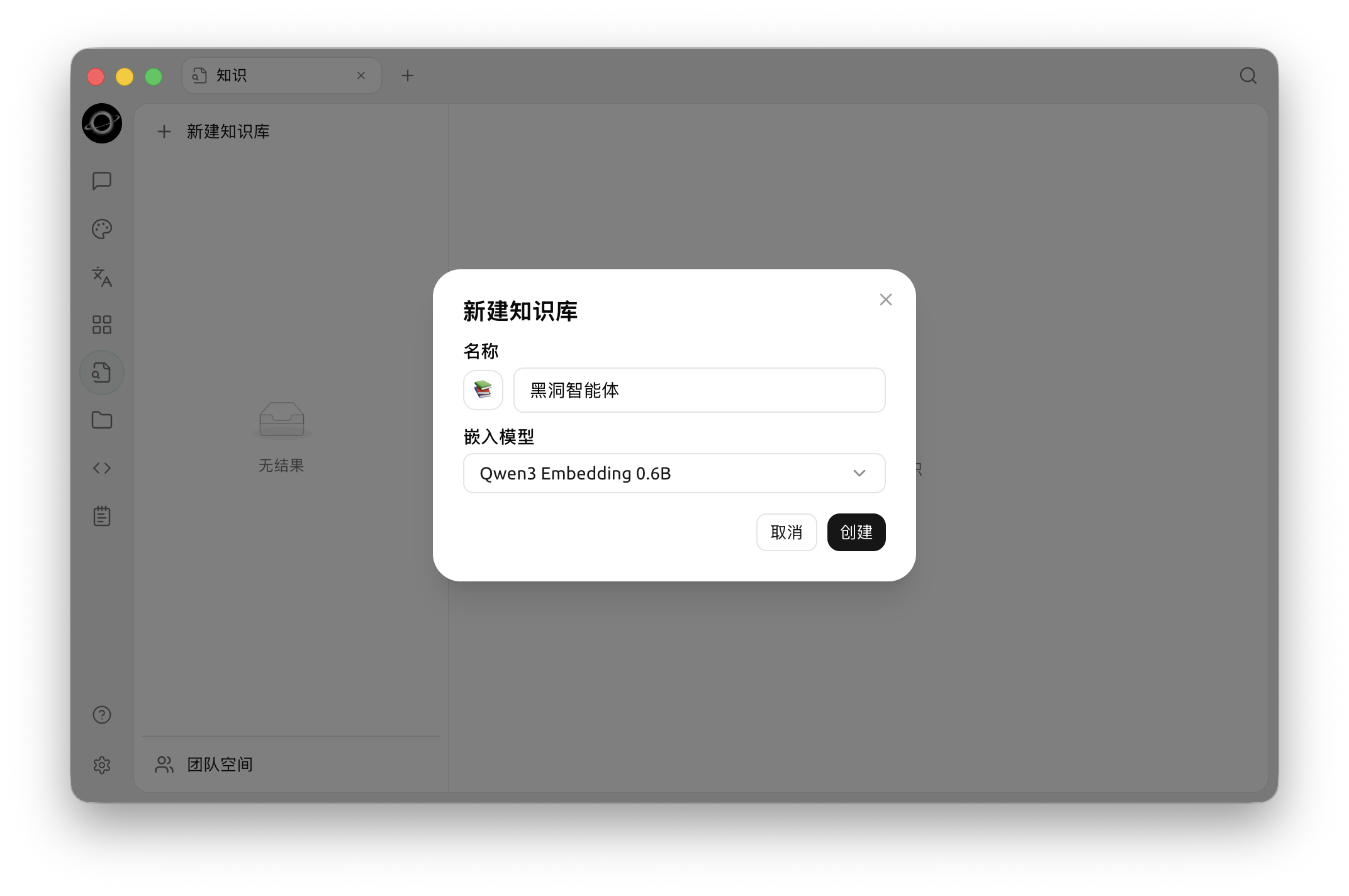
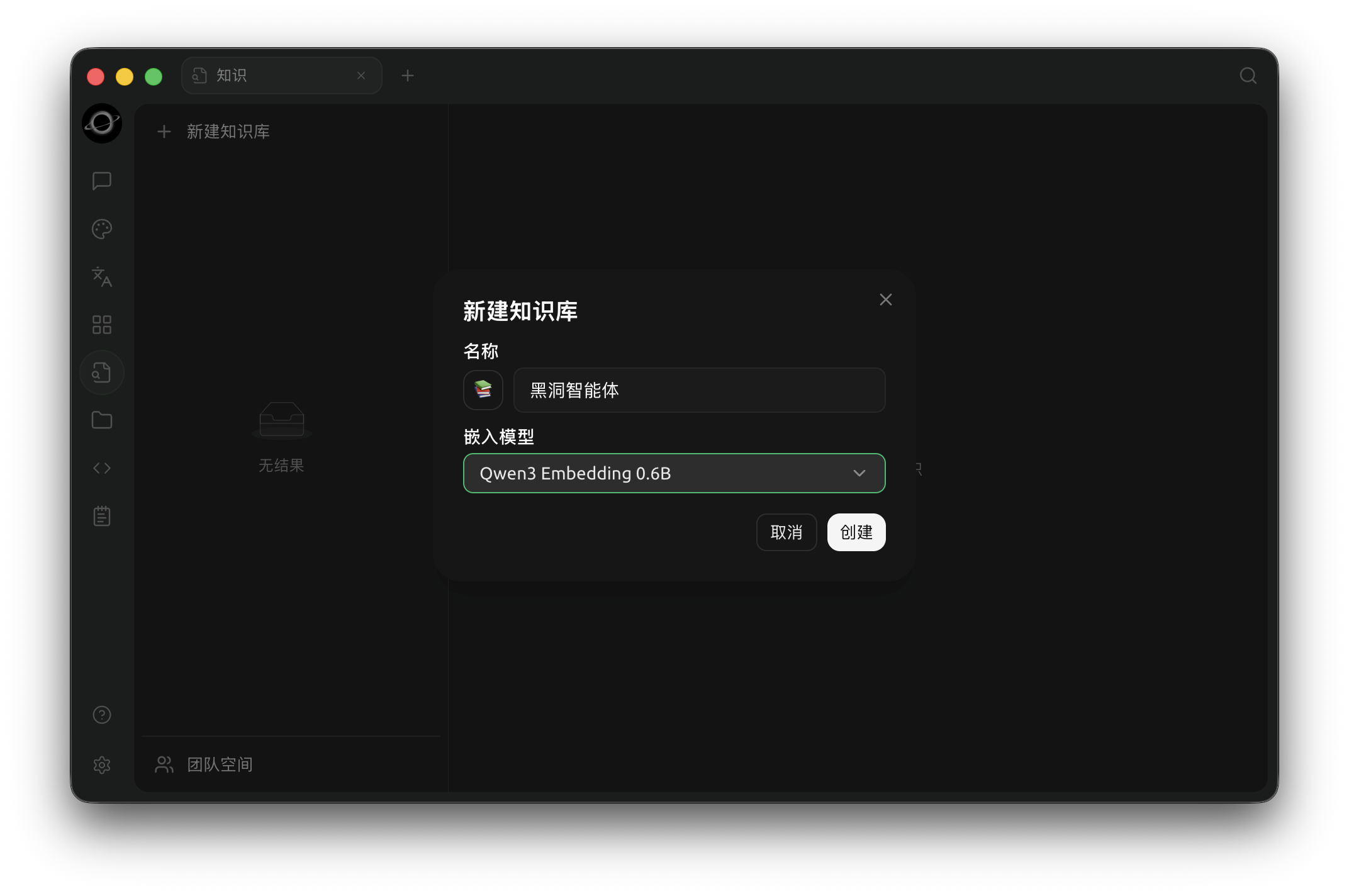
Create a knowledge base by entering a name and selecting an embedding model (Chinese interface).
4. Click Create
Confirm the name and model, then click Create. After creation, you will enter the empty knowledge base.
5. Add the First Batch of Materials
Click Add Data Source, import one or two files or notes with clear answers, and wait for processing to complete.
Using a Local Embedding Model
Open Settings → Local Models and click Download on the Local Embedding card. It shows Ready once downloaded. The model and download size may vary by installation environment; refer to the current card.
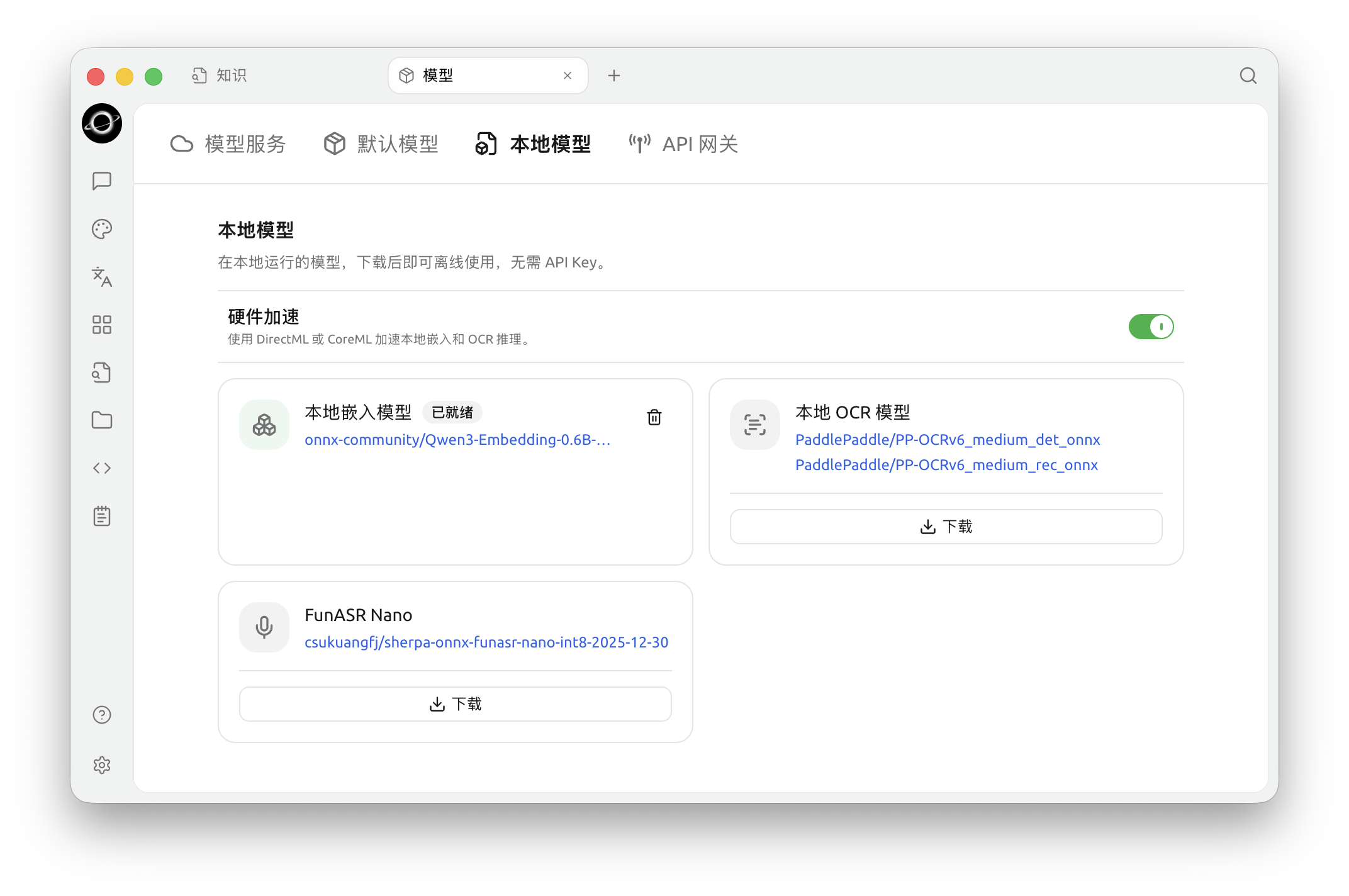
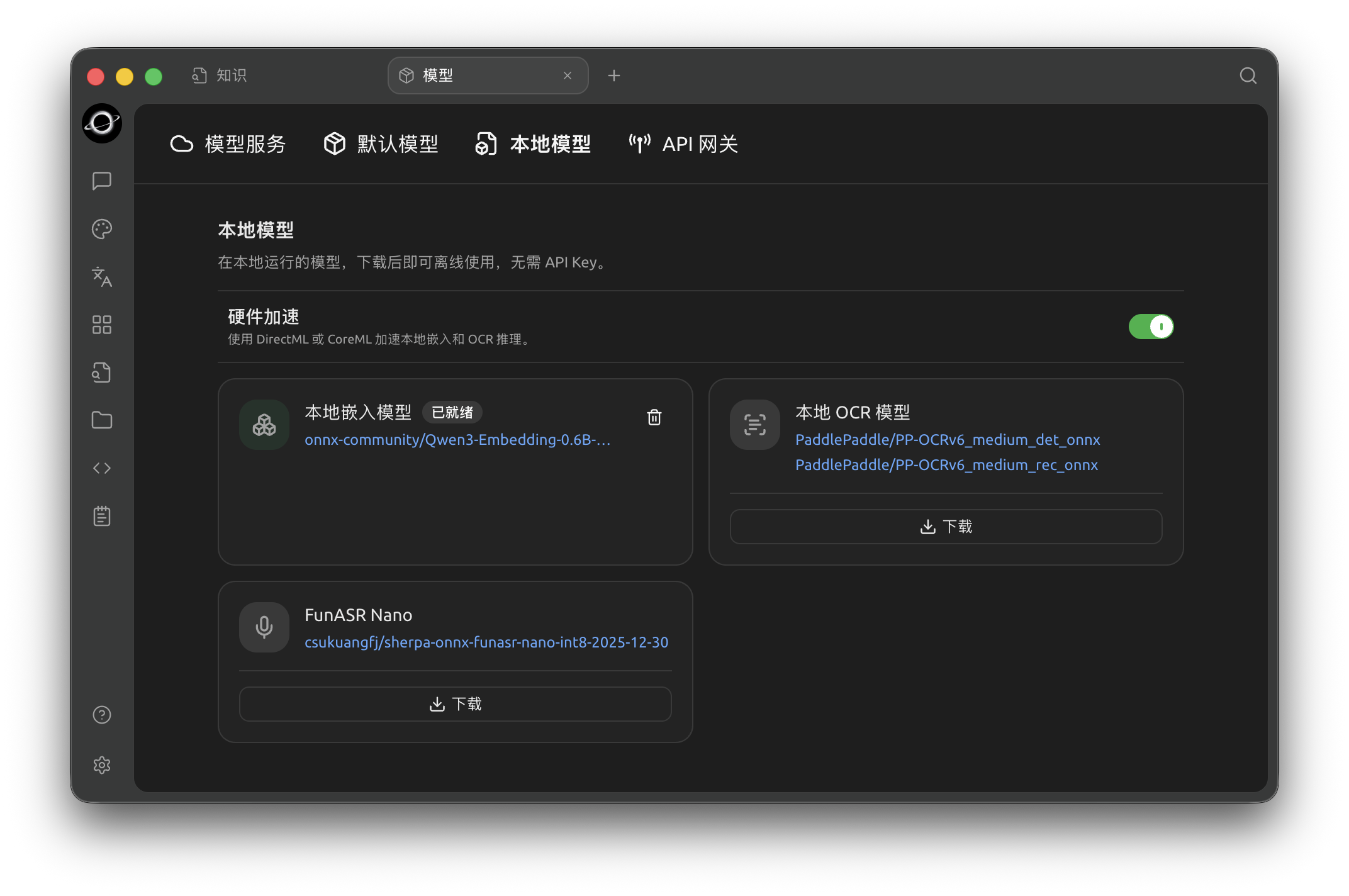
Download a local embedding model, then select it when creating or configuring a knowledge base (Chinese interface).
Changing Models After Adding Materials
When enabling an embedding model for a knowledge base that previously used only BM25, a vector index can be built. When changing the embedding model for a knowledge base that already has vectors, the interface will enter the Rebuild Knowledge Base workflow.
Configuration Notes
| Configuration Item | Product Default | Recommended Start | Function | Applicable Scenario | Notes |
|---|---|---|---|---|---|
| Name | Empty | Object + Purpose | Distinguishes material scope | All knowledge bases | Separate materials with different permissions or lifecycles |
| Embedding Model | None | Start with None for first-time use | Determines if vector retrieval is included | Colloquial queries, many synonyms | Cloud model billing and data processing depend on the provider |
| Local Embedding Model | Not downloaded | Download when local processing is needed | Vectorization happens locally | Offline or high privacy requirements | Still need to check parsing, reranking, and chat models separately |
Expected Results
- The new knowledge base appears in the list with a name distinct from others.
- You clearly know whether you are using keyword retrieval or hybrid retrieval.
- The selected cloud model is callable, or the local model has been downloaded.
User Case
Xiao Lin created the Employee Travel Policy knowledge base for the first time. He first left the embedding model Disabled, imported three policy documents, and completed the recall test. After keyword queries became stable, he configured an embedding model and compared results for colloquial queries using the same questions.
The completion standard is: after upgrading the retrieval method, the original fixed questions do not degrade, and colloquial queries can more stably find the same policy.
FAQ
What if the Create button is unavailable?
Check if the name is empty and if the selected model is still available. If the model service is not configured, you can switch to Disabled to complete the creation.
Will not using an embedding model result in no search results?
No. The knowledge base will still use BM25 keyword retrieval. The closer the query wording is to the materials, the more stable the results usually are.
Do I need to create a separate knowledge base for each topic?
Use "should they be retrieved together during use" as the criterion. Materials with completely different permissions, lifecycles, or topics are better separated.