
Document Parsing and OCR
A knowledge base can only search text that has already been extracted. For scanned PDFs, two-column papers, complex tables and image-based pages, get the text parsed correctly first, then tune models and recall parameters.
Start by Identifying the Material Type
| Material type | Recommended start | Must check |
|---|---|---|
| Markdown, TXT, HTML | Default reading | Heading levels, encoding, line breaks |
| PDF with selectable text, DOCX, PPTX | Default processing first | Paragraph order, headers and footers, tables |
| Scanned PDFs, screenshots, image-based pages | Local or system OCR | Recognition language, amounts, dates, reference numbers |
| Multi-column, formula-heavy or complex-table PDFs | A dedicated document processor | Reading order, table structure, footnotes |
Where Parsing Sits in the Retrieval Chain
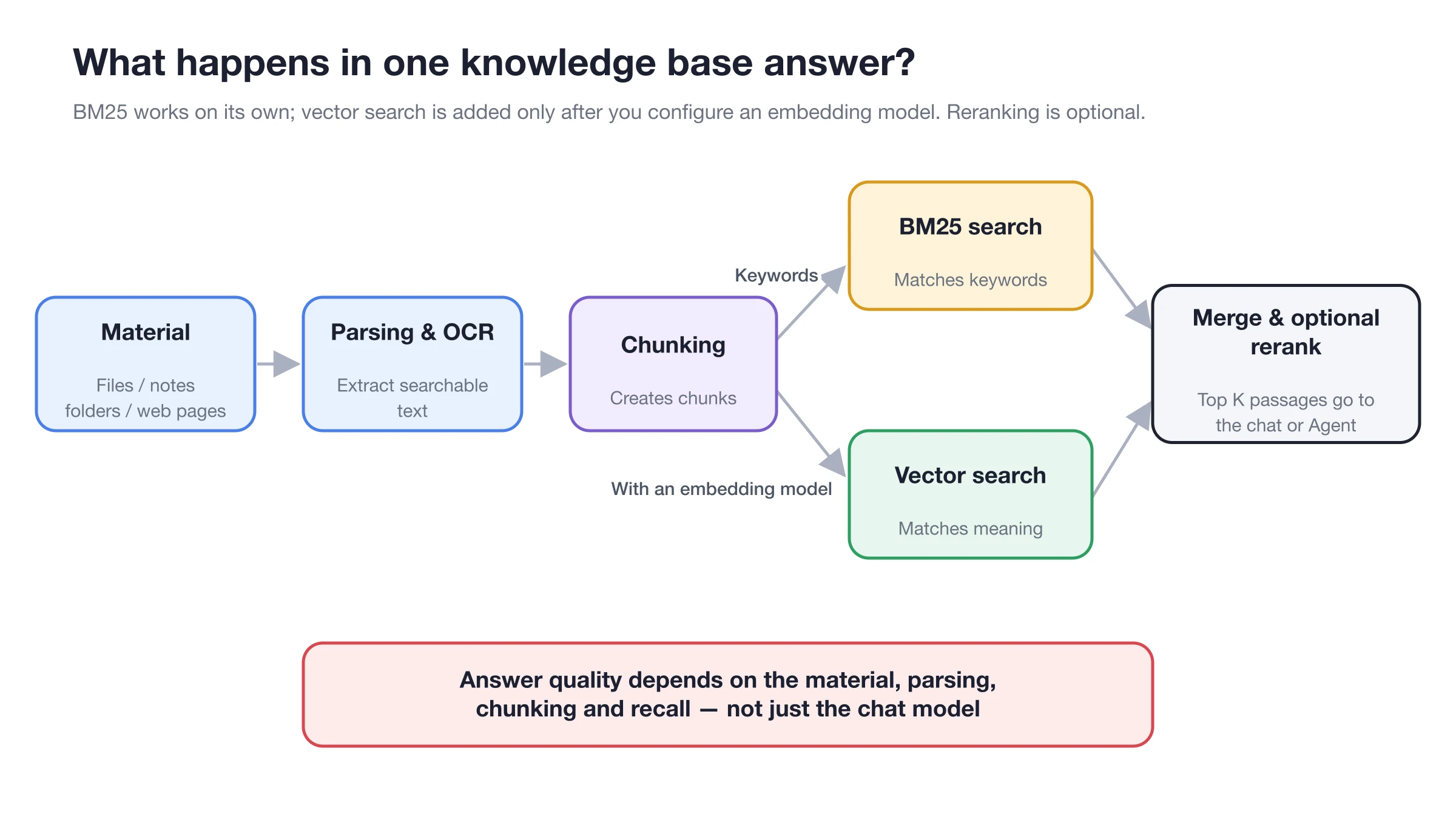
Parsing errors carry through to chunking and recall; downstream models can't restore content already lost from the text.
Configure and Verify With a Sample Document
1. Pick a representative sample
Don't import the whole batch first. Pick the document most likely to expose problems, such as a scanned PDF with tables or a two-column manual.
2. Configure processing
Open Settings → Document Processing, choose a parsing service from the dropdown (such as MinerU), and fill in its API Key and API Base URL. OCR is configured separately under Settings → OCR. Local options may need a model download first.
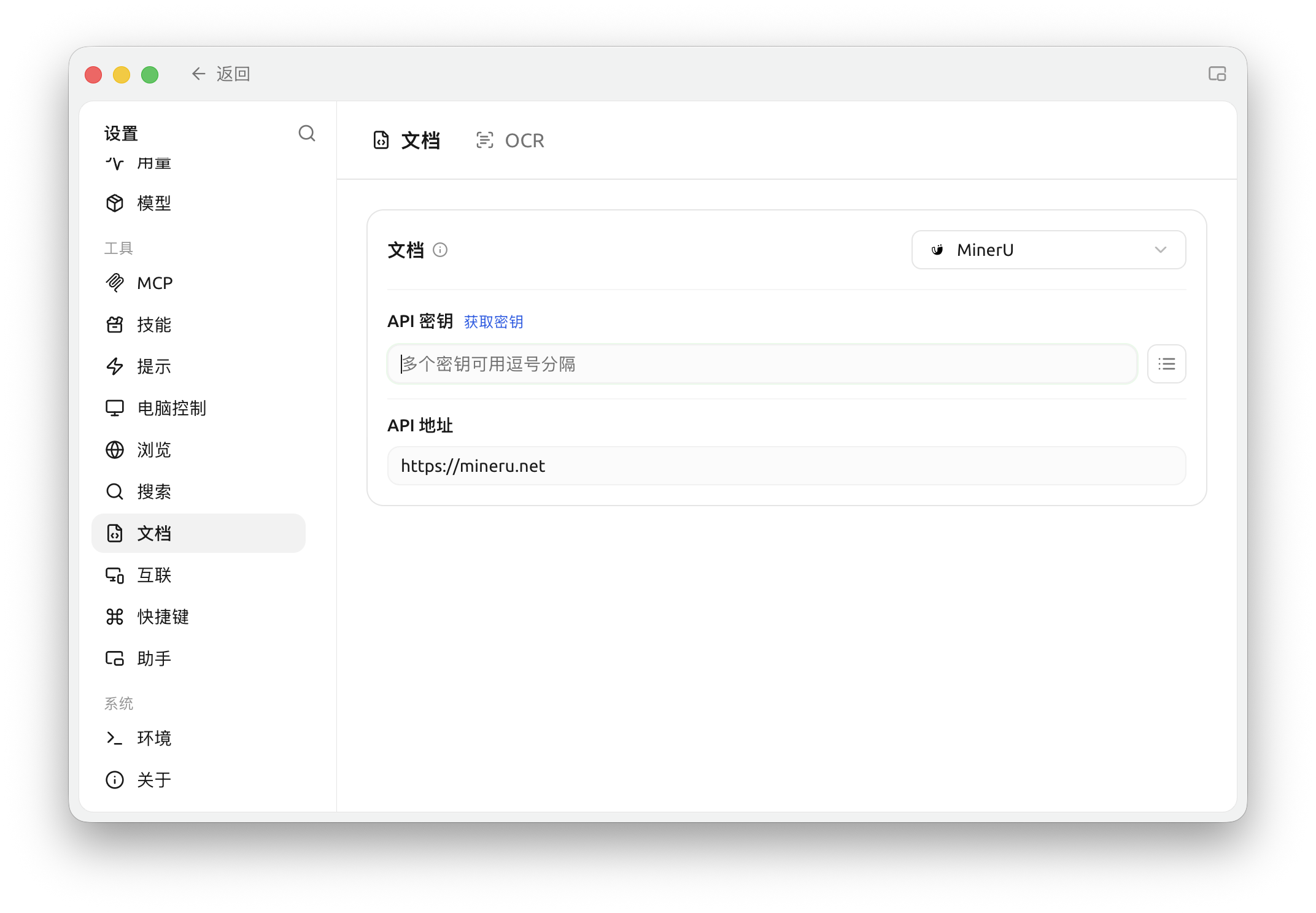
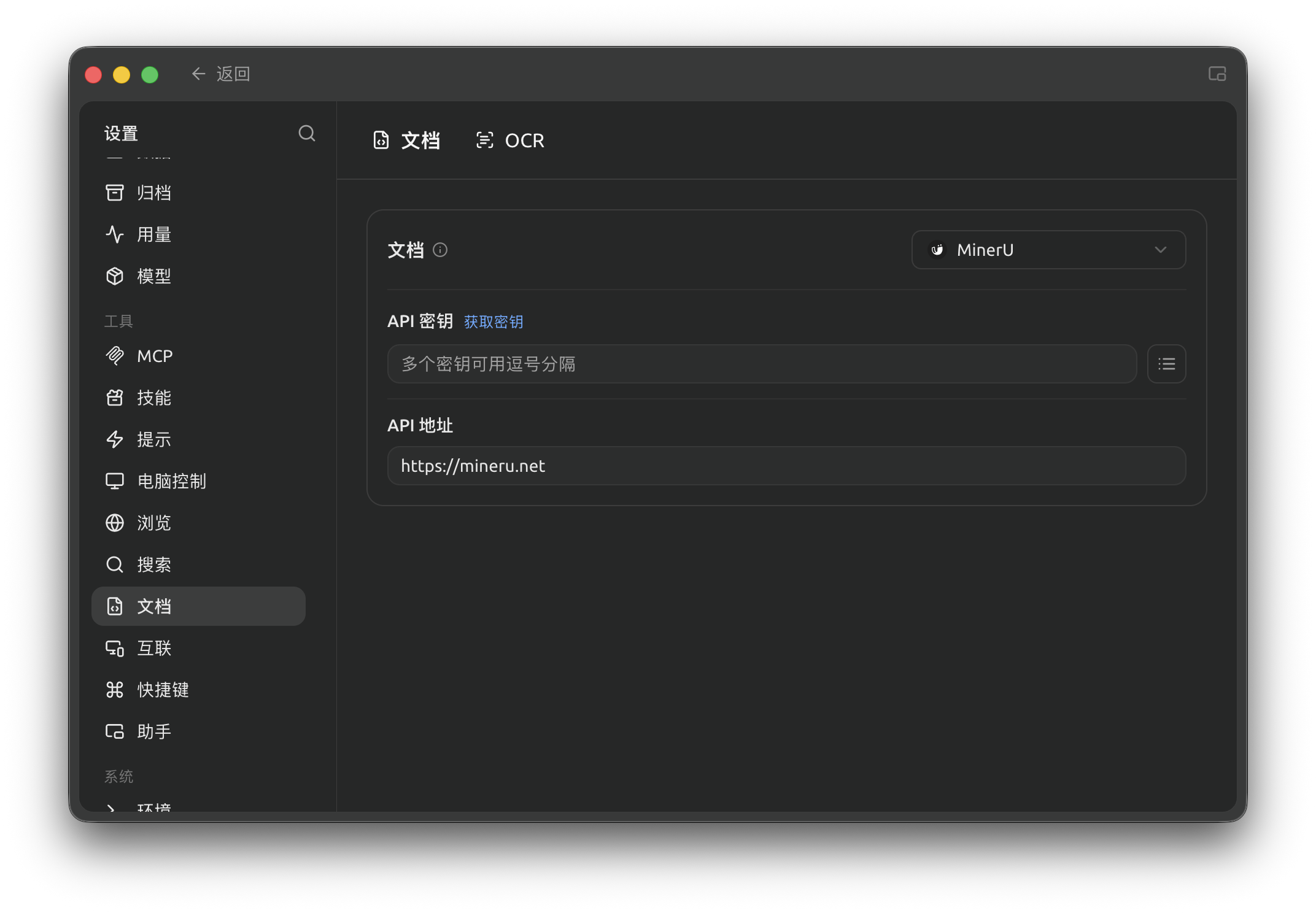
Settings → Documents: configure document parsing and OCR, then verify a sample document (Chinese interface).
3. Import and wait until ready
Add the sample document to the knowledge base. Once processing finishes, open the text and check the headings, paragraphs, page numbers, tables and OCR text.
4. Check the Chunks
Make sure key conditions and conclusions haven't been split apart, and that headers, footers and tables of contents aren't repeatedly filling up chunks.
5. Retest with a real question
In Recall Test, enter a question whose answer is in this document. The results should include the correct source, the complete conditions and the key numbers.
6. Lock in the setup, then import in bulk
Once the sample passes, import material of the same type in batches. If you change the processor, OCR or chunking settings, run Re-index on existing material and test again.
Choosing a Processor and OCR
| Option | When to use | Strengths | Caveats |
|---|---|---|---|
| Default reading | Common text-based formats | Little setup, fast | Complex layouts and scanned pages may lose content |
| System OCR | Supported by your OS and the images are clear | No extra API key, fast | Accuracy depends on the OS, language and image quality |
| Local PaddleOCR | You need offline recognition | Documents never leave your computer | A local model must be downloaded before first use |
| Cloud or self-hosted processors | Two-column layouts, complex tables, lots of formulas | Usually stronger layout analysis | Cloud options receive the document content for processing |
Diagnosing Common Problems
| Symptom | Check first | What to do |
|---|---|---|
| Text is empty or very short | Whether the file is a scan | Enable OCR or switch processors |
| Two columns interleaved | The reading order of the text | Use a processor that's good at layout analysis |
| Tables turned into scattered text | Headers and row/column relationships | Switch processors, or turn the key rules into a Markdown note |
| Headers and footers keep appearing | Repeated noise in Chunks | Clean up the source file or switch parsers — don't just raise Top K |
| OCR gets numbers wrong | Amounts, dates, reference numbers | Improve image clarity and manually check high-risk fields |
Settings Reference
| Setting | Recommended start | When to change it | What to do after |
|---|---|---|---|
| File processor | Default processing first | Misordered text, missing tables, empty scanned pages | Re-index the sample document |
| OCR | Prefer local or system options for clear scans | Image-based pages have no text or many errors | Re-index and check key fields |
| Chunk size and overlap | Keep the knowledge base defaults at first | Conditions and conclusions are split apart | Change one thing per round and re-index |
| Test questions | 3–5 real questions | After changing the processor, OCR or chunking | Compare using the same question set |
Example
Lin imports a two-column travel policy PDF. Its status shows ready, but the text interleaves the left and right columns, and the approval conditions in the recall results are incomplete. Instead of raising Top K first, he switches to a processor better suited to layout analysis, re-indexes the same file, and checks the text and Chunks again.
His bar for done: the approval conditions read in their original order, amounts and dates are correct, and the fixed questions recall passages containing the complete conditions.
FAQ
If the text is correct, do I still need to look at the Chunks?
Yes. Correct text only means parsing passed; conditions and conclusions can still be split apart during chunking.
Can raising Top K fix parsing problems?
No. Top K only controls how many passages are returned; it can't restore content that was lost or misordered in the text.
Why didn't the results change after I switched processors?
Existing material is still using the old index. Run Re-index on the relevant items, then retest with the same questions.