
Data, Privacy and Maintenance
A knowledge base stores a managed copy of the imported material, the parsed text, Chunks and search indexes. Whether data leaves your computer depends on the services chosen for each step: parsing, OCR, embedding, reranking and chat.
What Is Stored After Import
| Content | Purpose | How it's updated |
|---|---|---|
| Copies of files, or of files in a folder | Lets the knowledge base keep processing and displaying them | Re-add or replace after the original file changes |
| Snapshots of web pages and notes | Keeps the content as it was at import time | Re-import after the source changes |
| Parsed text and Chunks | Preview and retrieval | Re-index after changing the processor or chunking |
| BM25 keyword index | Exact-term search | Rebuilt when re-indexing |
| Vector index | Semantic search | Generated or rebuilt after configuring or changing the embedding model |
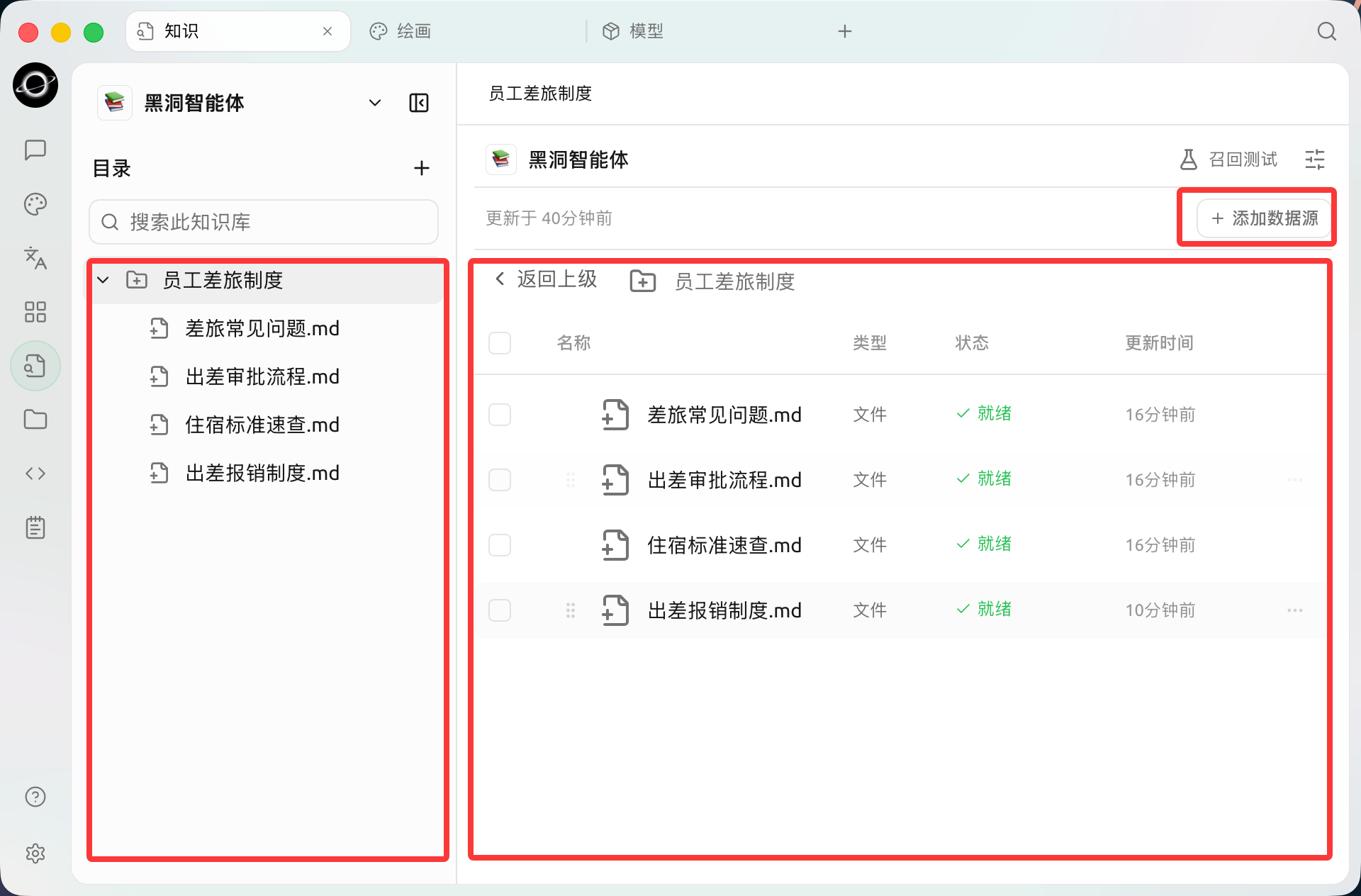
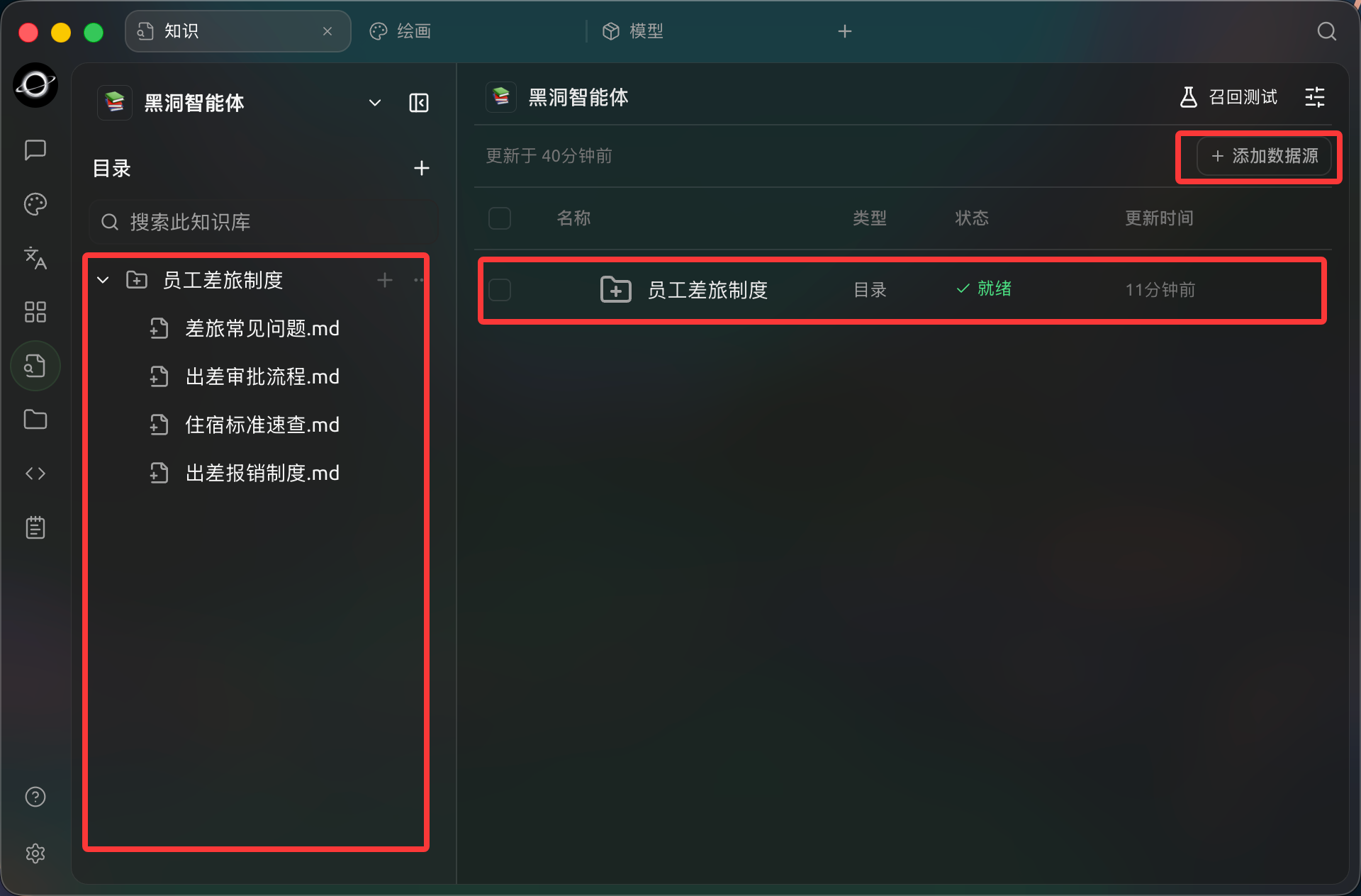
Check processing status, then inspect the content and test recall once processing completes (Chinese interface).
Which Boundaries a Query May Cross
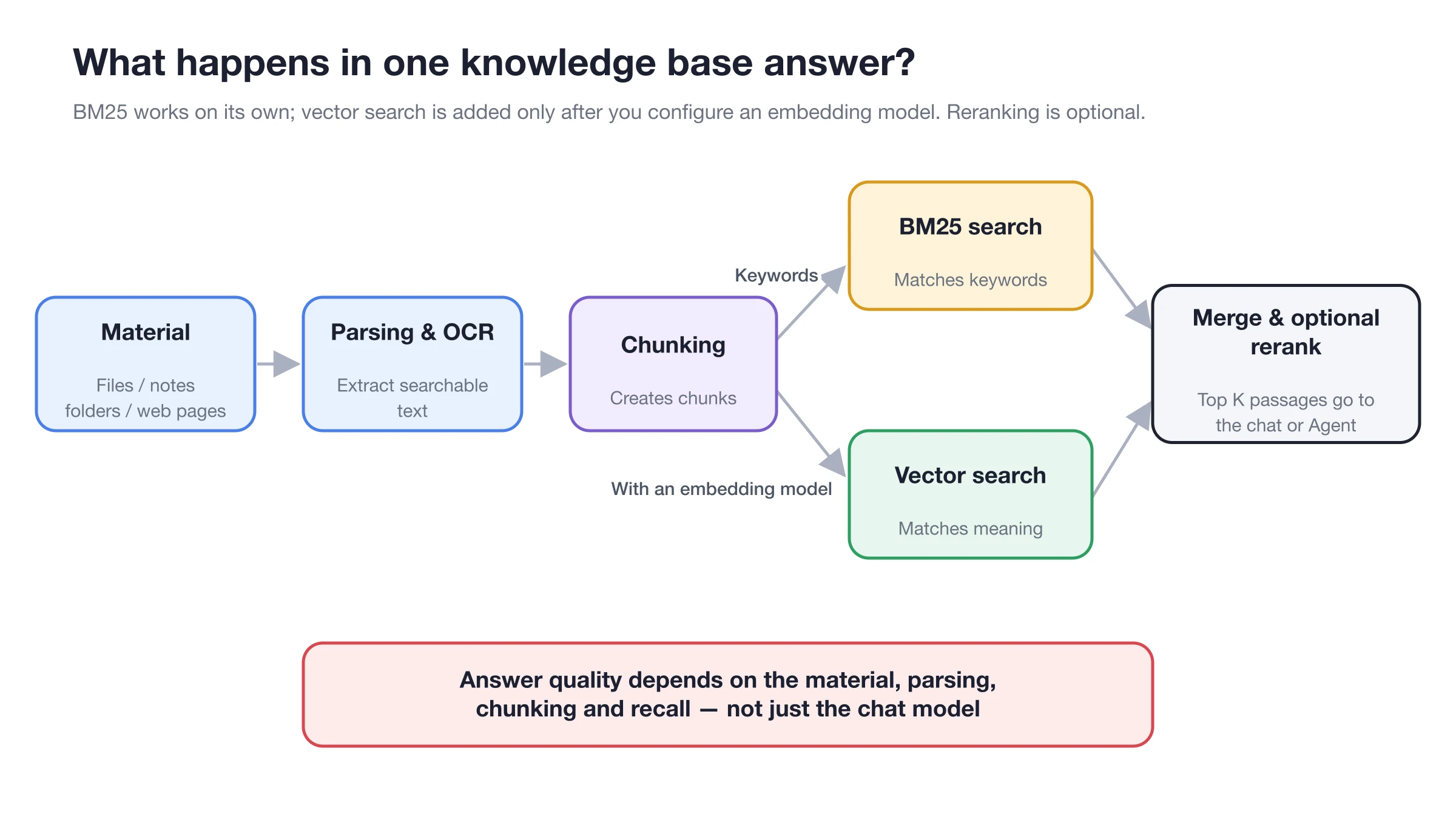
The parsing, vector, rerank and answer steps in the diagram can each use a local or cloud service; check them one by one to know where your data goes.
| Capability chosen | What it may receive |
|---|---|
| Cloud document processor | File content to be parsed |
| Cloud embedding model | Material passages and search queries |
| Cloud rerank model | Queries and candidate passages |
| Cloud chat model | Questions, conversation context and recalled passages |
| Local equivalents | Processing happens on your computer |
Run a Full Maintenance Check
1. Record the current configuration
Note the knowledge base name, file processor, OCR, embedding model, rerank model and key chunking settings. Use them to verify the environment after a migration.
2. Clean up duplicates and old versions
Keep only the current version of each policy. If you need a history for audits, put the year or version clearly in the title so versions don't compete with each other in search.
3. Check for problem items
Deal with material showing Error or stuck in Processing, and spot-check the text and Chunks. If an interruption left indexing unfinished, run Re-index.
4. Create the right backup
Open Settings → Data. When moving to a new device or preparing to delete material, use a full backup that includes knowledge base data files.
5. Restore and verify in the target environment
Don't just confirm the restore finished. Check the knowledge base items, text and Chunks, and run your fixed recall questions.
6. Keep a baseline you can roll back to
Validate a new processor or model on a small amount of material first, then re-index in batches. Don't delete your most recent full backup until the new results are stable.
Full Backup vs. Lite Backup
| Backup type | What it includes | When to use | Limitations |
|---|---|---|---|
| Full backup | Chats, settings, and data files such as knowledge bases | Moving devices, protection before deleting, full restore | Larger files, takes longer |
| Lite backup | Mainly chat history and settings; skips images, knowledge bases and other data files | Quickly saving everyday settings and chats | Can't restore a complete knowledge base on its own |
Handling Updates and Deletions
When source content changes
- Re-add the material with the same name.
- Choose Replace to overwrite the old version; choose Keep All only when you really want both.
- Wait until the material is ready.
- Spot-check the text and Chunks.
- Run your fixed recall regression questions.
When processing settings change
If you only change the processor, OCR, chunking or model settings, run Re-index on existing items. Changing the configuration alone doesn't reprocess old material.
Deleting material or a knowledge base
Deleting removes the content and indexes managed by the knowledge base, but doesn't delete files at their original paths or the original notes. Before you do it, make sure the original sources can still be found, a full backup is available, and no Agent is still bound to that knowledge base.
Settings Reference
| Item | Recommended start | How to verify | Risk |
|---|---|---|---|
| Material versions | Keep only the current version for each purpose | Fixed questions hit only the correct version | Old and new rules get mixed |
| Cloud services | Confirm each one against the sensitivity level | Review processor and model settings | Documents or passages are sent to external services |
| Backups | Create a full backup before big changes | Check items and recall after restoring | Lite backups lack knowledge base files |
| Re-indexing | Process representative material in batches | Compare before and after with the same question set | Rebuilding everything at once loses a working baseline |
Example
Lin needs to move the team's policy knowledge base to a new computer. He first records the processor and model settings, creates a full backup, restores it on the new computer, checks the text and Chunks of three items, and repeats the original five recall questions. Only after everything passes does he clean up the old environment.
His bar for done: the number of items and their titles match, key questions still hit the same sources, and the team has confirmed every cloud service meets its data requirements.
Fully Offline Checklist
- Document parsing and OCR use system, local or self-hosted options.
- The embedding model runs on your computer.
- No cloud reranking, or a local rerank option is used.
- Chats and Agents use a local chat model.
- No MCP servers, web search or channels that send content to external systems are enabled.
FAQ
Does the knowledge base update automatically when I change the original file?
No. Files, web pages and notes are stored as they were at import time. Re-add and replace them, or re-index as needed.
Is a local embedding model enough to be fully offline?
Not necessarily. If any of parsing, OCR, reranking or chat uses a cloud service, the content needed for that step may be sent out.
Can a lite backup restore a knowledge base?
It can't restore the complete knowledge base files. Use a full backup before migrating or deleting, and actually verify the material and recall after restoring.