
Quick Assistant
The Quick Assistant is a small floating window that you can call up from any application with a global hotkey. Use it to ask a quick question, or to translate, summarize, or explain text, without switching back to the main BLACK HOLE window.
Enable Quick Assistant
- Open Settings: Go to Settings → Quick Assistant (under Efficiency in the left menu).
- Turn it on: Toggle Enable Quick Assistant. Once enabled, the remaining options and a live preview of the Quick Assistant window appear on the same page.
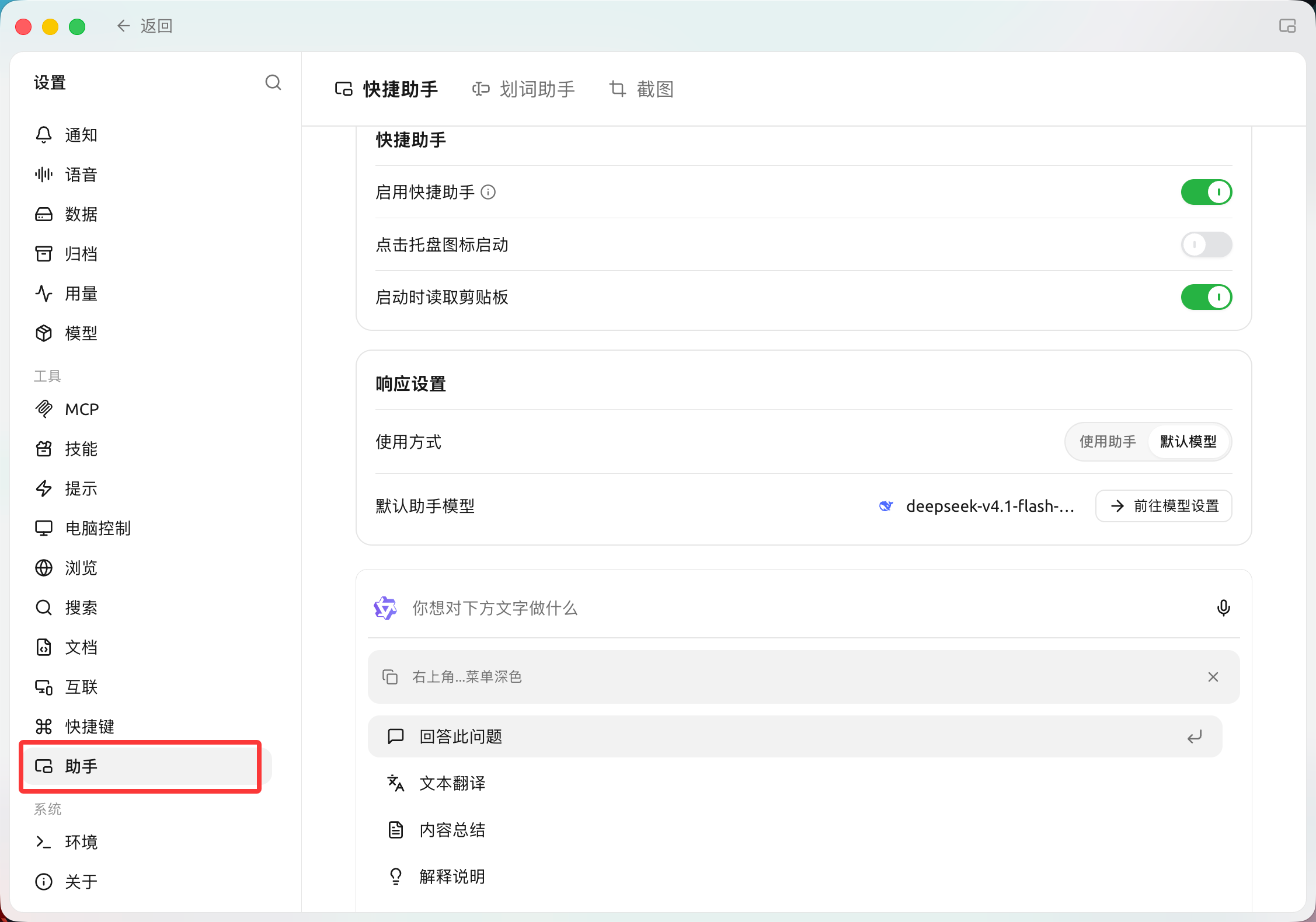
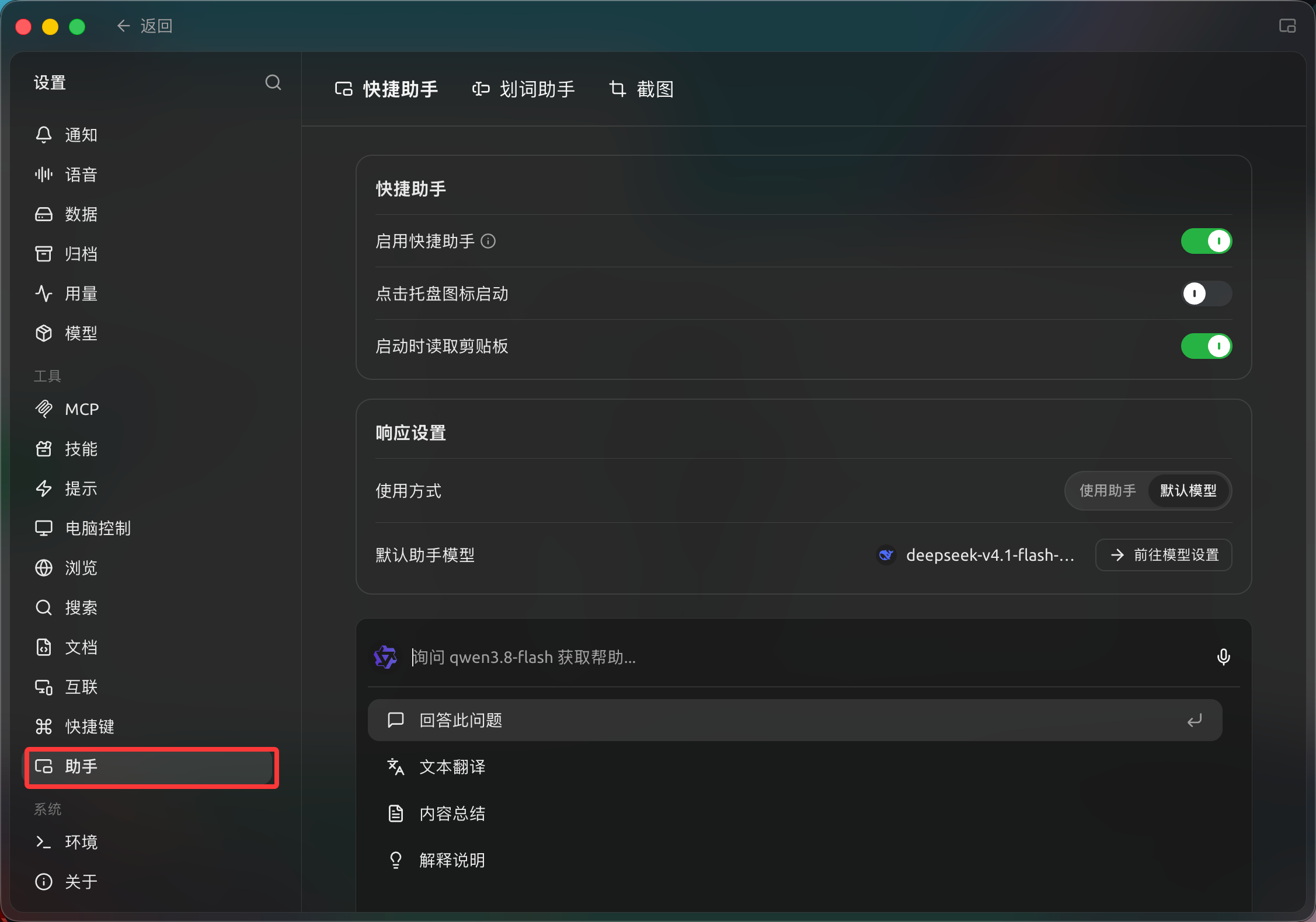
Settings → Assistant → Quick Assistant: enable and configure the quick assistant (Chinese interface).
Quick Assistant options
| Option | Description |
|---|---|
| Enable Quick Assistant | Master switch for the feature. |
| Click the tray icon to start | Opens the Quick Assistant when you click the BLACK HOLE icon in the system tray / menu bar. |
| Read clipboard at startup | Each time the Quick Assistant opens, the current clipboard content is loaded automatically as the text to work with. |
Response Settings
| Option | Description |
|---|---|
| Usage Method | Use Assistant: replies are generated by one of your existing assistants, using its model and settings. Default Model: replies use the model set below. |
| Default Assistant Model | The model used when Usage Method is set to Default Model. Click Go to model settings to change it in Default Model Settings. |
Set the Hotkey
The hotkey is not configured on the Quick Assistant page. Go to Settings → Keyboard Shortcuts to view or change it (see Shortcut Settings).
- Default on Windows: Ctrl + E
- Default on macOS: ⌘ + E
If the hotkey conflicts with another application, assign a different one.
Use the Quick Assistant
-
Open it: In any application, press the hotkey (or click the tray icon if that option is on).
-
Check the input: If Read clipboard at startup is on, the copied text appears as a card under the input box. Click × on the card to discard it.
-
Choose what to do: Type your request in the What do you want to do with this text? box and press Enter, or pick one of the built-in actions:
- Answer this question: Ask the AI about the text or your typed question.
- Text translation: Translate the text.
- Content summary: Summarize long text.
- Explanation: Explain a concept, term, or passage.
-
Close it: Press Esc or click anywhere outside the window.
Tips and Tricks
- Work on copied text: Keep Read clipboard at startup on, copy some text, then press the hotkey to translate or summarize it right away.
- Reuse an assistant's setup: Set Usage Method to Use Assistant if you want the Quick Assistant to follow a particular assistant's prompt and model.
- Hotkey does nothing? Make sure Enable Quick Assistant is on, and check Settings → Keyboard Shortcuts for conflicts.
Get Help and Submit Feedback
If you have any questions, bugs, or feature suggestions, please use the official channels listed in Feedback and Suggestions.