
Selection Assistant
The Selection Assistant allows you to select text in any application and invoke AI for translation, explanation, optimization, summarization, and other tasks via a floating toolbar, without pasting the content back into BLACK HOLE.
Platform Support
- ✅ macOS: Fully supported, but requires Accessibility permissions to be granted upon first enablement
- ✅ Windows: Fully supported, no special permissions required
- ⚠️ Linux: Fully supported only in X11 mode; in Wayland mode, the toolbar may not follow the selected text position. Additionally, the current user must be added to the
inputgroup (sudo usermod -aG input $USER) to obtain key listening permissions
Enable Selection Assistant
Open [Settings] → [Selection Assistant]:
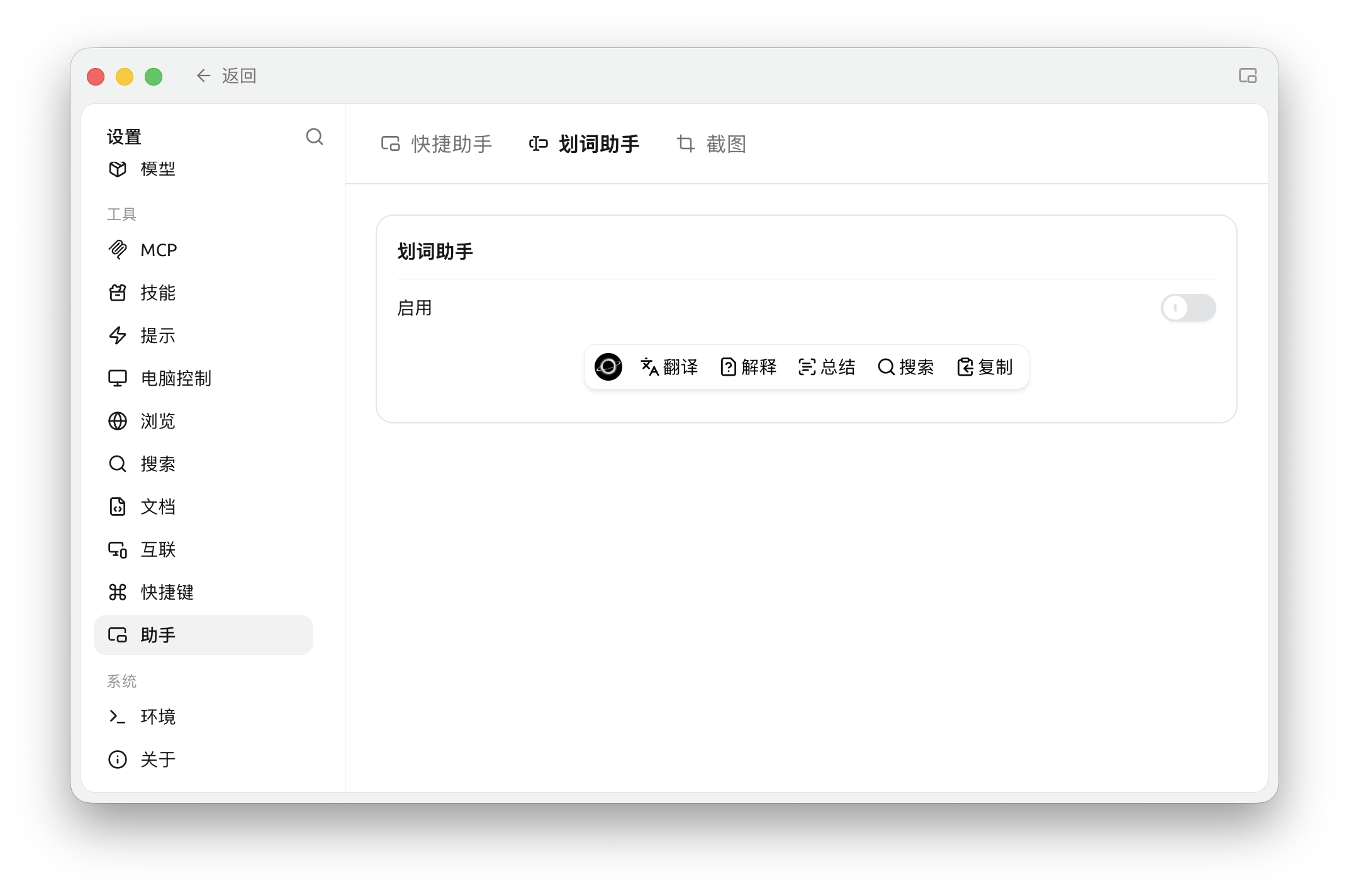
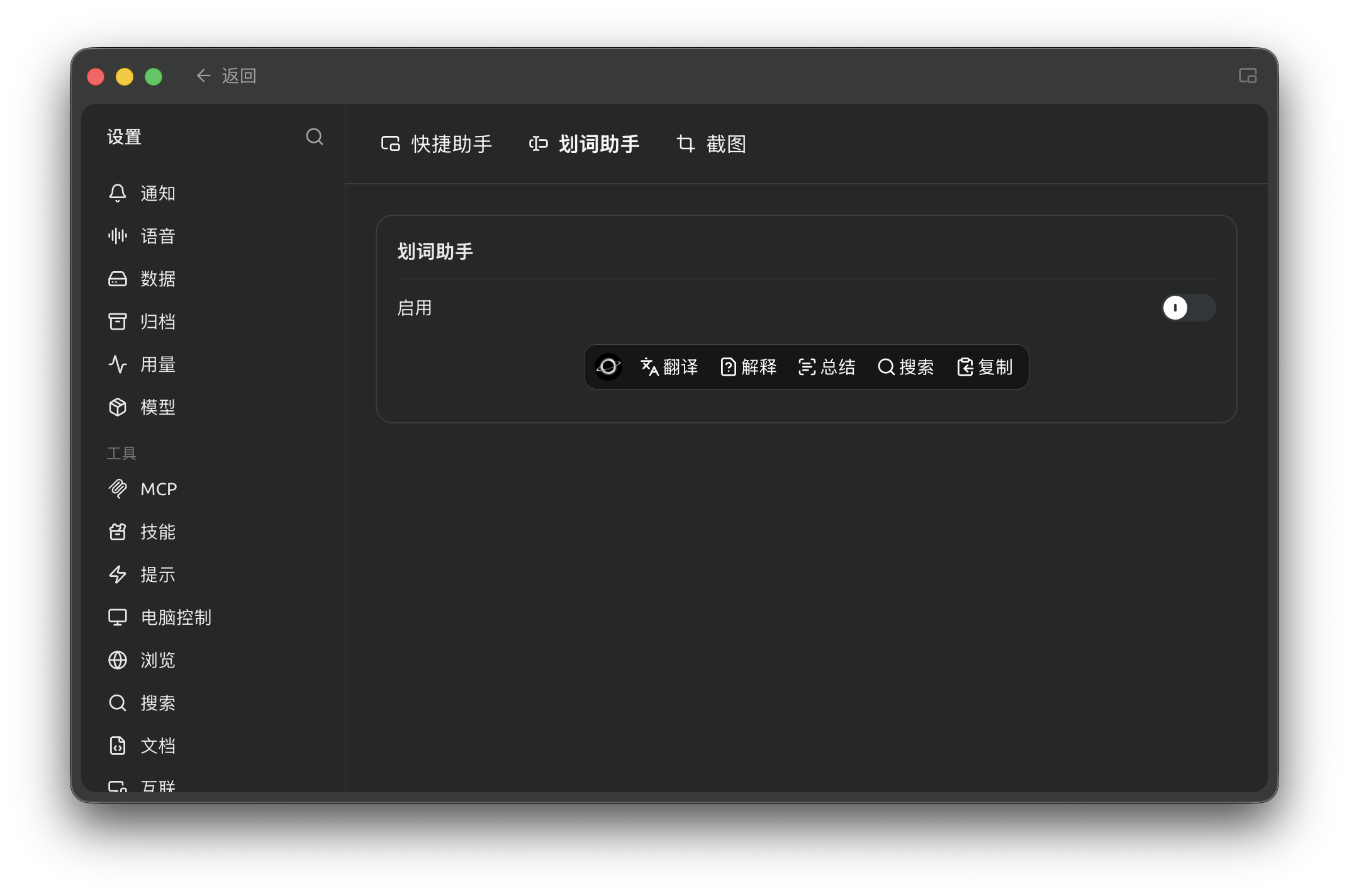
Settings → Assistant → Selection Assistant: enable and configure selection actions (Chinese interface).
- Toggle the Enable switch
- macOS users will see a prompt requesting Accessibility permissions upon first enablement. Click Go to Settings → In the opened [System Settings] → [Privacy & Security] → [Accessibility], find BLACK HOLE and toggle the switch on → Return to BLACK HOLE and enable it again.
- (Optional) In [Toolbar] → [Trigger Mode], select the trigger method (options vary by platform):
- Selection: Toolbar appears immediately after selecting text (default)
- Ctrl Key (Windows only): Toolbar appears only after selecting text and holding the Ctrl key (prevents accidental triggers)
- Shortcut: Toolbar appears after selecting text and pressing the shortcut; configure the shortcut in [Settings] → [Keyboard Shortcuts]
Built-in Actions
The Selection Assistant provides 7 built-in actions, with 5 enabled by default: Translate / Explain / Summarize / Search / Copy. The other 2, Refine and Quote, wait in the staging area until you enable them. The divider between the two areas shows how many actions are enabled out of the maximum (e.g. "5/8"). The BLACK HOLE icon on the left side of the toolbar is not an action button—it is merely the drag handle for the toolbar; hold it to move the entire toolbar.
| Action | Default Enabled | Purpose |
|---|---|---|
| Translate | ✅ | Smart translation: Prioritizes translation to the target language; if already in the target language, translates to the fallback language |
| Explain | ✅ | Lets AI explain the selected content |
| Summarize | ✅ | Lets AI summarize the selected content in one paragraph |
| Search | ✅ | Uses the selected text to query a search engine (default Google, changeable via the settings icon on the right of the Search row) |
| Copy | ✅ | Copies the selected text |
| Refine | To be enabled | Lets AI rewrite for better flow / professionalism; drag into the enabled area in settings to activate |
| Quote | To be enabled | Sends the selected text as a quote to the current conversation; drag into the enabled area in settings to activate |
Custom Actions
In [Settings] → [Selection Assistant] → [Actions], you can:
- Edit the prompts for built-in actions
- Add custom actions via + Custom Action (name + prompt + default model)
- Drag to adjust the order of actions in the toolbar
- Drag infrequently used actions to the bottom staging area to "disable" them
Toolbar / Result Window Appearance
Toolbar:
- Compact Mode: Displays icons only, no text, saving screen space
Result Window ([Action Window] section):
- Follow Toolbar: Window pops up attached to the toolbar (default on); if off, it always centers
- Remember Size: Retains the manually adjusted window size for the next session
- Auto Close: Closes when clicking outside the window
- Auto Pin: Pins the window by default, so it stays open
- Opacity: Adjustable from 20%–100%
Search Engine
The built-in [Search] action in the Selection Assistant allows selecting preset engines (Google, Bing, DuckDuckGo, etc.). Configuration is found in [Settings] → [Selection Assistant] → [Actions]: Locate the Search entry, click the settings icon on the far right of the row to open the [Configure Search Engine] dialog. You can choose from presets or add custom engines, using {{queryString}} in the URL to represent the search term position.
Application Filtering (Advanced)
You can set a Blacklist / Whitelist in [Settings] → [Selection Assistant] → [Advanced] → [Application Filtering] to restrict the Selection Assistant to specific applications (Whitelist) or prevent it from appearing in specific applications (Blacklist).
- macOS: Enter the application's Bundle ID (e.g.,
com.google.Chrome,com.apple.mail) - Windows: Enter the application's executable filename (e.g.,
chrome.exe,BLACK HOLE.exe)
Models Used
The Actions section of [Settings] → [Selection Assistant] shows two models, each with a Go to model settings button:
- Default Assistant Model: used by Explain, Summarize, Refine, and custom actions that use the default model
- Translate Model: used to generate translations; automatic language detection may also use the fast model
Both are set in Default Model Settings.
Tips and Tricks
- If the toolbar does not appear on macOS, check if BLACK HOLE is checked in [System Settings] → [Privacy & Security] → [Accessibility]
- Frequently triggering the toolbar by accidentally selecting text? Switch to Ctrl Key trigger mode
- Too many toolbar icons cluttering the screen? Enable Compact Mode
- Want to perform chained operations like "translate then read aloud"? Copy the "Translate" result and invoke Quick Assistant to continue processing
Get Help and Submit Feedback
If you have any questions, bugs, or feature improvement suggestions during configuration or usage, please refer to the official channels provided in Feedback and Suggestions.