
General
These settings decide how BLACK HOLE starts with your computer, how it connects to the network, and a few app-wide options. Open Settings → General:
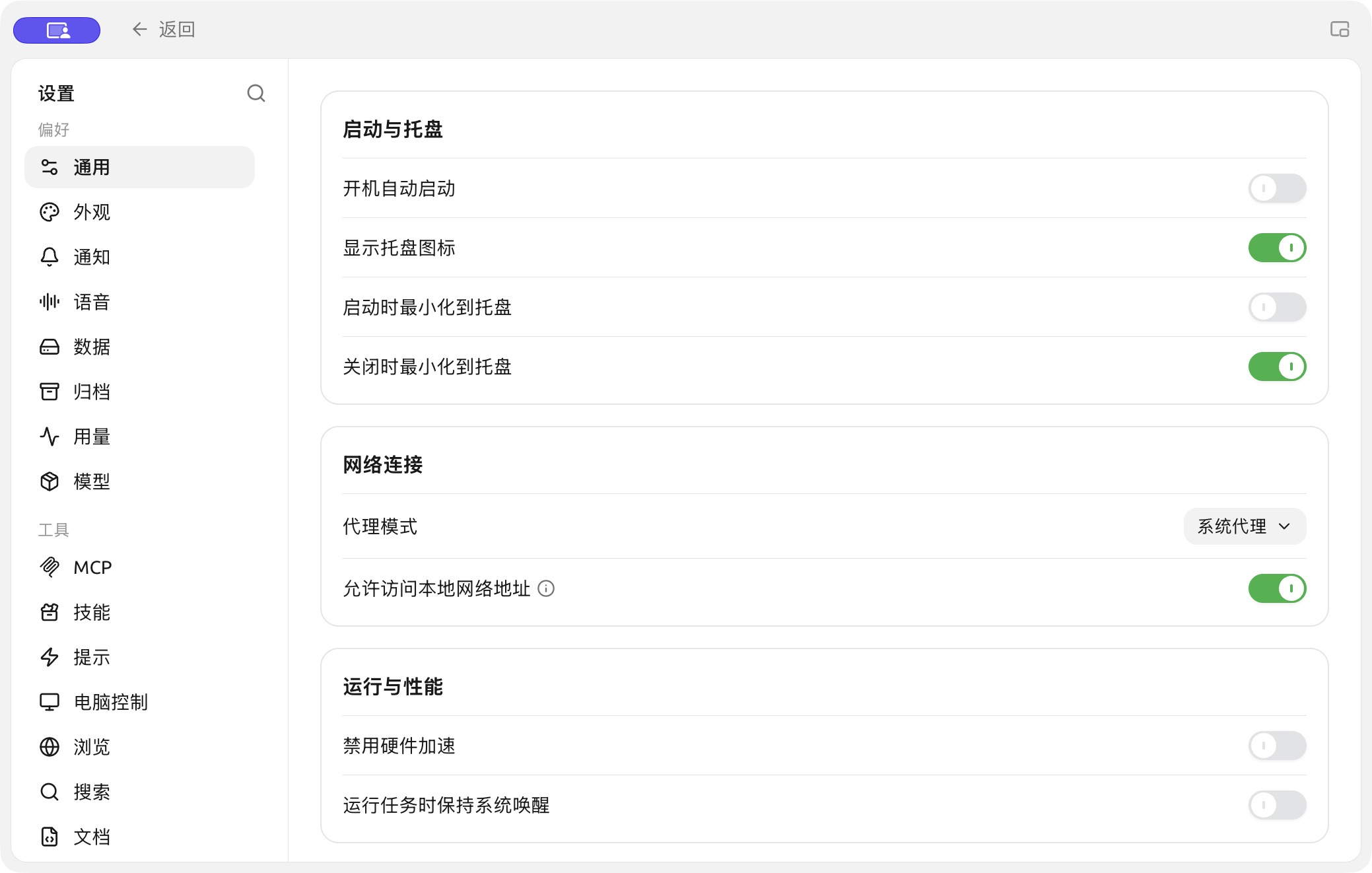
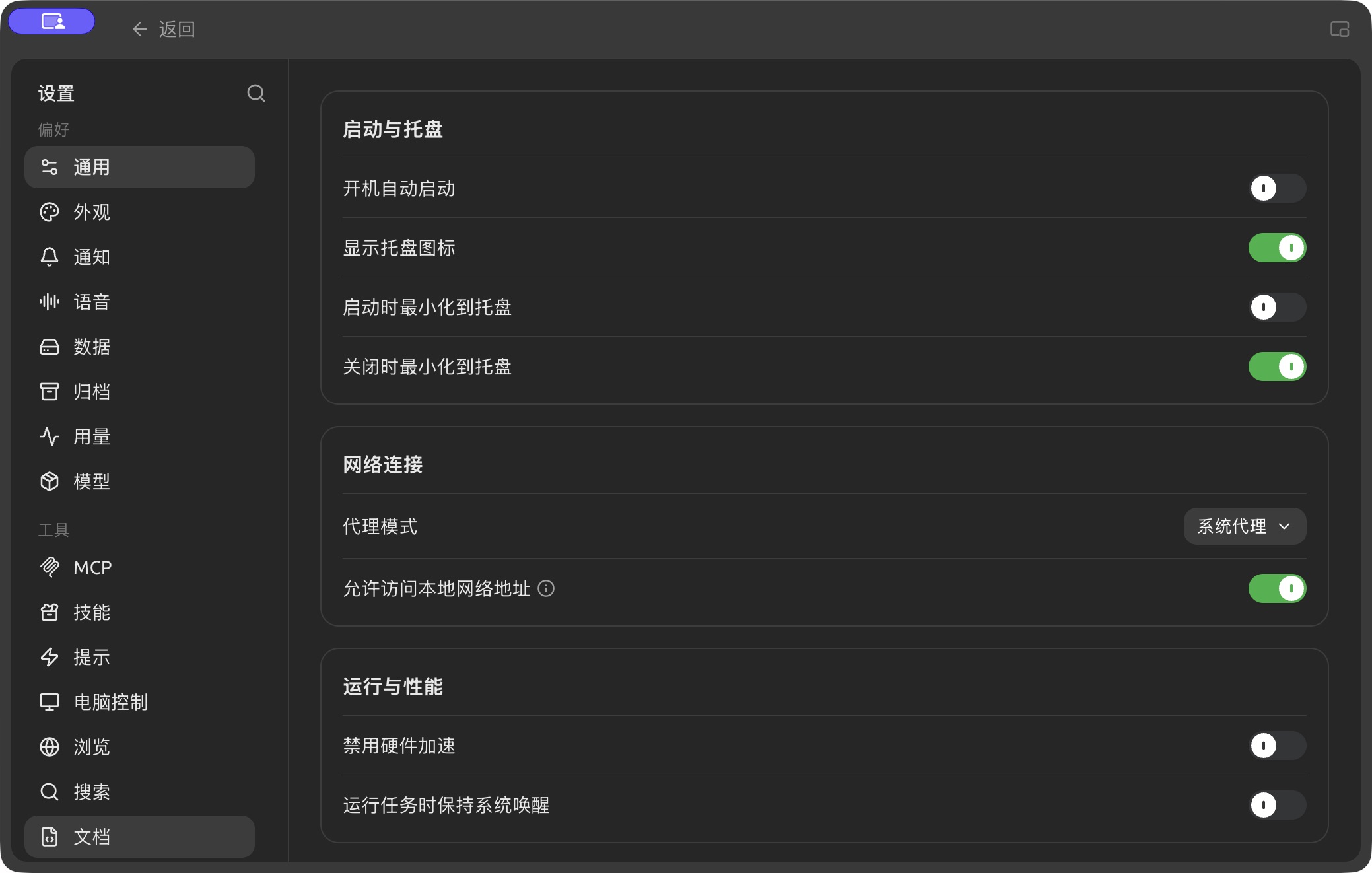
Settings → General contains startup, tray, network and runtime options. (Chinese interface.)
Launch
Decide whether BLACK HOLE stays running in the background like a messaging app, or behaves like a regular program you close when you're done.
| Setting | What it does | Recommendation |
|---|---|---|
| Start Automatically on Boot | Starts BLACK HOLE automatically when your computer boots | Turn it on if it's your main tool, so it's ready right away |
| Minimize to Tray on Launch | When started on boot, goes straight to the background without showing the main window | Use together with "Start Automatically on Boot" to keep your desktop tidy |
| Show Tray Icon | Shows an icon in the system tray | Recommended, for quick access and status at a glance |
| Minimize to Tray on Close | Clicking X sends it to the tray instead of quitting | Strongly recommended: it reopens instantly next time and ongoing conversations aren't interrupted |
| Keep the system awake while tasks are running | Prevents the system from sleeping while background tasks (such as scheduled tasks or long replies) are running | Turn it on when you need tasks to run unattended for a long time |
Proxy Mode
BLACK HOLE often calls model APIs hosted overseas; this setting decides how network traffic is routed.
| Option | Description |
|---|---|
| System proxy (default) | Follows the operating system's network / proxy settings, and automatically uses any global VPN or accelerator running on your computer |
| Custom proxy | Enter a proxy address manually (e.g. http://127.0.0.1:7890). You can also set proxy bypass rules — addresses that skip the proxy. The default is localhost,127.0.0.1,::1, and wildcard patterns such as *.test.com and 192.168.0.0/16 are supported |
| No proxy | Forces a direct connection |
- Allow fetching local network addresses: lets BLACK HOLE fetch content from addresses on your own computer or local network, such as
localhostor192.168.x.x. Keep it on if you use locally hosted services. - Disable Hardware Acceleration: normally keep this off. Only if the interface shows a black screen, white screen, flickering, torn text or obvious lag, turn it on and restart the app to troubleshoot (this forces CPU rendering).
Commit Attribution
- Commit attribution: lets Agents add Claude Code attribution to the git commits and pull requests they create. Turn it off to leave the attribution out.
Developer Mode
- Enable developer mode: turns on the trace feature so you can view the data flow of model calls for troubleshooting. Changes take effect after restarting the app. Most users don't need to turn it on.
Get Help and Submit Feedback
If you have any questions, bugs, or feature suggestions during configuration or use, please use the official channels listed in Feedback and Suggestions.