
Obsidian Configuration
BLACK HOLE AGENT can export a full conversation or a single message to a local Obsidian vault. Create and open a vault in Obsidian first, then configure the integration. Opening the settings page alone does not establish a connection or complete an export.
Select the Default Vault
Open Settings → Data → Obsidian and choose a vault under Default Obsidian Vault. If no vault is detected, confirm that Obsidian is installed and that you have created and opened a vault locally, then check again.
This setting saves the default vault. Select the destination folder, tags and write mode in the export dialog.
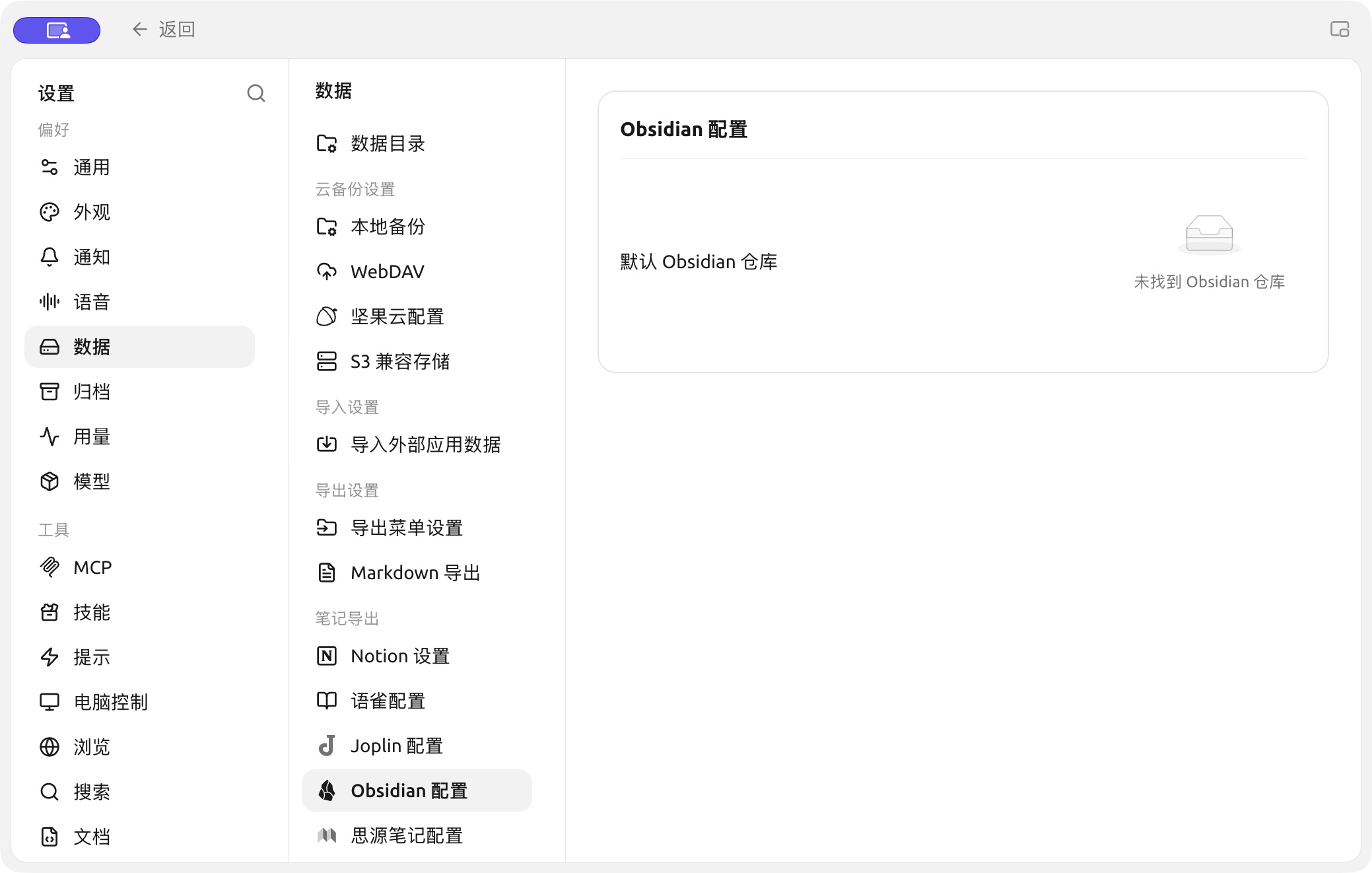
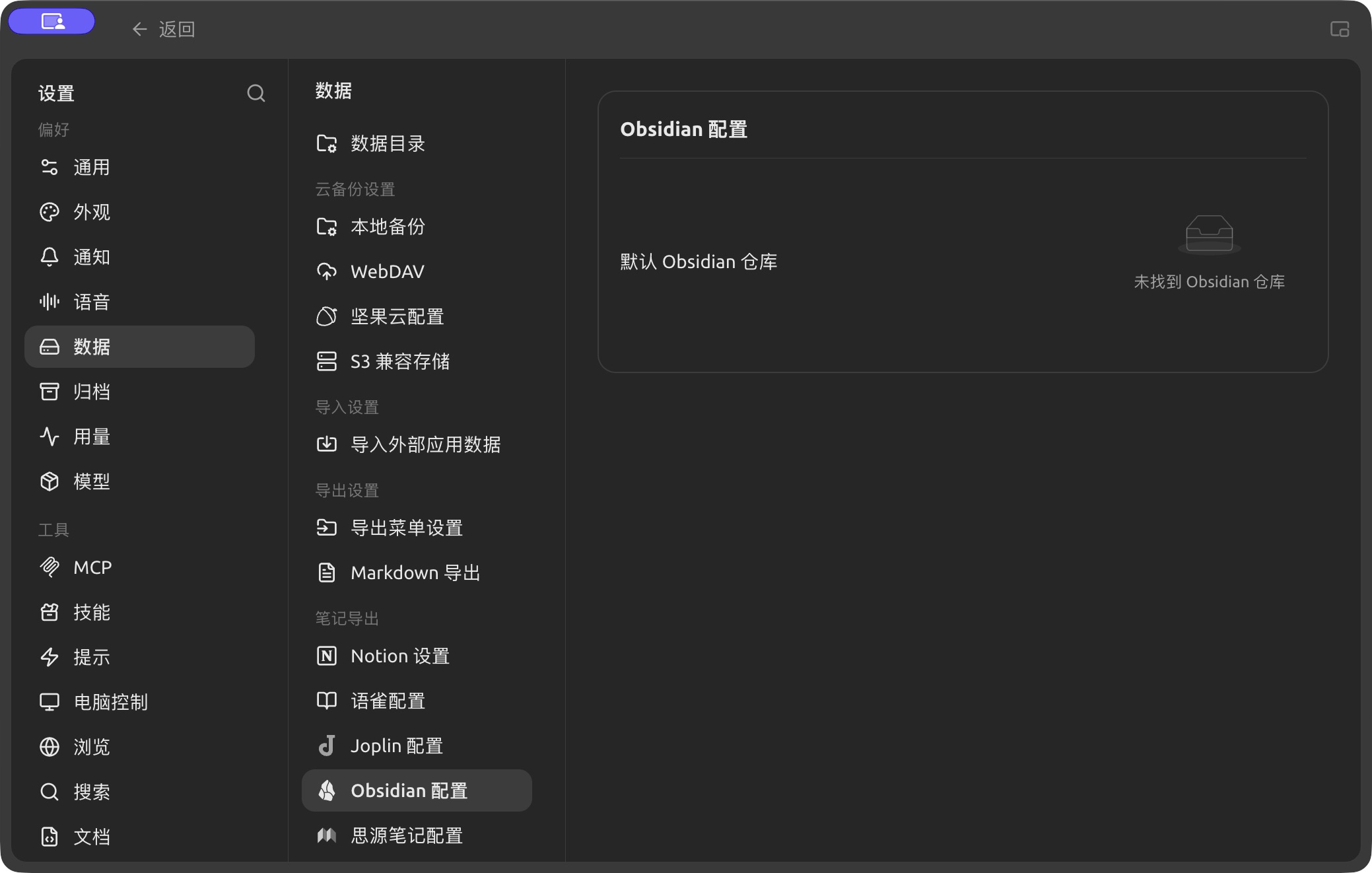
The Obsidian vault selector; no local vault is detected in this example. (Chinese interface.)
Export a Conversation or Message
- For a full conversation, open its menu and choose Export → Export to Obsidian.
- For one message, open the menu below that message and choose Export to Obsidian.
- Confirm the vault, destination path and note properties in the dialog, then choose a write mode.
| Mode | Behavior |
|---|---|
| Create new (overwrite if exists) | Creates a note and may overwrite an existing note with the same name; check the destination first |
| Prepend | Inserts the content at the start of an existing note |
| Append | Adds the content to the end of an existing note |
New notes can include properties such as tags, creation time and source. Check the export dialog for available options. For a long conversation, export a short section first to verify the vault and formatting.
Verify the Result
Open the destination note in Obsidian and check its title, content, path and properties. If it is missing, inspect the selected vault, destination folder and application error before submitting the export again.