
Notion Configuration Tutorial
BLACK HOLE AGENT supports importing topics into Notion databases.
Step One: Create a Connection
Open Notion's Developer tools → Connections page and click New connection. You need to be an owner of the workspace you connect.
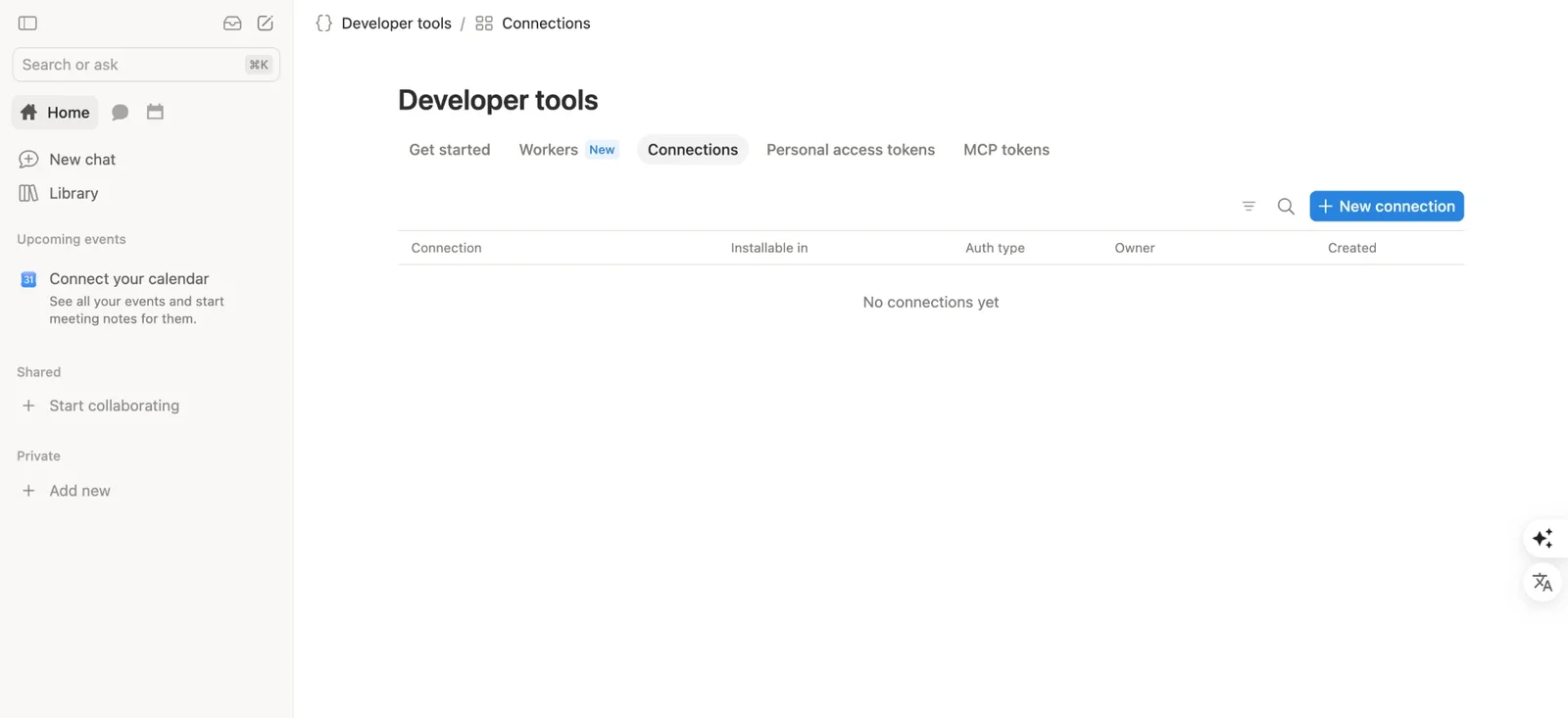
Click New connection in Developer tools → Connections
Step Two: Fill in the Connection Details
- Name: BLACK HOLE AGENT
- Workspace: the workspace that holds the database you want to export to
- Icon (optional): choose an icon for this connection.
Step Three: Copy the API Token
Open the connection's Configuration tab, copy the API token, and paste it into BLACK HOLE AGENT under Settings → Data → Notion Settings.
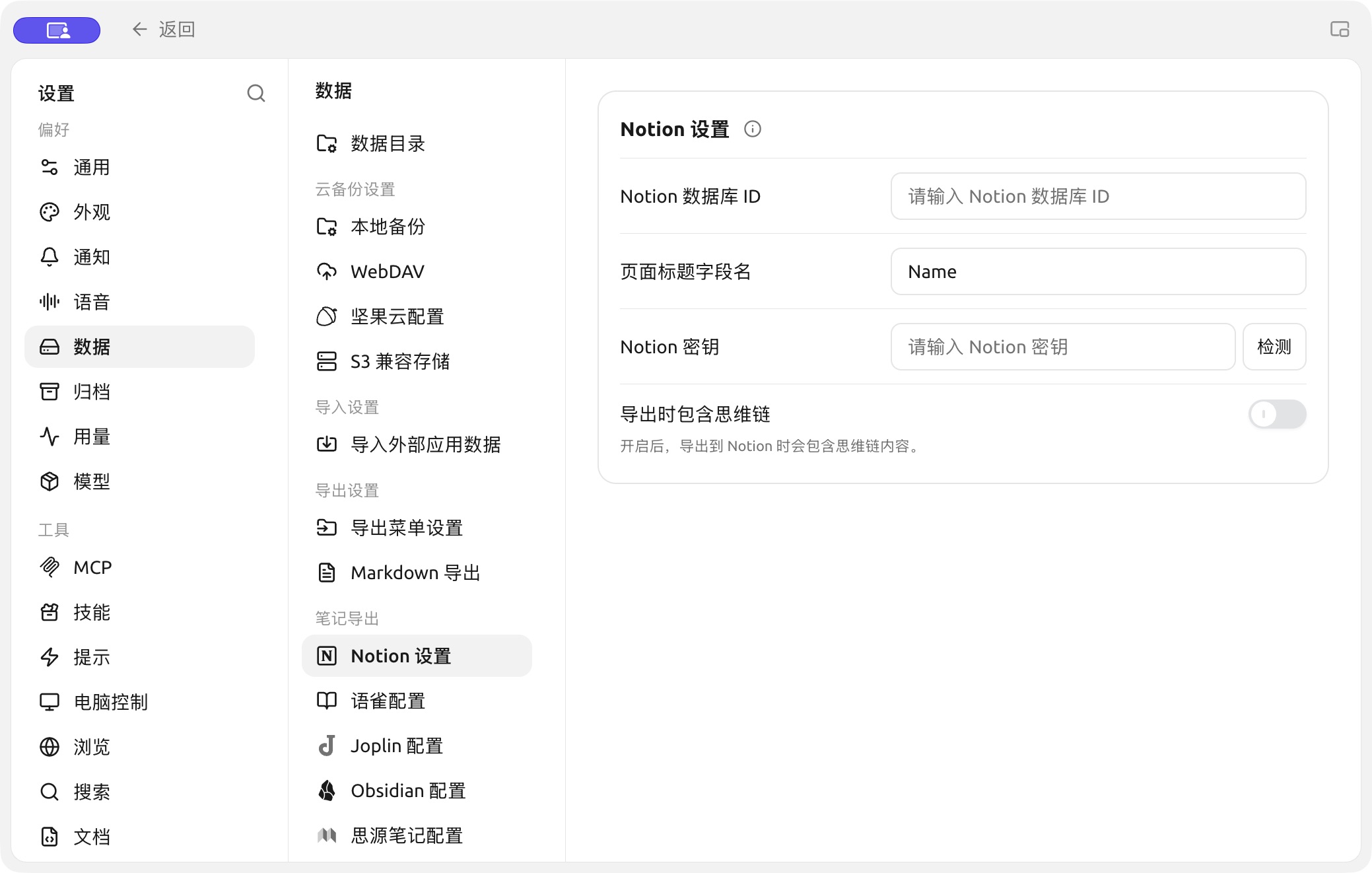
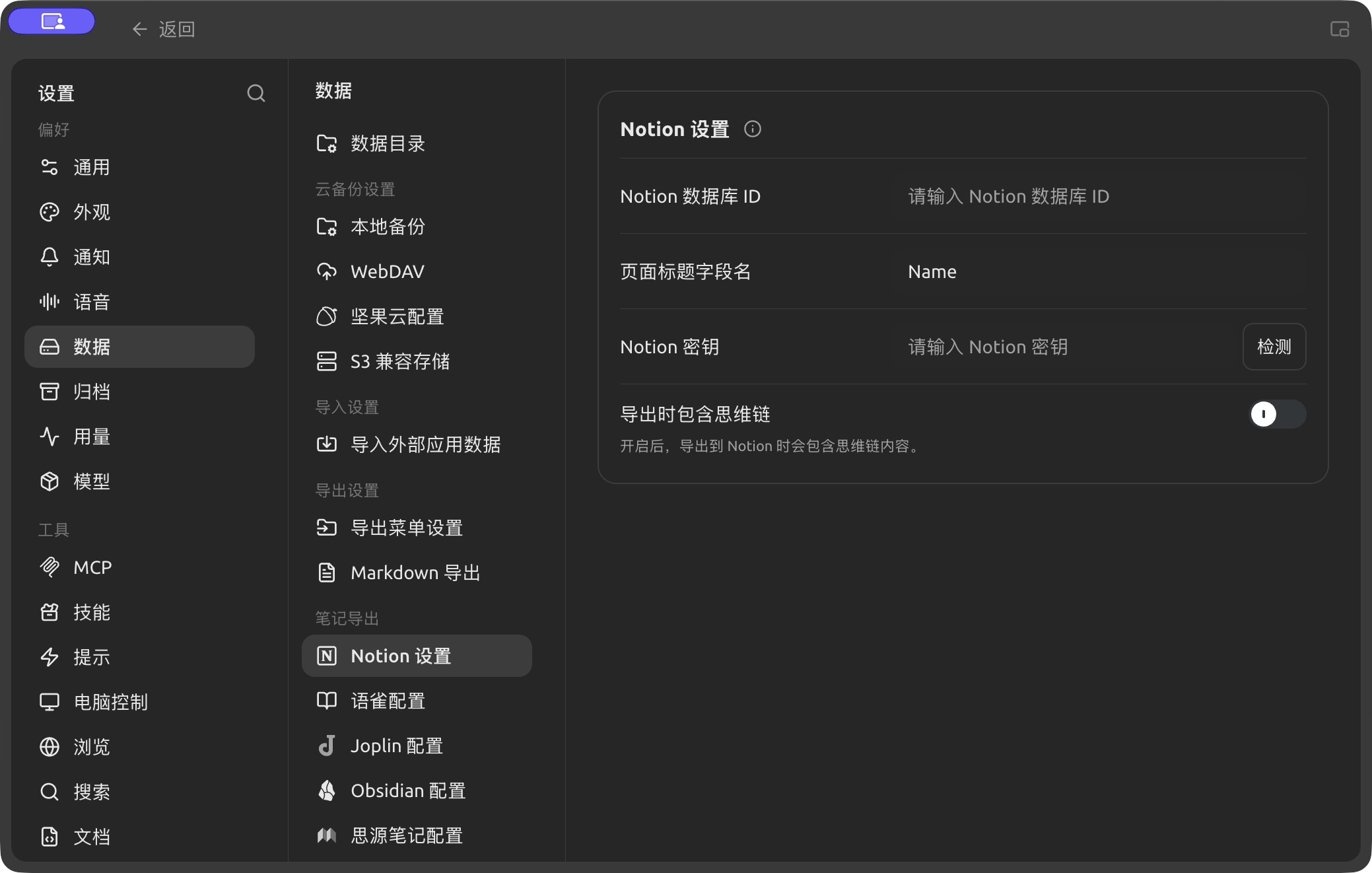
Notion configuration in Settings → Data. (Chinese interface.)
Step Four: Create a Database and Add the Connection
In Notion, create a new page, choose Database as the page type, and name it BLACK HOLE AGENT. Then click the ••• menu at the top right of the page, choose Add connections, and select BLACK HOLE AGENT. BLACK HOLE AGENT can only write to pages that the connection has been added to.
Step Five: Enter the Database ID
Open the database and copy its URL. If the URL looks like this:
https://www.notion.so/<long_hash_1>?v=<long_hash_2>
the database ID is the <long_hash_1> part. Enter it in BLACK HOLE AGENT and click Check.
Step Six: Set the Title Field
Enter the Page Title Field Name: the name of the database's title column. For a new database it is Name.
Step Seven: Export
After the connection check succeeds, open a message menu and choose Export → Export to Notion. Verify the new page in the target database before treating the export as complete.
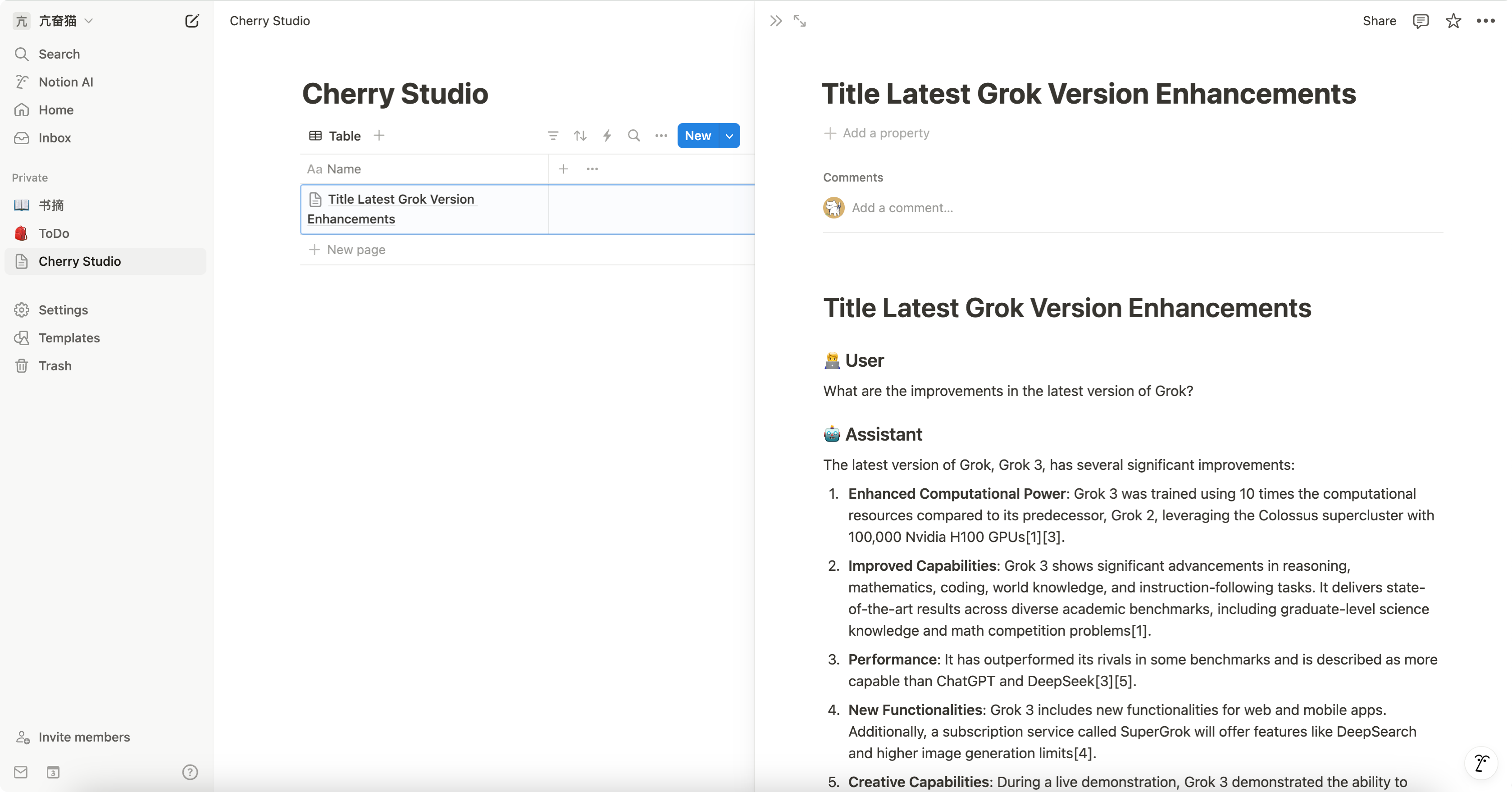
Notion-side example: check the exported page in the target database