
AI Video: make a product clip from a reference photo
Start with a product photo and turn it into a five-second shot. This example uses a coffee cup.
Set up the shot
- Open Video from the clapperboard in the desktop sidebar and select Generate.
- Choose an enabled video model below the prompt. The screenshot uses Seedance2.5 A. For a consistent product appearance, choose a mode that accepts image references.
- Use + to add your photo. Its thumbnail should appear next to the prompt.

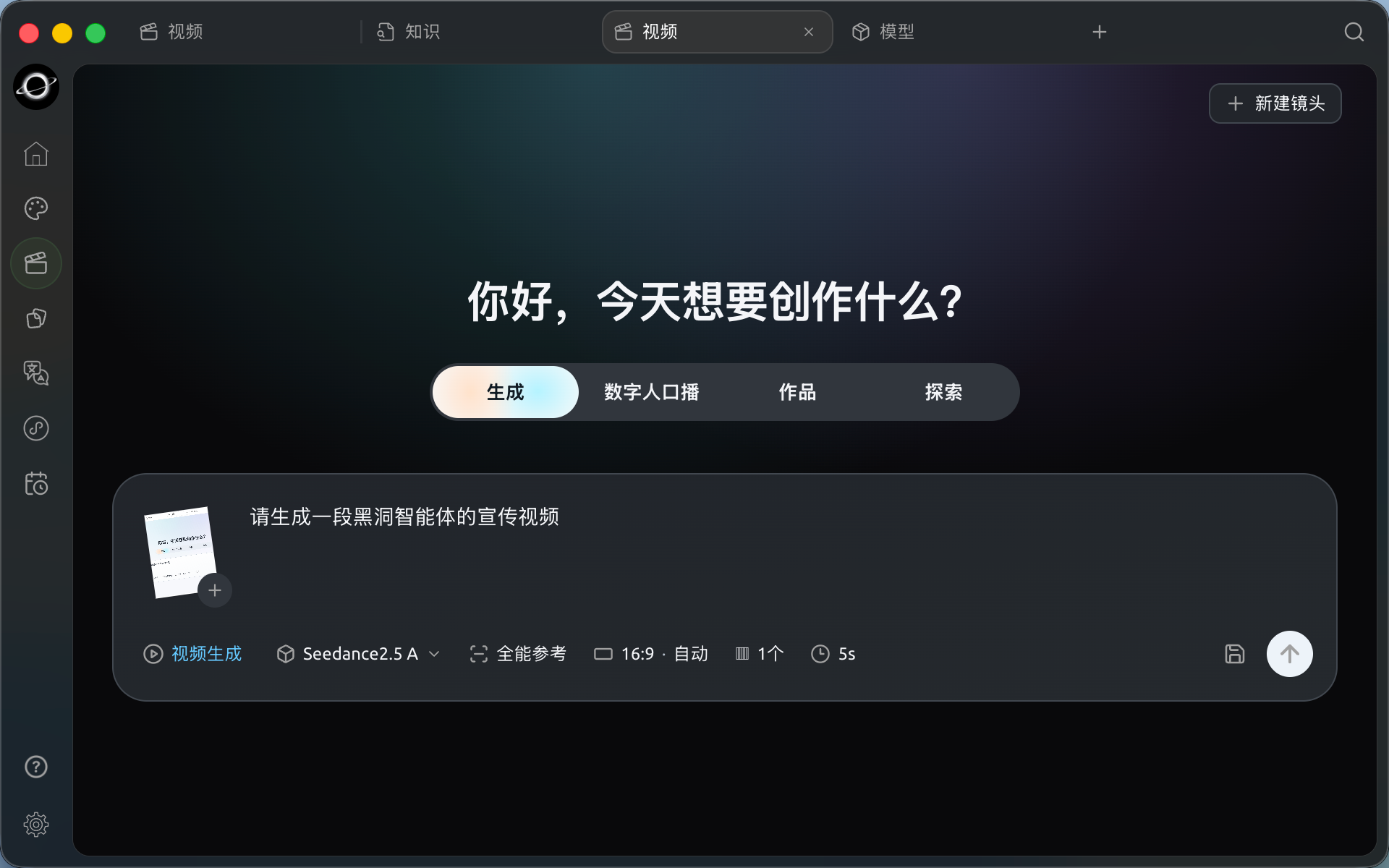
Video generation. The reference is beside the prompt, with model, aspect ratio, count and duration below it.
Describe one camera movement
Keep the shape, colour and logo of the coffee cup in the reference. The cup sits on a wooden table by a window. Steam rises slowly. Push in towards the rim from table height and hold still for the last second. Use one continuous shot.
Choose 16:9 for landscape or 9:16 for portrait, then start with one 5-second clip if the model supports it. Submit using the arrow at the bottom right. Open Works to play the result. Check the logo and the camera movement before adjusting the prompt.
Start from a template
In Explore, filter by advertising or camera movement. Play a preview, choose Use template, replace the subject with your product and check the references and settings.
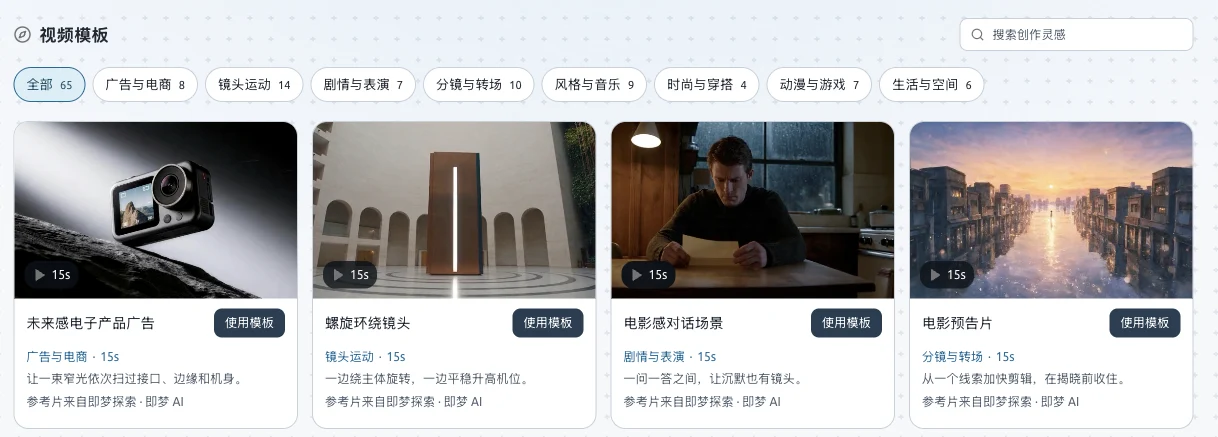
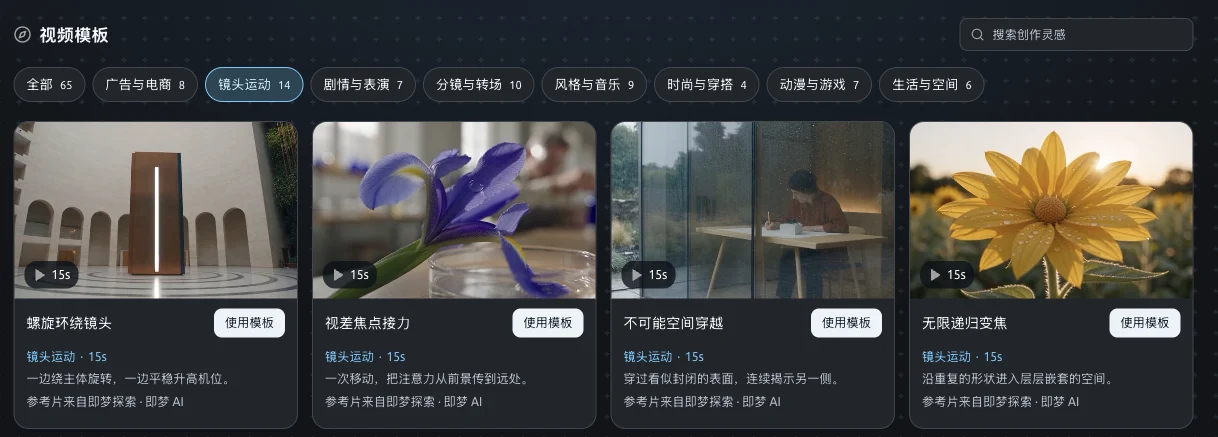
Explore shows categories, previews and a Use template button on each card.
For a presenter who speaks to camera, see the talking avatar guide.