
AI Avatars: turn a script into a talking video
Open Video → Talking Avatar to make a presenter deliver a short introduction. A public portrait and two sentences are enough to try the workflow.
Choose a presenter and model
Select a public presenter on the left or upload your own portrait. Use the model selector near the bottom right to choose an enabled speaking model that accepts your input.
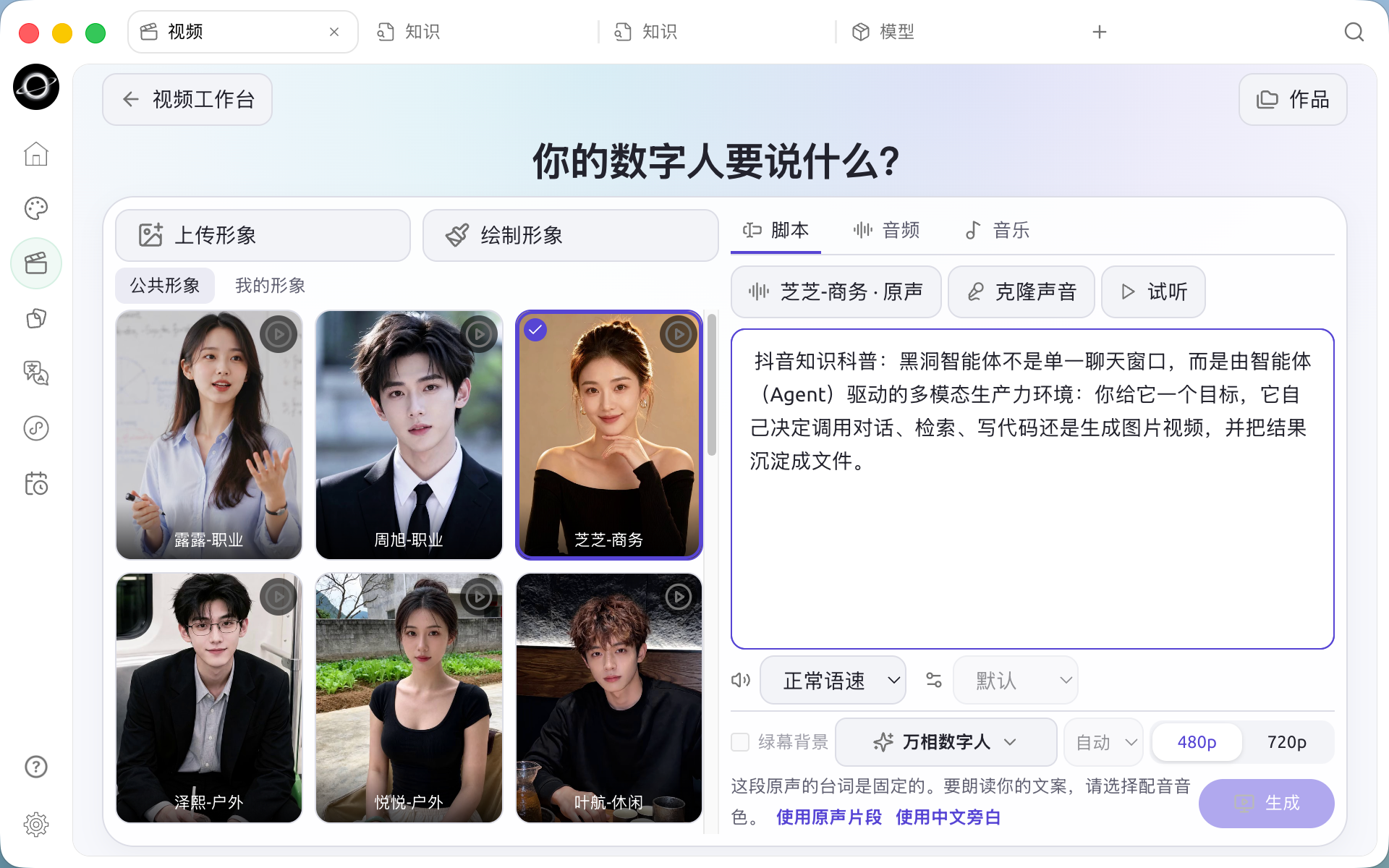
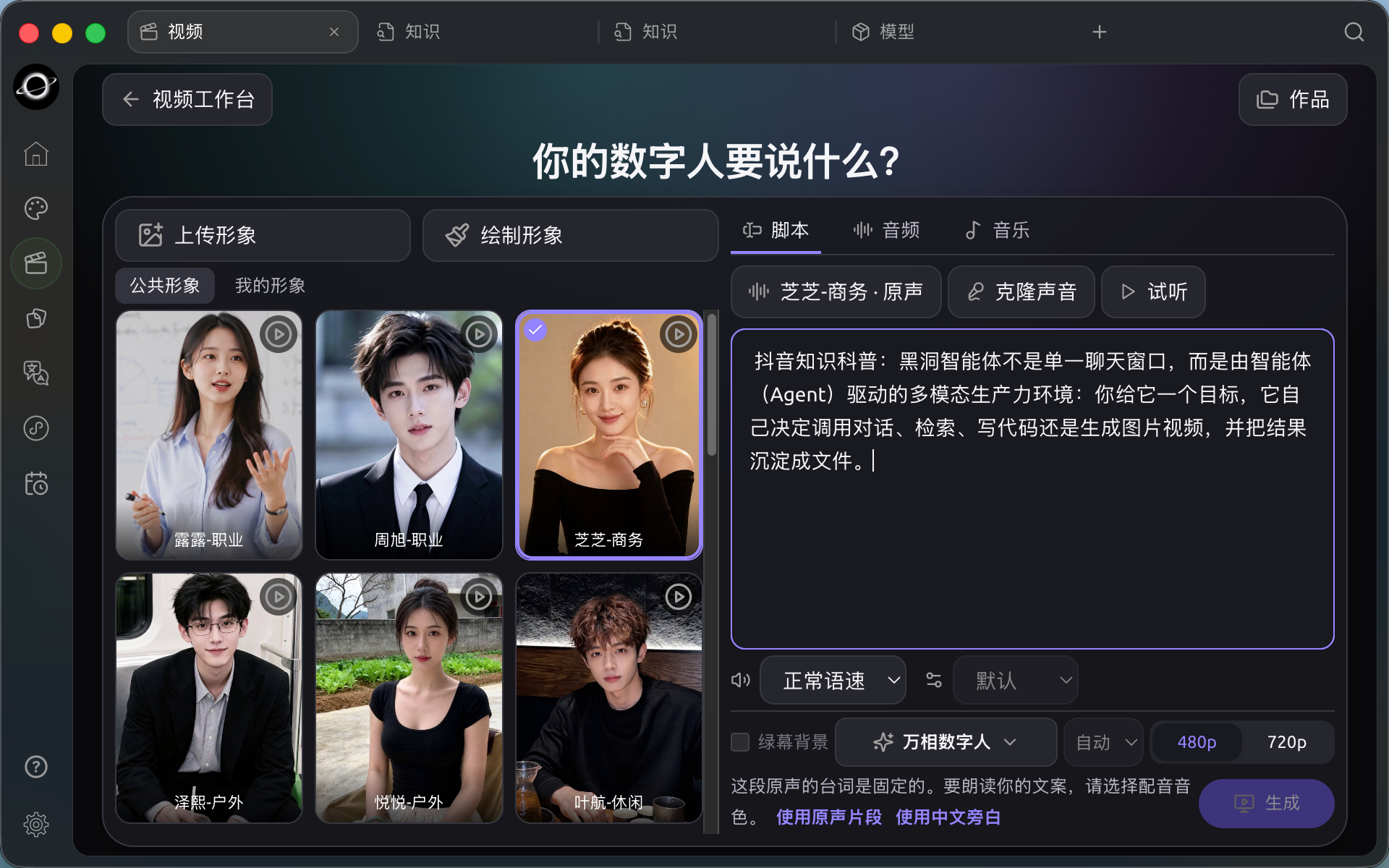
Talking avatar workspace. Choose a presenter on the left, then set the script, voice and output on the right.
Write the script and audition a voice
Under Script, enter the words you want the presenter to say. For example:
Today we're making pour-over coffee. First, wet the filter paper. Then pour the hot water slowly.
Click the voice name above the script and play a sample. Listen to the stress on “pour-over” and the pause between sentences. Select a speed or tone if your model offers it. If you already have a recording, switch to Audio, choose a model that supports audio input and add the recording.
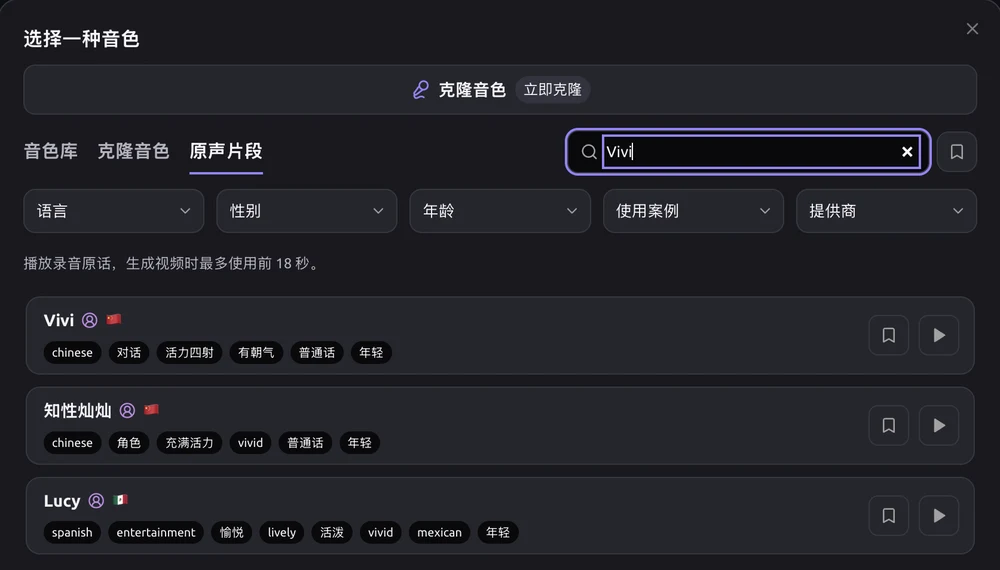
Generate and review
Choose 9:16 for a portrait introduction, select an available resolution and click Generate. Play the result in Works. Check the first and last words and watch the lip sync. If generation is disabled, check your portrait, speaking model, and the script or audio in the active tab.
To make cutaway shots for the introduction, follow the AI video guide.