
File, Image, and Long-Text Translation
Translation can process directly entered text, as well as uploaded images or documents. Images are first processed for text recognition, while documents are handled based on their format and content. History records can be bookmarked, reopened, and reused.
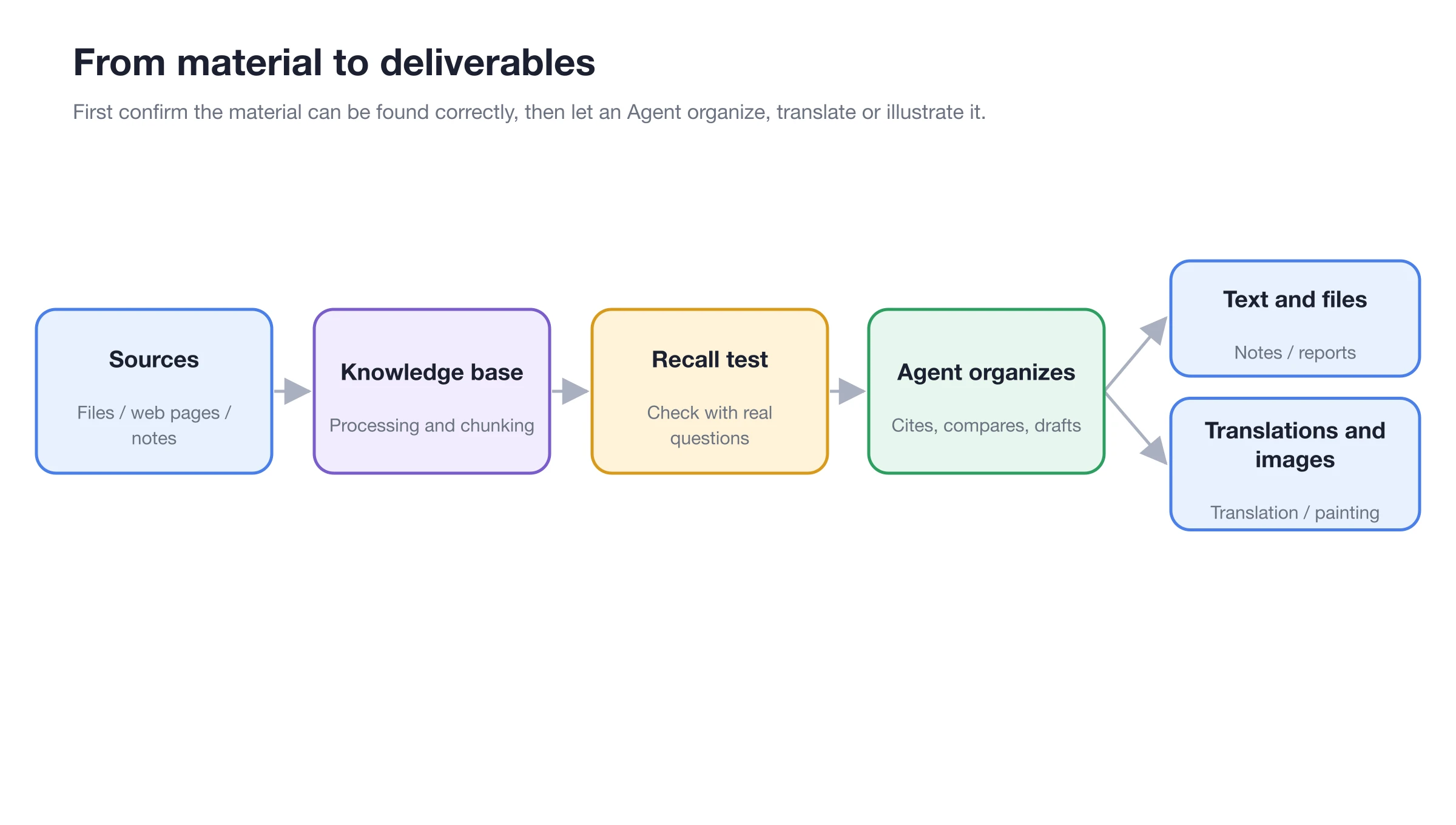
Translation is part of the content workflow: first confirm the input materials, then standardize terminology and review the final deliverables.
Selecting Input Methods
| Material | Recommended Approach | Key Checks |
|---|---|---|
| Short text | Paste directly | Tone, proper nouns, context |
| Screenshots or scans | Upload image and use OCR | Recognition errors, tables, and numbers |
| Upload file and choose whether to install BabelDOC | Two-column layouts, fonts, tables, footnotes, and page count | |
| Other long documents | Upload file | Heading hierarchy, paragraphs, footnotes, and formatting |
| Markdown | Use preview to check | Whether links, code blocks, and markup are preserved |
Example: Short Text Translation
Select Auto Detect as the source language and English as the target language. Enter the Chinese text and click Translate. Once the result appears, first verify key meanings such as "grayscale," "monitoring metrics," and "rollback process," then copy or save it to your notes.
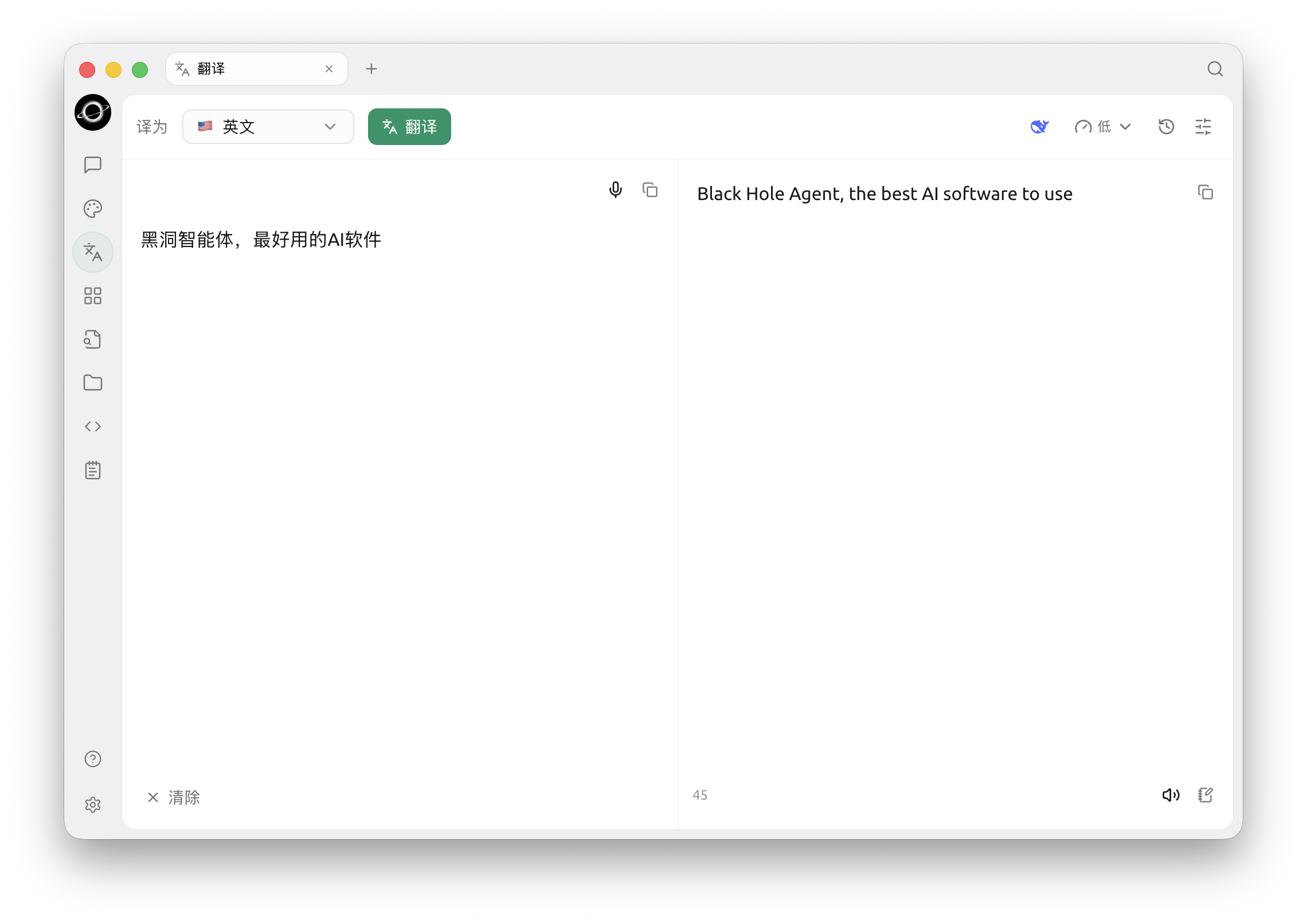
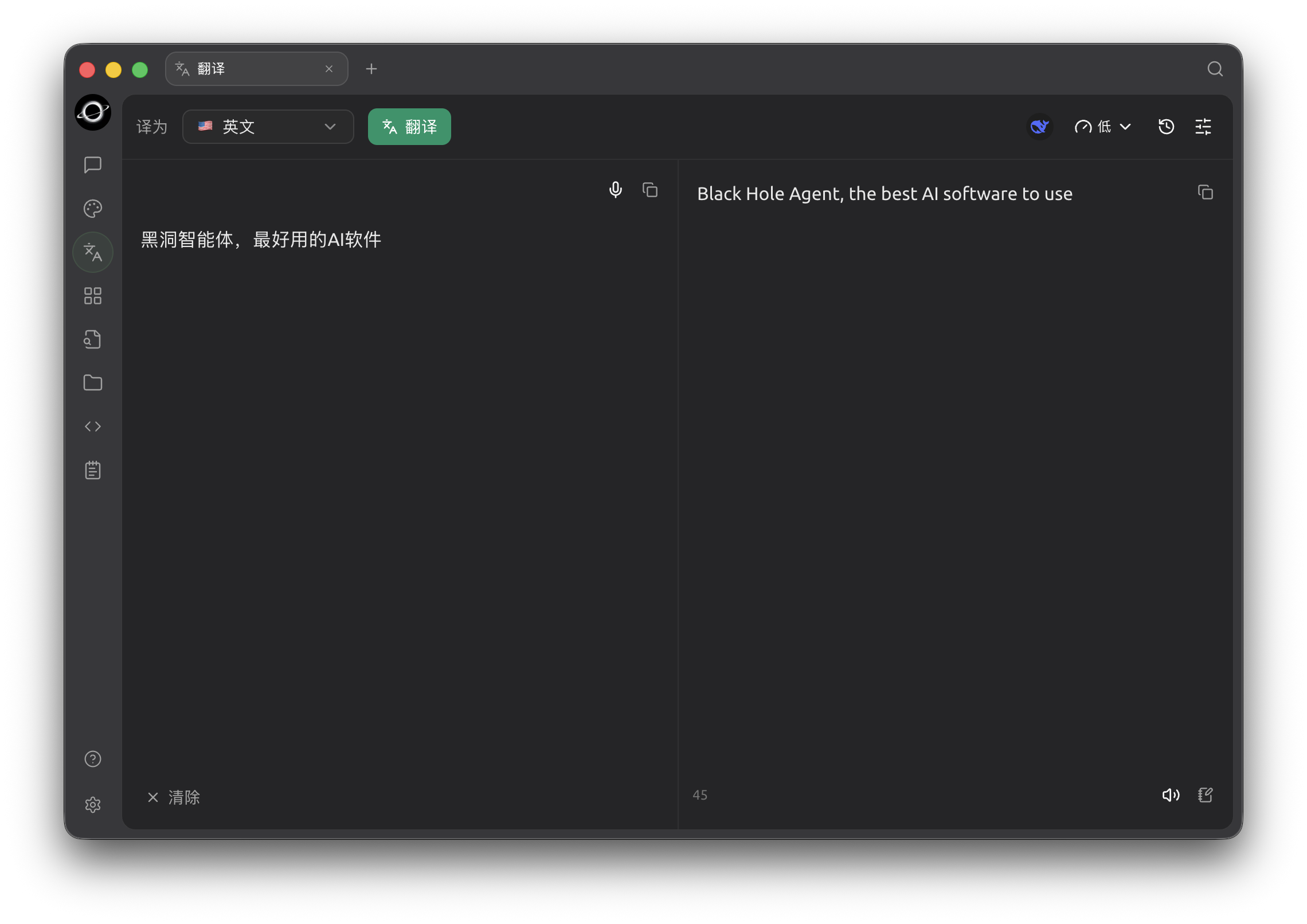
Translation: choose a target language and model, enter source text on the left and review the result on the right (Chinese interface).
What to Check After Results Appear
| Check Item | Example |
|---|---|
| Key meanings | "Grayscale release" should not be translated literally as color |
| Proper nouns | Keep product names, team names, and feature names consistent |
| Numbers and conditions | Do not omit dates, ratios, amounts, or negations |
| Tone | Use appropriate tones for notifications, contracts, and marketing copy respectively |
For short text, you can verify sentence by sentence. For files and long texts, first spot-check headings, tables, numbers, and repeated terminology, then decide whether to deliver the entire document.
Layout-Preserving PDF Translation
After uploading a PDF with extractable text, the page will detect BabelDOC. On first use, select Install BabelDOC. Once dependencies are ready, the original text is previewed on the left, and the translated PDF is displayed on the right, with progress shown for resource checking, parsing, translation, typesetting, and rendering.
1. Upload PDF and Check Dependencies
Click Drag or click to upload image/document to select a PDF. If the page indicates missing or outdated versions, install or update BabelDOC. Installation is managed uniformly by BLACK HOLE's Environment Dependencies.
2. Select Translation Model and Target Language
PDF translation requires the current model to be callable via the local API gateway. If the model is unavailable, first return to Settings → Model Provider to check the connection; do not repeatedly install BabelDOC.
3. Compare Two-Column Results
After translation is complete, compare the original and translated text page by page, focusing on tables, figure captions, headers/footers, footnotes, and line breaks. Click the download button to save the translated PDF separately.
4. Continue from History
PDF translations appear in Translation History and Files. History records allow you to reopen the two-column preview, locate the translated file, or save the result. When deleting a record, the corresponding translated file is also reclaimed.
Translation Steps
1. Confirm Source and Target Languages
Auto-detection is suitable for mixed or unknown languages. For formal materials such as contracts and technical documents, it is recommended to manually confirm the language to reduce misjudgments.
2. Select Translation Method
Use a configured model when context, tone, and terminology consistency are required. For ordinary short sentences, you can choose a lighter method. Available options depend on the current page.
3. Verify in Segments
First check names, numbers, dates, negations, and units. For image translation, also verify OCR results; if recognition is incorrect, the subsequent translation will also be wrong.
4. Bookmark, Export, or Reuse Results
In Translation History, view, bookmark, and reuse text translations. PDF results can be previewed in two columns, opened as files, or saved separately. Before formal delivery, save the glossary and manual revisions to the project materials.
Use Case: Preparing Multilingual Product Materials
First, compile a list of product names, feature names, and terms that must not be altered. Upload the Chinese manual, translate one chapter first to confirm terminology, then process the full text. Upload promotional images separately for OCR translation. Once complete, place the confirmed terminology and translations in the project working directory, and let the Agent uniformly check headings, links, and numbers, but do not allow it to modify legal statements on its own.