
Image Generation and Editing
Use BLACK HOLE's Drawing Studio to turn a product photo or a short brief into a usable image. Start with a template, then use Free Drawing when you need full control over the prompt.
Choose a Starting Point
| Goal | Starting point |
|---|---|
| Create an image from a brief | A text-based template or Free Drawing |
| Keep a product and replace the background | Upload a reference and use a product or image-modification template |
| Revise an existing result | Use that result as a reference and describe one change |
| Prepare a different output size | Choose a supported size and aspect ratio before generating |
Example: a Product Image
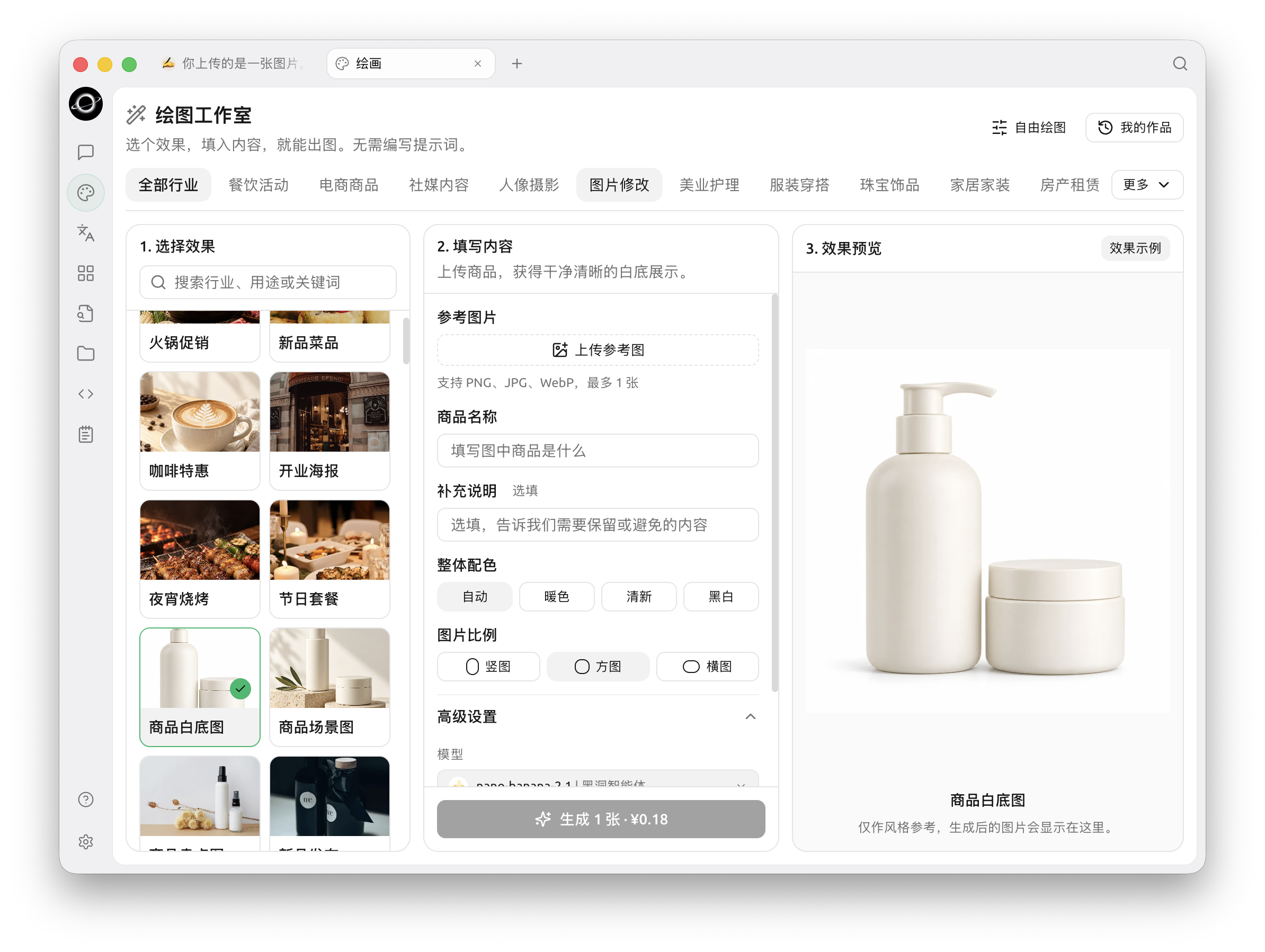
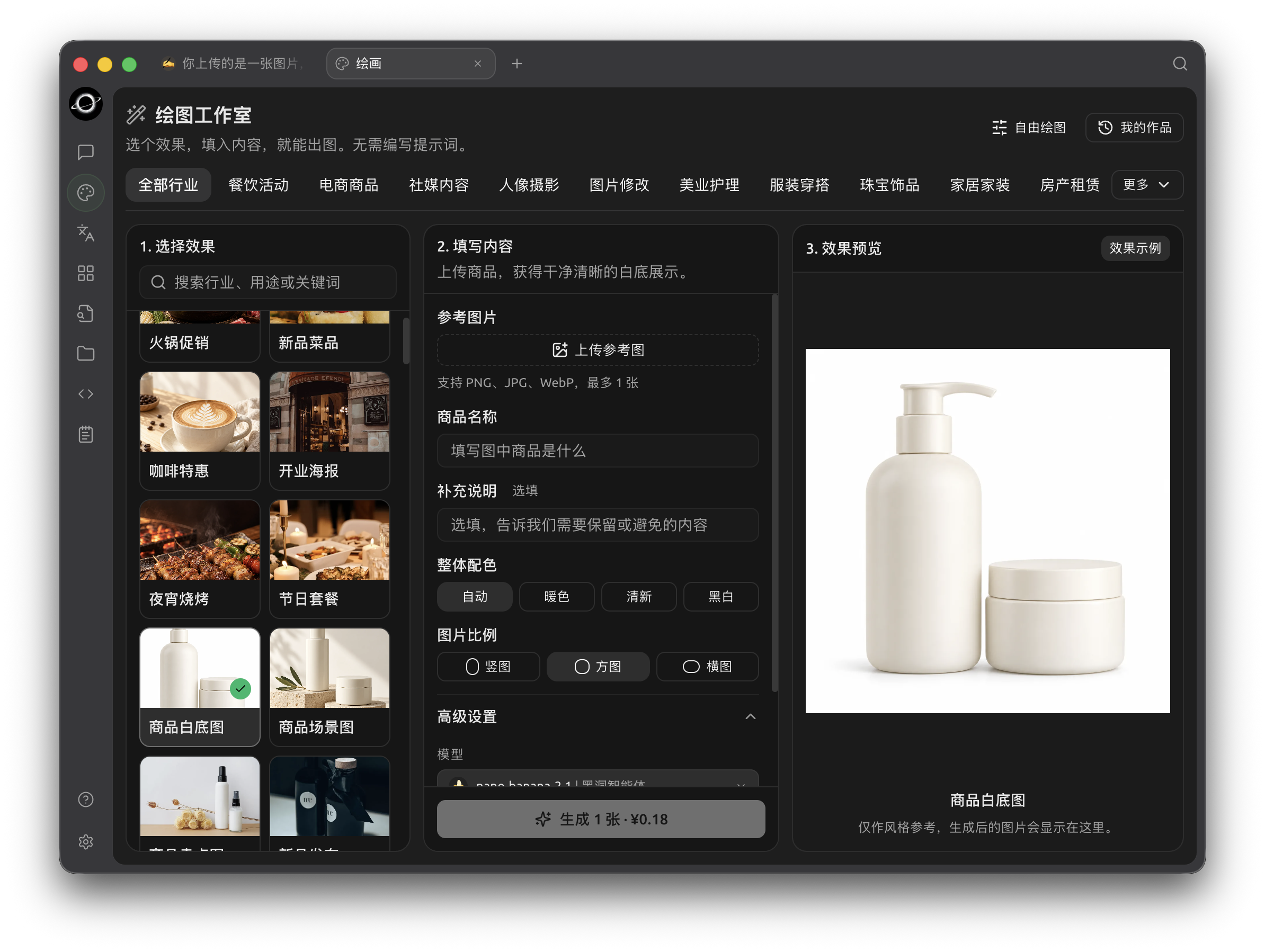
Drawing Studio template workflow (Chinese interface).
Select a product template, upload the product reference and enter its name. The example on the right illustrates the style only. Select Nano Banana 2.1 (nano-banana-2.1), generate one result, and inspect the product shape, label, shadows and background before saving it.
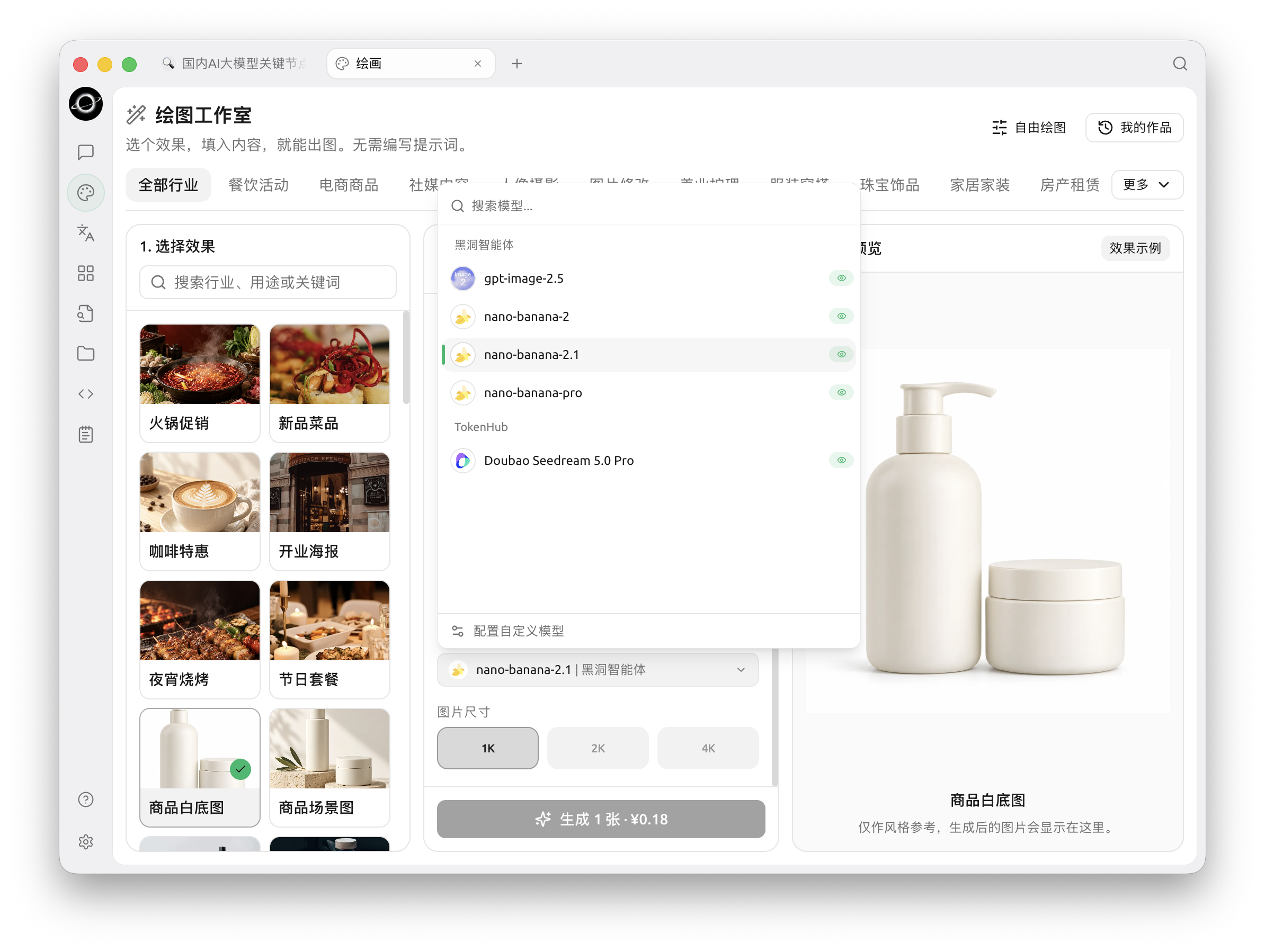
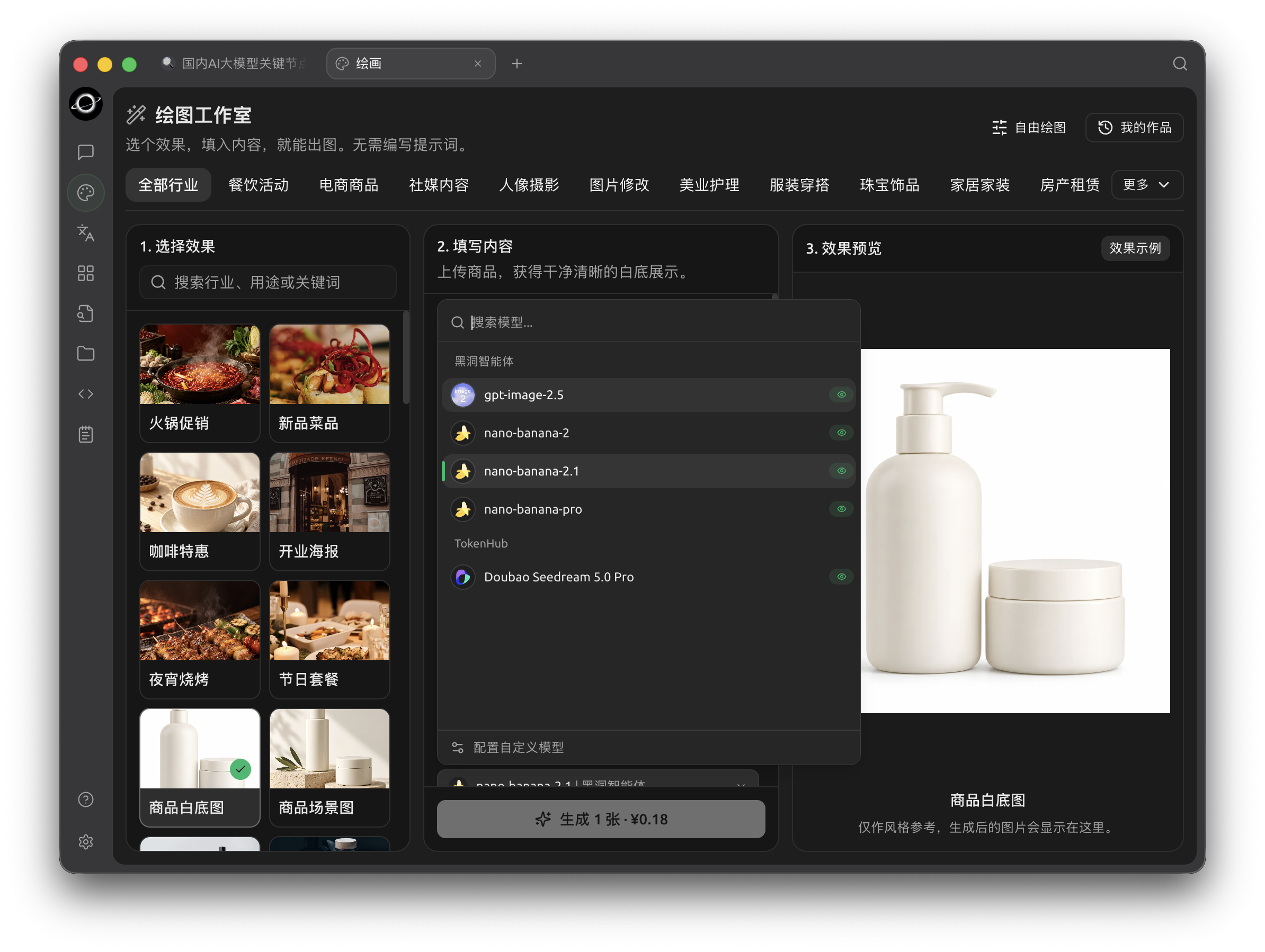
Select Nano Banana 2.1 for reference-image editing (Chinese interface).
Complete a Usable Image
- Choose a template and a model that supports the task.
- Specify the subject, composition, lighting and what must remain unchanged.
- Generate one image and inspect the result. For an edit, provide one reference and change one direction at a time.
- Check text, logos, edges and proportions at full size, then save the result.
The BLACK HOLE Nano Banana integration supports one output and one reference for editing. Multi-image merging, masks, upscaling and extra parameters depend on the selected provider; do not assume that every model supports them.
Drawing in an Agent
Set the Painting Model in Settings → Models → Default Models, then enable the agent's Generate Image tool. In Work, ask the agent to extract a visual brief from your materials and generate an image using the configured model.
For detailed controls and examples, see AI Drawing. Review reference permissions before uploading private or third-party material.