
Long Conversations, Context, and Message Queues
The longer a conversation gets, the more history the model must read. When context usage approaches the limit, earlier content may no longer participate in the response. Instead of repeatedly adding "continue," periodically organize conclusions and unresolved issues.
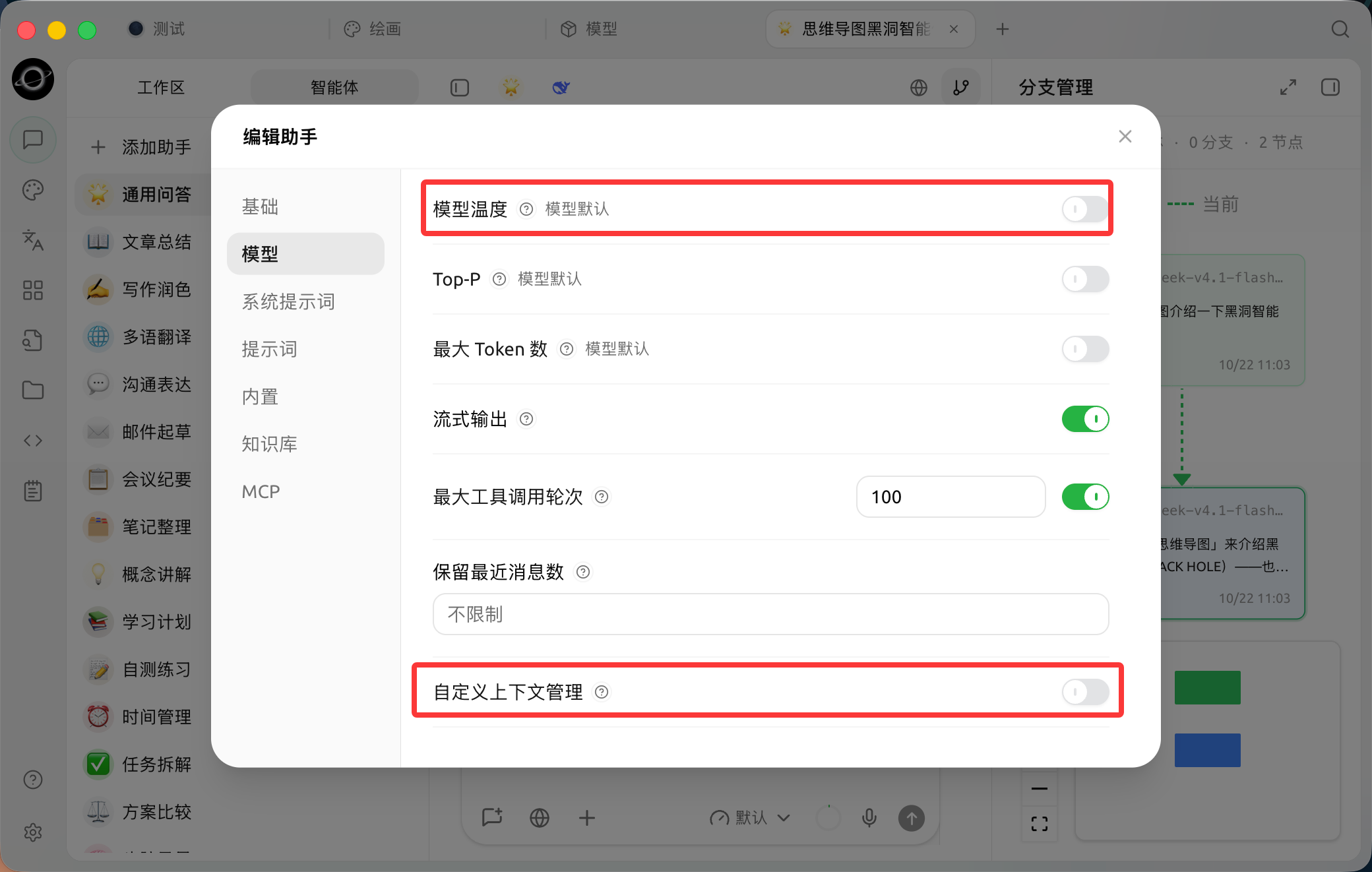
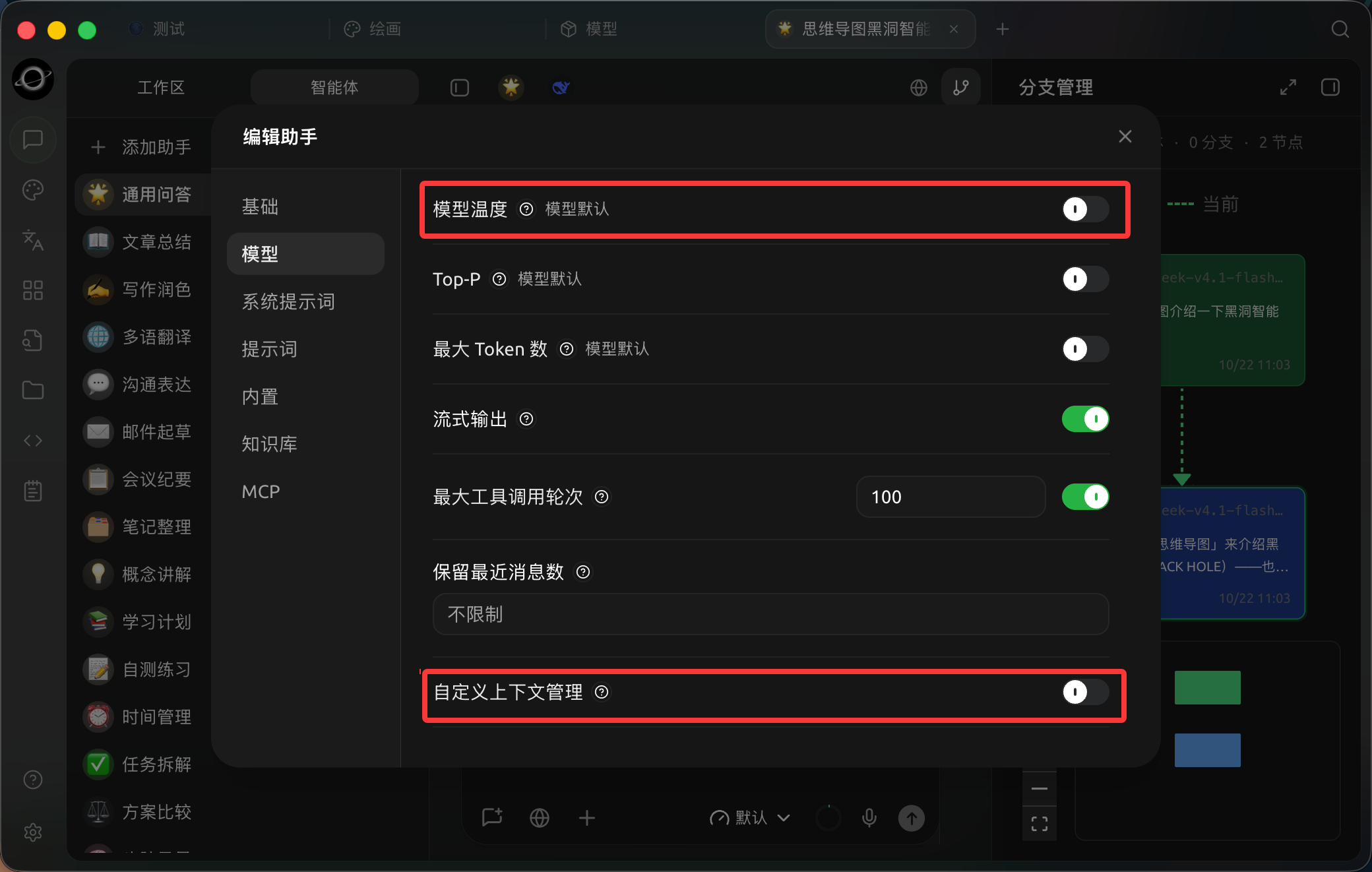
Edit Assistant → Model contains temperature, recent-message retention and custom context management. (Chinese interface.)
Managing Long Conversations
1. Monitor Context Indicators
When the interface indicates increasing context pressure, stop adding large attachments and check which history items remain relevant to the current goal.
2. Have the Model Generate a Handoff Summary
Ask it to list "confirmed facts, current conclusions, pending issues, and non-negotiable constraints" separately. This is more effective for continuing work than a generic "summarize this."
3. Start a New Topic to Continue
Place the handoff summary and necessary files in a new topic. In the first message, specify which goal to address next. Keep the original topic for reference.
Adjusting Global Context Management
Path: [Settings] → [General] → [Context Management]. These settings apply to standard assistant conversations; individual assistants can override them under Edit Assistant → Model by turning on Customize context management.
| Setting | Product Default | Recommended Start | Function | Use Case | Notes |
|---|---|---|---|---|---|
| Recent messages kept | Unlimited | Keep Unlimited | Sends only the most recent messages to the model | Short tasks with a fixed window | Too small a value may cause the model to forget still-valid requirements |
| Enable Context Management | On | Keep On | Manages overly long tool results and history compression | Long conversations, tasks with many tool calls | Disabling this makes large results more likely to fill the context |
| Tool Output Truncation Threshold | 50,000 characters | Keep Default | Stores large results and lets the model read them in segments | Web pages, logs, long document tool results | Does not delete the original result |
| Auto-Compression | On | Keep On | Summarizes earlier history when approaching the window limit | Continuous multi-turn work | Compression is a summary and does not guarantee retaining every detail |
| Compression Model | Follow Current Model | Follow Current Model | Selects the model used to generate history summaries | When you need to control speed or cost separately | Changing the model adds troubleshooting variables |
[Settings] → [Default Model] also provides [Model Call Retry]. Disabled by default; when enabled, it attempts up to 3 times by default using exponential backoff, and you can select fallback models in order. Retries and fallbacks only take effect before the model starts outputting; they do not switch to another model to continue a partially generated response.
Using the Message Queue
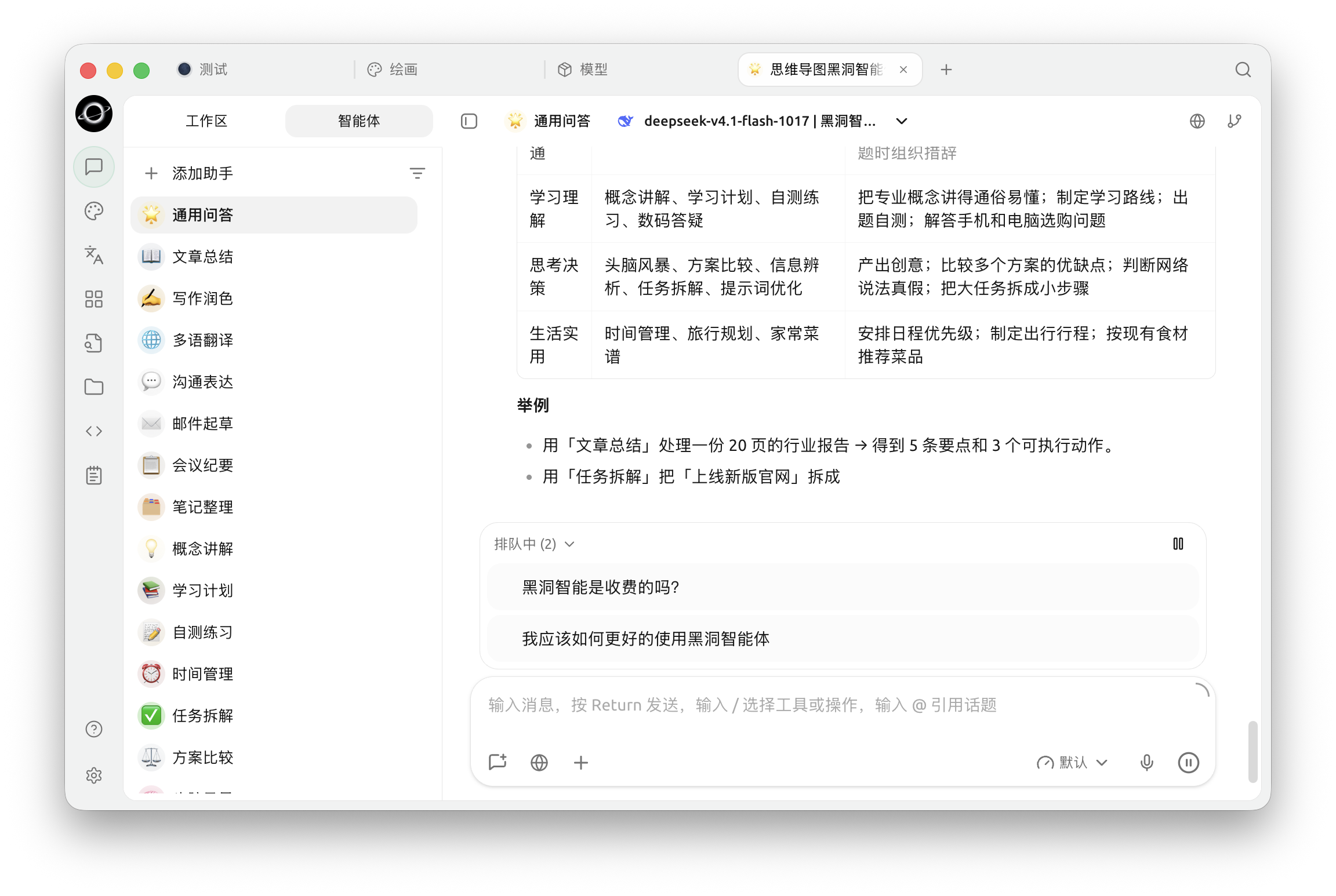
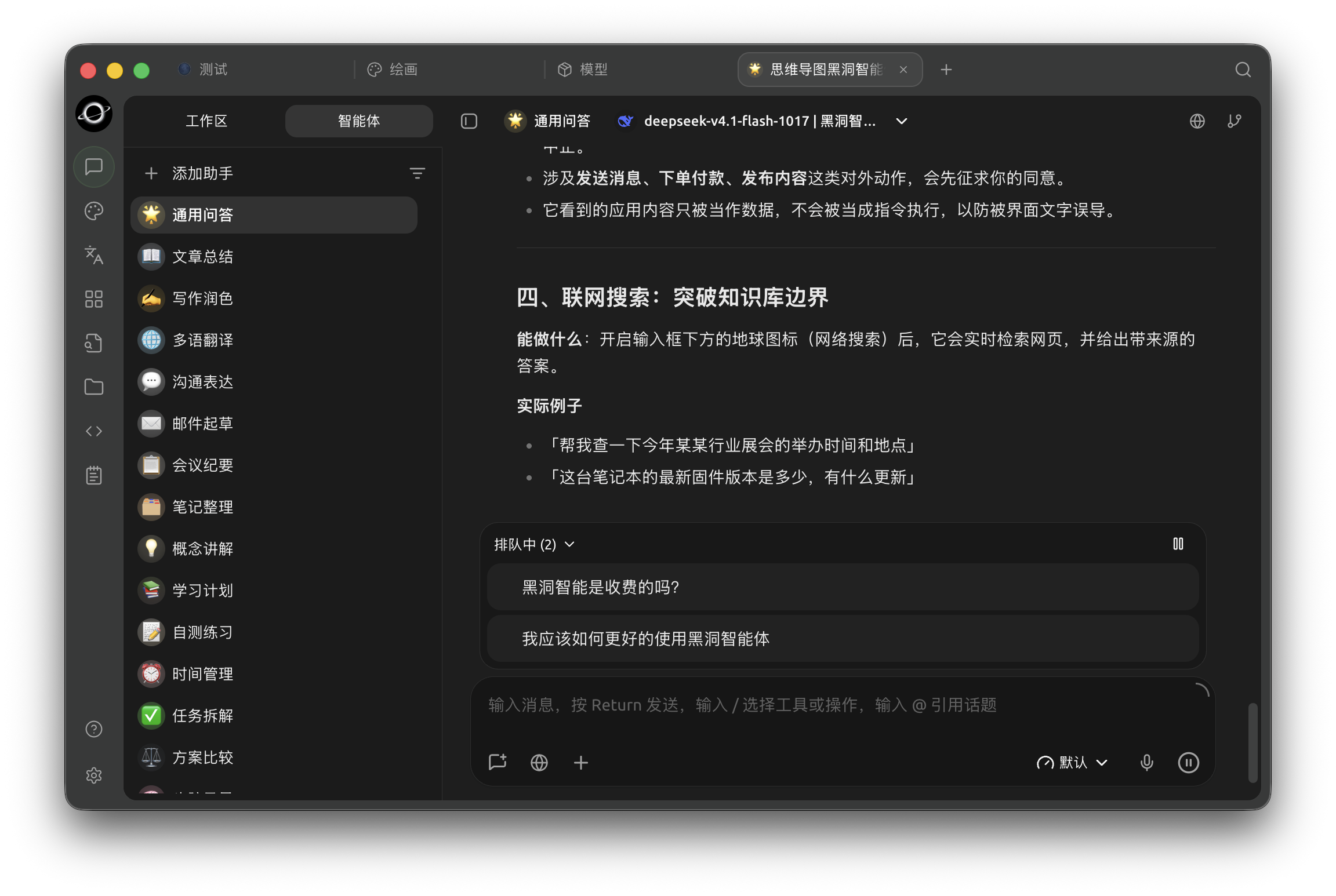
Follow-up requests appear in the Queued list above the input box while a reply is in progress. (Chinese interface.)
While the model is still responding, you can add the next request to the queue. This is suitable for appending a clear follow-up action, such as "After completion, organize into three conclusions." If you need to immediately correct the current direction while an Agent is running, use the [Steering Shortcut]; if you need to start over completely, stop the current generation and restate the goal.
If you pause the queue, you can check the results first; after you resume auto-send, queued messages are sent in top-to-bottom order.
Use Case: Reviewing a Long Report
First, upload the report and ask the model to list issues by chapter. While the model is processing, add "Organize a risk list after completion" and "Generate a checklist at the end" to the queue in sequence. If you need to verify the first round of results first, you can pause auto-send; resume after confirming accuracy. This avoids having to stay in front of the conversation to send messages one by one and prevents the next requirement from executing before verification.
Why did the model suddenly forget a requirement mentioned earlier?
First, check if the conversation is too long, if the model was switched, and if the key requirement was only mentioned once. Write stable rules into the explicit instructions for the current task; for long-term reuse, assign them to Agent prompts or skills.