
Document Processing
In short: This is the central configuration in BLACK HOLE for converting "PDFs / complex layout documents" into clean, structured text.
PDFs with tables, multi-column layouts, or scanned pages (such as academic papers, contracts, or research reports) often produce garbled results when passed directly to a model. Document Processing first uses a dedicated parsing engine to convert them into clearly structured text, which is then used in conversations or the Knowledge Base.
Configuration Entry
Open Settings → Document Processing. Select the parsing engine from the dropdown in the top-right corner. The selected engine becomes the default.
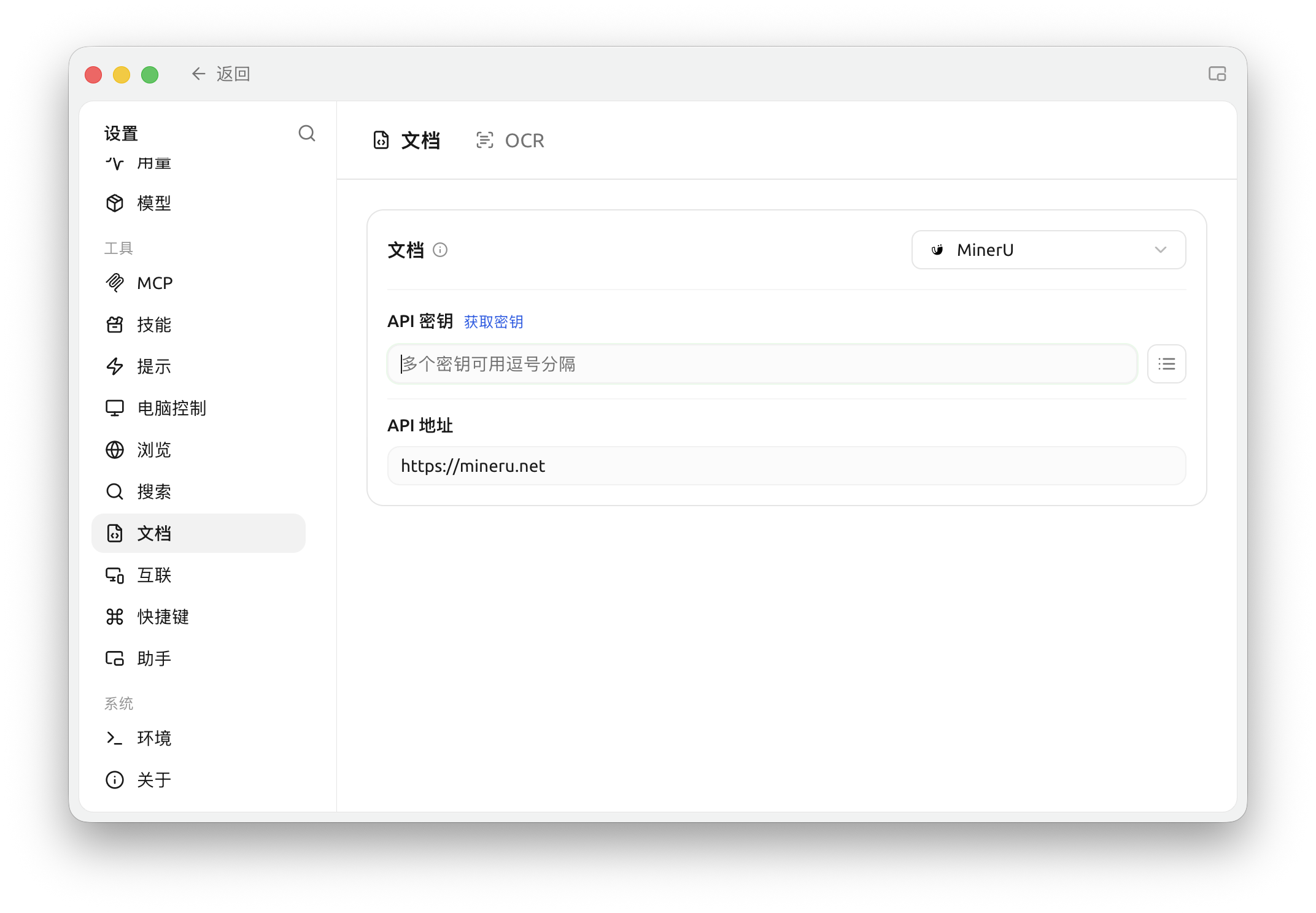
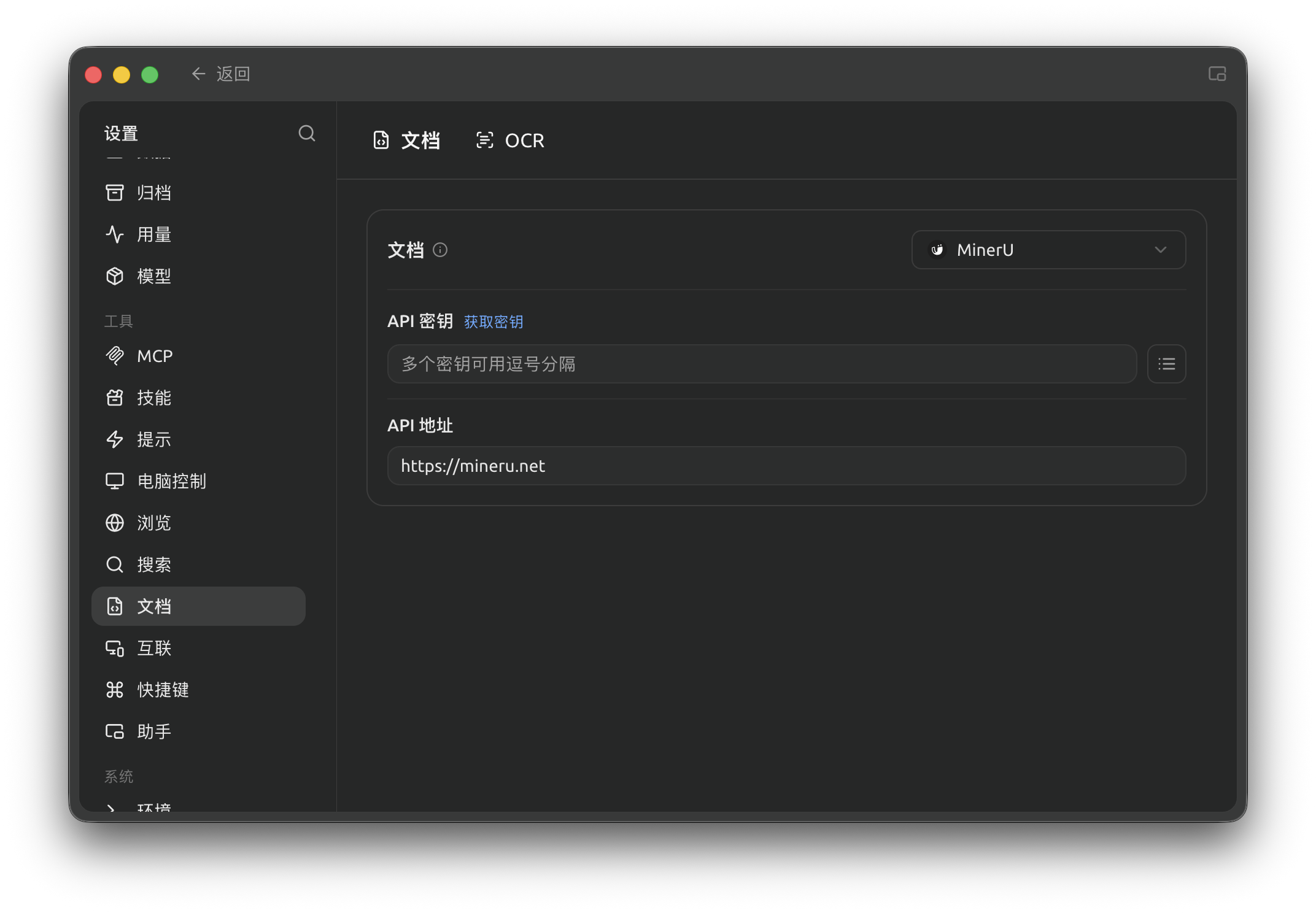
Select a document-processing engine in Settings → Documents and configure its credentials if needed; this example shows MinerU without an API key. (Chinese interface.)
Built-in Parsing Engines
Document Processing includes 6 built-in engines, with MinerU as the default:
| Engine | Description | Integration Method |
|---|---|---|
| Local Document | Built-in local parsing, no service needed | None |
| MinerU (default) | High-quality open-source PDF extraction tool by OpenDataLab | API key (mineru.net/apiManage) |
| PaddleOCR | Baidu PaddlePaddle OCR recognition system | Enter API key (PaddlePaddle Galaxy Community); if self-deployed, point the API address to your service |
| Doc2x | Advanced file restoration engine | API key (open.noedgeai.com) |
| Mistral | File parsing and understanding service | API key (mistral.ai) |
| Open MinerU | Self-deployable MinerU service, suitable for teams wanting to control the processing pipeline | Enter API address after self-deployment (enter API key if required) |
Configuring MinerU (Default Option)
Enter API Key
Enter the key obtained from MinerU in the API Key field (click "Get Key" on the right to jump to the application page; separate multiple keys with commas).
Confirm API Address
Keep the API Address as the default.
Use Directly in Knowledge Base / Conversations
When importing complex PDFs, the parsing settings here are automatically applied. No additional configuration is needed when switching to the Knowledge Base or conversations.
Relationship with Knowledge Base
- Document Processing is only responsible for the "complex document → clean text" step;
- The converted text continues to be vectorized via the Embedding Model and stored in the database;
- See Knowledge Base Document Preprocessing for detailed steps on enabling this in the Knowledge Base.
Tips and Tricks
- MinerU performs significantly better on PDFs with tables / multi-column layouts; it is the preferred choice for academic papers, etc.;
- If you need to recognize text in images (screenshots, scanned documents) rather than PDF structure, use OCR instead.
Getting Help and Submitting Feedback
If you have any questions, bugs, or feature improvement suggestions during configuration or usage, please refer to the official channels provided in Feedback and Suggestions.