
Custom AI Service Provider
BLACK HOLE AGENT not only integrates mainstream AI model services but also empowers you with powerful customization capabilities. Through the Custom AI Service Provider feature, you can easily connect to any AI model you need.
Why Do You Need Custom AI Service Providers?
- Flexibility: No longer limited by a predefined list of providers, you are free to choose the AI model that best suits your needs.
- Diversity: Experiment with AI models from various platforms to discover their unique strengths.
- Controllability: Directly manage your API keys and access addresses, ensuring security and privacy.
- Customization: Integrate privately deployed models to meet the demands of specific business scenarios.
How to Add a Custom AI Service Provider?
Adding your custom AI service provider to BLACK HOLE AGENT takes just a few simple steps:
- Open Settings: In the left navigation bar of the BLACK HOLE AGENT interface, click "Settings" (gear icon).
- Go to Model Provider: Open Model → Model Services from Settings, or open the Model app directly.
- Add Provider: Click + Add Provider at the bottom of the provider list to open the Add Custom Provider dialog.
- Fill in Information:
-
Avatar (optional): upload an image, pick a built-in avatar, or keep the default letter avatar.
-
Provider Name (required): an easy-to-identify name, e.g. MyCustomOpenAI.
-
API Key: the key provided by your AI service.
-
Endpoint settings: enter the API root URL (Base URL) for each protocol your service supports. OpenAI and Anthropic are shown by default; expand More options for the rest:
- OpenAI Responses
- Gemini
- Image Generation Base URL: used for
/images/generations; leave blank to use the default chat endpoint Base URL - Image Edit Base URL: used for image editing requests
You only need to fill in the ones your service offers; a preview of the final request path appears below each field.
-
- Save Configuration: Click Add.
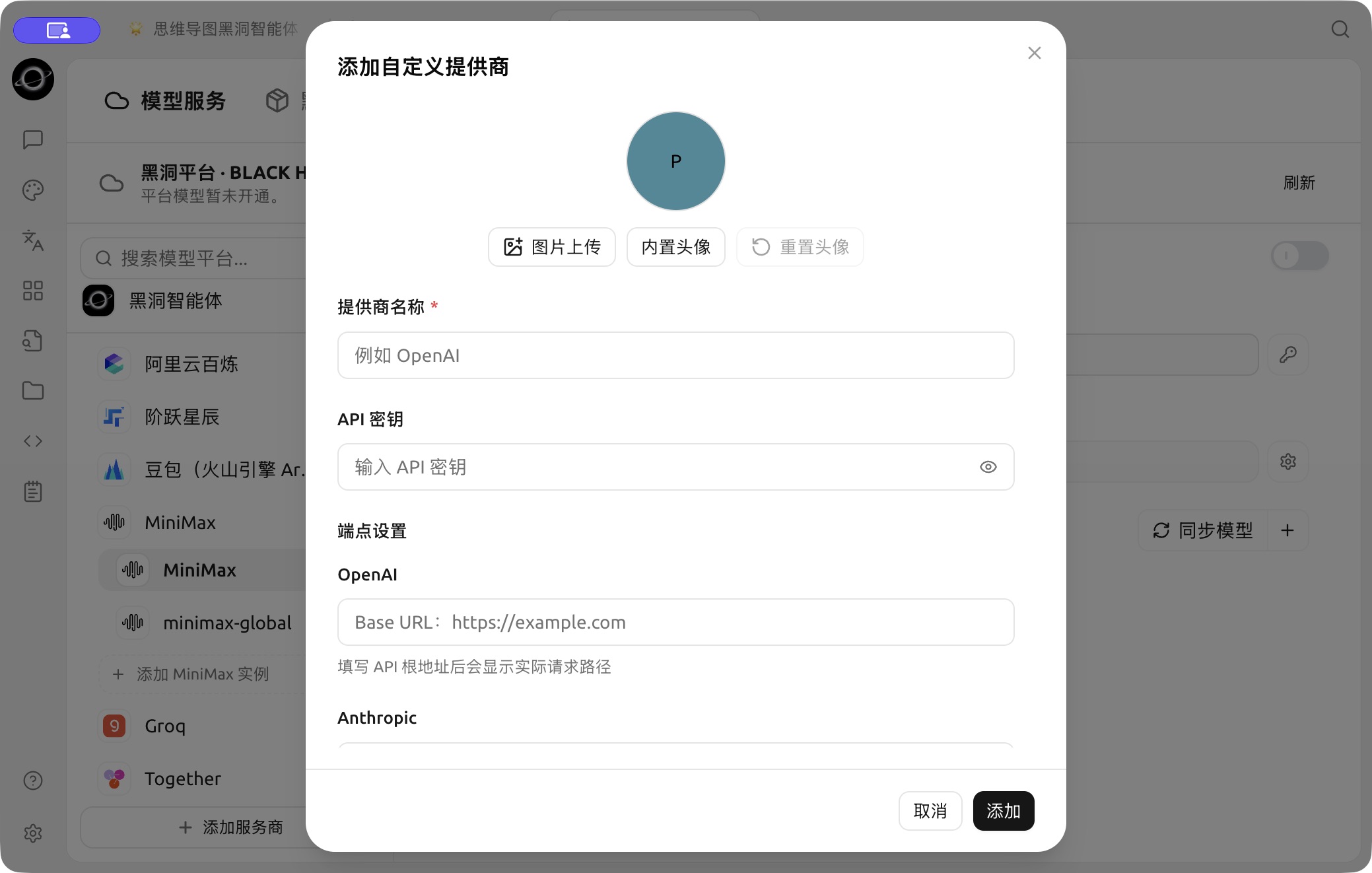
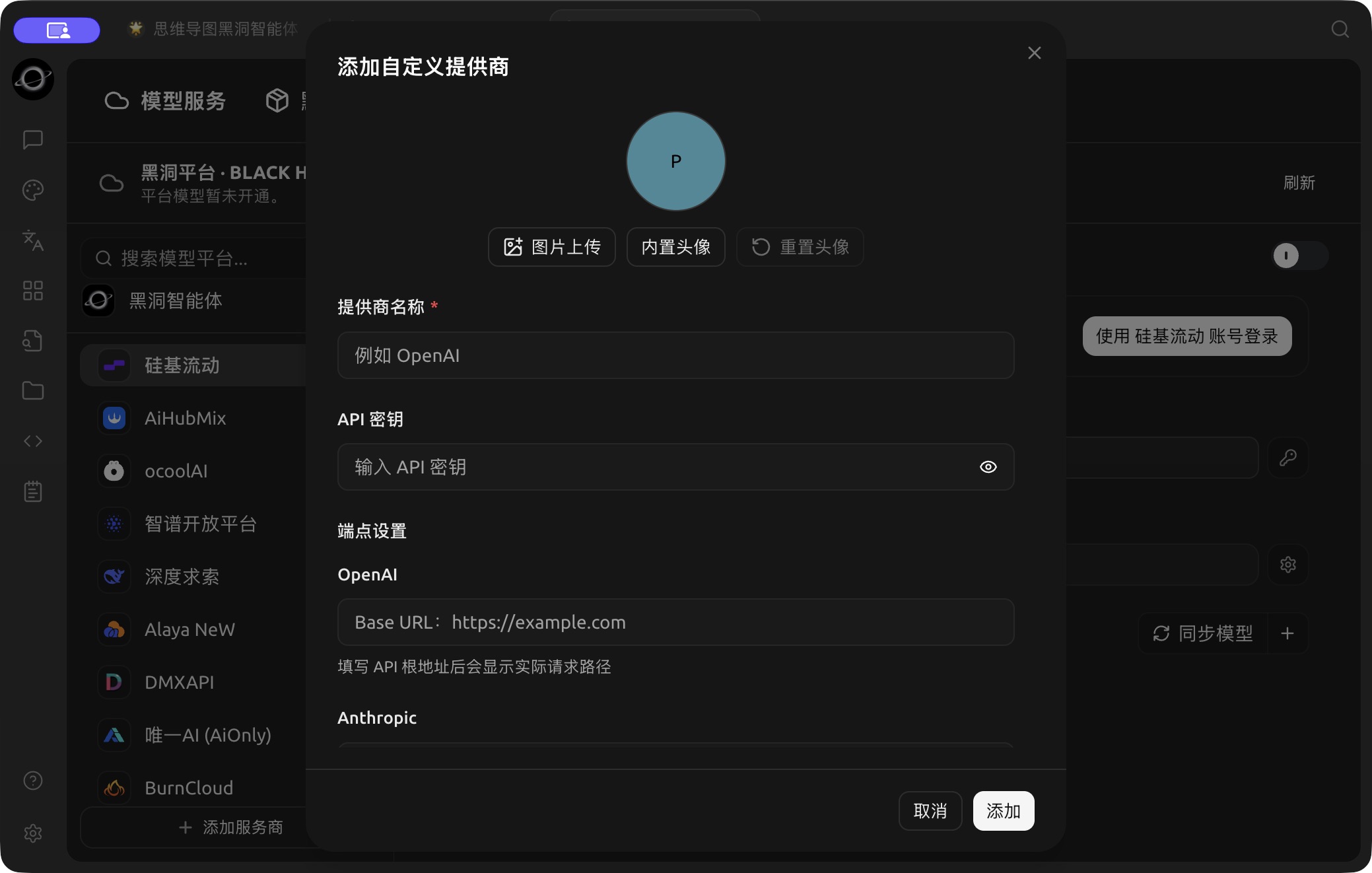
Name, API key and protocol endpoint settings for a custom provider. (Chinese interface.)
Configure Custom AI Service Provider
After adding, you need to find the provider you just added in the list and configure it in detail:
- Enable Status: In the top-right corner of the provider's page, there is an enable switch. Turning it on means enabling this custom service.
- API Key:
- Enter the API Key provided by your AI service provider.
- Click the "Model Check" button on the right to verify the validity of the key.
- API Host:
- Check or change the API access address (Base URL) for the AI service.
- Please be sure to refer to the official documentation provided by your AI service provider to get the correct API address.
- Model Management:
- Click Sync models to fetch models automatically, or the + next to it to manually add the model ID you want to use under this provider. Use the exact model ID published by your provider; a display name is not a substitute for the model ID.
- If you are unsure of the specific model name, please refer to the official documentation provided by your AI service provider.
- Use the settings icon or "−" next to each model to edit or remove models that have already been added.
Get Started
After completing the above configuration, you can select your custom AI service provider and model in BLACK HOLE AGENT's chat interface and start conversing with AI!
Using vLLM as a Custom AI Service Provider
vLLM is a fast and easy-to-use LLM inference library similar to Ollama. Here are the steps on how to integrate vLLM into BLACK HOLE AGENT:
-
Install vLLM: Install vLLM according to the official vLLM documentation (https://docs.vllm.ai/en/latest/getting_started/quickstart.html).
pip install vllm # If you use pip uv pip install vllm # If you use uv -
Start vLLM Service: Start the service using vLLM's OpenAI-compatible API. There are two main methods, as follows:
- Start using
vllm.entrypoints.openai.api_server
python -m vllm.entrypoints.openai.api_server --model gpt2- Start using
uvicorn
vllm --model gpt2 --served-model-name gpt2Ensure the service starts successfully and listens on the default port
8000. Of course, you can also specify the vLLM service's port number using the--portparameter. - Start using
-
Add vLLM Provider in BLACK HOLE AGENT:
- Follow the steps described above to add a new custom AI service provider in BLACK HOLE AGENT.
- Provider Name:
vLLM - API Key: Enter the credential configured on your vLLM server. Leave it blank only when the server does not require authentication.
- Endpoint settings → OpenAI: Enter the address of the vLLM service. By default, the address is:
http://localhost:8000/(if a different port is used, please modify accordingly).
-
Configure vLLM Provider:
- Model Management: Add the name of the model you loaded in vLLM. In the example of running
python -m vllm.entrypoints.openai.api_server --model gpt2above, you should entergpt2here.
- Model Management: Add the name of the model you loaded in vLLM. In the example of running
-
Start Conversation: Now, you can select the vLLM provider and the
gpt2model in BLACK HOLE AGENT to start a conversation with your vLLM-powered LLM!
Tips and Tricks
- Read the Documentation Carefully: Before adding a custom service provider, be sure to carefully read the official documentation of the AI service provider you are using to understand key information such as API keys, access addresses, and model names.
- Check API Key: Use the "Model Check" button to quickly verify the validity of the API key, avoiding usability issues due to incorrect keys.
- Pay Attention to API Address: Different AI service providers and models may have different API addresses, so be sure to fill in the correct address.
- Add Models as Needed: Please only add models that you will actually use, avoid adding too many unnecessary models.