
Ollama
Ollama is an excellent open-source tool that allows you to easily run and manage various large language models (LLMs) locally. BLACK HOLE AGENT now supports Ollama integration, enabling you to interact directly with locally deployed LLMs within a familiar interface, without relying on cloud services!
What is Ollama?
Ollama is a tool that simplifies the deployment and use of large language models (LLM). It has the following features:
- Local Execution: Models run entirely on your local computer, without needing an internet connection, protecting your privacy and data security.
- Easy to Use: Download, run, and manage various LLMs with simple command-line instructions.
- Rich Model Support: Supports many popular open-source models such as Llama 2, Deepseek, Mistral, Gemma, and more.
- Cross-Platform: Supports macOS, Windows, and Linux systems.
- Open API: Supports OpenAI-compatible interfaces for integration with other tools.
Why Use Ollama in BLACK HOLE AGENT?
- No Cloud Services Needed: No longer limited by cloud API quotas and costs; enjoy the full power of local LLMs.
- Data Privacy: Using a local endpoint keeps model inference on your machine. External search, tools or other connected services have their own data flows.
- Offline Availability: Continue interacting with LLMs even without an internet connection.
- Customization: Choose and configure the LLM that best suits your needs.
Configuring Ollama in BLACK HOLE AGENT
1. Install and Run Ollama
First, you need to install and run Ollama on your computer. Please follow these steps:
-
Download Ollama: Visit the Ollama official website (https://ollama.com/) and download the appropriate installation package for your operating system. On Linux, you can install Ollama directly by running the command:
curl -fsSL https://ollama.com/install.sh | sh -
Install Ollama: Follow the installer's instructions to complete the installation.
-
Download Models: Open your terminal (or command prompt) and use the
ollama runcommand to download the model you want to use. For example, to download the Llama 3.2 model, you can run:ollama run llama3.2Ollama will automatically download and run the model.
-
Keep Ollama Running: Ensure Ollama remains running while you interact with Ollama models using BLACK HOLE AGENT.
2. Add Ollama Provider in BLACK HOLE AGENT
Open the existing Ollama configuration in BLACK HOLE AGENT:
- Open Settings: In the BLACK HOLE AGENT interface, click "Settings" (gear icon) in the left navigation bar.
- Go to Model Provider: Open Model → Model Services from Settings, or open the Model app directly.
- Add Provider: Click Ollama in the list.
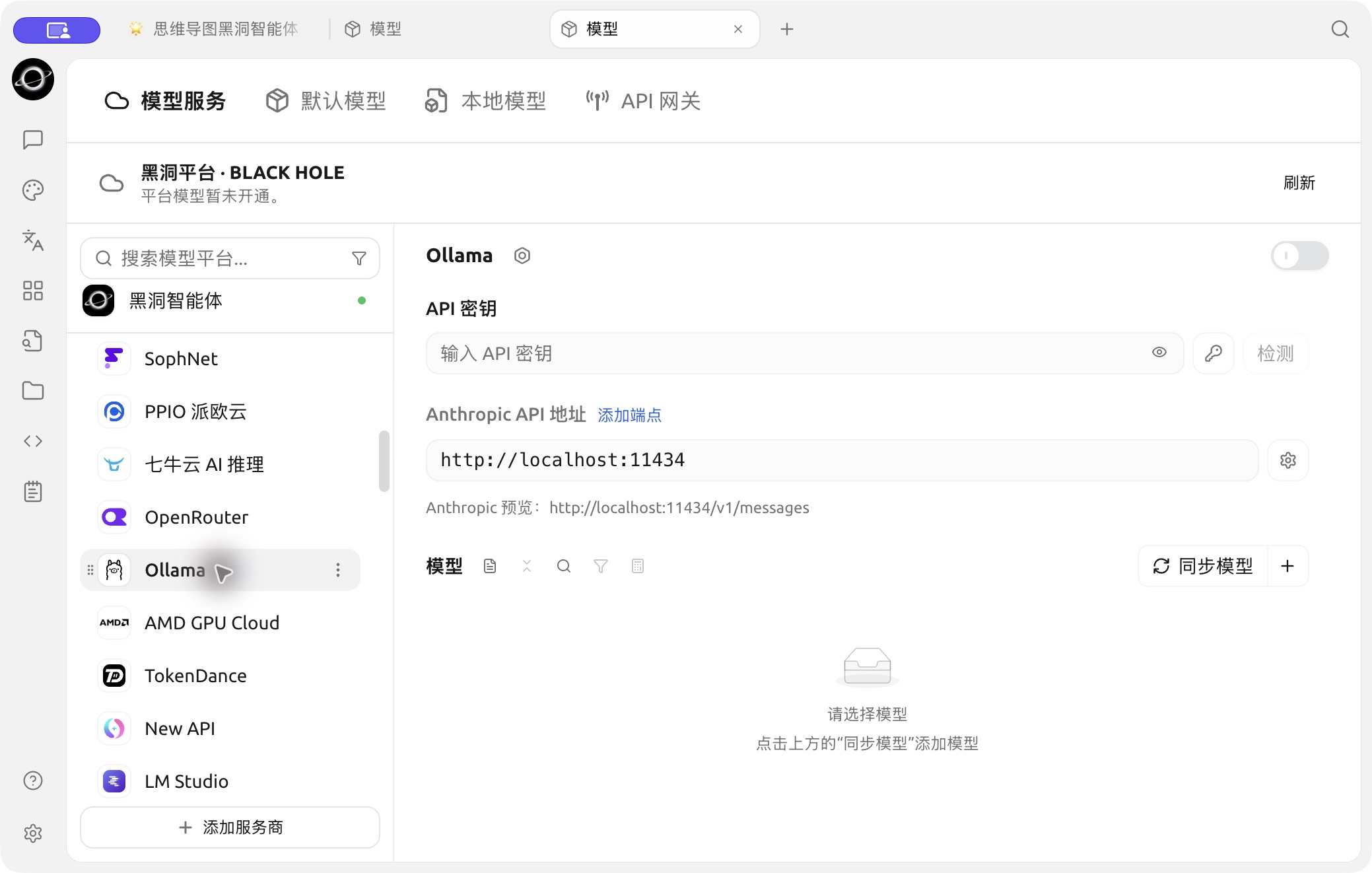
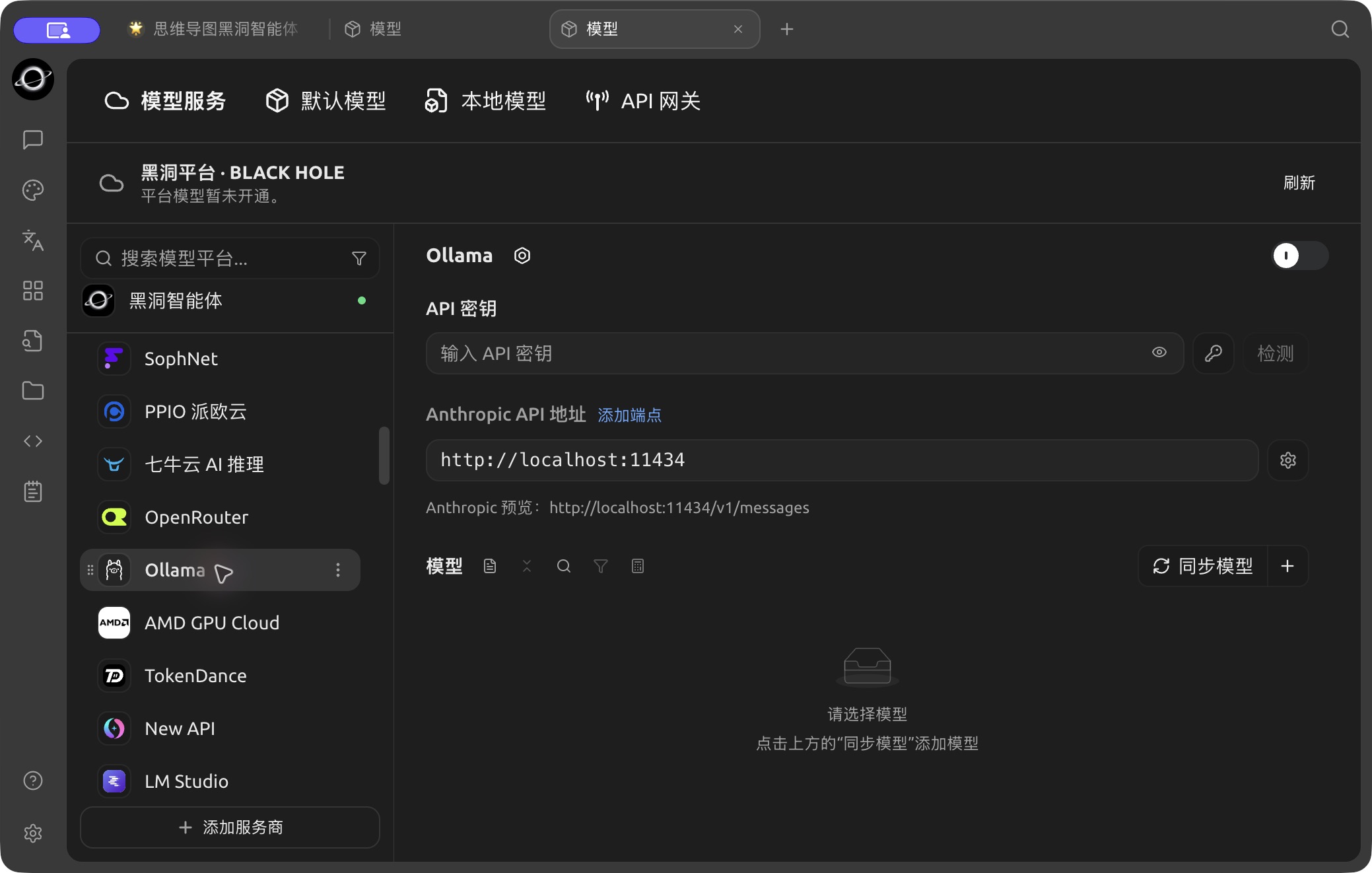
Ollama configuration, currently showing the Anthropic API address field. (Chinese interface.)
3. Configure the Ollama Provider
Select Ollama in the provider list and configure it:
- Enabled Status:
- Ensure the toggle switch on the far right of the Ollama provider is turned on, indicating it is enabled.
- API Key:
- Ollama does not require an API key by default. You can leave this field blank or enter any content.
- API Address: The current configuration page labels this field Anthropic API Address and previews the request path. Check that your running service supports the protocol shown.
-
Enter the local API address provided by Ollama. Typically, the address is:
http://localhost:11434/If the port has been modified, please change it accordingly.
-
- Model Management:
- Use Sync models, or Add model to enter the exact ID of a model installed locally. If synchronization or a request fails, check service version, protocol and endpoint before proceeding.
- For example, if you have downloaded the
llama3.2model viaollama run llama3.2, then you can enterllama3.2here. - Use the settings icon or "−" next to each model to edit or remove added models.
Get Started
After completing the above configurations, you can select the Ollama provider and your downloaded model in BLACK HOLE AGENT's chat interface to start conversing with your local LLM!
Tips and Tricks
- First Time Running a Model: The first time you run a model, Ollama needs to download the model files, which may take a considerable amount of time. Please be patient.
- View Available Models: Run the
ollama listcommand in the terminal to view a list of your downloaded Ollama models. - Hardware Requirements: Running large language models requires certain computing resources (CPU, memory, GPU). Please ensure your computer's configuration meets the model's requirements.
- Ollama Documentation: You can click the 'View Ollama Documentation and Models' link on the configuration page to quickly jump to the official Ollama documentation.