
Model Service Settings
This page only introduces the interface functions. For configuration tutorials, please refer to the Provider Configuration tutorial in the basic tutorials.
API Key
To enter a key, click Add API key in the API Key field. In the dialog, paste the key, then click Save and close (or Next to continue setting up). Click Get API Key next to the field title to open the provider's key page.
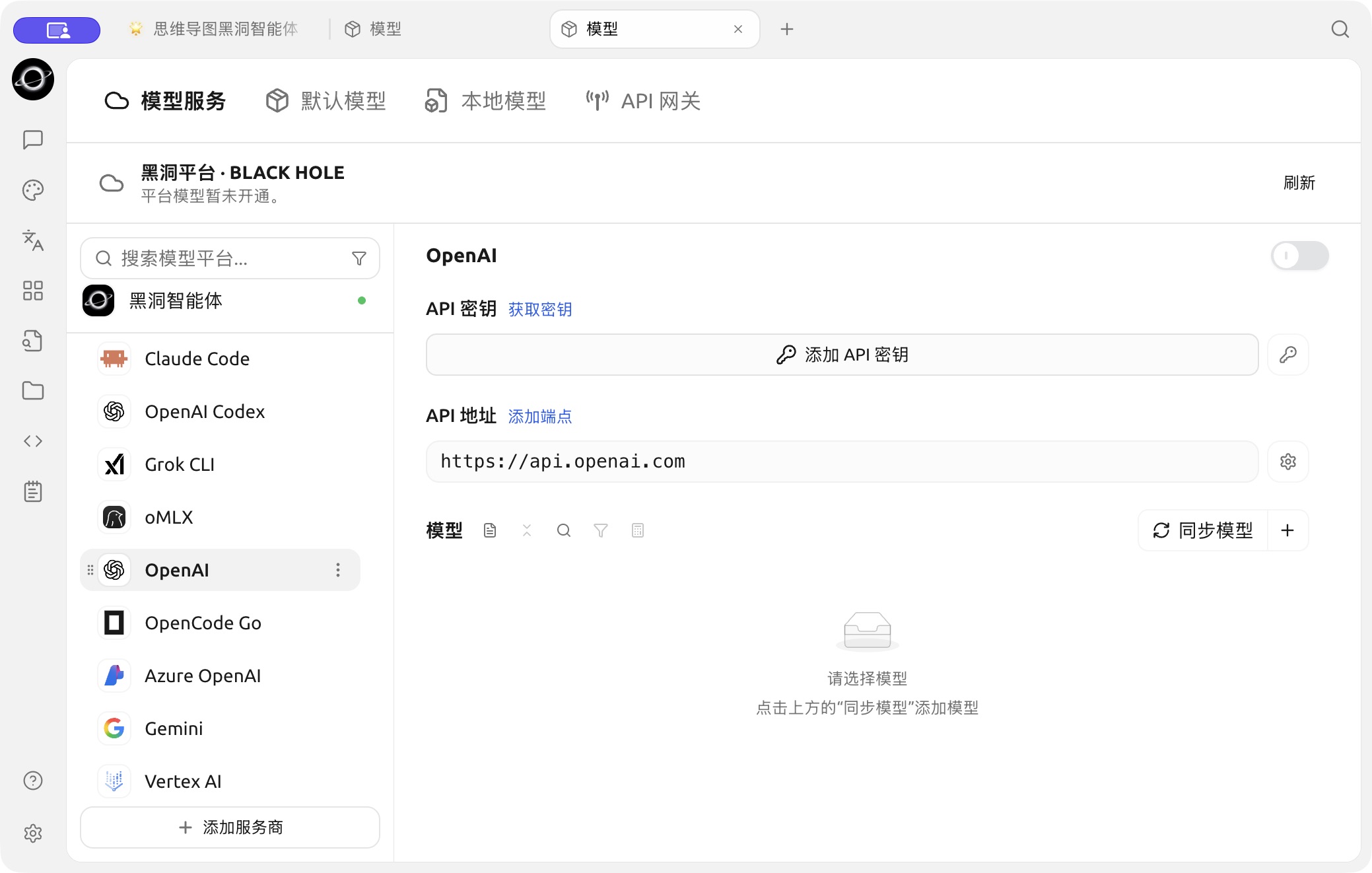
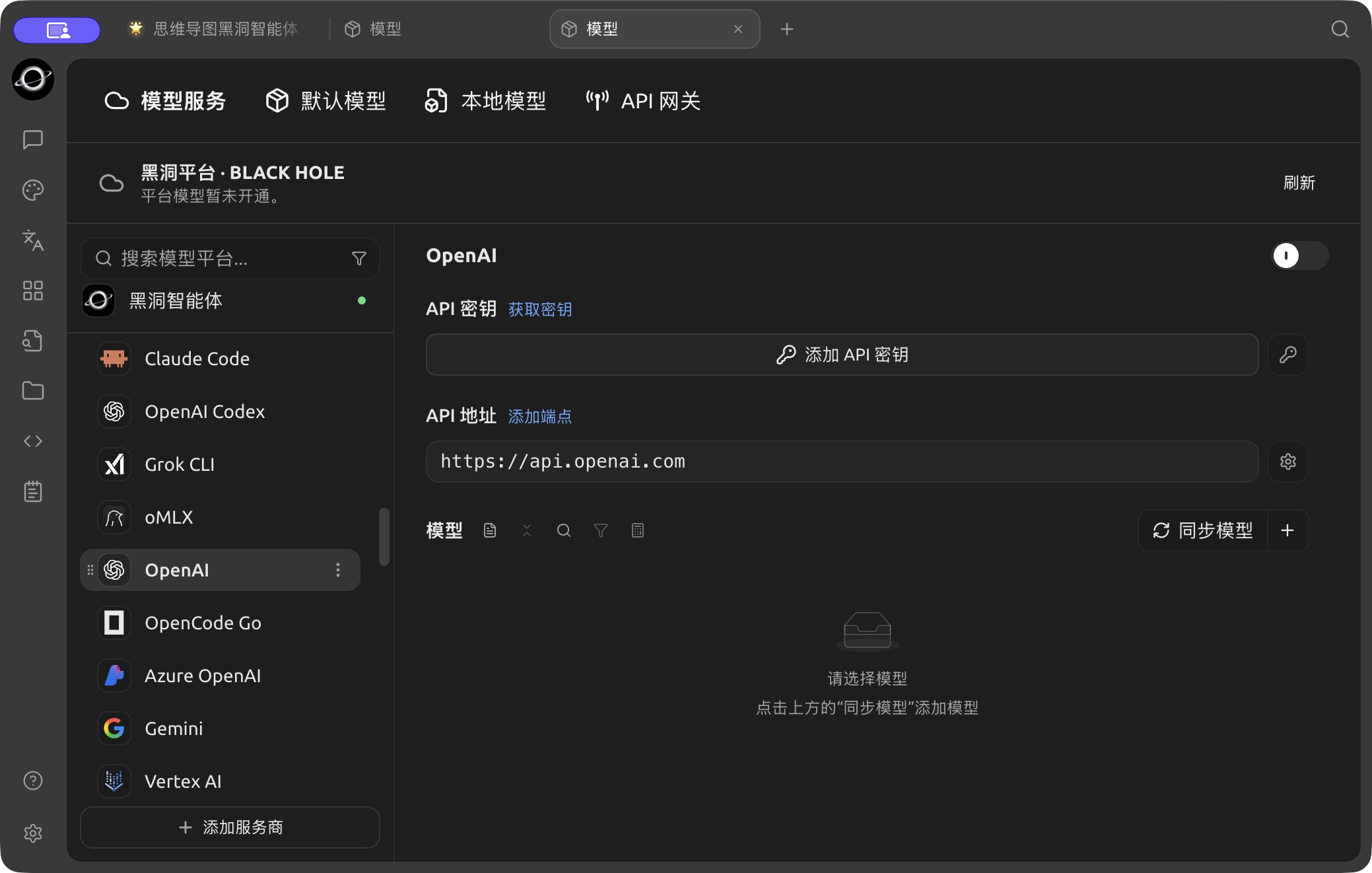
The OpenAI configuration page in Model Services. (Chinese interface.)
In BLACK HOLE, a single provider supports multi-key round-robin usage, where keys are used in a sequential, looping manner from front to back.
- Add multiple keys separated by English commas, as shown in the example below:
sk-xxxx1,sk-xxxx2,sk-xxxx3,sk-xxxx4API Host
When using a built-in provider, you generally do not need to fill in the API Host. If you need to modify it, please strictly follow the address provided in the official documentation.
If the address provided by the provider is in the format https://xxx.xxx.com/v1/chat/completions, you only need to fill in the root address part (https://xxx.xxx.com).
BLACK HOLE will automatically append the remaining path (/v1/chat/completions). Failure to fill it in correctly may result in abnormal usage.
Adding Models
Click Sync models to the right of the Models heading to automatically retrieve the models supported by the provider, then add the ones you want to the model list. To add a model by hand, click the + next to Sync models and fill in the Model ID, Model Name and Group Name.
Each model in the list has a settings icon for editing it and a − for removing it.
Connectivity Check
Click Model Check to the right of the API Key field to test whether the configuration works.