
Screenshot, Annotation, and OCR
BLACK HOLE AGENT allows you to capture a screen area using a global shortcut, add rectangles, arrows, brush strokes, text, or mosaic, and then copy or save the result. With text recognition enabled, you can also select and copy text from the screenshot. Check the settings page for the active recognition engine.
Objectives and Prerequisites
- Path: [Settings] → [Assistant] → [Screenshot];
- On macOS, screen recording permission is required on first use. Restart the app after granting permission as prompted;
- Text recognition uses the engine shown on the page. macOS can use System OCR; if using a local model, download it in [Model] → [Local Models] first;
- Before first use, check the screenshot switch, system permission and text-recognition state.
Terminology
| Term | Definition |
|---|---|
| Global Shortcut | A shortcut that can be triggered even when focus is not on BLACK HOLE AGENT |
| OCR | Recognizes text in an image as selectable and copyable text |
| Mosaic | Obscures accounts, paths, keys, or other sensitive areas in a screenshot |
Operation Path
[Settings] → [Assistant] → [Screenshot] → Enable [Enable Screenshot] → Press the screenshot shortcut → Select the area → Annotate or recognize text → Copy or save.
Procedure
1. Enable Screenshot and Check Permissions
Open [Settings] → [Assistant] → [Screenshot] and enable [Enable Screenshot]. If macOS prompts for [Screen Recording Permission], select [Authorize]. After authorization, click [Restart Now].
2. Configure Shortcuts
The default shortcut is Command+Shift+A on macOS, and Ctrl+Shift+A on Windows and Linux. Click [Set Shortcut] to jump to the corresponding row. If the system or another application is already using this shortcut, the page will display a conflict warning.
3. Select and Annotate
Press the shortcut and drag to select the area. Use [Rectangle], [Arrow], [Brush], and [Text] to highlight key points, and use [Mosaic] to obscure sensitive information. You can adjust color, line width, and font size in the properties panel.
4. Copy Text or Image
When recognition is enabled and the selected engine is available, the page automatically recognizes text. You can also click [Recognize Text]. Select text directly or choose [Copy All Text]. After finishing annotations, select [Copy and Close] or [Save Image].
Expected Results
The screenshot contains only the selected area. Annotations are clear, and sensitive information is obscured. After copying, you can paste the image into the target application, or paste the OCR text as editable text.
Configuration Details
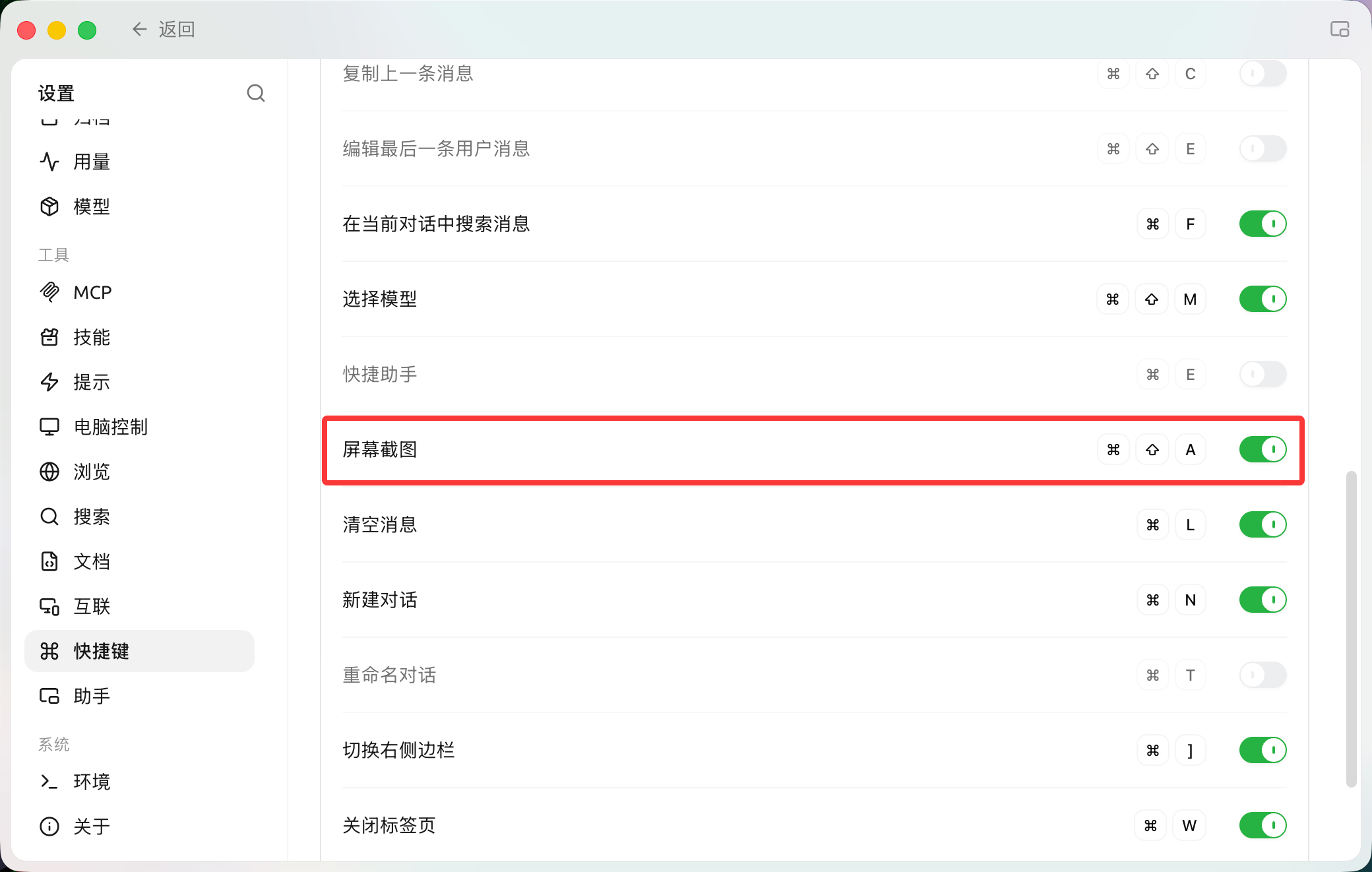
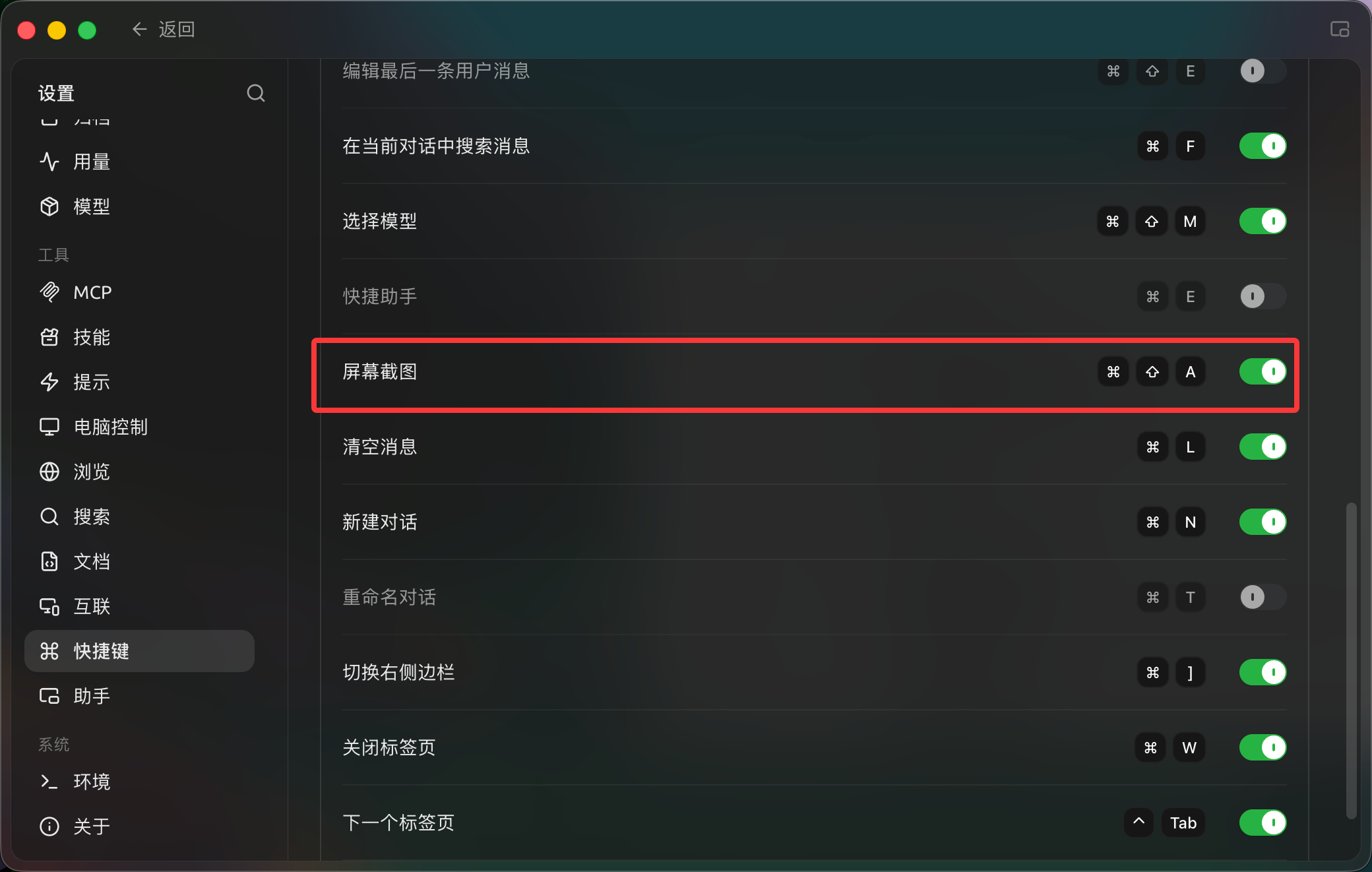
Settings → Shortcuts lets you view, enable or change the Screen Capture shortcut. (Chinese interface.)
| Setting | Product Default | Recommended Start | Function | Use Case | Notes |
|---|---|---|---|---|---|
| Enable Screenshot | Disabled | Enable when needed | Registers the global screenshot shortcut | Daily screenshots, tutorials, issue reporting | Requires screen recording permission on macOS |
| Screenshot Shortcut | Command/Ctrl+Shift+A | Keep default, change if conflict | Triggers screenshot from any application | High-frequency cross-app usage | Will not trigger if conflicting with other apps |
| Recognize Text Automatically | Enabled | Keep enabled if frequently copying screenshot text | Automatically runs OCR after screenshot | Error screenshots, tables, UI text | Uses the OCR engine shown under the switch, such as System OCR |
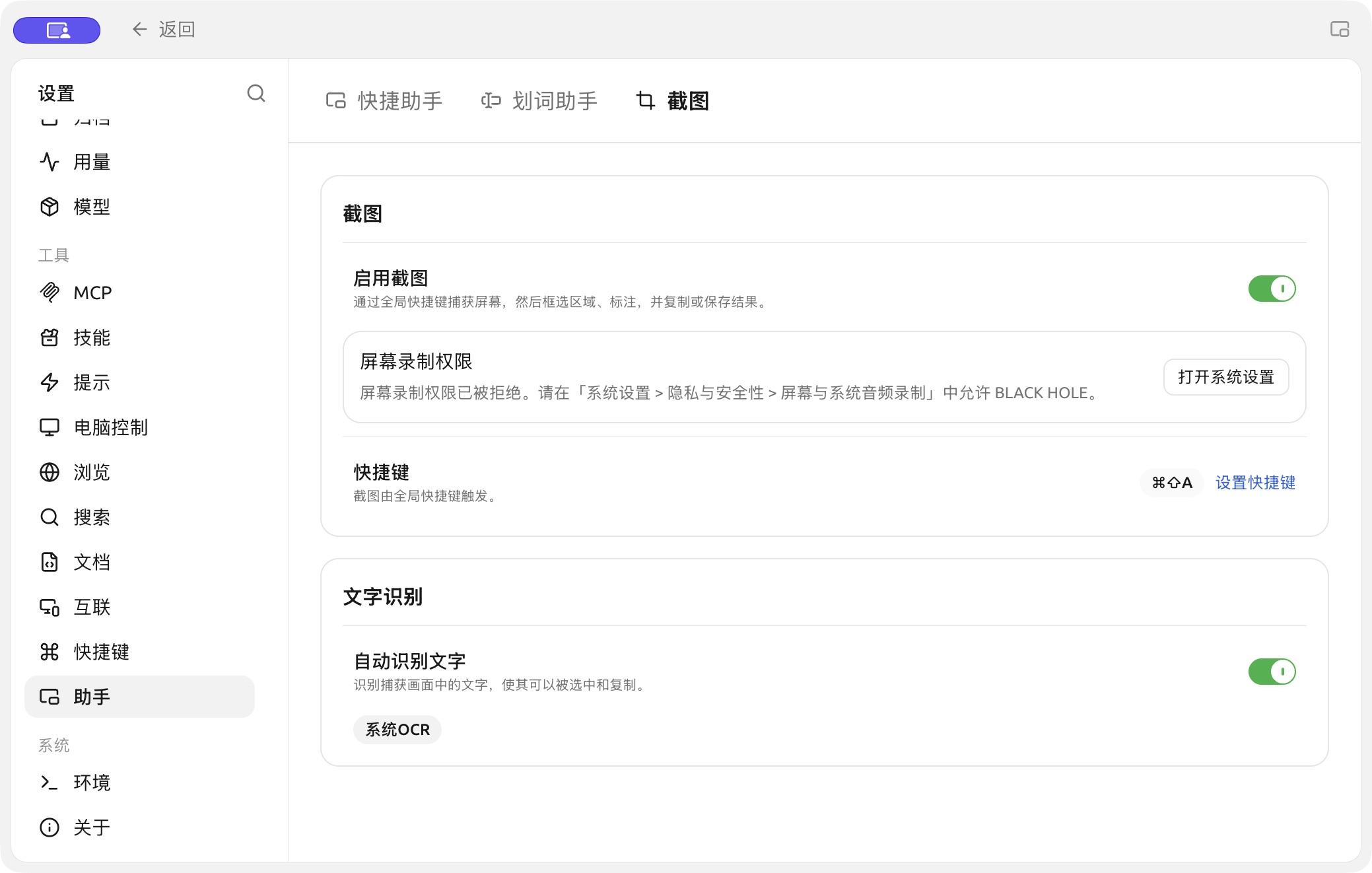
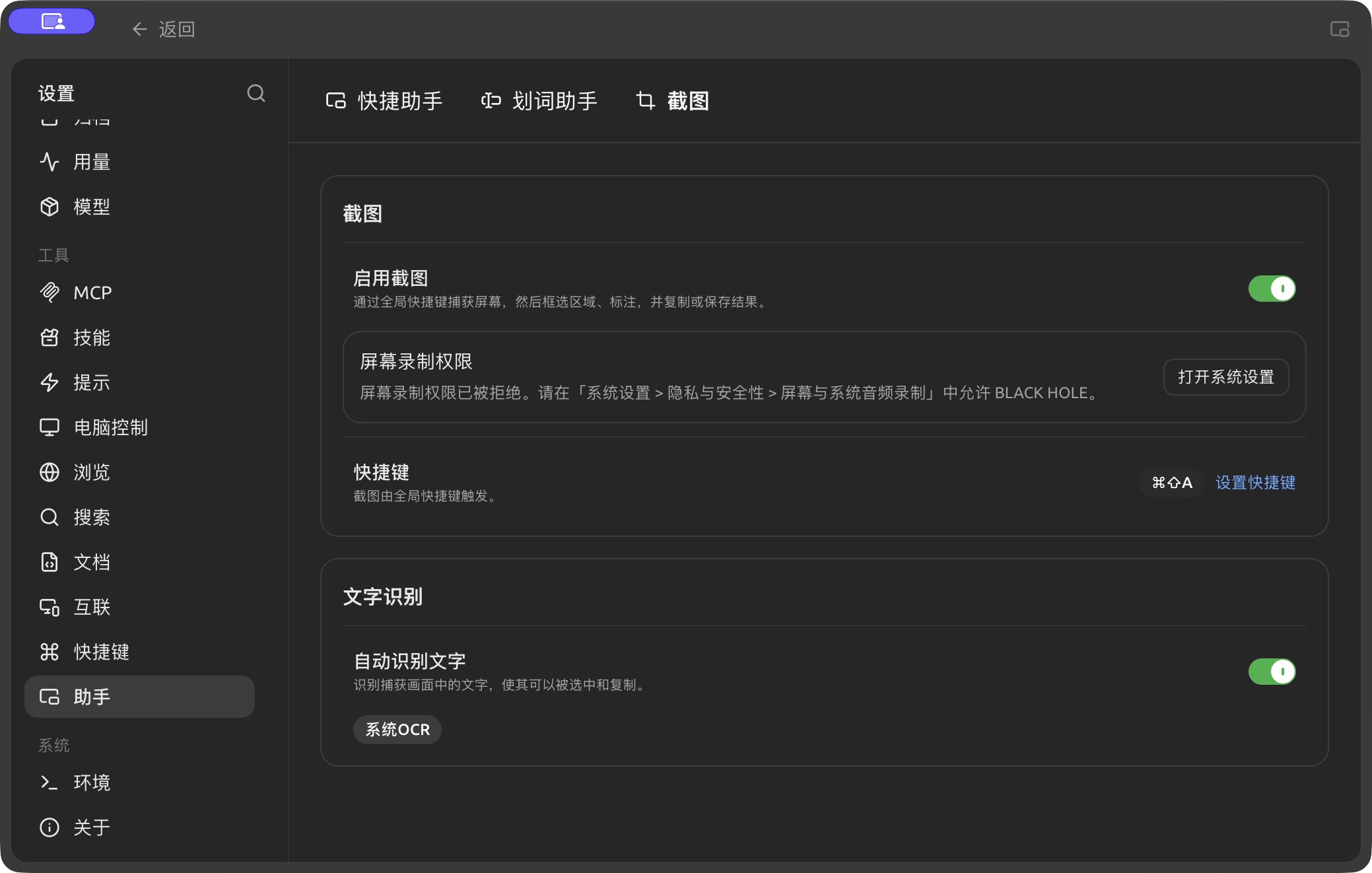
Screenshot and OCR settings; macOS screen-recording permission is pending. (Chinese interface.)
User Case
A tester captures a configuration error, uses a rectangle to frame the error message, applies mosaic to obscure the account and local path, and then copies it to the issue feedback assistant. Subsequently, they copy the error code from the same screenshot and paste it into the reproduction steps to avoid manual input errors.
FAQ
What to do if the shortcut does not respond?
Ensure [Enable Screenshot] is turned on, and check for conflict warnings next to the shortcut. On macOS, also verify screen recording permission and restart after authorization. On Windows and Linux, try a different combination not occupied by the system.
Why can't I copy text?
Check automatic text recognition and the active engine in [Settings] → [Assistant] → [Screenshot]. For local OCR, confirm the model is ready under [Model] → [Local Models]; for System OCR, check system support. Complete or undo the current annotation before running OCR.
References
- Issue Feedback and Feature Suggestions
- Input Toolbar and Efficiency Tools