
Creating Agents and Model Roles
Entry point: open Work and click Create Project in the sidebar. The four-step project wizard configures its Agent; existing Agents remain editable from their menus.
The creation wizard consists of four steps: [Basic info], [System Prompt], [Skills], and [Knowledge]. The first step also requires selecting a runtime mode. The runtime mode determines the available model roles, permission modes, and certain tools for the Agent. This setting cannot be changed after creation.
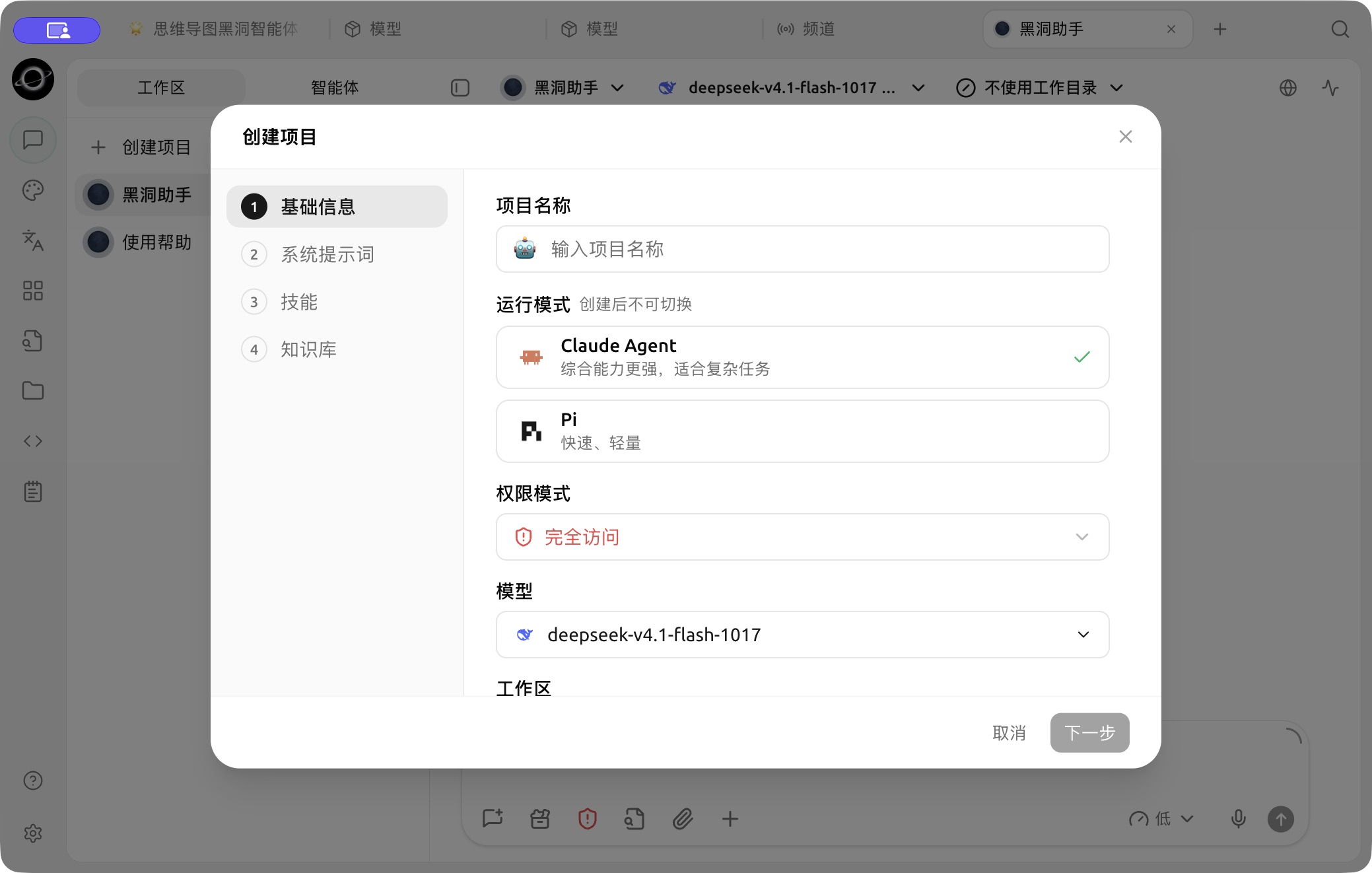
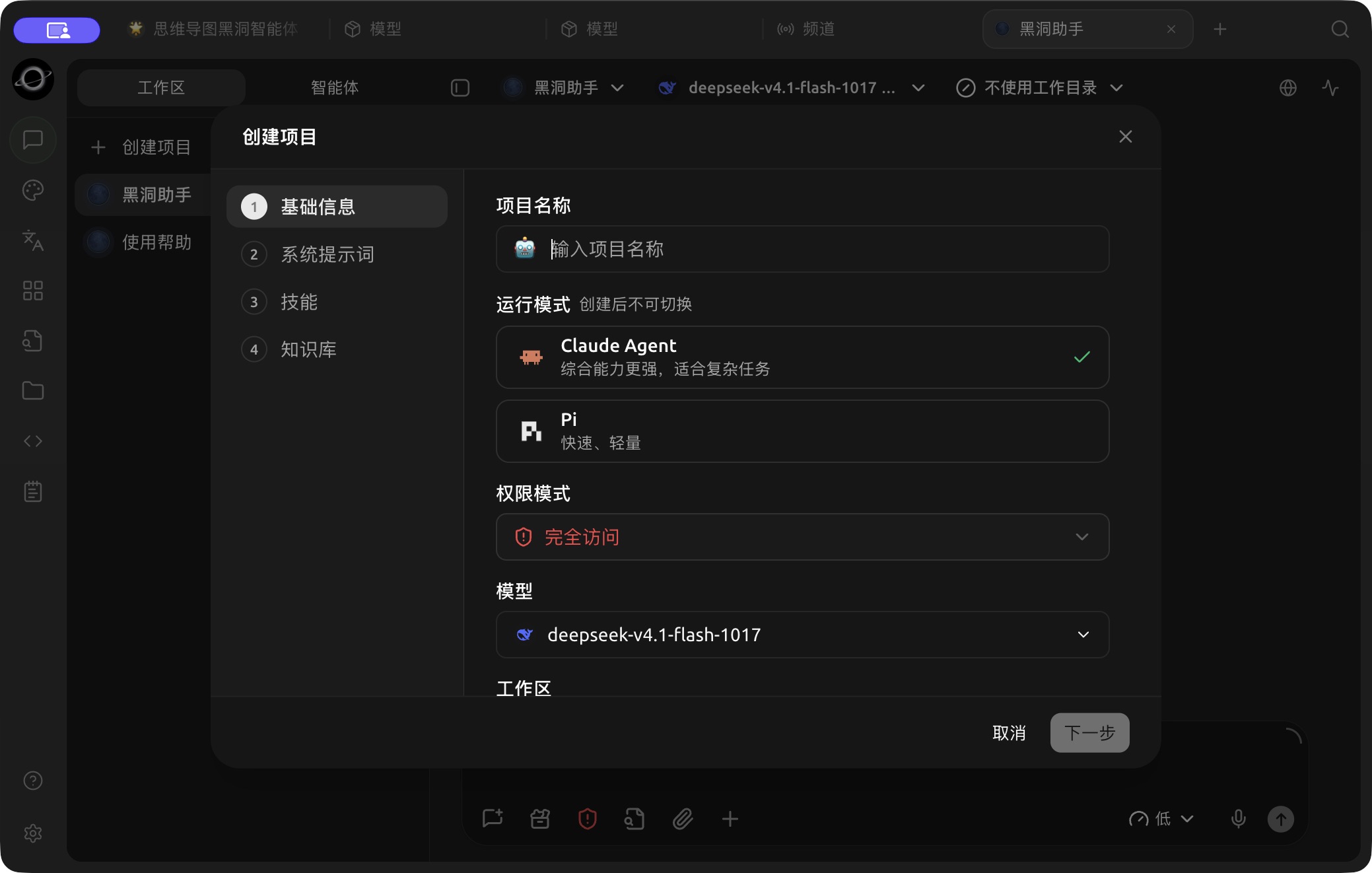
The Create Project wizard: name the project and choose a runtime, permissions and model. (Chinese interface.)
How to Choose a Runtime Mode
| Runtime Mode | Key Features | Model Configuration | Permissions & Limitations |
|---|---|---|---|
| [Claude Agent] | Full capability set, suitable for complex, multi-step tasks | Main model, Sonnet model, Haiku model | Supports all permission modes and heartbeat detection |
| [Pi] | Fast response, low overhead, suitable for daily file and coding tasks | Main model only | Does not provide [Plan Only]; defaults to [Approve for Me] upon creation |
How to Fill Out the Four Steps
1. Basic info
Name the Agent after its role or task type, such as "Contract Review" or "Content Planning." Choose a runtime, permission mode and compatible model, and select a working directory when the project needs local files. The primary model handles the main task.
2. Write the System Prompt
Clearly define the role, goals, boundaries, and output format. Instead of piling up adjectives, provide actionable rules: list risks first, then quote the original text, and finally provide modification suggestions. If information is insufficient, explicitly mark it; do not guess.
3. Select Skills
Only select skills relevant to this Agent's long-term workflow. Skills can be installed via [Settings] → [Skills], or you can ask the Agent to find and install them later.
4. Knowledge
Only bind knowledge bases that the Agent genuinely needs to search. If no knowledge base is bound, the Knowledge Search and Manage Knowledge tools will not appear in the Agent's tool list.
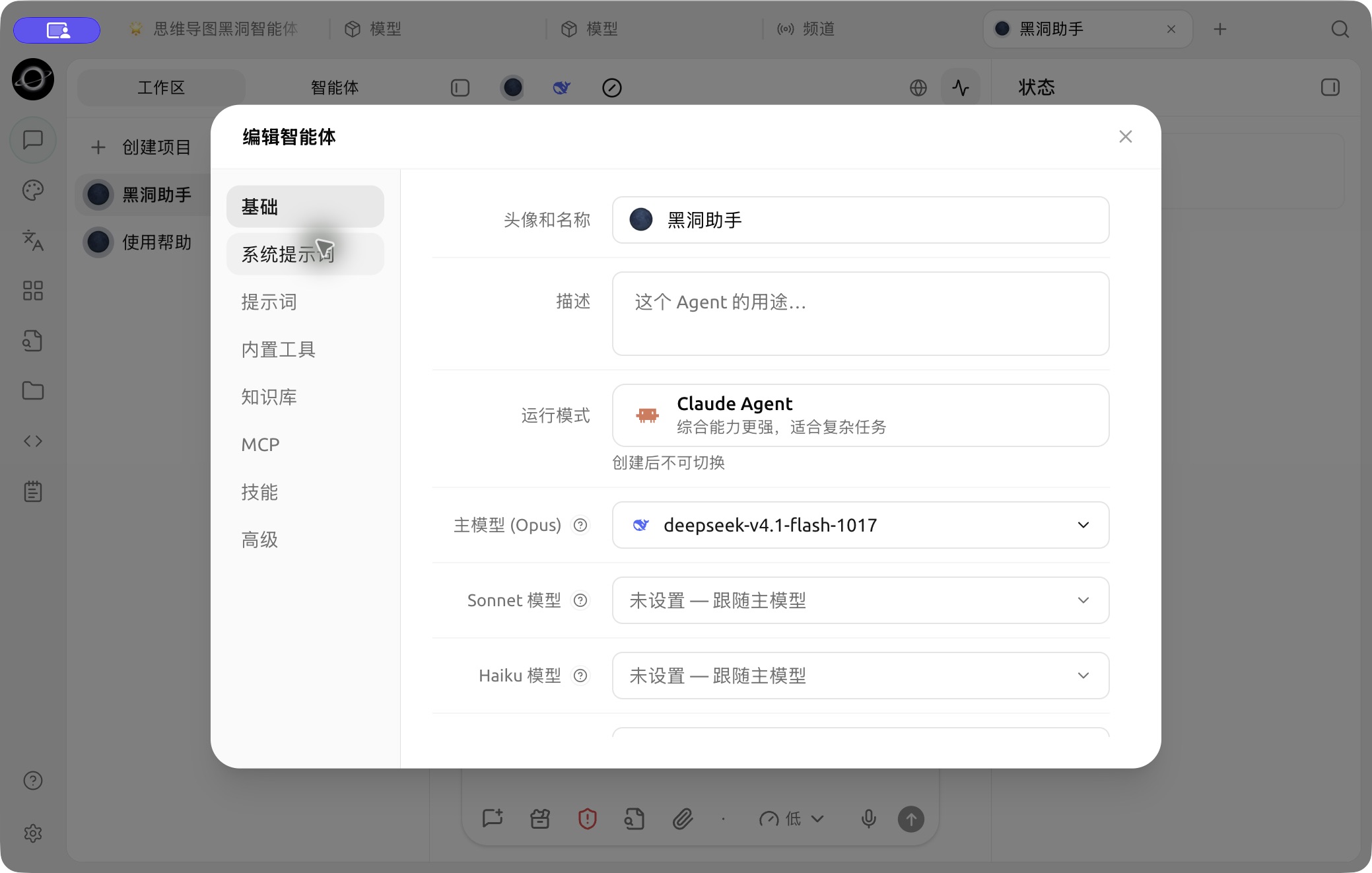
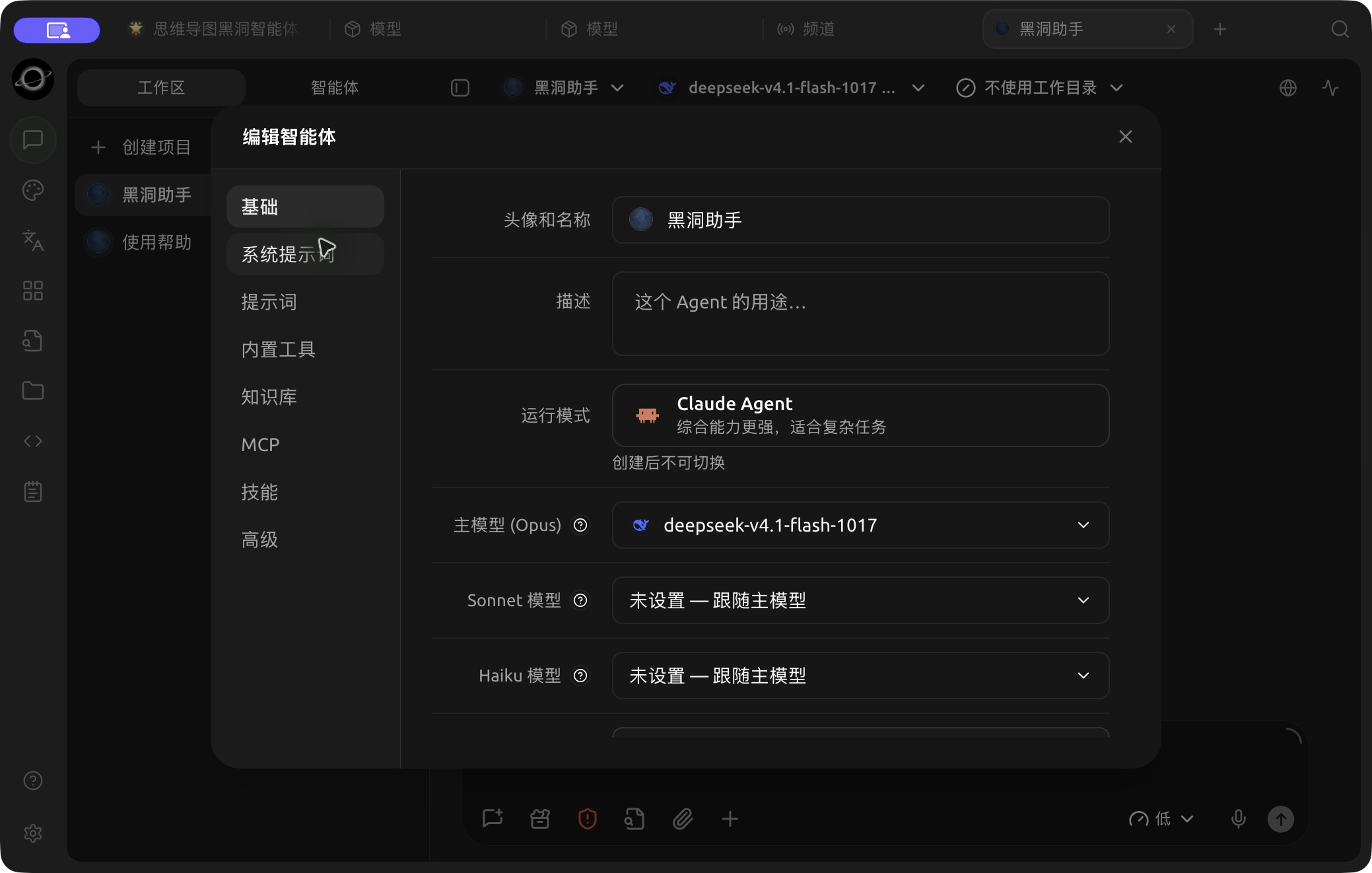
Runtime and primary, Sonnet and Haiku model settings in Edit Agent → Basic. (Chinese interface.)
Continue Configuration After Creation
Open the menu in the Agent list and select Edit to adjust the following:
- [Basic]: View the runtime mode and adjust the primary, Sonnet and Haiku models, permissions, and heartbeat settings for that mode;
- [System Prompt]: Role description, processing rules, and behavioral boundaries;
- [Built-in Tools]: Files, search, images, notifications, scheduled tasks, memory, sub-agents, and workflows;
- [Knowledge]: Restrict the knowledge bases the Agent can access;
- [MCP]: Bind already connected MCP servers;
- [Skills]: Select installed skills;
- [Advanced]: Set environment variables for tools that genuinely require them.
Recommended Starting Points
| Configuration Item | Product Default | Suggested Start | Function | Applicable Scenarios | Notes |
|---|---|---|---|---|---|
| Runtime Mode | [Claude Agent] | Use [Claude Agent] if unsure | Determines model roles, permissions, and tool scope | All Agents | Cannot be switched after creation |
| Main Model | Model selected during creation | Choose a model verified to call tools stably | Primary reasoning and execution | All Agents | The selector filters incompatible models based on runtime mode |
| Sonnet / Haiku Models | Same as main model | Keep consistent with the main model initially | Optional mappings for the sonnet and haiku model aliases | [Claude Agent] only | Pi does not display these fields |
| Permission Mode | Check the selection shown in the creation form | Prefer [Ask Before Acting] for real project directories | Determines if tools require approval | File, terminal, and network tasks | [Full Access] may delete files or access the network |
| Heartbeat Detection | Enabled initially for supported runtime modes, 30-minute interval | Disable if no continuous tasks | Allows the Agent to periodically check work | Claude Agent, Pi | Use scheduled tasks for fixed times |
User Case: Contract Review Agent
Create a "Contract Review" Agent. Select a verified model as the main model. In the prompt, require output in the format of "Risk Clauses, Original Text Location, Impact, Suggestions." Bind the company policy knowledge base and keep permissions set to [Ask Before Acting]. Create a new task for each contract and select the corresponding file directory to avoid mixing different client materials in the same context.
Why didn't I see the full MCP and permission settings during creation?
The creation wizard only retains common steps. After creation, open the Agent editing window to continue configuring [Basic], [Built-in Tools], [Knowledge Base], [MCP], [Skills], and [Advanced]; specific tabs vary based on runtime mode capabilities.