
Web search and page reading
Search finds relevant pages; page reading extracts content from a link. They can use different services.
Try a search
- Choose a text model supporting tool calling and enable Web search in the current agent’s editor.
- Ask “Search for this project's recent releases and include sources,” or “Read this link and summarize the main points: [URL].”
- Inspect the tool process and sources; open a source to read the original page.
Fresh installations normally select ExaMCP for search and Jina for page reading without requiring a personal key. Existing users retain their selections. Default services still depend on connectivity and service limits.
The current composer has no separate web-search switch. Enable Web search in the agent editor, configure services, then request a search in your message. Look for actual tool activity and sources rather than relying on the model saying it searched.
Change search or reading services
Open Settings → Web search:
- Search provider: finds pages using keywords.
- URL fetch provider: reads the content of a specified web link.
Choose a service, enter its requested key/address, and use Check before sending a new message. Service selection saves immediately. API-key fields commit when editing finishes; watch for errors. Advanced selections/numeric inputs also save without a separate page Save action.
Model-provider keys and search-service keys are usually separate. Zhipu search links to its model-provider settings for key configuration; other services use their own forms.
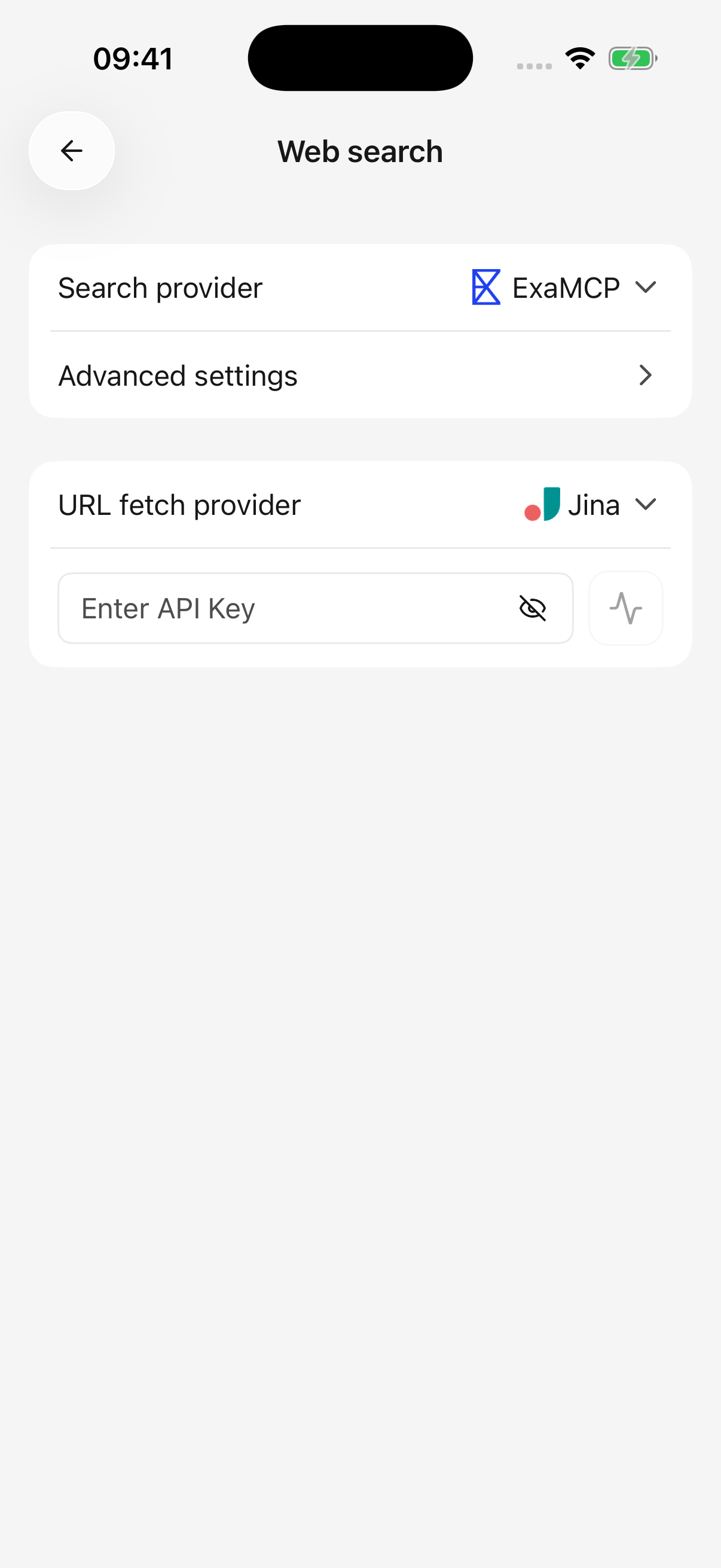
iPhone · Search and page reading have separate providers; defaults shown
Advanced settings
Keep defaults initially, then adjust for a specific need.
| Setting | Purpose | Tradeoff |
|---|---|---|
| Result count | Number of search results | More perspectives also mean more material to process |
| Result compression | Whether search content is shortened | Cutoff reduces usage; no compression does not mean unlimited model capacity |
| Total search content | Limits the amount of retained text | Lower limits can omit later details |
Page reading has separate limits too. Long pages may be only partly read. Open the original when checking details; repeating the same fetch does not automatically retrieve the next segment.
Chat works, but search does not
The chat model, search service, and reading service connect separately. Check:
- Whether the model supports tool calling and the agent’s Web search switch is enabled.
- Whether the selected service passes its settings check.
- Whether your request clearly asks for a search and supplies keywords or a link.
- Tool errors for network, key, permission, quota, or page-access problems.
After a search or page-read failure, that answer stops starting new web attempts and uses already obtained information where possible. It does not silently switch providers. Fix the issue and send a new message to try again.
Why cannot it read a logged-in page?
Reading services access links from their own network and do not inherit your phone browser's login. Restricted or login-only pages may be inaccessible.
Use the corresponding plugin for Feishu or Notion resources, or attach an authorized export using chat and files.
Where does the data go?
Search keywords and target URLs go to the selected search/reading service. Returned material is used by the model. Avoid including keys or private information that does not belong in a web search. See data and privacy.