
Import configuration from desktop
This is reference documentation for the separate upstream Cherry Studio mobile app. Screenshots show that product; this page does not announce a BLACK HOLE mobile release.
BLACK HOLE Desktop provides Settings → Device connections. The upstream pairing steps below are not a guarantee of cross-product compatibility; use the pairing methods supported by the actual desktop and mobile versions.
Reuse supported model providers already configured in Cherry Studio on your computer, without entering every address and key again.
This imports provider configuration and enabled models, not conversation history or remote control of your computer. Pairing does not enable continuous automatic synchronization; run it again when you want to import changes.
Connect your computer
- Connect both devices to the same local network, such as your home Wi-Fi, and keep Cherry Studio Desktop running.
- Open Device connections on desktop and display its pairing QR code.
- On mobile, open Settings → Device connections → Scan QR code. Allow camera and local-network permissions when requested.
- Scan and continue to provider selection. First-run onboarding offers the same desktop-sync route.
If the camera is unavailable, use the manual field to paste the pairing QR content from desktop. It expects pairing data, not an ordinary website link.
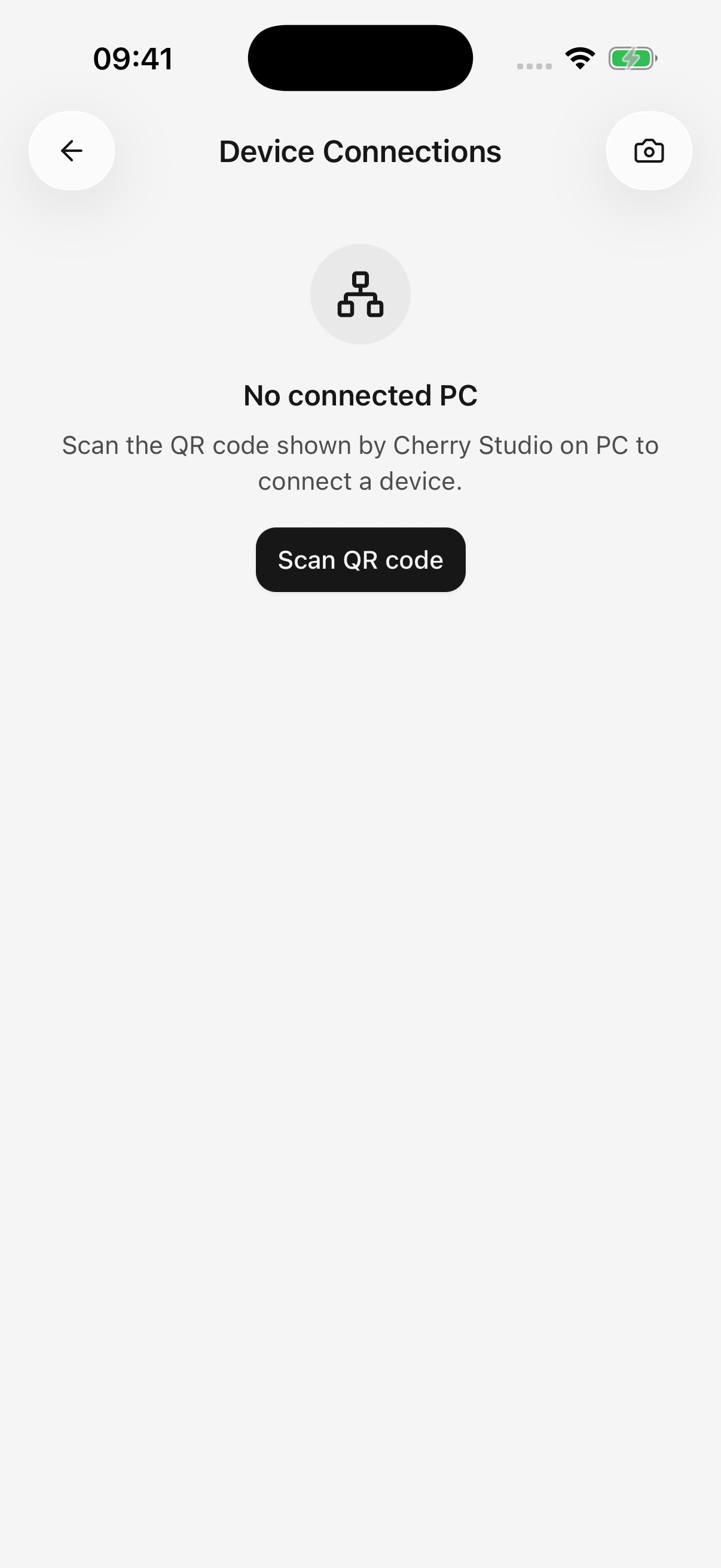
iPhone · Open Device connections and scan the pairing code shown on your computer
Select and import providers
Use Sync providers from desktop in the paired device's details. Alternatively, choose Sync from desktop in the model service list's menu and select the computer.
- Wait for enabled desktop providers to load.
- Select the providers to import.
- Read the notice that selected addresses and keys will be replaced while existing models remain.
- Synchronize and review the added, updated, and skipped counts.
- Select an imported model in chat. During onboarding, continue to its chat-model selection step.
What happens to existing mobile settings?
| Item | Result |
|---|---|
| Selected provider | Receives the desktop configuration and keys, and becomes enabled on mobile |
| Enabled desktop model missing on mobile | Added |
| Same model already on mobile | Existing mobile settings retained; no duplicate |
| Mobile-only providers/models | Retained |
| Disabled desktop providers/models | Excluded from import |
| Chat history and plugin account grants | Not imported |
If you use different keys on desktop and mobile, take particular care with the first row. A provider can have its credentials replaced even when no new models need adding.
Why are some providers unavailable?
Read the reason shown beside the provider:
- Unsupported authentication: a desktop login may not provide an exportable key usable on mobile. Configure a supported method separately on mobile.
- No usable API key: ensure desktop has at least one valid, enabled key.
- Unreadable configuration: update mobile, or skip that entry and import the others.
Local model services such as Ollama and LM Studio are excluded. Pairing does not turn a model running on your computer into a service running on your phone.
Paired successfully, but cannot synchronize
Pairing stores connection credentials; fetching configuration still needs a reachable computer. Keep desktop running and check the shared local network, guest-network isolation, firewall, and proxy settings.
On iPhone/iPad, enable Cherry Studio's local-network permission in system settings if previously denied. If the app says pairing needs repair, scan a new desktop QR code.
Does removing a device revoke both sides?
Remove device on mobile removes only that phone's saved connection credentials. To revoke desktop authorization too, remove the mobile device in desktop's Device connections.
Configuration import is not a full backup. Export important conversations and files separately.