
Add, edit, and manage models
Usually you only need to fetch a provider's list and add the models you use. Manual configuration helps when a model is missing, needs a clearer name, or has information that differs from your platform.
Open Settings → Model service → Your provider → Models.
Add a model manually
- Tap the add button on the Models tab.
- Enter the model ID, the exact identifier your platform uses. Copy it from the platform's documentation or catalog without translating it.
- Choose a display name, such as “Everyday questions.” This changes how you recognize the model, not which model is called.
- Check the model type and API. Leave other options at their defaults if unsure.
- Tap Add. If you are setting up a provider for the first time, finish setup and ensure its switch is enabled in the provider list.
Manual entry adds one model at a time. Use model synchronization for multiple models. Duplicate IDs within the same provider are not allowed.
View and edit
Tap a model to see its details and copy its ID, then tap Edit at the top right. You can also long-press a list item for details, editing, selection, or deletion.
The model editor uses explicit saving. Expand the section you need, make changes, then tap Save. If saving fails, correct the indicated fields and retry before leaving.
An existing model ID cannot be changed in the editor. If it is wrong, add a model with the correct ID, switch any agents or defaults to the new entry, then remove the old one.
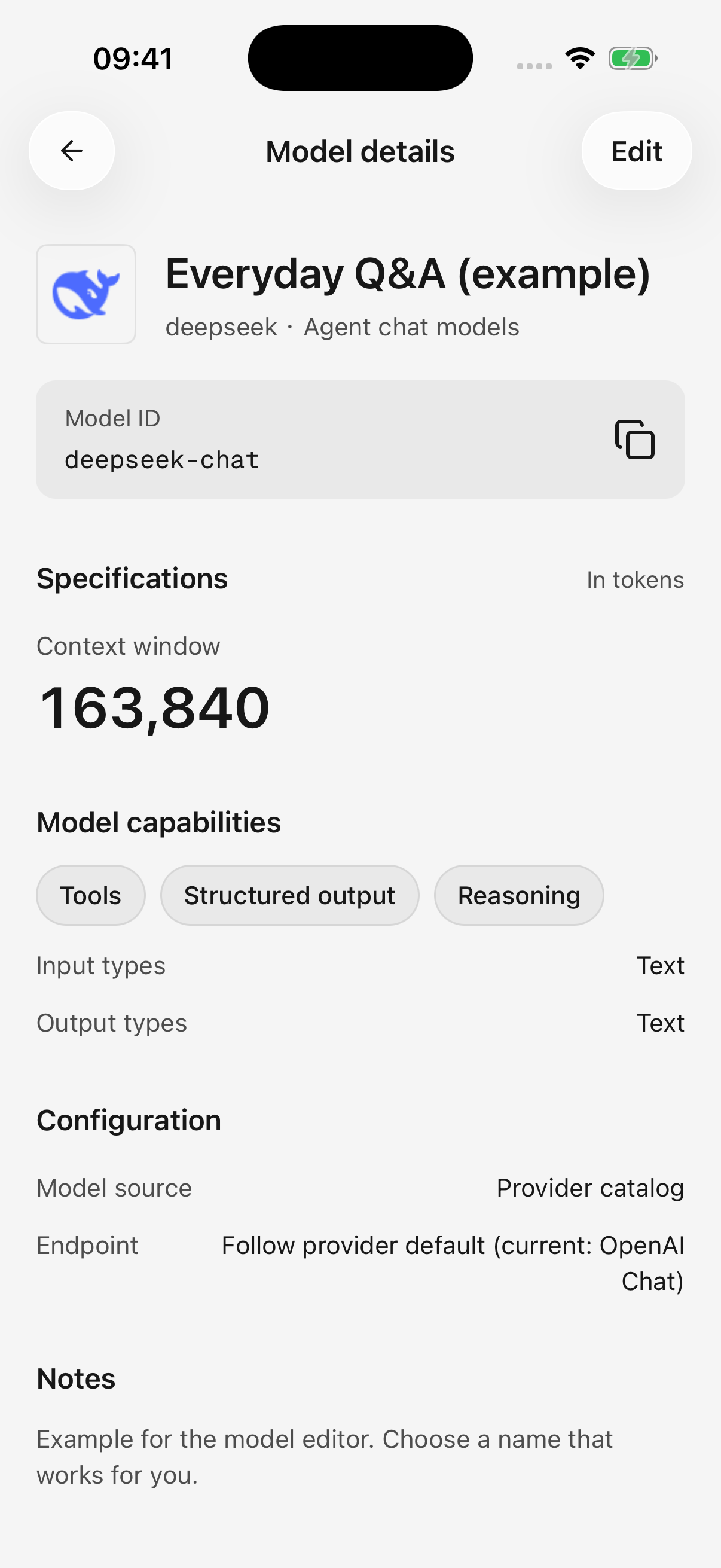
iPhone · Inspect the model ID and details, then use Edit at the top right
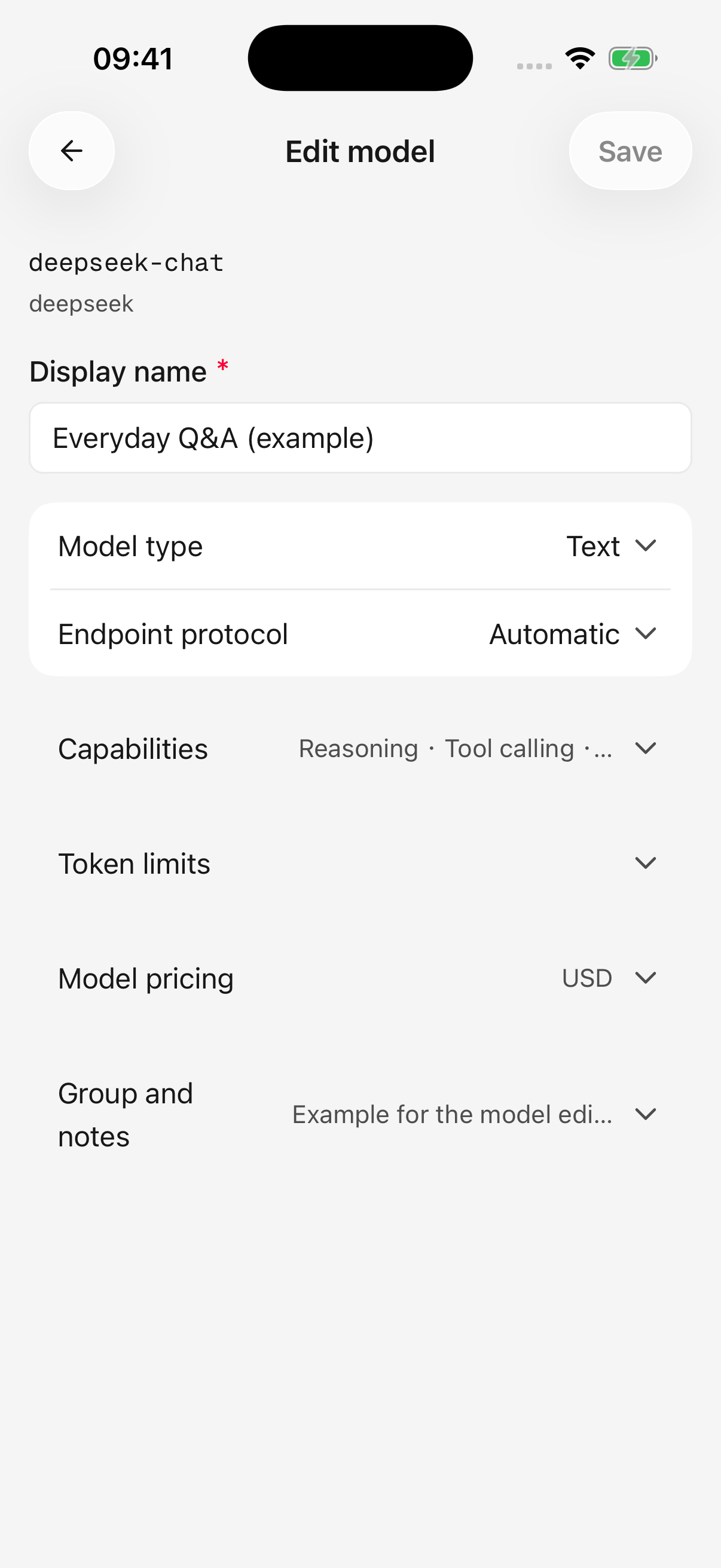
iPhone · Expand the relevant settings and save your changes
What do the settings mean?
| Setting | Effect | When unsure |
|---|---|---|
| Display name, group, notes | Organize and recognize models | Use your own labels |
| Model ID | Identifies the model called on the platform | Keep the platform's exact value |
| Model type | Distinguishes text, image generation, and other purposes | Follow the platform's description |
| API | Selects how requests connect to the model | Keep automatic/default selection |
| Reasoning | Records support for thinking-related features | Keep the supplied information |
| Tool calling | Records support for search, calendar, or plugin tools | Match the model's actual support |
| Supported inputs | Records image, audio, or video input support | Do not enable unsupported inputs |
| Streaming | Records support for progressive responses | Keep the default; this flag alone does not change execution |
Capability flags do not add capabilities. Marking a text-only model as image-capable will not make it understand photographs. Audio/video flags also do not mean the mobile app can send every such attachment.
Embedding and reranking are model categories used for retrieval. Their information can be managed, but they are not currently available for ordinary mobile chat. Choose text for conversation or image generation for drawing.
Context and input/output limits
A token is a unit models use to measure content, not a character or word count.
- Context window: the total space for history, tool results, and the new response.
- Maximum input: how much content a request can bring in.
- Maximum output: how much the model can produce in one response.
Raising a number does not bypass the provider's limits and can cause rejected requests. Change these values only when the platform gives you different limits. Use positive integers and resolve any conflicting-limit warnings.
Clear a limit override and save to restore catalog or app defaults. If a long conversation still exceeds limits, reduce attachments, shorten the material, or start a new conversation.
Pricing and cost estimates
Pricing supports usage estimates; editing it does not change the provider's bill.
- Select USD or CNY. Input/output rates are per million tokens.
- Cache read/write rates describe how the platform prices reused content. Empty cache rates use the input rate.
- Unknown is different from free.
0explicitly means a zero rate; do not use it for an unknown price. - Input tiers can represent higher prices for long requests. Starting thresholds must increase. The applicable tier prices the whole request, rather than only the portion above the threshold.
Keep defaults when you do not have reliable pricing. See settings and usage for estimated and incomplete costs.
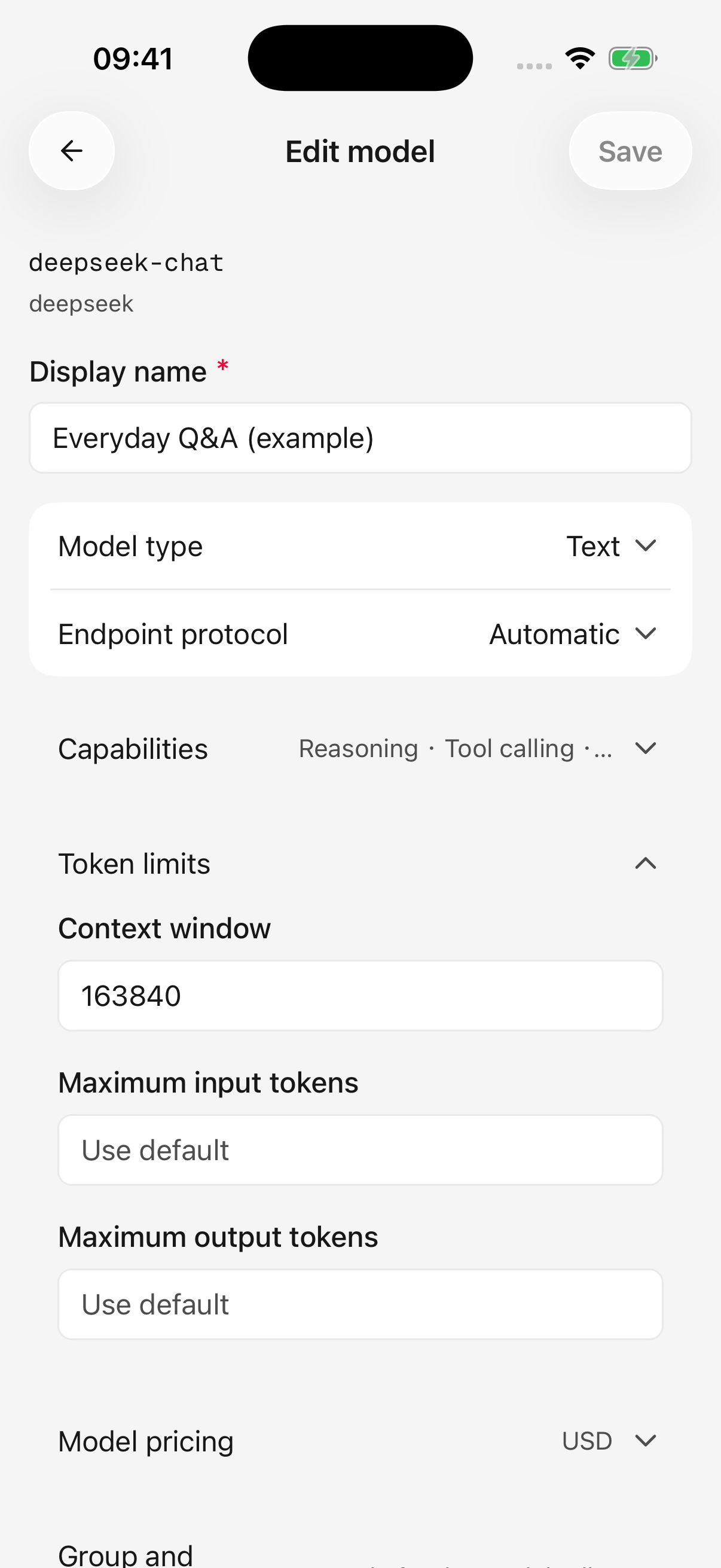
iPhone · Length limits can inherit defaults; do not increase them without provider guidance
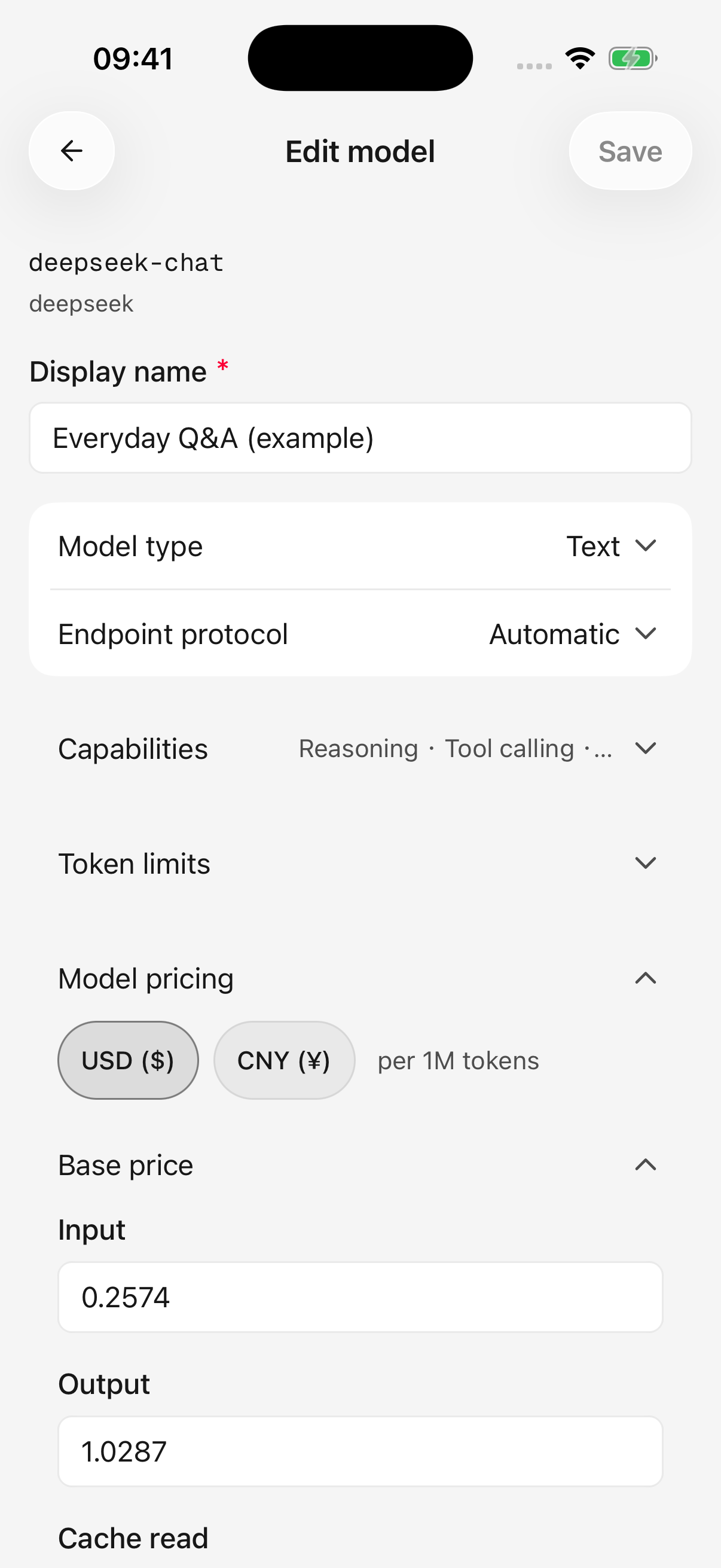
iPhone · Prices are per million tokens; pictured values illustrate the fields, not current provider pricing
Does changing the API save immediately?
Changing a model's API directly in the management list saves immediately. Selecting it in the editor changes a draft until you tap Save.
Following the default uses the provider's current default API. If it becomes unavailable, check the provider's configured connection rather than repeatedly renaming the model.
Delete and organize models
Long-press to enter selection mode and delete multiple models within the current filter. Failed deletion retains the selection so you can resolve the issue and retry.
- A global default model is protected: change or clear it in Settings → Default model before deleting.
- Deleting a model used by an agent means that agent needs another model selected.
- Deleting local configuration does not close a provider account or reverse charges.
For temporary disuse, disable the provider instead of rebuilding its configuration later. See model updates for what happens to your edits when remote information changes.