
Quick start
This is reference documentation for the separate upstream Cherry Studio mobile app. Screenshots show that product; this page does not announce a BLACK HOLE mobile release.
Get one model responding to a simple message first, then add other features as needed.
1. Choose how to configure
- Already use Cherry Studio Desktop? Import configuration from your computer and choose a model. After successful import, continue to step 4 below.
- Set up on mobile: choose a provider during onboarding, or open Settings → Model service → Add provider and follow steps 2–3.
Built-in providers include common connection settings. Use a custom provider if your platform is absent.
2. Enter and save a key
Enter the platform's API key, the credential used to call models. Custom providers also need the platform's base address and API format.
Save or continue through onboarding. A login password is not an API key, and a platform's consumer chat subscription may not include API credits; check your account there.
3. Add a model and enable the provider
Fetch the model list and select a text model. If discovery fails, copy the exact model ID from the platform and add it manually.
Model information may take time to download on first use. Ensure the provider is enabled, open the agent editor from the top of the conversation, and select an enabled model. See providers and models for details.
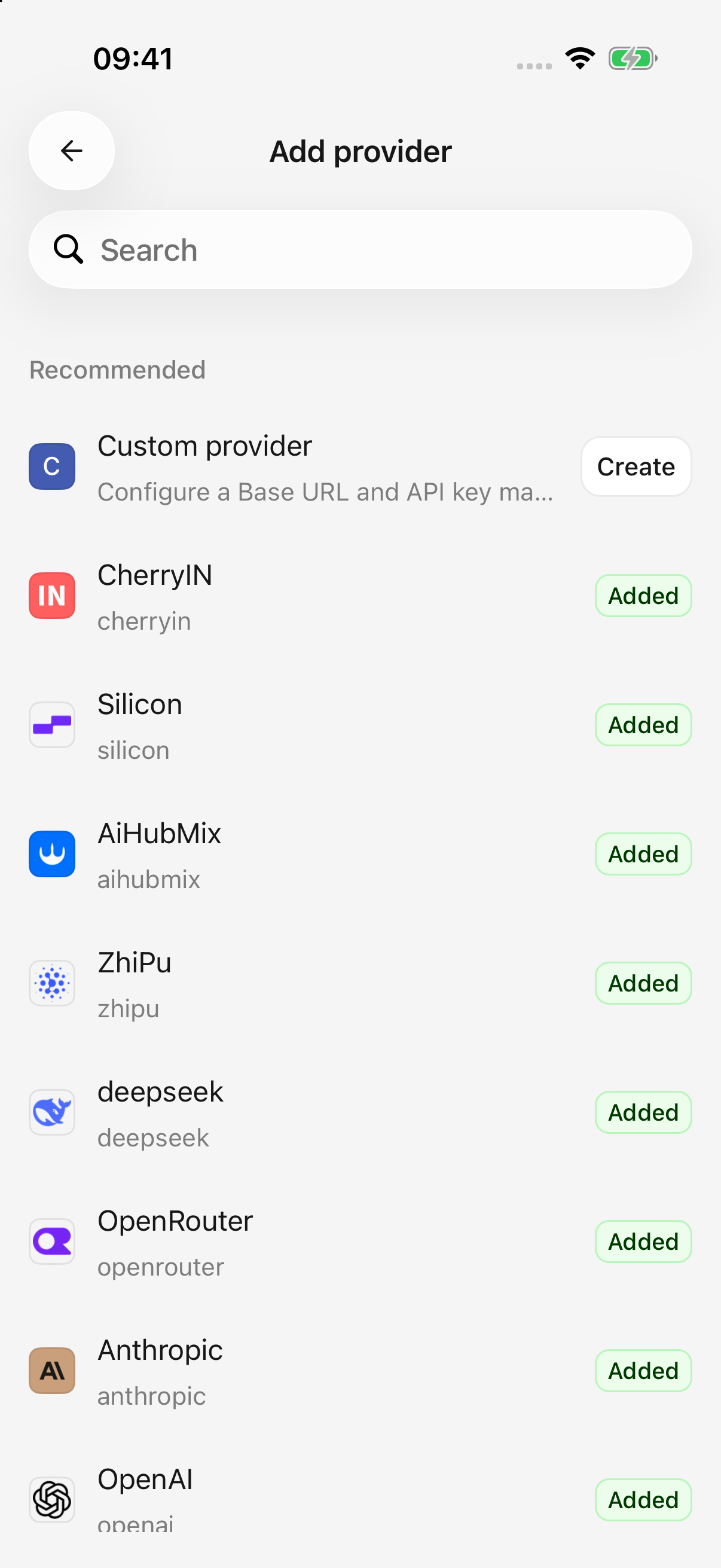
Step 1 · Choose a built-in provider or create a custom one
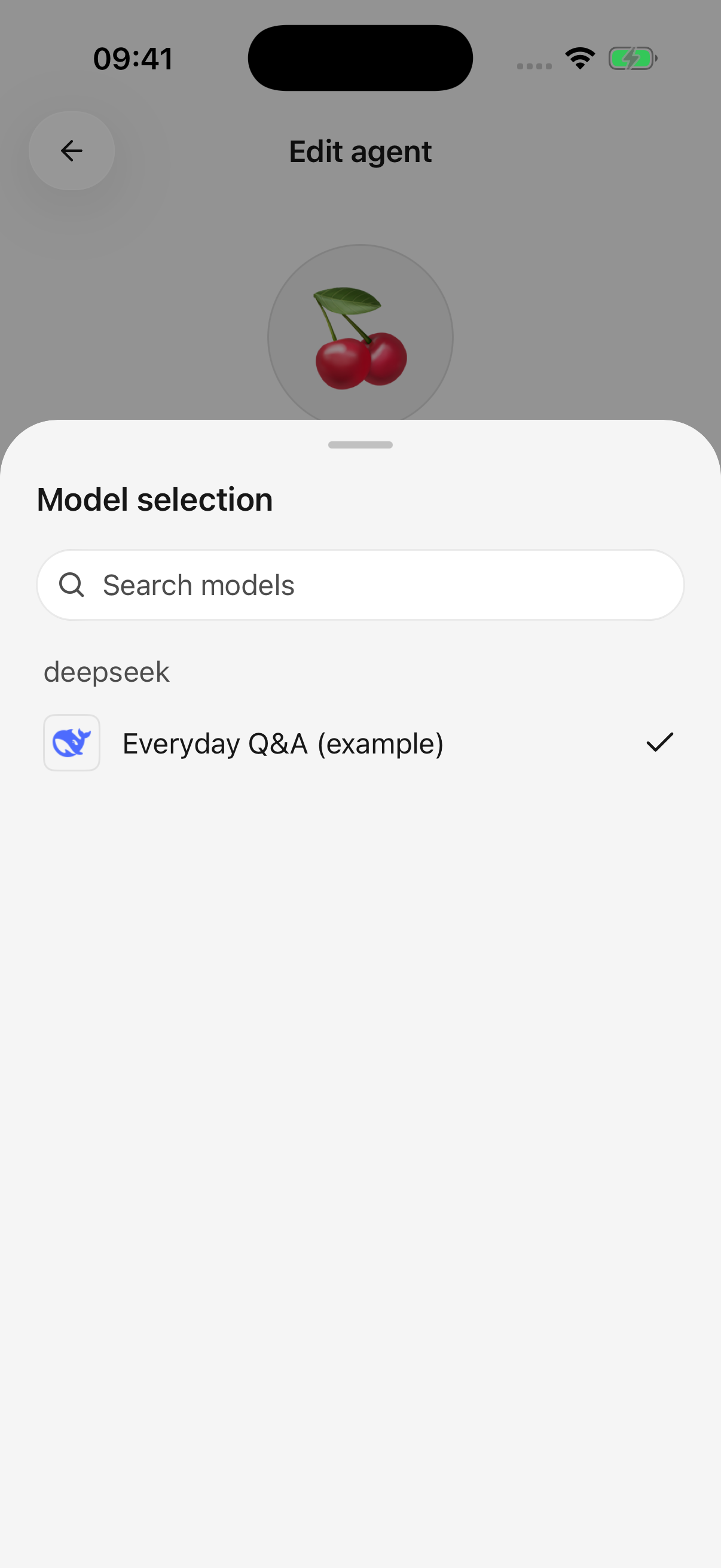
Step 3 · Select an enabled model in the agent editor
4. Send a first message
Use the initial Cherry agent, select your model, and ask “In three sentences, describe what you can help me do.” A reply confirms the basic setup is working.
An agent is a reusable configuration containing a name, instructions, and model. You can start separate conversations with the same agent for different topics.
If nothing arrives, try a short message without attachments and follow troubleshooting.
What next?
| Task | Guide |
|---|---|
| Understand a photo or summarize a document | Chat and files |
| Save different instructions for writing or translation | Agents and tools |
| Search the web and inspect sources | Web search and page reading |
| Connect Feishu, Notion, or other accounts | Plugins and external tools |
| Generate and revise pictures | Image generation |
| Share selected answers as images or documents | Sharing and export |