
Chat and files
Use a conversation for one topic, and an agent to choose its model and reusable instructions. Separate topics can have separate conversations with the same agent.
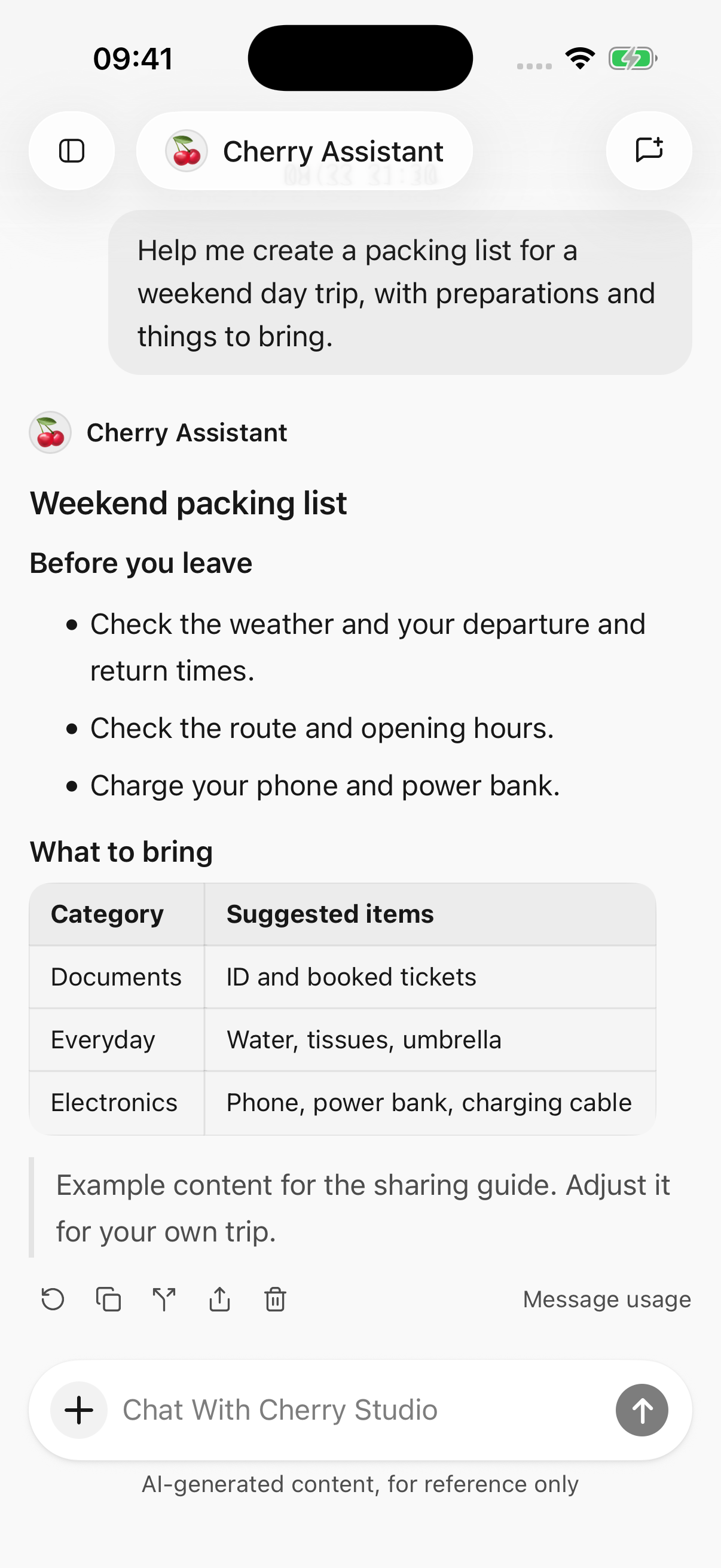
iPhone · Messages, model details, and response actions in one column
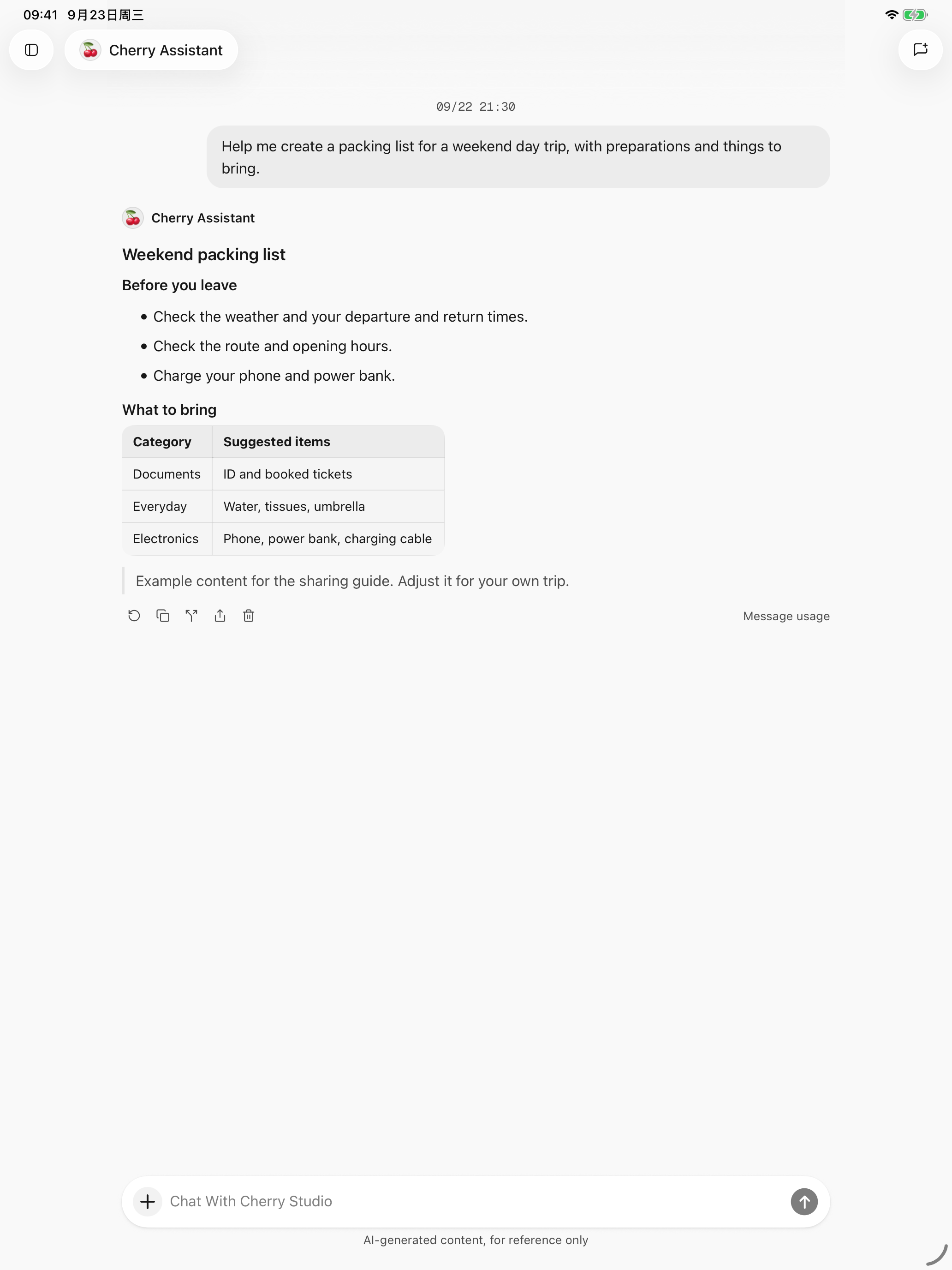
iPad · A wider reading area for long answers and file content
Start a conversation or change models
Choose New chat in the sidebar, select an agent and model, then send a message. A new conversation starts as a draft; sending the first message creates its history.
Change models from the conversation's model picker. This updates the current agent's model for the next request; existing answers are not rewritten.
Put lasting preferences, such as “Give the conclusion before the steps,” in agent instructions. Put requirements for one question in the message itself.
Find previous conversations
- Browse recent conversations in the sidebar, or use its recent-list menu to group them by agent. Tap an agent name to expand/collapse its conversations. The chosen view mode persists across app launches.
- The search button beside the sidebar title searches conversation titles and message content. Before typing, it shows recent conversations.
- A message result opens the conversation at that message. Browse nearby history or choose Return to latest messages.
- Long-press a sidebar conversation to rename or delete it. Export anything you want to keep first.
Search locates the whole message without highlighting every keyword inside it. It searches conversations, not every file on your phone.
Add images
Tap + beside the input to choose photos, take a picture, or add an image through Files. Select a model that understands images; the Vision filter can help.
For example, attach a photo and ask “Turn the checklist in this picture into a table.” Specify which part matters.
Supported request formats are JPEG, PNG, GIF, and WebP. The current app limit is 9 images, 10 MB per image, and 20 MB combined; individual models can have lower limits. Convert incompatible formats to JPEG or PNG.
The app may compress images and retry an oversized request, but compression does not fix unsupported models, too many images, or every network error.
Attach documents or existing files
- Tap + → Files.
- Choose an existing file, or upload one using the system picker.
- Give a specific task, such as “Summarize the second section and list its action items.”
Plain-text files have a 1 MB limit per file; documents have a 20 MB limit. Long content may be shortened to fit reading or model limits, with a notice. Do not assume the whole file was included. PDF text extraction processes at most the first 100 pages.
Which document parser should I choose?
Open Settings → Document parser. Selection saves immediately and applies to subsequent document processing; it does not rewrite previous answers.
| Option | Best for | Tradeoff |
|---|---|---|
| Built-in | Summaries and questions about mostly text-based documents | Extracts text from PDF, DOCX, XLSX, and PPTX with lower model usage |
| AnyDoc | Complex documents where headings and tables matter | Preserves more structure for non-PDF documents, usually using more tokens |
PDFs still use system text extraction. Switching parsers does not turn scanned pages into selectable text. If no text is found, provide a text-based copy or send the relevant pages as images to a vision model.
Preview support is different from model input support. Models receive the parsed document content. Audio, video, or archive files do not become usable attachments simply by changing model capability flags.
Copy, retry, branch, or delete
| Action | When to use it | Result |
|---|---|---|
| Select text or copy | Keep part or all of an answer | Use text selection or the answer's copy action |
| Answer again | The latest answer failed, was interrupted, or is unsatisfactory | Processes the original question again and replaces the latest answer in place |
| Branch into a new chat | Explore another direction from an earlier point | Continues in a separate conversation, retaining the original |
| Delete this turn | Remove an exchange | Removes its question, answer, and intervening tool records |
Answer again is available only for the latest answer after generation has stopped. It does not keep multiple selectable answer versions. Use a branch for earlier points.
Completed tool results may be retained when resuming an interrupted answer. Retrying or deleting does not undo calendar changes, edited files, or sent content. Retrying can incur additional charges. Copy, share, or branch first if you need the previous answer.
Turn deletion is permanent and does not refund usage. Wait for generation/operations to finish, or stop them, before deleting.
Thinking depth and long conversations
Supported models provide a Thinking depth control. Available levels depend on the model; not all offer Off or the same number of levels. Use the default or faster levels for simple questions, and consider more thinking for complex analysis. Higher levels can take longer and use more tokens.
Compacting context / Context compacted means earlier information is being summarized to make room for continued conversation or tool work. Visible history remains, but the summary may omit details. Restate important constraints, numbers, or exact quotations in the next message when needed.
Compaction cannot fit an arbitrarily large attachment. Reduce material or start a new conversation if the request still exceeds limits.
See background replies and notifications for interruptions and sharing and export for sharing several messages together.
For saved outputs and revisions, see Create and Edit Files. To turn a saved HTML file into an image or presentation, see HTML to Image and PPT.