
HTML to Image and PPT
HTML files can contain designed layouts, colors, and images. Open a saved HTML file in Cherry Studio to share it as an image or PPT—useful for proposals, study cards, and short presentations.
Prepare an HTML file
Upload an existing file or ask a model that supports tool calls to create one:
Turn the project overview above into a standalone HTML presentation with three pages: goals, plan, and next steps. Use a 16:9 ratio, readable type, and no online images or fonts. Save it as project-overview.html. Give each page its own container with class="slide".
The last sentence tells the model how to mark pages. You can copy it without writing code yourself. A single information card does not need page markers.
Wait for the file to finish saving, then open its card or find it under Files in the sidebar. If you only have an HTML code block in the chat, first ask the model to save it as a file.
Share as an image or PPT
- Open the complete HTML file and review its text, images, and layout.
- Tap More in the top-right corner.
- Choose Share as image or Share as PPT.
- Wait for preparation, page capture, and file writing. Use Cancel in the progress area to stop if needed.
- Choose a destination in the system share sheet.
The generated PNG or PPTX also remains in Files for later opening or sharing. Dismissing the share sheet does not mean it was saved to another destination.
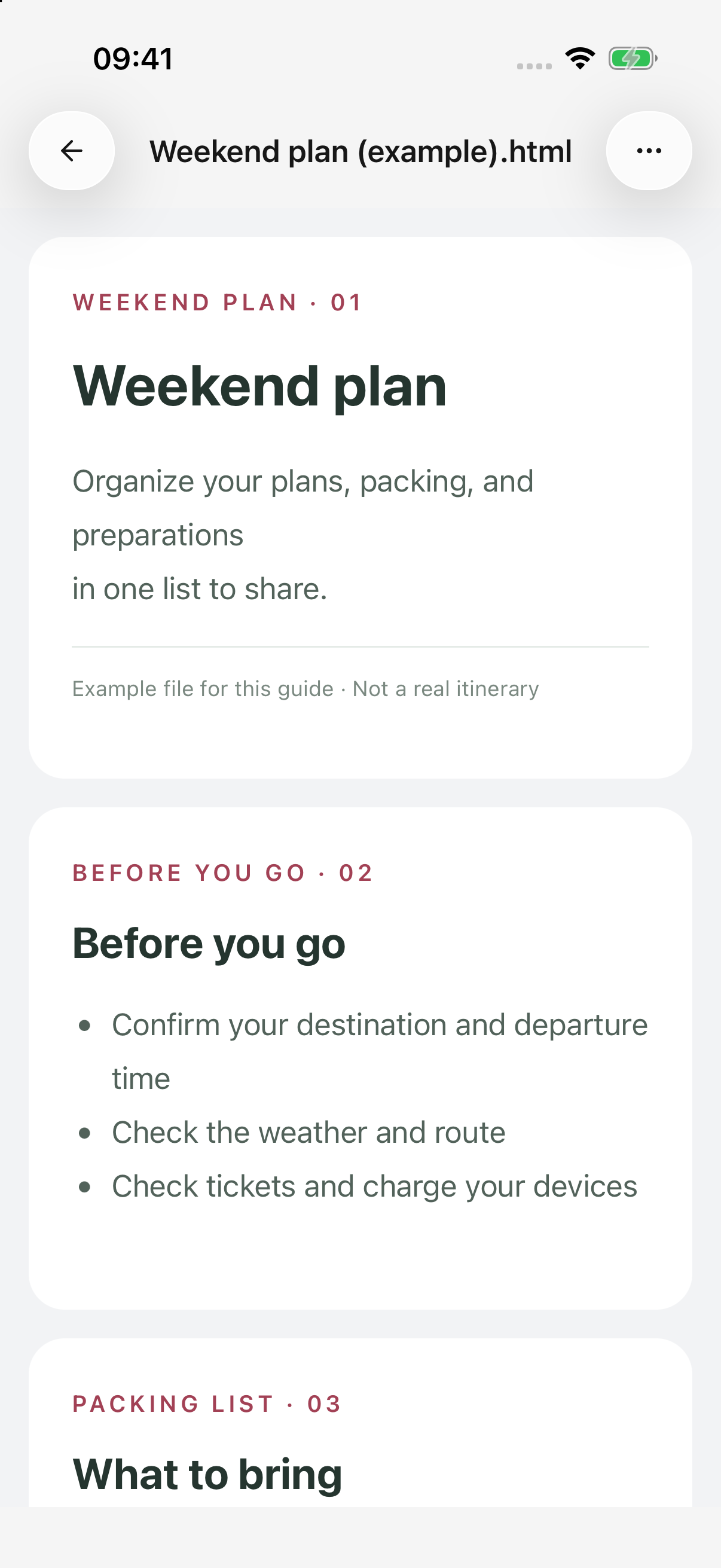
iPhone · Open a saved HTML file; this is an authored demonstration file
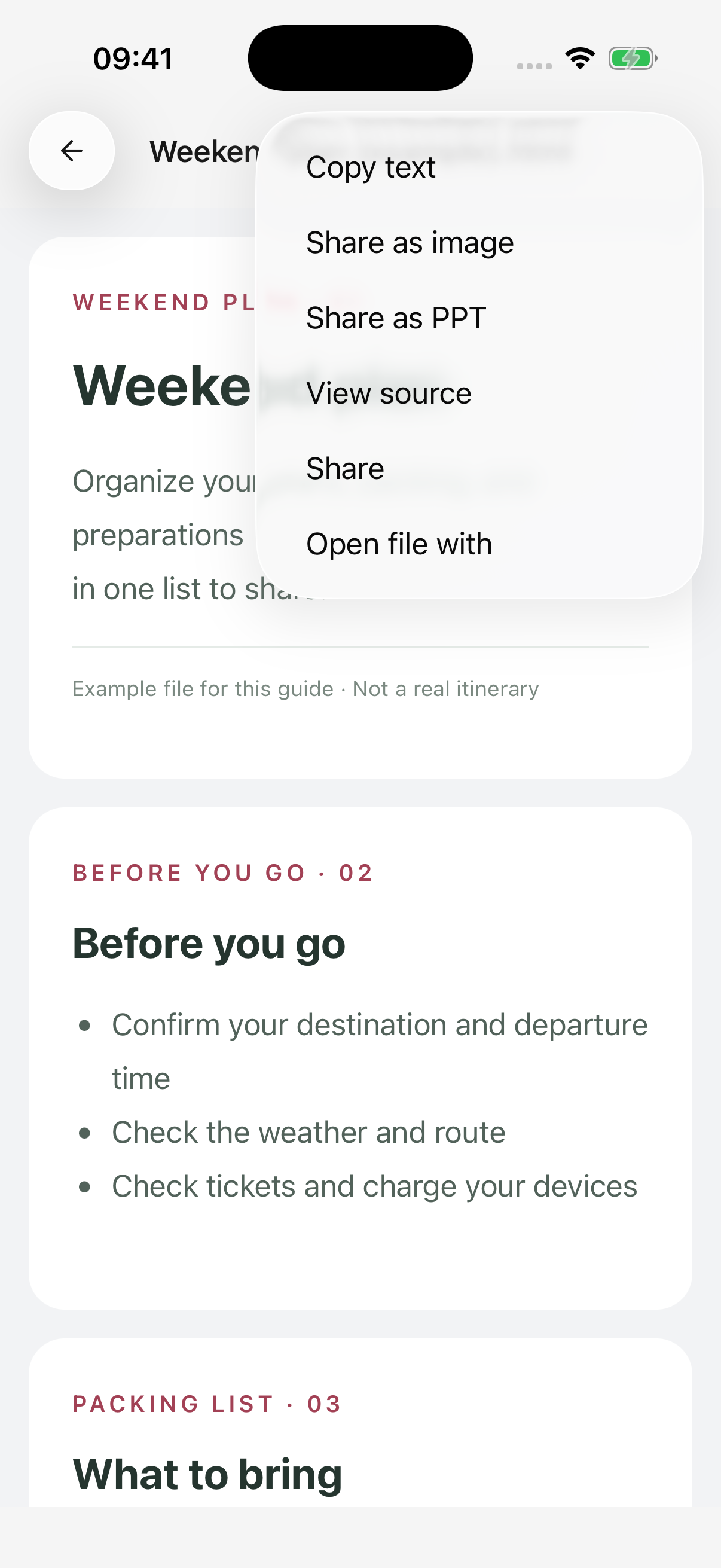
iPhone · Use the file menu to share as an image or PPT
How do the formats differ?
| Format | Best for | Result |
|---|---|---|
| Image (PNG) | Quick viewing and information cards | One image of the whole document; multiple pages stack vertically |
| PPT (PPTX) | Presenting one page at a time | An image of each page placed on a 16:9 slide |
Text and charts in the PPT are part of page images, not individually editable objects. To change content, revise the HTML and convert again. Share the HTML too if the recipient needs the original editable source.
HTML with explicit page markers is converted page by page. An ordinary long page is sliced vertically into 16:9 sections, which can cut through paragraphs or tables; it is not automatically redesigned as a presentation. Ask the model for separate, less crowded pages if this happens.
Pages with different aspect ratios retain their proportions and may have white margins. Conversion uses a wider page layout, so it may differ from the narrow phone preview.
What happens to watermarks and interactive content?
Conversion follows Settings → General → Share watermark. When enabled, it adds a footer to the image or the final PPT slide. The setting affects newly generated files; changing it later does not rebuild saved results.
Conversion opens a fresh copy of the saved HTML. It does not copy buttons you clicked, panels you expanded, or forms you filled in during preview. Animations and videos do not become playable PPT content. Ask the model to save the desired state as static page content.
Why is conversion unavailable or failing?
- The file is not HTML: Markdown, plain text, and chat code blocks do not have these conversion actions.
- Only part of a long file loaded: incomplete HTML cannot be converted. Shorten or split it. Empty content cannot be converted either.
- Images or fonts failed to load: online resources must be reachable. Ask for a version without external dependencies.
- The document is too long: PPT supports at most 64 pages, and images have size limits. Reduce content, split files, or use separate presentation pages instead of one long image.
- The layout keeps changing or the app went to the background: complex dynamic pages may fail. Keep the app in the foreground and use static layouts when needed.
The original HTML remains available after failure or cancellation. Address the reported cause before trying again. After sharing an important file, confirm its page count and content in the receiving app.