
Image generation
Create pictures from a description, reference image, or template. Configure an image-generation model first: a text model that understands images does not necessarily generate them.
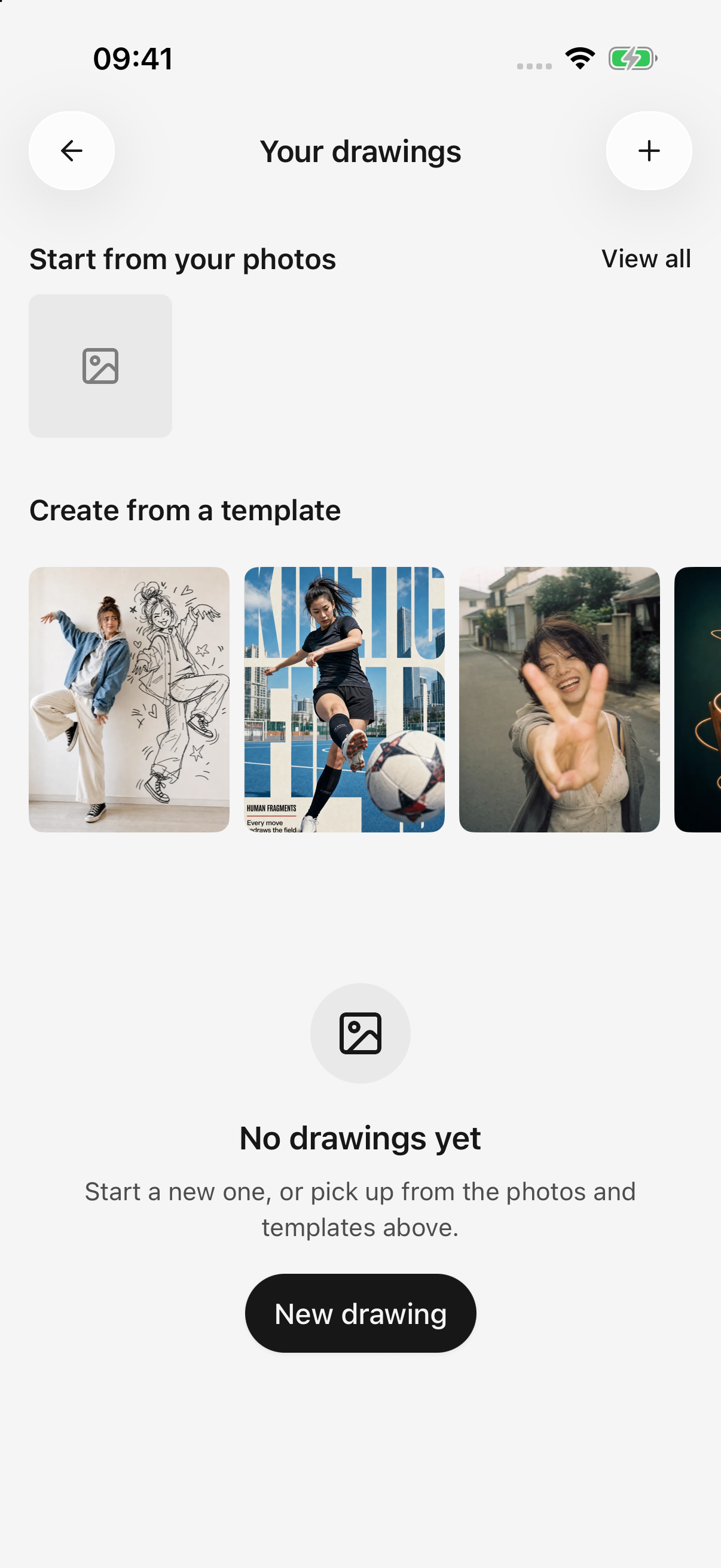
Drawings · Start creating from a photo or template
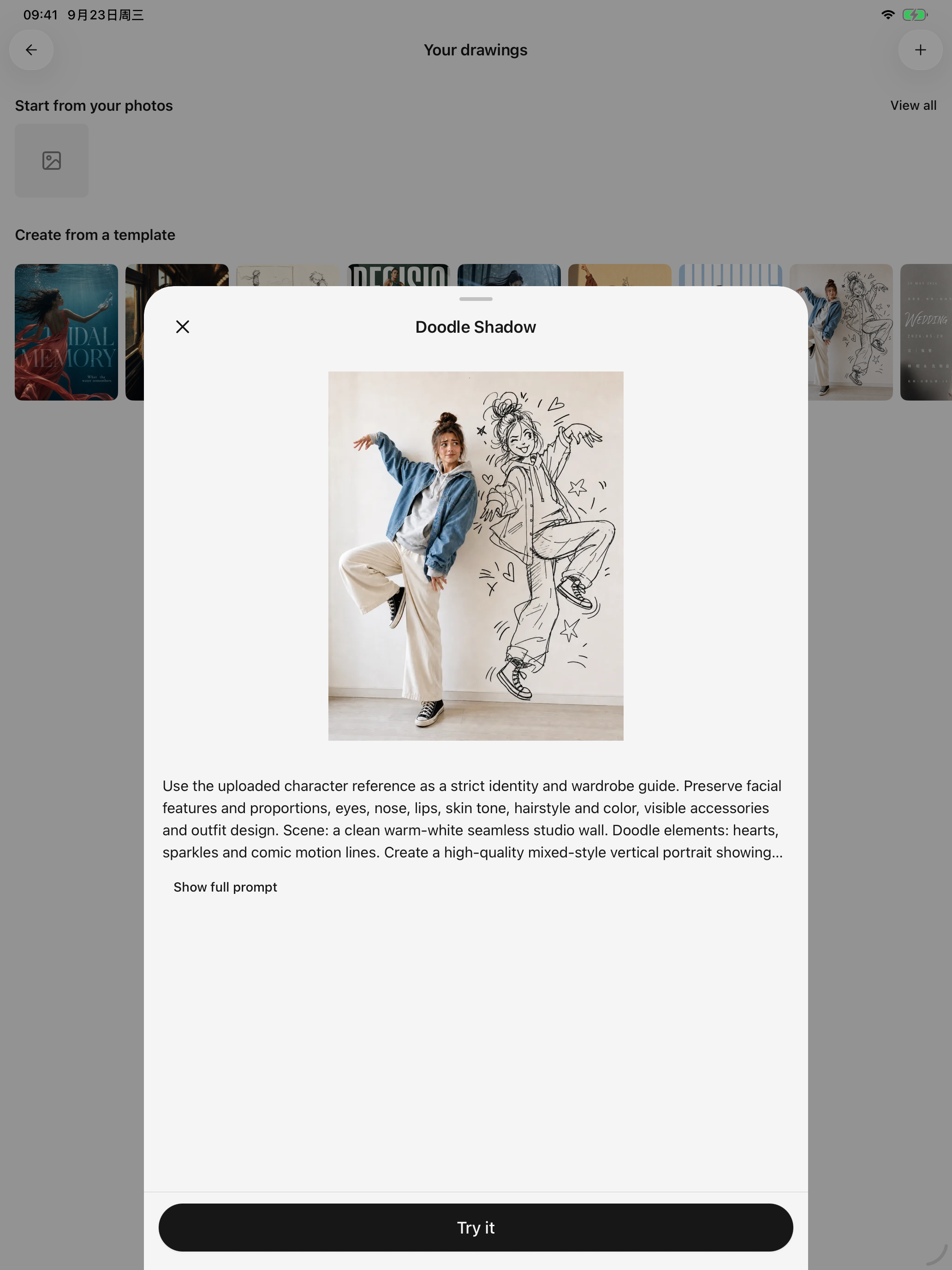
Template preview · Review the example and prompt before using a template
Three ways to create
| Workflow | Start here | Where results appear |
|---|---|---|
| Standalone drawing | Open Drawings in the sidebar, tap add at the top right, and choose a model | Drawing history |
| Image model in chat | Select an image-generation model for the agent | Image attachments in that conversation |
| Drawing tool used by a text agent | Set a drawing model in Settings → Default model, enable the agent’s Image generation, then ask a tool-capable text model to draw | Tool activity and images in that conversation |
The third workflow requests confirmation before its image tool runs, even under automatic approval. For standalone drawing or a directly selected image model, pressing Send/Generate submits the request.
Start from a description
- Choose an image-generation model.
- Describe the subject, purpose, style, and composition.
- Open parameters and adjust the size, aspect ratio, count, or other available controls.
- Submit, wait, and tap the result to enlarge it.
Example:
A landscape cover for reading notes: an open book and cup of tea on a wooden table, soft morning light, warm white and pale wood tones, empty space on the left, no text.
Controls depend on the model. Larger images or more outputs can increase time and cost.
Start with a template
Choose a drawing template, inspect its preview, and customize its subject and other available inputs. Templates are starting points; the model and your input determine the final result.
Revisit drawing history and Generation details to reuse successful prompts.
Continue with a reference image
The automatic-reference and input-preservation rules below apply to standalone drawing and direct image-model conversations. A text agent calling the drawing tool selects material through its conversation/tool request instead.
For models supporting references or editing, attach an image and describe the change: “Keep the composition, change the background to evening, and preserve everything else.”
- A compatible follow-up can automatically use the previous single successful output. With multiple outputs, select the one to continue from.
- Input edited while generation runs is retained rather than replaced by the result.
- Manual references replace automatic references. Check the images attached before submitting.
- Switching to a text-to-image-only model pauses automatic references. Incompatible explicitly attached images require removal or a different model.
- Image-required models need a reference before submission. Some modes allow no text; follow the page's feedback.
Edit and resize actions in the image viewer take the selected image into creation. Support still depends on the target model; not every image model can perform arbitrary edits.
Failures, cancellation, and repeated requests
Failed or cancelled follow-ups preserve input/reference intent where possible. Standalone drawing retains the previous successful result. Cancellation does not prove the provider stopped processing and does not guarantee a refund.
Inspect the error: unsupported model, incompatible references, credits, rate limits, and timeouts require different remedies. Check the earlier task before repeatedly pressing Generate.
Save and share
The image viewer offers saving to Photos, system sharing, and opening in another app. Saving to Photos needs system access.
Use Settings → General → Share watermark to control future exports. Images created in chat can be exported with selected messages; standalone results are in drawing history. See sharing and export.