
Settings, usage, and background replies
Open Settings from the sidebar to change reading preferences, defaults, and background behavior.
Theme, language, and text size
In Settings → General:
- Choose light, dark, or system theme.
- Choose the app language. App and documentation languages are selected separately.
- Open font size and use its preview to choose a comfortable size.
- Enable/disable the share watermark for future exports.
Changes save directly. Retry any failed save before leaving.
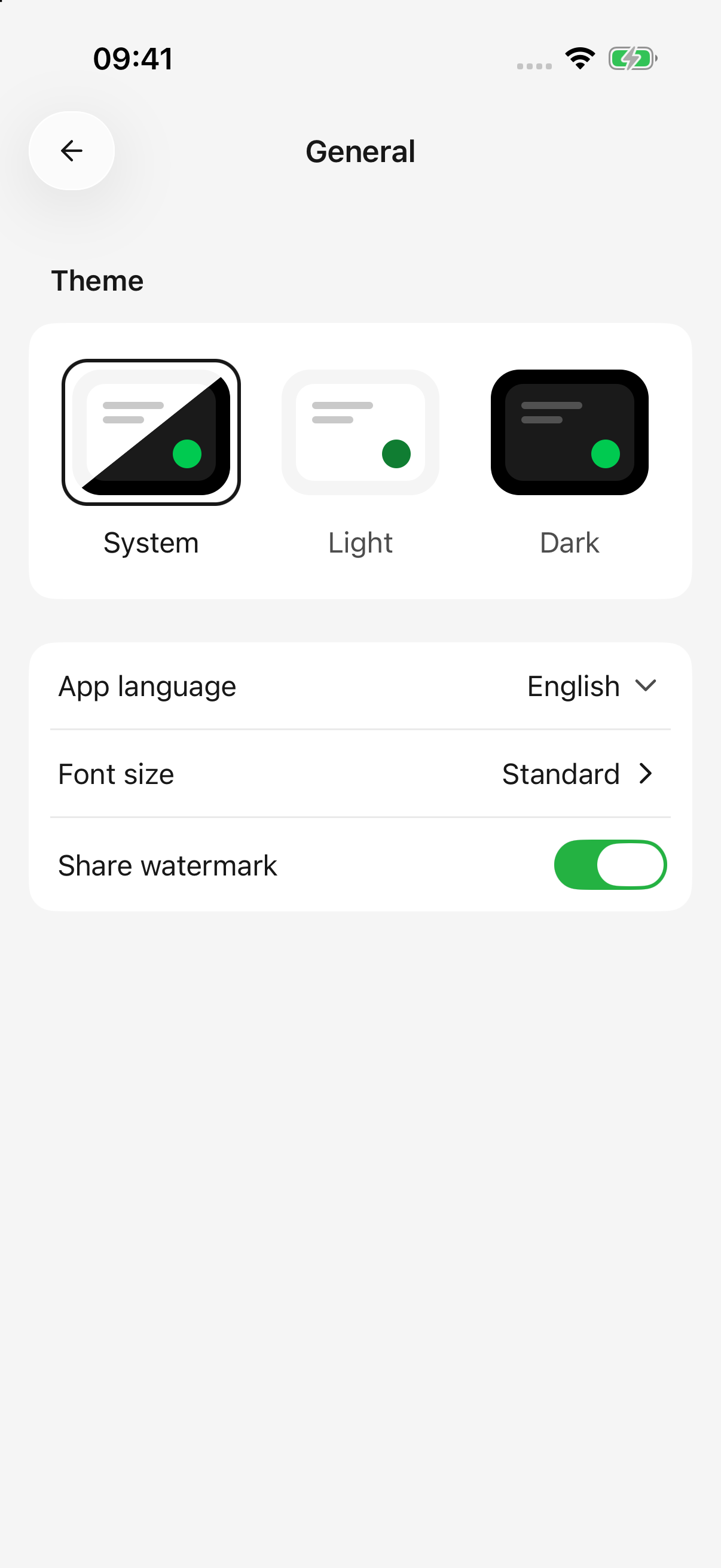
iPhone · Adjust theme, language, text size, and the share watermark
Default and drawing models
In Settings → Default model:
- Default model supplies the initial text-model choice for new agents.
- Drawing model supplies default drawing and the image-generation tool used by text agents.
Selecting or clearing saves immediately. Existing agents keep their own models; change them in their editor or conversation picker.
If the list is empty, add available models and enable their provider first. See model management for capabilities, limits, and pricing.
Understand usage
Open Home from the sidebar and inspect AI usage. Its detail view groups recorded activity by date, model, or provider.
A response also has usage details for its model, input/output, elapsed time, and cost. A token is a model's unit of content, not a word count. History, thinking, and repeated tool calls may also consume tokens.
- Provider-reported charges and estimates based on configured prices have different sources; inspect the labels.
- Missing prices can mean partial cost coverage, not free usage.
- Answering again and tool work can create additional requests. Deleting chat does not refund credits or remove recorded usage.
- These figures describe usage recorded by this app, not the provider account's complete balance or official bill.
Check the provider account for actual billing and remaining credits.
Continue after leaving the app
Open Settings → Notifications.
| Option | Purpose |
|---|---|
| iPhone/iPad: Live Activity | Shows task status on supported lock screens or Dynamic Island after leaving the app |
| Android: Background replies | Attempts to continue generation and show status in notifications |
| Reply completion notifications | Attempts to notify you when a reply finishes while the app is in the background |
Progress display and completion alerts are separate options. System notification permission is also required; an enabled app switch cannot override denied permission. Tap a task notification to return to its content.
Completion while you are already viewing the task is generally quiet. Live Activities mainly appear after leaving the app, so not seeing one in the foreground does not necessarily indicate a problem.
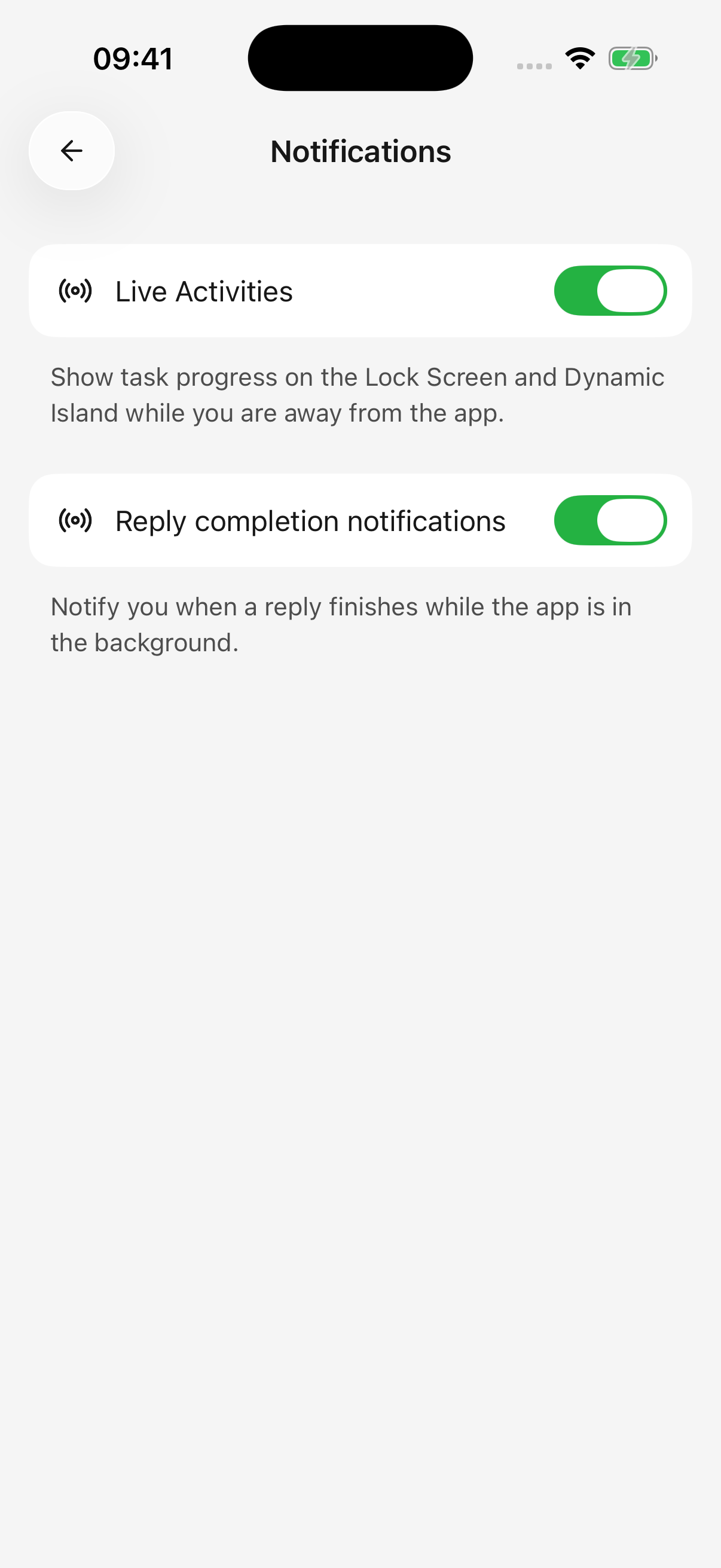
iPhone · Control task progress and completion notifications separately
Why did locking the screen interrupt generation?
Background support is not a guarantee of continuous execution. Battery policies, operating-system limits, network loss, or process termination can stop work. Keep lengthy tasks in the foreground where possible.
Interruptions the app can handle retain partial replies and show interruption state without automatically resending. If the OS forcibly ends the process, only saved content can be relied on; the latest unsaved portion may be lost. Open the conversation or drawing record, inspect the result, then decide whether to retry.
A task can also pause for tool approval; return to the app and respond. Task state remains available in the app even if a notification is not delivered.
Privacy and permissions
Settings → Privacy has separate anonymous-usage and error-report controls. Settings → System permissions manages camera, photos, calendar, and other device access. One does not replace the other.