
Providers and models
A provider is the platform supplying an AI service; a model is the particular AI you use through that platform. The same model may be available from several providers, each with its own credentials.
To get started, enter an API key, add a model, and enable the provider. An API key is the credential your provider issues for app access. Cherry Studio does not include model credits; availability and charges depend on your provider account.
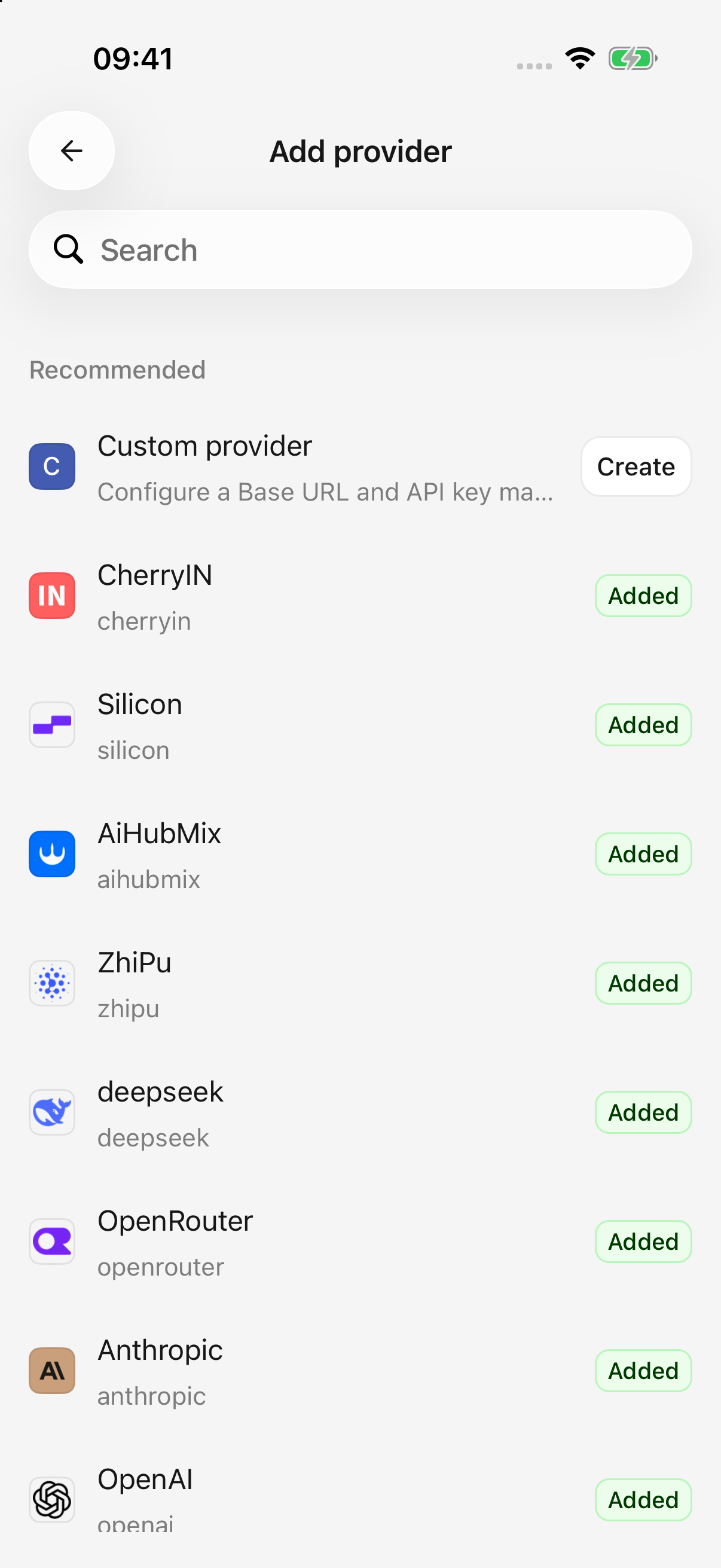
iPhone · Search the provider catalog or create a custom provider
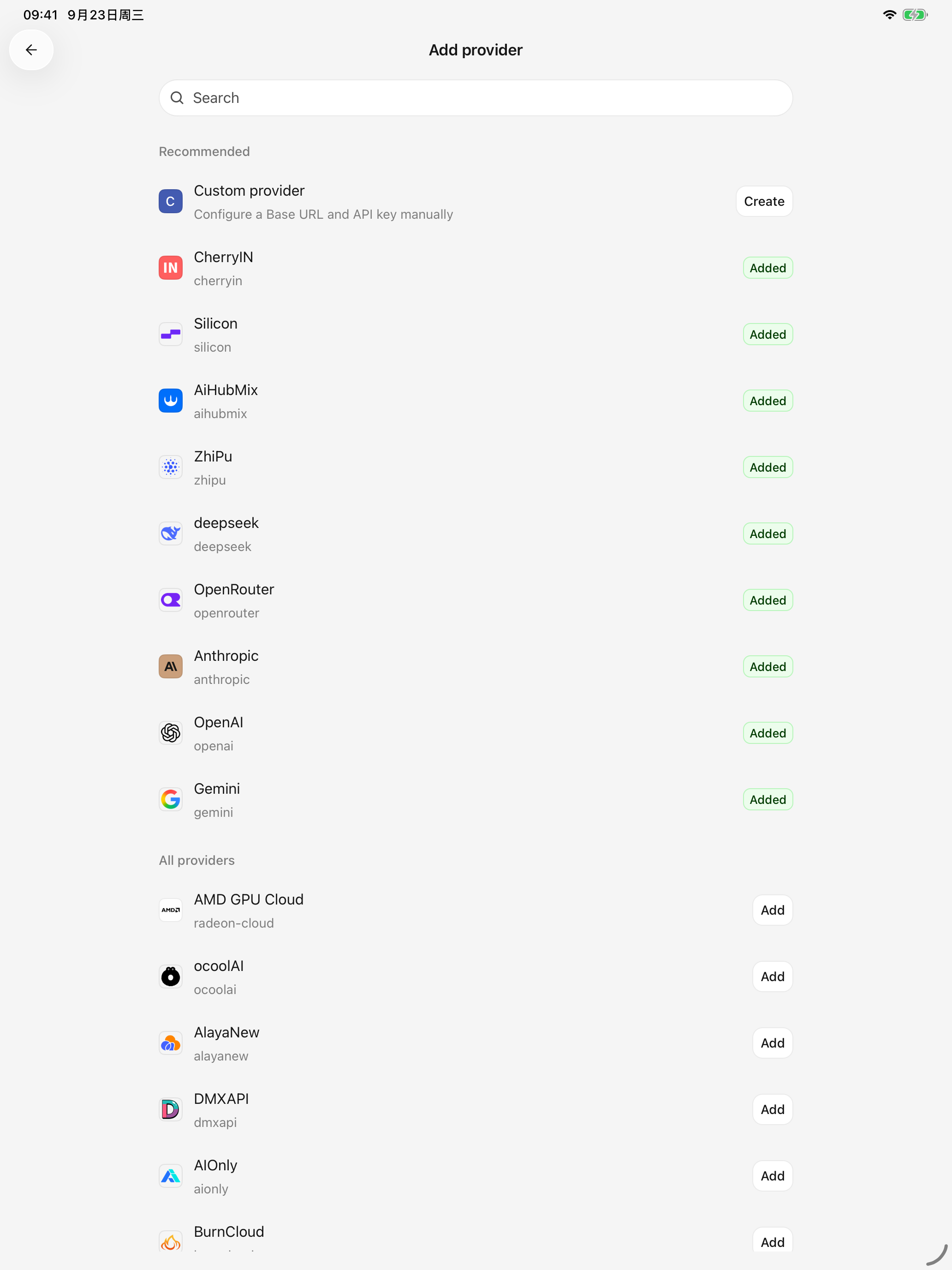
iPad · The same provider catalog in the tablet layout
Add a built-in provider
- Open Settings → Model service and tap the add button.
- Search for a provider and tap Add. Built-in entries supply common connection settings.
- Enter that provider's API key. Keep the suggested address and API option unless the provider instructs otherwise.
- Save, fetch the model list, select the models you want, and confirm. If the list is unavailable, add a model manually.
- Finish setup and check the provider's switch in the model service list. Turn it on if it remains disabled, then select the model in a conversation.
Edit an existing provider instead of adding it again. You can disable a provider temporarily and enable it again later.
Add a custom provider
Use a custom provider when your platform is absent from the catalog or supplies a dedicated address.
- Choose Custom provider and enter a recognizable name.
- Select the API format documented by the platform. OpenAI, Anthropic, and Gemini describe connection formats; choose the one your platform supports.
- Enter the Base URL, the base address used to connect to the service, and its API key.
- Review the displayed Request URL and save.
- Fetch models or manually add the exact model ID from the platform. Return to the provider list and enable its switch if necessary.
Which address goes in Base URL?
Use the provider's base address, such as https://api.example.com/v1. Do not use its login/dashboard page or paste a complete request URL ending in /chat/completions. The app adds the request path; including it twice causes an incorrect address. Recognized complete URLs show a correction hint.
Some gateways require an address without an automatically inserted API version. When the provider requires this, append #, for example https://api.example.com#, and check the request URL preview. Leave the marker out otherwise.
A provider supporting multiple APIs can have separate addresses and a default API. Changing the default can affect models that follow it; read the confirmation before proceeding.
Edit a provider and manage keys
Open the provider's Configuration tab to edit its name, address, and keys. Optional key notes, such as “Personal” or “Backup,” are identification labels and do not change permissions.
- Add one key per entry. Keys can be edited, enabled, disabled, or removed separately; do not paste several into one field.
- Closing a key editor keeps changes in the page draft. Tap the page's Save action to save the address and keys together.
- Keep at least one valid key enabled. A provider with every key disabled cannot make normal requests.
- A discard-changes prompt means there are still unsaved edits.
Supported chat requests can try another enabled key after an authorization or rate-limit error, provided no response has started. This does not cover every error, image generation, or model-list request, and does not increase account credits.
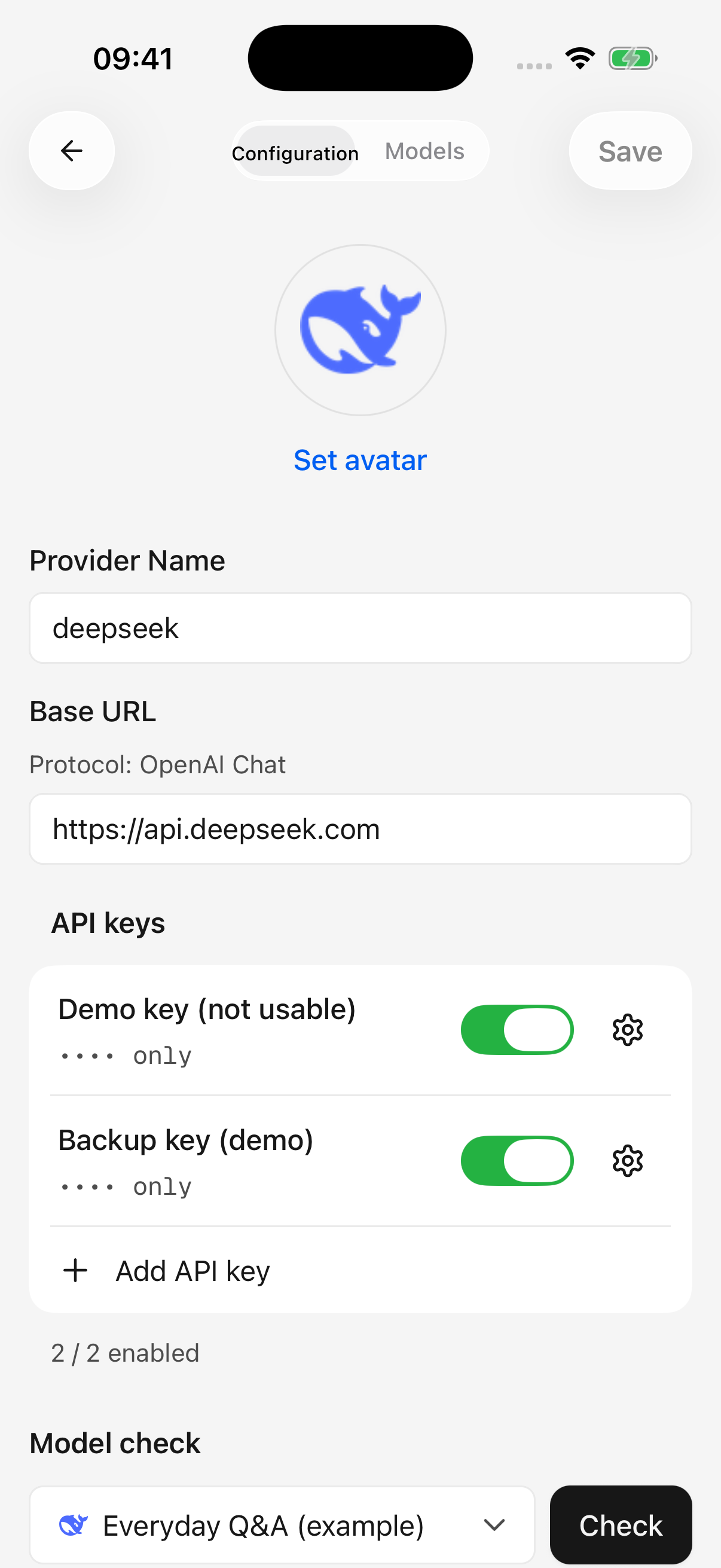
iPhone · Save provider changes with the top-right button; keys shown are non-working examples
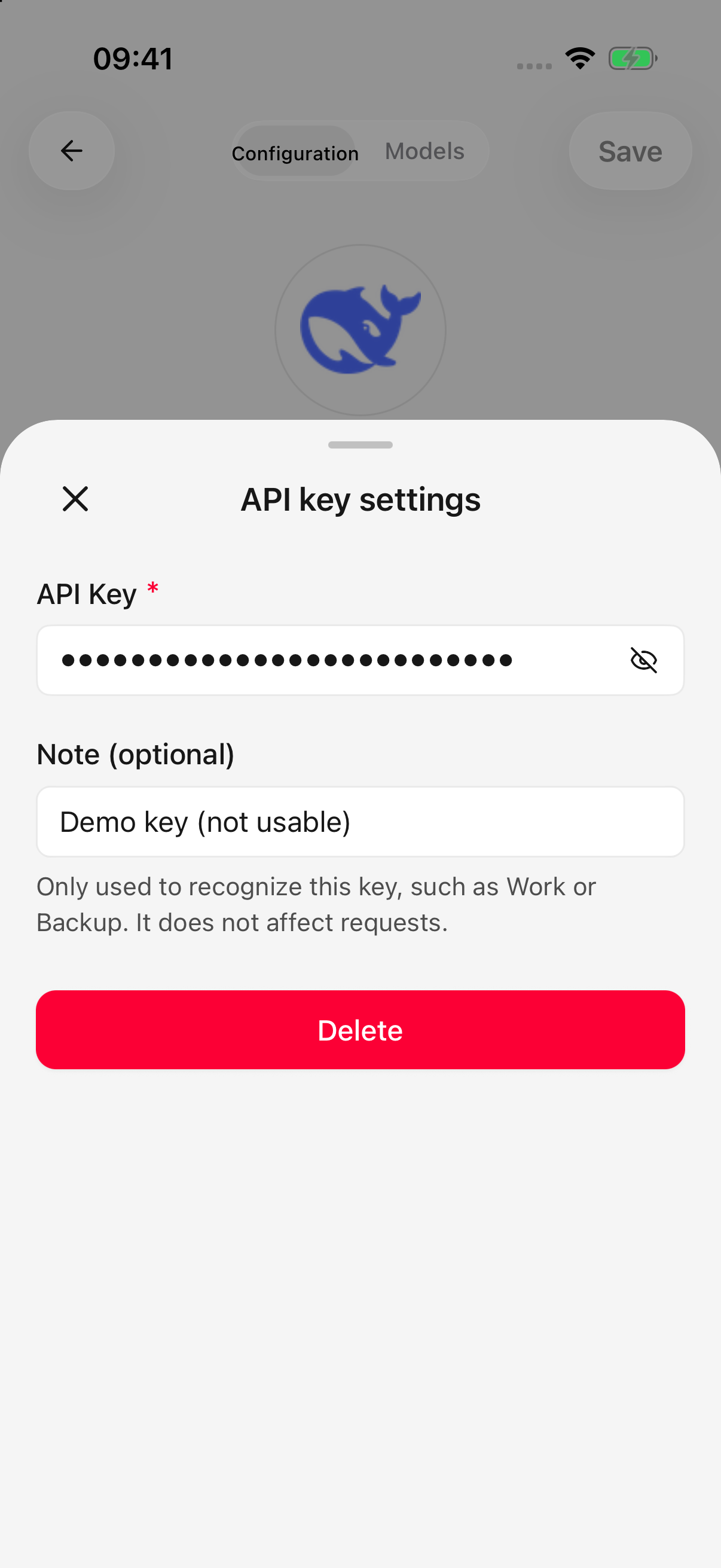
iPhone · Key notes help identify accounts; save the provider after closing this sheet
Check the connection
Save first, open Model check, select a model, and run the check. The page displays the request address and result.
Success applies to that configuration and selected model, not every model on the platform. Checking a connection does not enable the provider; check its switch in the provider list.
Choose models and defaults
The conversation model picker changes the current agent's model. The provider must be enabled and the model available. Search or use All, Free, and Vision filters to narrow the list. If models disappear, return to All.
Vision reflects recorded image-input support; Free reflects recorded pricing. Actual capabilities, free allowances, and quotas depend on the provider.
In Settings → Default model, select the default and drawing models. Selecting or clearing saves immediately. Existing agents retain their own model choices; changing the global default does not update every agent.
Related guides
- Add, edit, and manage models: capabilities, limits, pricing, and deletion.
- Model information and list updates: automatic updates versus manual synchronization.
- Import configuration from desktop: reuse an existing setup.
- Troubleshooting: connection errors and recovery.